Organization Settings
Organization Settings is the central place to configure your FeatsClub organization. This is where you define how your organization appears to the public, manage your team, and control what information is visible on your profile.
How to Access
Navigate to Dashboard and click Settings in the sidebar navigation. The settings area opens with multiple sections accessible via tabs.
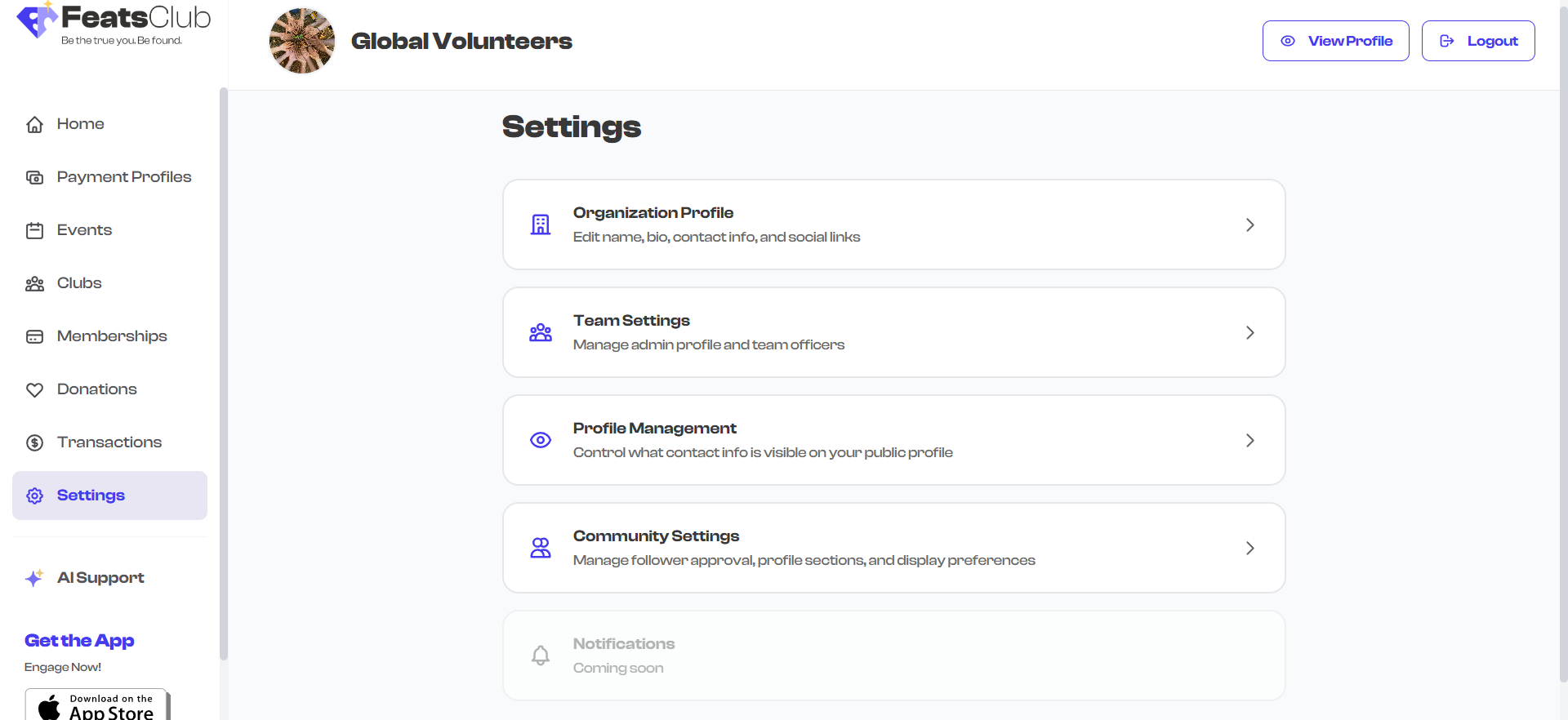
Settings Sections
Organization Settings is organized into four main sections:
1. Organization Profile
Your organization's public-facing identity -- the name, logo, tagline, mission statement, address, contact information, and social media links that appear on your public profile.
This is the first thing potential members, event attendees, and followers see when they visit your organization page. A complete profile builds trust and makes your organization more discoverable.
Go to Organization Profile documentation
2. Team Settings
Manage your organization's team. This includes your admin/owner profile and up to 12 officers or team members who can be displayed on your public profile. Team members help show the people behind the organization.
Go to Team Settings documentation
3. Profile Visibility
Control what contact information is visible on your public profile. Choose whether to display your phone number, email address, and social media links to visitors. This gives you fine-grained control over your organization's public presence.
Go to Profile Visibility documentation
4. Community Settings
Configure how your community operates. This includes settings like auto-accepting new followers, controlling which sections (events, memberships, clubs, donations) appear on your public profile, and customizing naming conventions such as what you call your cohorts (e.g., "Clubs", "Groups", "Teams").
Go to Community Settings documentation
Profile Completion
FeatsClub tracks how complete your organization profile is and displays a profile completion percentage. A fully completed profile helps your organization appear more professional and trustworthy to visitors.
The completion percentage is calculated based on several key fields:
| Field | What Counts as Complete |
|---|---|
| Organization name | At least 3 characters |
| Tagline | At least 5 characters |
| About / Mission | At least 10 characters |
| Organization type | A type is selected |
| Profile picture | A logo or photo is uploaded |
| Address | Address line 1 or city is filled in |
| Contact email | A valid email is provided |
Aim for 100% profile completion. Organizations with complete profiles get more engagement from visitors and appear more credible to potential members and event attendees.
Payment Profiles
Payment configuration -- including Stripe (US) and Cashfree (India) setup -- is managed separately under the Payments section of your dashboard, not within Organization Settings.
Go to Payment Setup documentation
What's Next?
Start configuring your organization by working through each section:
- Organization Profile -- Set up your name, logo, mission, and contact info
- Team Settings -- Add your team members and officers
- Profile Visibility -- Choose what contact info is public
- Community Settings -- Configure follower behavior and section visibility