Settings Guide
A well-configured organization profile is the foundation of everything you do on FeatsClub. This guide covers tips and best practices for every aspect of your organization settings.
Complete Your Profile First
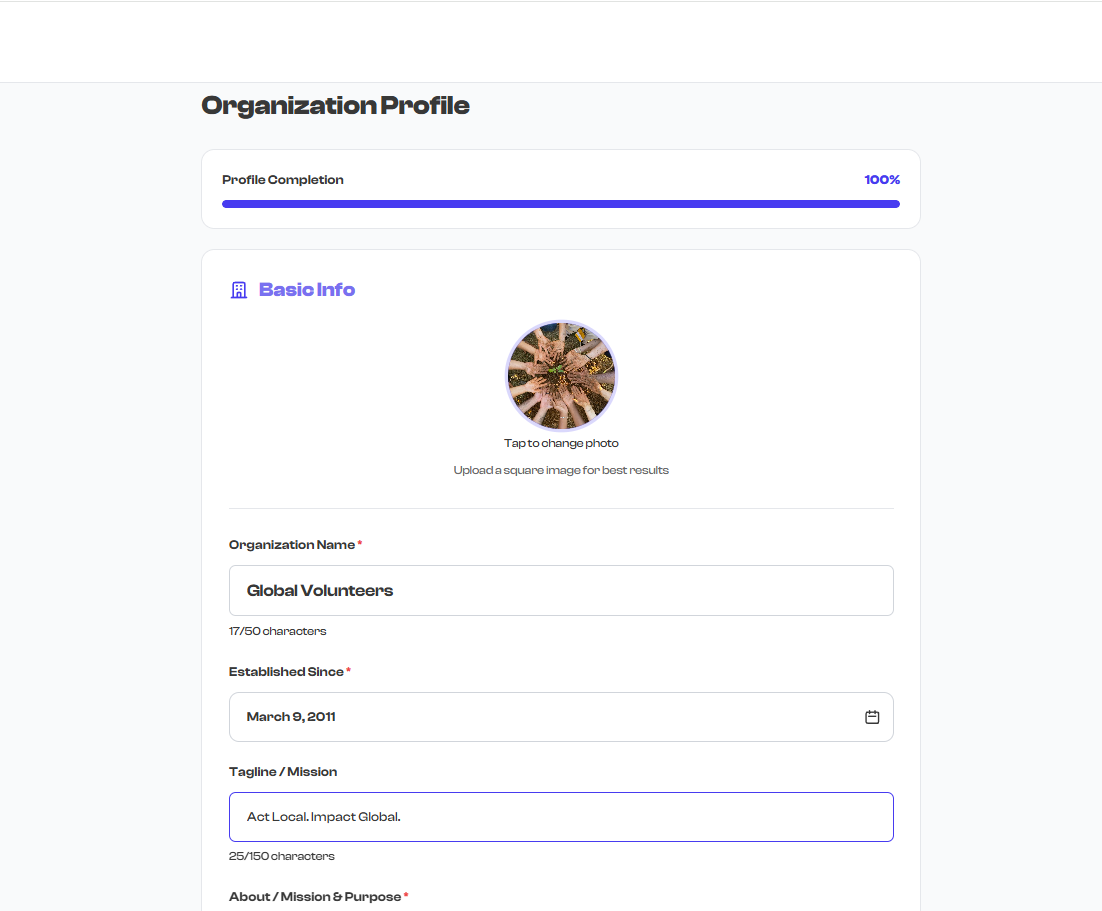
Before you launch events, memberships, or start accepting donations, take the time to fill out every field in your organization profile. A complete profile builds trust with potential members, parents, and donors.
Aim for 100% profile completion before going live. Incomplete profiles can make your organization appear inactive or untrustworthy.
Make sure these fields are filled in:
- Organization name -- your official or commonly known name
- Tagline -- a short, memorable description of what you do
- About -- a paragraph explaining your mission and offerings
- Organization type -- the category that best fits your primary activity
- Logo -- your organization's logo or primary image
- Address -- your physical location or service area
- Contact email -- an email you check regularly
Choose the Right Organization Type
Your organization type helps categorize your organization for discovery. When people browse or search on FeatsClub, the type helps them find organizations that match what they are looking for.
Select the type that best matches your primary activity. If nothing fits perfectly, use "Other."
| If you are... | Choose... |
|---|---|
| Running a youth sports program | Sports Academy |
| Teaching dance, music, or art | Dance/Music/Art School |
| Operating a tutoring business | Tutoring Center |
| Running a charity or foundation | Non-Profit |
| Managing a neighborhood group | Community Organization |
| Running a church or temple | Religious Organization |
| Managing a hobby or interest group | Club |
| Something else entirely | Other |
Write a Compelling About Section
Your About section is often the first thing a visitor reads. Make it count.
What to include:
- What you do and what programs you offer
- Who you serve (age groups, skill levels, communities)
- What makes you unique or different from similar organizations
Writing tips:
- Keep it concise but informative -- aim for 10 to 500 characters
- Avoid jargon -- write for a parent or potential member who has never heard of you
- Mention your key programs or activities by name
- Focus on benefits, not just features
"Riverside Soccer Academy provides year-round soccer training for kids ages 5-18 in the Portland metro area. Our USSF-licensed coaches run programs for every skill level, from first-time players to competitive travel teams."
Set Up Your Team
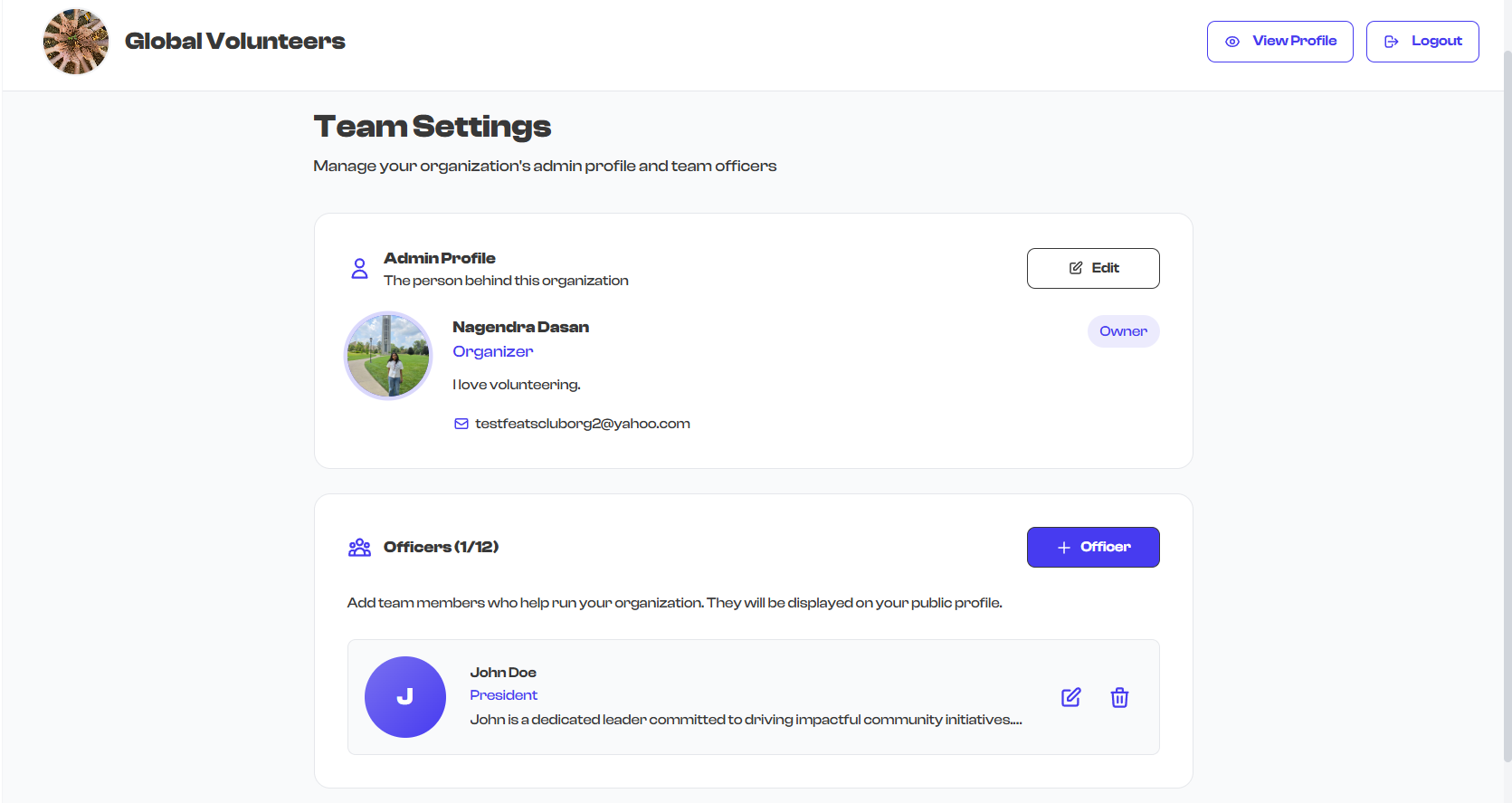
Adding your leadership team as officers builds credibility and shows visitors that your organization is well-established and professionally run.
Best practices for officers:
- Include at least the key roles -- president or director, lead coaches or instructors
- Use professional photos for each team member
- Write brief but meaningful bios that highlight relevant experience
- Keep the list current -- add new team members and remove those who have departed
Officers are display-only on your public profile. Adding someone as an officer does not give them admin access to your FeatsClub account. To grant admin access, use the delegate admin feature.
Configure Visibility Thoughtfully
Your visibility settings control what visitors see on your public profile. Be intentional about what you show and what you hide.
General guidelines:
- Show email and phone only if you can respond to inquiries promptly -- nothing frustrates a potential member more than unanswered messages
- Keep social links visible to help people find and follow you on other platforms
- Hide sections you do not use -- empty sections look incomplete and unprofessional
- Only show events first if events are your primary offering; otherwise, let the default order work
An email address or phone number on your profile sets an expectation that someone will respond. If you cannot check messages regularly, consider hiding contact details and directing people to your social media instead.
Community Settings Strategy
Community settings affect how people interact with your organization. Choose settings that match your organization's style and needs.
Auto-Accept Followers
| Organization Type | Recommendation | Reason |
|---|---|---|
| Open community org | Enable auto-accept | Reduces friction, welcomes everyone |
| Sports academy | Enable auto-accept | Parents signing up should not wait |
| Invite-only club | Keep manual | Vet each member before approval |
| Private school | Keep manual | Control who has access |
Section Visibility
- Show only the sections you actively use
- Hide empty sections -- they make your profile look incomplete
- If you rename cohorts, choose a term your members already use (e.g., "Classes," "Teams," "Groups")
Think about your organization from a visitor's perspective. Visit your own public profile and ask: "Does this look active and inviting?" If any section looks empty or outdated, hide it or fill it in.
Keep Information Current
An outdated profile can do more harm than no profile at all. Build a habit of reviewing your settings regularly.
Quarterly review checklist:
- Review your About section -- does it still accurately describe what you do?
- Update the officer list when your team changes
- Remove departed team members promptly
- Update contact information if email, phone, or address changes
- Check that all social media links still work and point to active accounts
Set a calendar reminder to review your FeatsClub profile at the start of each quarter. It takes just a few minutes and keeps your organization looking professional.
Profile Photo Tips
Good photos make a strong first impression. Poor photos can undermine even the best-written profile.
- Organization logo -- use your official logo as your org profile picture
- Admin and officer photos -- use professional headshots or clear, well-lit photos
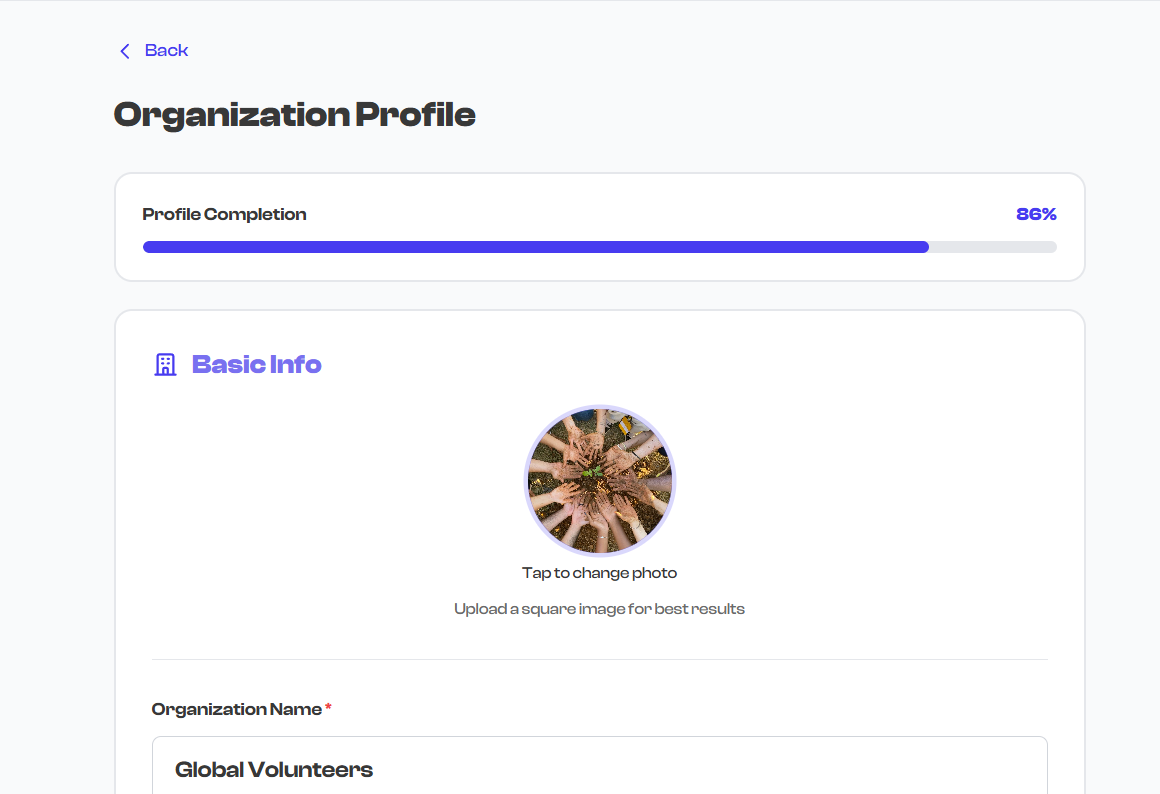
- Square images work best -- profile photos are displayed in circles, so square crops ensure nothing important gets cut off
- Avoid problematic images -- steer clear of blurry, dark, overly busy, or low-resolution photos
Quick Settings Checklist
Use this checklist to make sure your organization is fully set up:
- Organization name, tagline, and about completed
- Organization type selected
- Logo uploaded
- Address filled in
- Contact email set
- Social media links added
- Admin profile completed with photo and bio
- At least 1-2 officers added
- Profile visibility settings configured (show/hide email, phone, social)
- Community settings configured (auto-accept, section visibility)
- Payment profile connected (see Payment Setup)
Come back to this checklist whenever you make changes to your organization. It is a quick way to confirm nothing has been missed.
What's Next?
- Set up your Payment Profile to accept payments
- Create your first Event or Membership
- Invite your community to follow your organization and manage them via Follower Management