Creating Schedules
A schedule represents a recurring session or class within your club. Creating a schedule tells FeatsClub when and where your club meets, which enables attendance tracking, calendar exports, and session management.
What Is a Schedule?
A schedule is a recurring (or one-time) session that belongs to a club. Each schedule has:
- A title describing the session (e.g., "Basketball Practice", "Piano Lesson")
- A date range defining when the schedule runs
- A recurrence pattern defining how often sessions repeat
- An optional timetable with specific class/session time slots
- An optional venue where the session takes place
- An optional description and media
You can create multiple schedules for a single club. For example, a swim team might have a "Morning Practice" schedule and a separate "Strength Training" schedule.
Starting the Schedule Creation Wizard
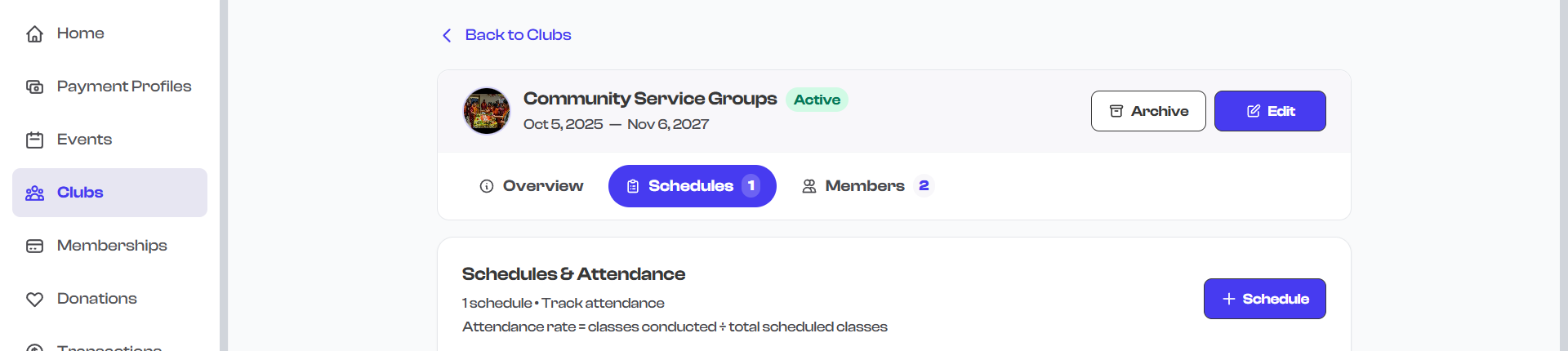
- Navigate to a club's detail page and select the Schedules tab.
- Select the Create Schedule button.
- The schedule creation wizard opens with a step-by-step form.
The Creation Wizard
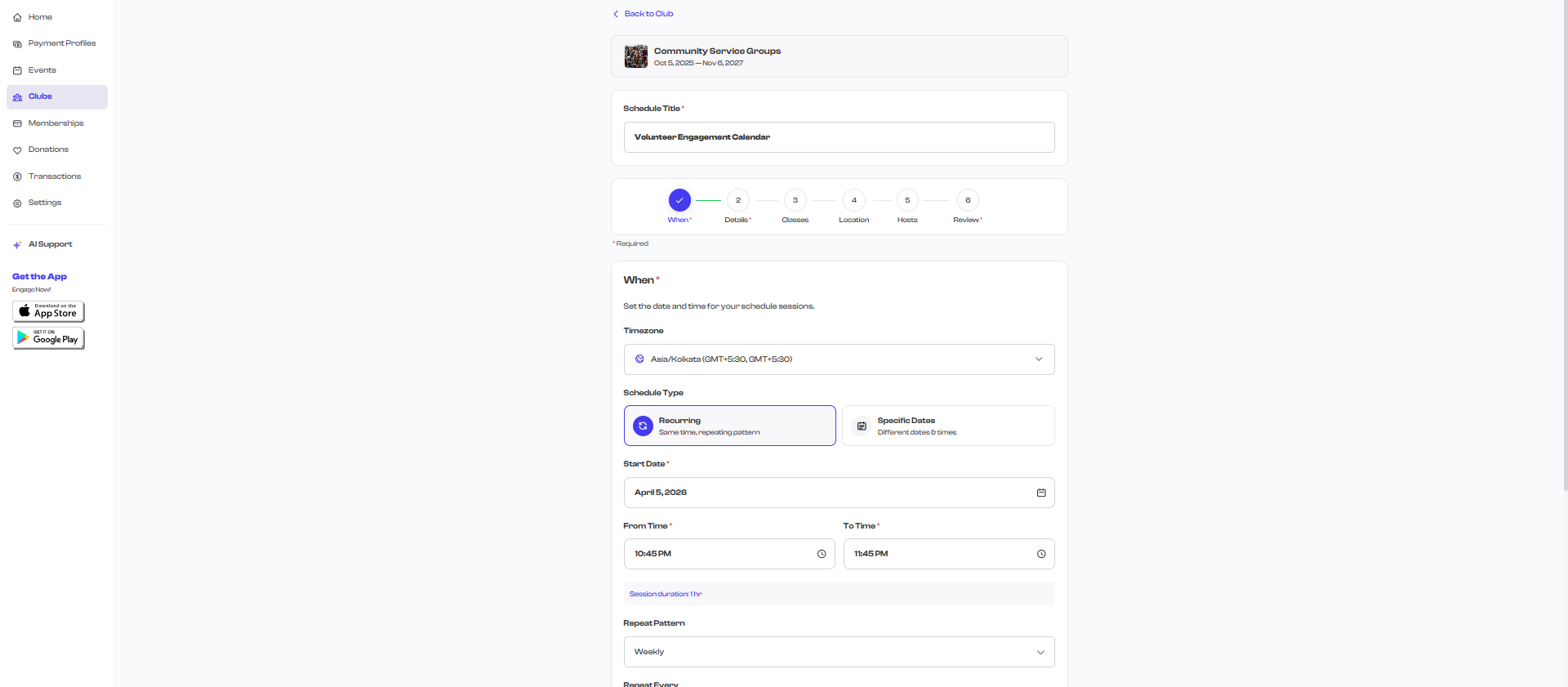
The schedule creation form is organized into steps. The first two steps (When and Details) are required, while the remaining steps are optional.
Step 1: When (Required)
This step defines the timing of your schedule.
Schedule Title -- Enter a descriptive name for the schedule at the top of the form.
Schedule Type -- Choose between two types:
| Type | Description | Best For |
|---|---|---|
| Recurring | Repeats on a regular pattern (daily, weekly, monthly) | Regular practices, weekly lessons, daily training |
| Specific Dates | Occurs on individually selected dates | Irregular meetings, tournament days, special sessions |
For Recurring Schedules
- Start Date -- When the schedule begins.
- Start Time and End Time -- The time window for each session.
- Frequency -- How often the schedule repeats:
- Daily -- Every day (or every N days)
- Weekly -- Every week (or every N weeks)
- Monthly -- Every month (or every N months)
- Interval -- For example, "Every 2 weeks" instead of every week.
- End condition -- When the recurrence stops:
- End Date -- Repeats until a specific date
- Count -- Repeats a set number of times (e.g., 10 sessions)
- No End Date -- Repeats indefinitely (capped at one year)
For Specific Dates
- Add individual dates, each with its own start and end time.
- Select Add Date to add more entries.
- Each date can have a different time window.
Timetable (Classes Within a Session)
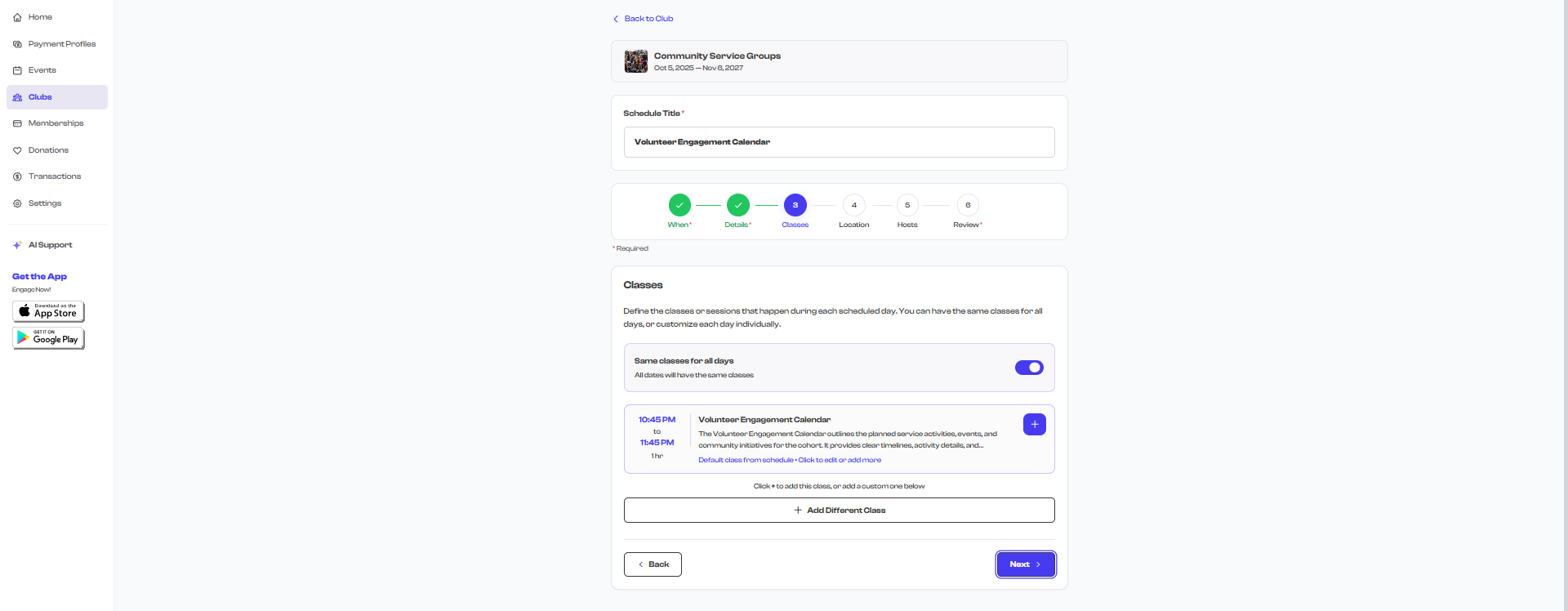
After setting the date and time, you can optionally define a timetable with individual classes or time slots within each session. For example:
| Class | Time | Description |
|---|---|---|
| Warm-up | 4:00 - 4:15 PM | Stretching and warm-up exercises |
| Drills | 4:15 - 4:45 PM | Skill-specific drills |
| Scrimmage | 4:45 - 5:30 PM | Practice game |
You can choose:
- Same timetable for all dates -- Every session follows the same class structure
- Different timetable per date -- Each session date can have its own class breakdown
If your sessions are simple (just one block of time), you can skip the timetable configuration entirely. Timetables are most useful for structured programs with distinct segments, like a music class with theory followed by practice.
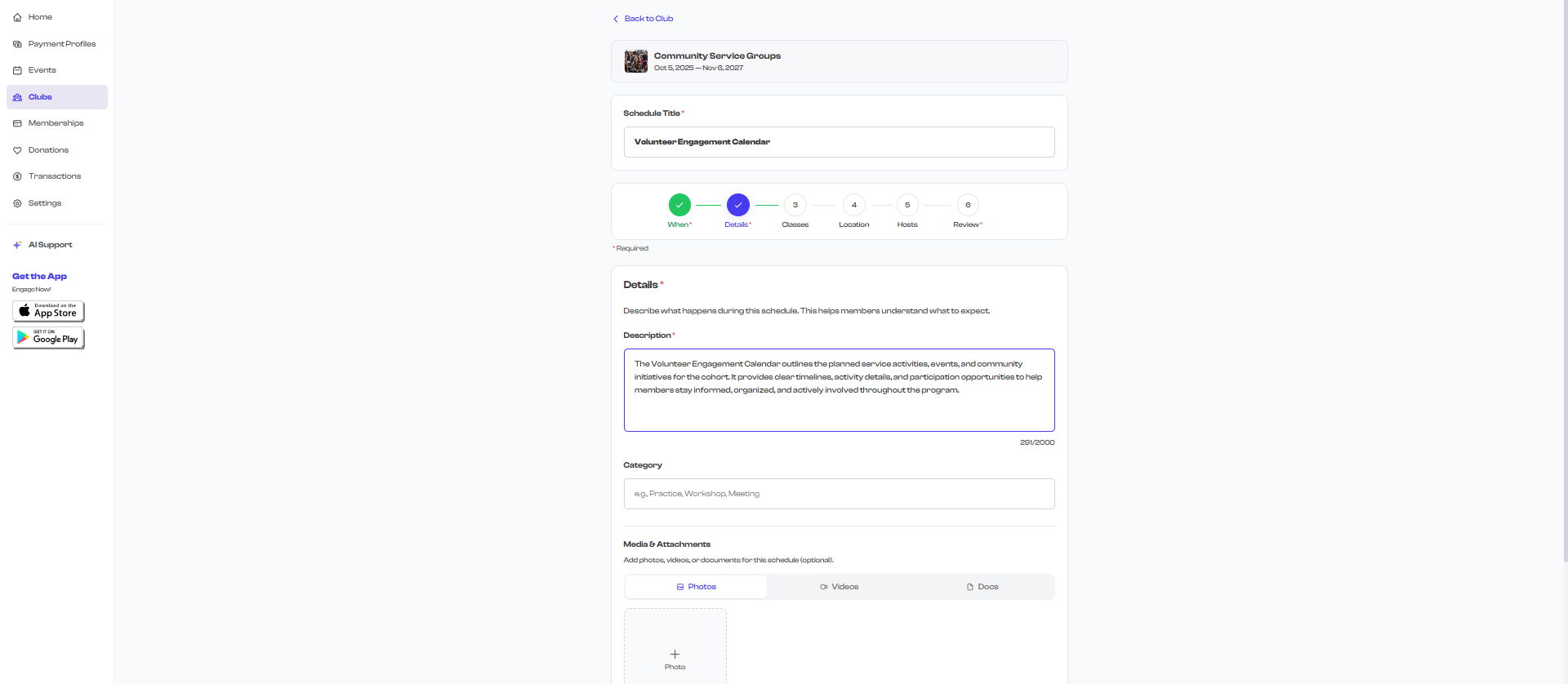
Step 2: Details (Required)
This step covers the schedule's description and media.
- Description -- Describe what happens during this session. For example: "Weekly basketball practice focusing on fundamentals, teamwork, and game preparation."
- Category -- Select a category for the schedule (e.g., Sports, Music, Dance).
- Media -- Upload images or videos to give members a visual preview of the session. This media appears on the schedule card and detail view.
Step 3: Location (Optional)
Set where the session takes place.
| Location Type | Description |
|---|---|
| Venue | A physical location with address, map, and optional conference hall/room |
| Online | A virtual meeting with a URL (e.g., Zoom, Google Meet) |
| Hybrid | Both a physical venue and an online meeting link |
You can select from your organization's saved venues or search for a new address using Google Maps autocomplete.
Step 4: Hosts (Optional)
Add the instructors, coaches, or leaders who will run this particular schedule.
- Select Add Host to add a person.
- Enter their name, role, and optionally a profile photo.
- You can add multiple hosts.
Step 5: Review
Review all the details you have entered before saving. This step shows a summary of:
- Schedule title and type
- Date range and recurrence
- Timetable configuration
- Description and media
- Location
- Hosts
Select Save to create the schedule.
How Schedules Appear
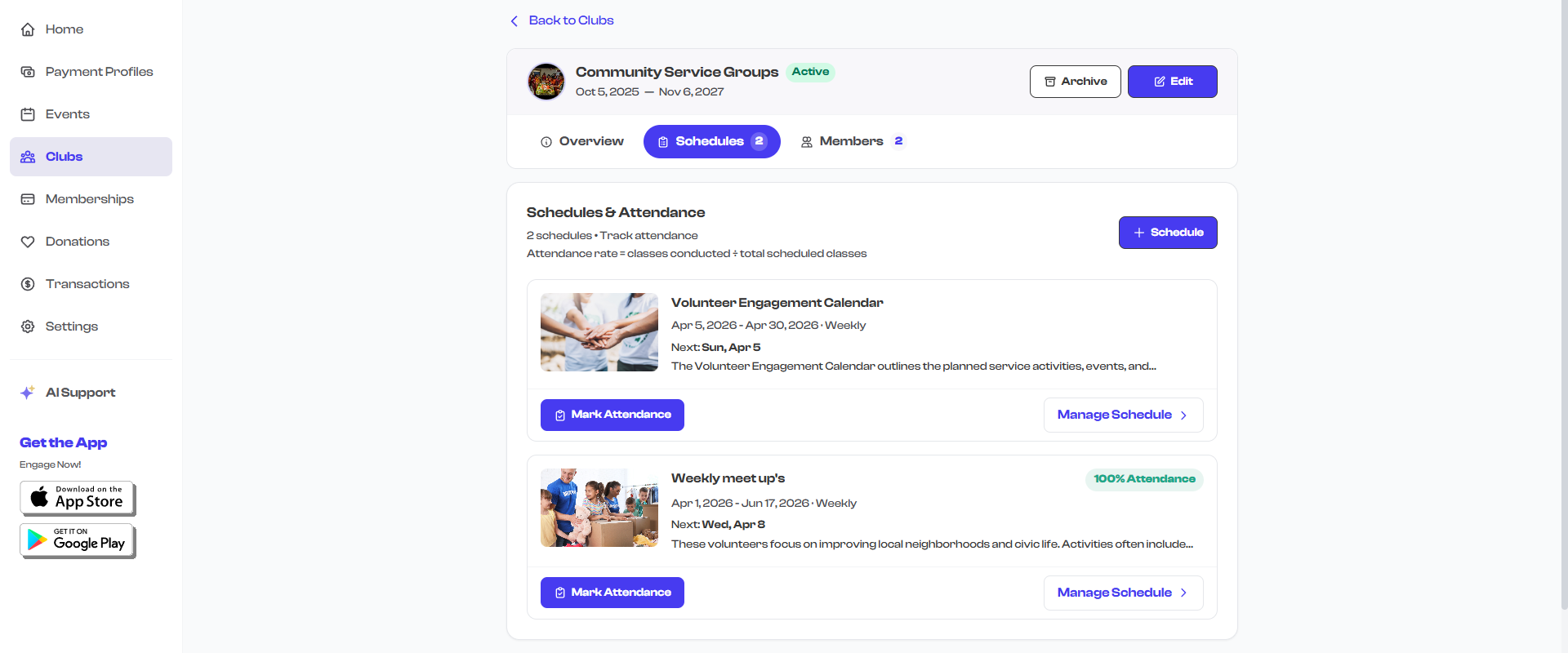
Once created, your schedule appears as a schedule card on the Schedules tab with:
- A thumbnail image
- The schedule title
- The date range (e.g., "Jan 15, 2026 - Jun 15, 2026")
- The recurrence pattern (e.g., "Weekly")
- A description preview
- Action buttons for Edit, Attendance, View, Calendar, and Delete
Schedule Actions
From each schedule card, you can take the following actions:
| Action | What It Does |
|---|---|
| Edit | Opens the schedule in the creation wizard for editing |
| Attendance | Opens the attendance tracking view for this schedule |
| View | Opens the full schedule detail page |
| Calendar | Downloads an .ics file to add the schedule to your personal calendar (Google Calendar, Apple Calendar, Outlook) |
| Delete | Permanently deletes the schedule and all its attendance records (requires confirmation) |
Deleting a schedule also deletes all attendance records associated with it. This action cannot be undone. Make sure you have exported any attendance data you need before deleting.
Schedule and Club Stats
Schedules contribute to your club's overview statistics:
- Schedules count -- The number of active schedules for the club
- Next Meeting -- The date of the next upcoming session across all schedules (shows "Today", "Tomorrow", or the date)
- Attendance % -- The overall attendance rate across all schedules
These stats appear on the club's Overview tab.
Some advanced schedule features, such as detailed timetable editing and schedule duplication, may currently be available only on the FeatsClub mobile app. The web version supports core schedule creation and management.
What's Next?
Once your schedule is created, learn how to track who shows up in Tracking Attendance.