Tracking Attendance
Once your club has a schedule and enrolled members, you can track attendance for each session. FeatsClub lets you mark members as Present or Absent for each date, view attendance history, and monitor overall attendance rates.
Accessing Attendance
There are two ways to open the attendance view for a schedule:
From the Schedules tab:
- Navigate to the club's detail page and select the Schedules tab.
- On a schedule card, select the Attendance button.
From the schedule detail page:
- Select View on a schedule card to open the schedule detail page.
- Select Attendance from the schedule detail view.

The Attendance View
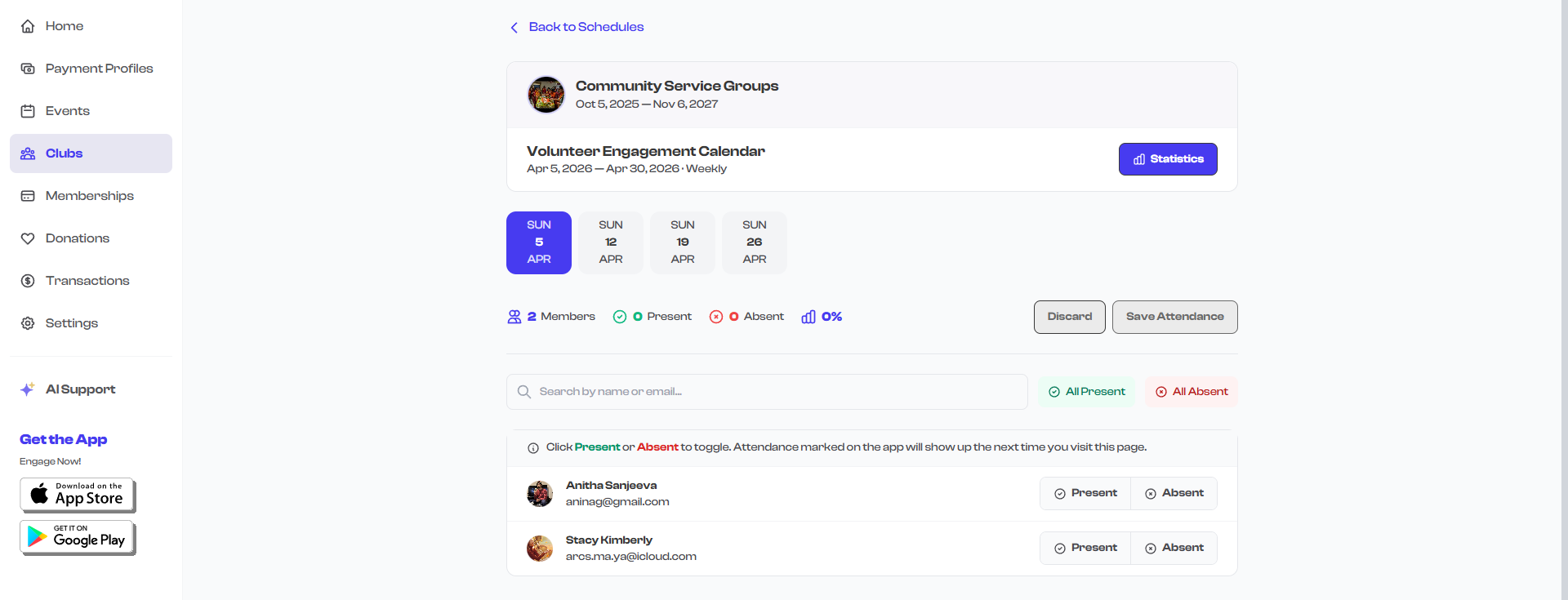
The attendance view shows attendance records organized by date. At the top, you will see:
- A back link to return to the schedule detail page
- The schedule title and club name
- A date selector showing all session dates
- A Mark Attendance button to record attendance for the selected date
Selecting a Date
The attendance view displays date tabs across the top, one for each session date generated from the schedule's recurrence pattern. The view automatically selects the date closest to today.
- Scroll left or right to see more dates.
- Select a date tab to view or mark attendance for that specific session.
- The adjacent dates are pre-loaded for fast tab switching.
When you open the attendance view, it automatically scrolls to the date closest to today. This makes it easy to mark attendance for the current session without searching through past dates.
Viewing Attendance Records
For each date, the attendance view shows:
| Information | Description |
|---|---|
| Member list | All enrolled club members are displayed |
| Status indicator | A colored circle next to each member's name: green (Present), red (Absent), or gray (Unknown/Not Marked) |
| Status label | The text label: "Present", "Absent", or "Not Marked" |
| Member info | Profile photo, name, and email for each member |
Attendance Statuses
| Status | Color | Meaning |
|---|---|---|
| Present | Green | The member attended the session |
| Absent | Red | The member did not attend the session |
| Late | Amber | The member arrived late (marked via the mobile app) |
| Unknown | Gray | Attendance has not been recorded yet |
Marking Attendance
To record attendance for a session:
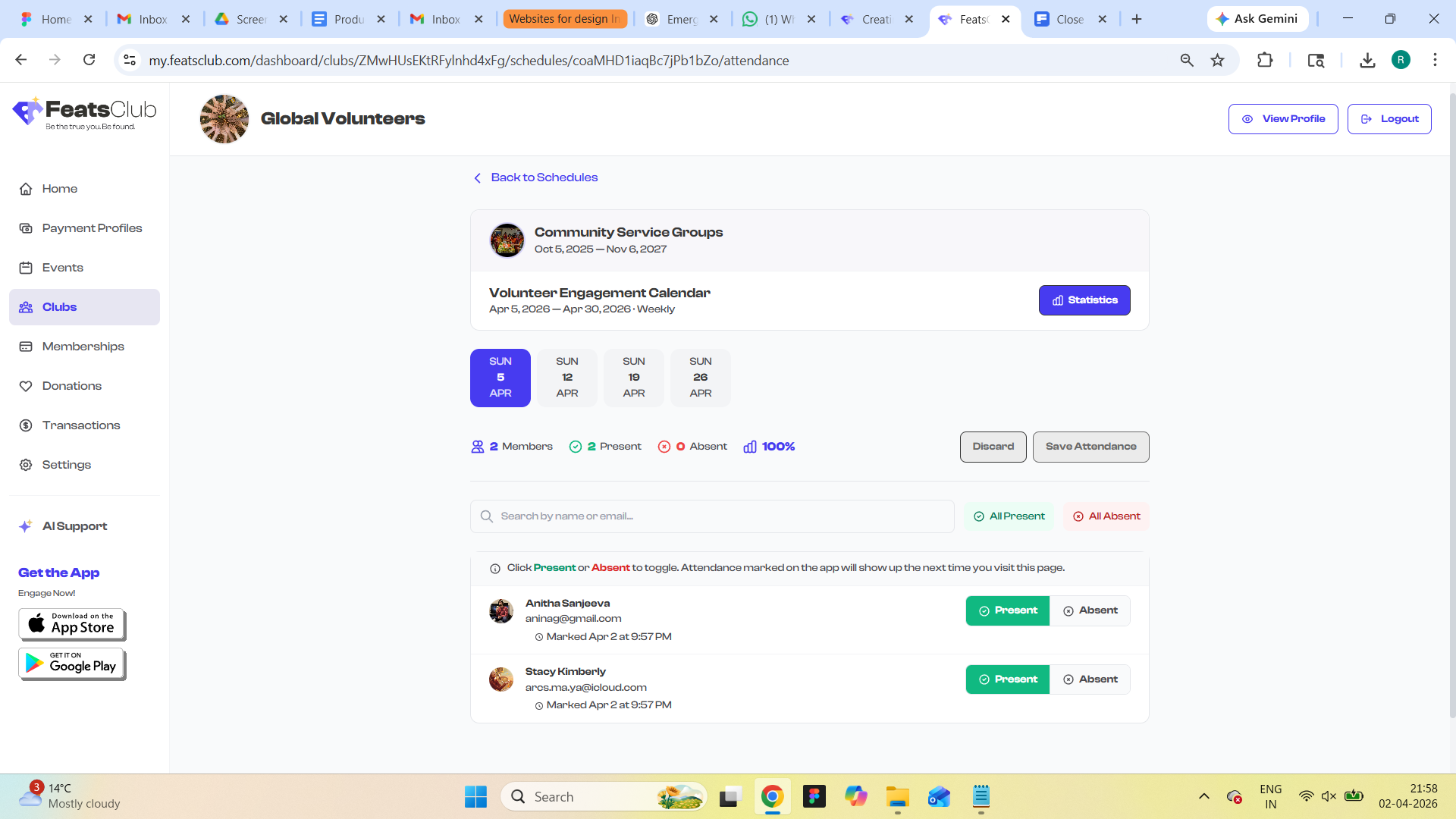
- Navigate to the attendance view and select the correct date tab.
- Select Mark Attendance to enter the marking mode.
- For each member, select the status toggle to cycle between Present and Absent.
- Use the bulk actions at the top to quickly mark everyone:
- All Present -- Marks every member as Present
- All Absent -- Marks every member as Absent
- Use the search bar to find a specific member by name or email.
- When you are finished, select Save Attendance.
How Marking Works
- Tap to toggle -- Select anywhere on a member's row to cycle their status between Present and Absent.
- Changes are tracked -- A counter at the top shows how many changes you have made (e.g., "8 present, 2 absent").
- Save is required -- Changes are not saved until you select Save Attendance. If you navigate away without saving, your changes will be lost.
- Switching dates clears changes -- If you switch to a different date tab before saving, unsaved changes for the previous date are cleared.
Always select Save Attendance before switching dates or leaving the page. Unsaved changes are not preserved.
Attendance Statistics
The attendance view provides summary statistics for each session:
| Stat | Description |
|---|---|
| Total logs | Number of attendance records for the selected date |
| Present count | Number of members marked as Present |
| Absent count | Number of members marked as Absent |
| Late count | Number of members marked as Late |
| Unknown count | Number of members with no attendance record |
These stats update in real time as you select different dates.
Overall Club Attendance
Your club's overall attendance rate is calculated across all schedules and displayed on the club's Overview tab as the Attendance % stat. This gives you a quick snapshot of overall participation without having to check each schedule individually.
Schedule Statistics
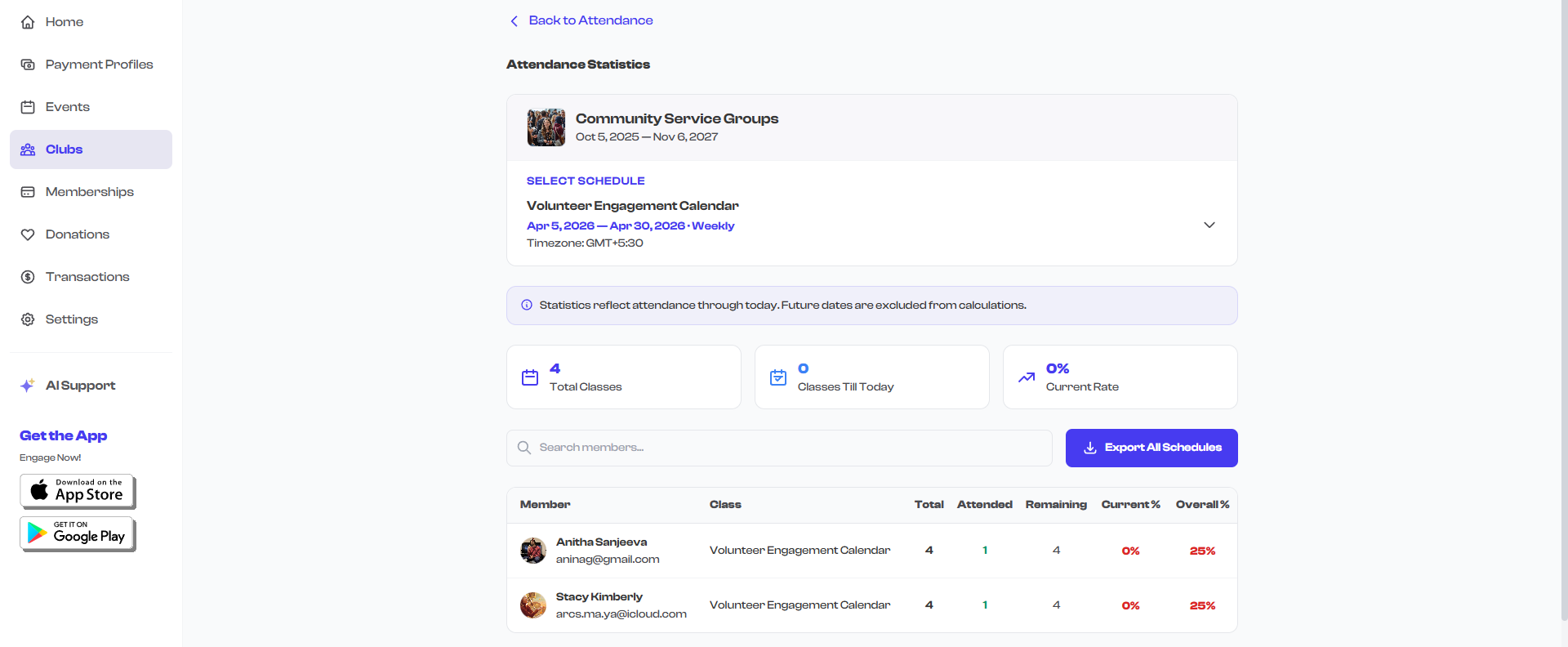
For a deeper look at attendance trends, the schedule detail page includes a Statistics view that shows:
- Attendance rates per session date
- Per-member attendance patterns over time
- Overall schedule attendance percentage
QR Code Check-In
App OnlyThe FeatsClub mobile app supports QR code check-in for attendance. With this feature:
- The admin generates a QR code for the current session.
- Members scan the QR code with their phone to check in.
- Attendance is automatically recorded as Present.
This is especially useful for large clubs where manually marking each member would be time-consuming. QR code check-in is currently available only on the mobile app.
QR code check-in records attendance with the mode QR (instead of MANUAL), so you can see how attendance was captured in the attendance logs.
Tips for Effective Attendance Tracking
Mark attendance at the start of each session. Open the attendance view at the beginning of your session, use "All Present" to mark everyone, then toggle individual members who are absent. This is faster than marking each person individually.
Check in weekly. Make attendance tracking a habit by reviewing attendance at a regular interval. Consistent tracking gives you accurate statistics and helps identify members who may need follow-up.
Use search for large groups. If your club has many members, use the search bar to quickly find a specific person rather than scrolling through the entire list.
What's Next?
Return to the Club & Cohort Management overview to explore other aspects of club management, or check out Tips & Best Practices for advice on getting the most out of your clubs.