Follower Dashboard Overview
The Follower Dashboard gives you a complete view of everyone connected to your organization. This page walks you through every section of the dashboard so you know exactly where to find what you need and what each element means.
Page Header
At the top of the dashboard you will see:
- Page title -- "Followers" with a subtitle such as "Manage your organization's community and followers."
- Settings or actions -- Depending on your organization's configuration, you may see quick-action buttons for inviting new followers or adjusting follower settings (such as the auto-accept toggle).

Stats Bar
Below the header, a stats bar provides a real-time summary of your community. These metrics give you an at-a-glance view of your follower activity.
| Stat | What It Shows |
|---|---|
| Total Followers | The number of currently active followers -- people with Accepted or Invited status. This is the size of your active community. |
| Pending Requests | The number of follow requests waiting for your review. This count is highlighted when requests are pending so you can respond quickly. |

How Stats Are Calculated
- Total Followers counts all follower records with a status of Accepted or Invited. It does not include pending requests, alumni, or blocked individuals.
- Pending Requests counts follower records that are awaiting your approval. If auto-accept is enabled, this number will typically be zero because requests are approved automatically.
Stats update automatically as you take actions on the dashboard -- accepting a request increases the total follower count and decreases the pending count simultaneously.
Tab Bar
The tab bar sits below the stats bar and provides four filter views. Selecting a tab filters the follower list to show only people matching that category.
| Tab | What It Shows | Statuses Included |
|---|---|---|
| Active | Your current community -- people who are connected and engaged | Accepted, Invited |
| Requests | People waiting for you to approve their follow request | Pending (Requested) |
| Alumni | Past members who are no longer actively participating | PastAccepted |
| Blocked | People you have rejected from your community | OrgRejected |
Each tab displays a count badge next to its label showing how many followers are in that category. This makes it easy to see at a glance where your attention is needed -- for example, a count badge on the Requests tab tells you how many people are waiting.

Search Bar
Below the tab bar, a search field lets you filter the current list by name. Type any part of a follower's name and the list updates immediately to show matching results.
Key behaviors:
- Search is scoped to the current tab -- if you are on the Active tab, only active followers are searched
- Search is case-insensitive -- typing "john" matches "John", "JOHN", and "Johnson"
- Clearing the search restores the full list for the selected tab
- Results update as you type, with no need to press Enter
Use search to quickly find a specific person when you need to check their role, review their activity, or take an action on their profile. This is much faster than scrolling through a long list.
Follower List Cards
The main body of the dashboard displays your followers as a scrollable list of cards. Each card represents one follower and provides a quick summary of who they are and how they are connected to your organization.
What Each Card Shows
Every follower card includes the following information:
Profile Photo
- The follower's profile picture is displayed as a circular avatar on the left side of the card
- If the person has not uploaded a profile photo, their initials are shown in a colored circle as a fallback
Name
- The follower's full name is displayed prominently as the primary identifier on the card
- Long names are truncated with an ellipsis if they exceed the available space
- The follower's email address appears below their name
- If no email is on file, this line is omitted
Community Role Badge
- A colored badge is displayed on each card indicating the follower's community role
- The badge uses a distinct color for each role so you can quickly scan the list and identify coaches, admins, and other key people
Follow Mode
- A secondary indicator shows whether the person is following the organization overall (Org), a specific Club, or a specific Cohort
- This helps you understand the context of each person's connection -- are they a general org follower or are they connected through a specific program?
Community Role Badges
Each follower's community role is displayed as a color-coded badge on their card. The colors make it easy to visually scan the list and identify people by their role.
| Role | Badge Color | Description |
|---|---|---|
| ADMIN | Purple | Delegated administrators with elevated permissions |
| COACH | Blue | Instructors, trainers, and group leaders |
| MEMBER | Green | Active participants in your programs |
| FOLLOWER | Gray | Basic followers with no elevated role |
| ALUMNI | Amber | Past members recognized for their history |
Role badges are assigned based on the community role you set for each follower. Changing a follower's role from the detail page immediately updates their badge across the dashboard.
Follow Mode Indicator
Each follower card includes a follow mode indicator that tells you how the person is connected to your organization. This is important because FeatsClub supports multiple types of follow relationships.
| Follow Mode | What It Means | Display |
|---|---|---|
| Org | The person follows your organization as a whole | Shows "Org" label |
| Club | The person follows a specific club within your organization | Shows "Club" with the club name |
| Cohort | The person follows a specific cohort or program | Shows "Cohort" with the cohort name |
A single person can have multiple follow relationships. For example, someone might follow your organization overall (Org mode) and also follow a specific club (Club mode). Each relationship appears as a separate entry in your follower list.
List Sorting
The follower list is sorted by most recent activity first. Followers who most recently joined, were accepted, or had their status changed appear at the top of the list. This ensures that new followers and recent changes are immediately visible without scrolling.
Within each tab, the sorting remains consistent -- the most recently modified records appear first regardless of whether you are viewing Active, Requests, Alumni, or Blocked followers.
Quick Actions
From the follower list, you can take the following quick actions:
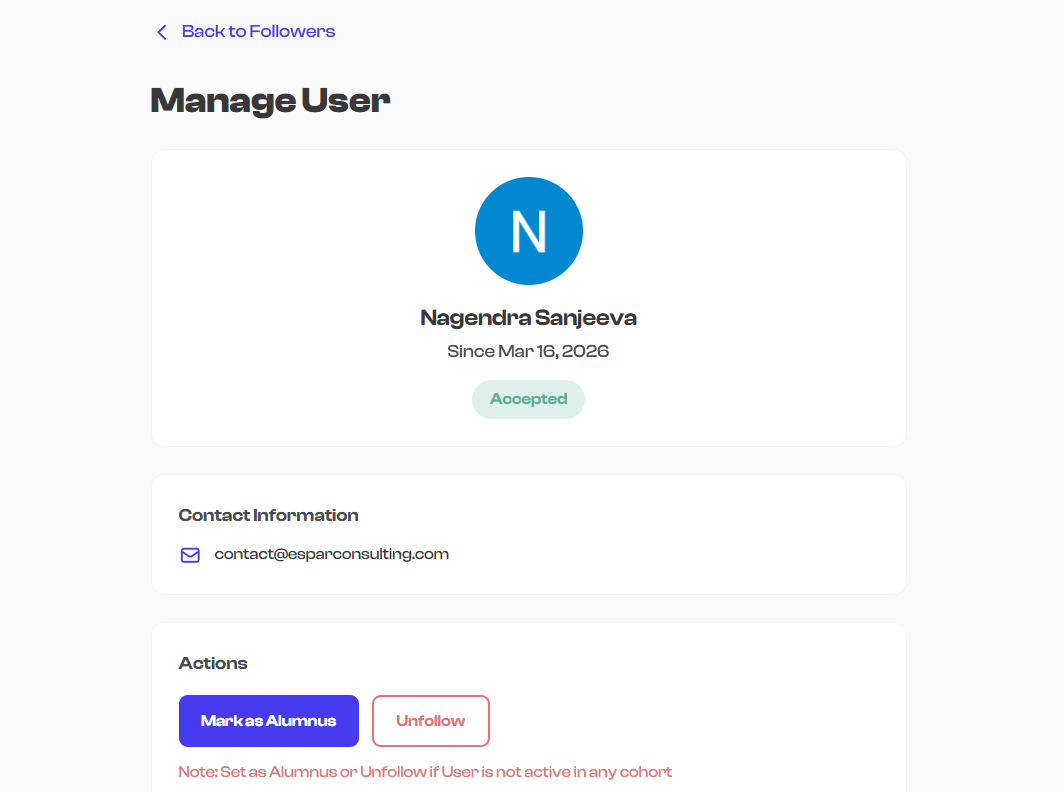
- Select a card -- Selecting any follower card opens their detailed profile page, where you can view their full contact information, activity logs, follow history, and take management actions such as changing their role, accepting or rejecting a request, or blocking them.
The follower list is a navigation tool -- it shows you who is connected and lets you drill into any individual for detailed management. Bulk actions and advanced management are handled from the individual follower detail pages.
Empty States
When a tab has no followers matching its criteria, a contextual empty state message is displayed instead of an empty list. Each tab has its own message:
| Tab | Empty State Message |
|---|---|
| Active | "No followers yet -- Share your organization's profile to start building your community. When people follow your organization, they will appear here." |
| Requests | "No pending requests -- There are no follow requests waiting for your review. New requests will appear here when people ask to follow your organization." |
| Alumni | "No alumni -- Past members who have been marked as alumni will appear here. Alumni maintain their connection to your organization even after their active participation ends." |
| Blocked | "No blocked followers -- Followers you have rejected will appear here. You can review and manage blocked individuals from this tab." |

If your Active tab is empty, focus on sharing your organization's profile link. You can find your public profile URL in Dashboard > Settings > Profile. Share it on social media, in emails, or on your website to attract followers.
Loading State
When the dashboard is fetching your follower data, placeholder skeleton cards are displayed. These animated gray rectangles mirror the layout of real follower cards so the page structure is visible while data loads. The stats bar also shows loading indicators until the counts are available.
Auto-Accept Setting
Your organization has an auto-accept followers toggle that controls whether follow requests require manual approval. This setting directly affects how the dashboard behaves:
| Setting | Behavior |
|---|---|
| Auto-accept ON | New followers are automatically approved. The Requests tab will typically be empty. Followers appear in the Active tab immediately. |
| Auto-accept OFF | New followers land in the Requests tab. You must manually review and accept or reject each request before they appear in the Active tab. |
You can change this setting from your organization's settings page. See the Managing Followers section for details on configuring auto-accept.
Switching from auto-accept OFF to ON does not retroactively approve existing pending requests. You will still need to manually review any requests that were submitted before the setting was changed.
What's Next?
- Learn how to manage individual followers -- accept requests, assign roles, block or remove people
- Explore follower detail pages to see what information is available for each person
- Set up admin delegation to share management responsibilities with trusted team members