Community Management Tips
Building a thriving community on FeatsClub takes more than just accepting follow requests. The most successful organizations are intentional about how they grow their follower base, assign roles, and keep their community organized over time.
This page covers practical strategies and recommendations that you can apply immediately.
Growing Your Follower Base
Getting people to follow your organization is the first step toward building an engaged community. Here are proven strategies for attracting new followers:
Share Your Organization's Profile Link
Every organization on FeatsClub has a unique profile page. Share this link on your website, social media, email newsletters, and printed materials. When people visit your profile, they can tap Follow to connect with your organization instantly.
Include your FeatsClub profile link in your email signature, event flyers, and registration confirmations. The more places people see it, the more followers you will attract.
Encourage Event Attendees to Follow
Events are one of the best opportunities to grow your community. After someone attends an event -- whether it is a workshop, class, tournament, or open house -- encourage them to follow your organization so they never miss future events.
- Mention following your organization during event wrap-up announcements
- Include a "Follow us on FeatsClub" note in post-event thank-you messages
- If you collect contact information at events, send follow-up invitations through FeatsClub
Use Member-Only Events as an Incentive
One of the most powerful tools for community growth is the member-only event. When you create events that are only visible to followers with the Member role (or higher), you give people a concrete reason to follow your organization and stay engaged.
For example:
- A dance studio offers free open classes to anyone but reserves advanced masterclass registrations for members
- A coding bootcamp hosts public demo days but limits hackathon signups to members
- A sports league opens tryouts to all but restricts league game registrations to members
Member-only events are visible only to followers with the Member, Coach, or Admin role. Basic followers and non-followers cannot see or register for these events. This makes role promotion a meaningful benefit.
Invite Users Directly
If you already know who should be part of your community -- parents of enrolled students, registered participants, guest instructors -- use the Invite feature to bring them in directly. Invited users receive a notification and can accept with a single tap.
Managing Follow Requests Efficiently
A growing community means a growing number of follow requests. Having a clear process for handling requests prevents backlogs and keeps new followers from waiting too long.
Check the Requests Tab Regularly
Make it a habit to review your Requests tab at least once a week. Pending requests represent people who have actively expressed interest in your organization -- the longer they wait, the more likely they are to lose interest.
Follow requests that sit unreviewed for weeks send a poor signal to potential community members. Aim to process requests within 48 hours for the best first impression.
When to Use Auto-Accept
Auto-accept automatically approves every incoming follow request without manual review. This is ideal for:
- Open communities -- Organizations that welcome everyone, such as public event organizers, community centers, or open-enrollment programs
- High-volume growth periods -- When you are running a marketing campaign or hosting a large public event and expect a surge of new followers
- Low-risk organizations -- When there is no sensitive content or safety concern associated with someone following your org
When to Keep Manual Approval
Manual review gives you full control over who joins your community. This is recommended for:
- Private or exclusive organizations -- Schools, competitive teams, or invitation-only programs where membership is selective
- Youth-focused organizations -- When you need to verify that followers are parents, guardians, or approved adults
- Safety-sensitive environments -- Any organization where you want to vet followers before they can access content or interact with members
| Approach | Best For | Trade-Off |
|---|---|---|
| Auto-accept | Open communities, public events, rapid growth | Less control over who joins |
| Manual approval | Private orgs, youth programs, selective communities | Requires regular review |
You can switch between auto-accept and manual approval at any time from your organization settings. Some organizations enable auto-accept during public events and switch back to manual approval afterward.
Community Role Strategy
Roles are the backbone of your community structure. Assigning the right role to each follower ensures that people have appropriate access without over-permissioning.
Start Everyone as FOLLOWER
When someone first follows your organization, they receive the FOLLOWER role by default. This is intentional -- it provides basic access (viewing public content, receiving general notifications) without granting any elevated privileges.
Do not rush to promote new followers. Let them demonstrate engagement first.
Promote Active Participants to MEMBER
The MEMBER role is for people who are actively participating in your programs -- students enrolled in classes, athletes on teams, regular attendees of your events. Promoting someone to Member gives them access to:
- Member-only events
- Club activities and content
- Enhanced notifications about programs they are involved in
Use Member role promotion as a meaningful step in your community journey. When a new follower enrolls in a class, joins a club, or registers for a program, promote them to Member. This makes the role feel earned and valuable.
Assign COACH to Instructors and Leaders
The COACH role is designed for people who need to manage activities -- taking attendance, leading sessions, and interacting with participants in their groups. Typical coaches include:
- Dance instructors
- Sports team coaches
- Class teachers
- Workshop facilitators
- Team captains or group leaders
Coaches can manage the activities they are assigned to without needing access to organization-wide settings.
Reserve ADMIN for Trusted Individuals
The ADMIN role grants access to organization management features based on the specific permissions you delegate. Only assign this role to people you trust to manage aspects of your organization.
Common admin roles include:
- Assistant directors who manage event scheduling
- Office managers who handle follower requests and communications
- Department heads who oversee specific programs
Admin permissions are granular -- you can delegate specific capabilities without giving full access. Always assign the minimum permissions needed for someone's responsibilities. See the Admin Delegation section for details on the 7 permission categories.
Use ALUMNI for Past Members
When a member finishes their time with your organization -- graduates, completes a program, or moves on -- mark them as ALUMNI rather than blocking or removing them. This preserves their historical connection and keeps the door open for future engagement.
Alumni benefits:
- Their activity history and participation records are preserved
- They can still receive alumni-specific communications
- They can be restored to active status if they return
Keeping Your Community Clean
A well-maintained follower list is easier to manage and more useful for communication. Over time, follower lists accumulate inactive accounts and outdated role assignments. Periodic maintenance keeps things accurate.
Review Your Active Followers Periodically
Set a recurring reminder -- monthly or quarterly -- to scan your Active followers tab. Look for:
- Followers who are no longer participating -- If someone has not attended an event or engaged with your org in several months, consider whether their current role still makes sense
- Outdated role assignments -- A follower who was promoted to Coach for a summer program that ended six months ago may no longer need that role
- Duplicate or test accounts -- Occasionally, people create multiple accounts or you may have test entries from initial setup
Move Inactive Members to Alumni
When you identify members who are no longer active, move them to Alumni status rather than blocking or removing them. This is the respectful approach -- it acknowledges their past participation while keeping your active list accurate.
Moving someone to Alumni does not delete any data. Their activity logs, attendance records, and participation history are all preserved. You can restore them to active status at any time.
Block Only for Genuine Issues
The Block action should be reserved for real problems -- spam accounts, disruptive behavior, policy violations, or safety concerns. Blocking is a strong action that prevents the person from re-following your organization until you unblock them.
Do not use Block as a way to clean up inactive followers. Use Alumni instead.
Use the Activity Log Before Taking Action
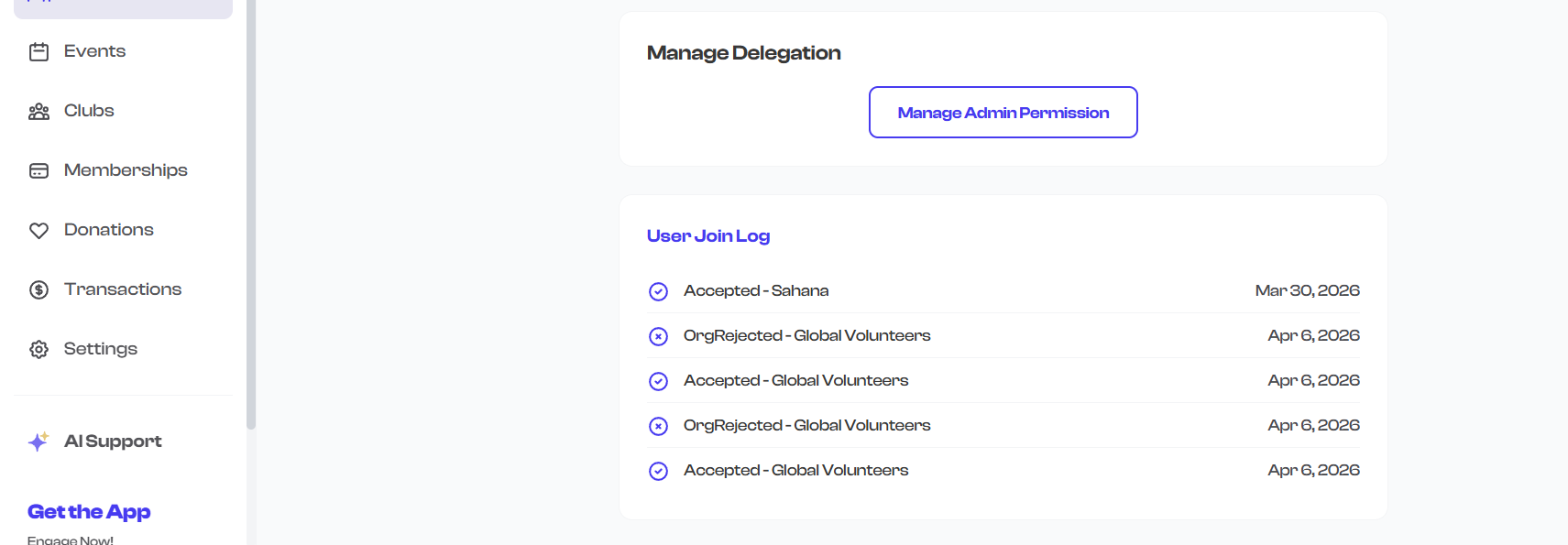
Before blocking, removing, or changing someone's role, review their activity log on their follower detail page. The activity log shows a complete history of their interactions with your organization, including:
- When they started following
- Role changes over time
- Events they registered for or attended
- Any previous blocks or status changes
This context helps you make informed decisions and avoid mistakes.
Communication Through Roles
Roles are not just about access control -- they also affect how you communicate with your community.
Role-Based Notifications
Different community roles can receive different types of push notifications. Use this to your advantage:
| Role | Notification Strategy |
|---|---|
| FOLLOWER | General announcements, public event promotions, org news |
| MEMBER | All of the above, plus member-only event invitations, class reminders, schedule changes |
| COACH | All of the above, plus attendance reminders, session alerts, roster updates |
| ADMIN | All of the above, plus new follower alerts, payment notifications, system updates |
| ALUMNI | Alumni-specific communications, reunion events, milestone celebrations |
Targeted Announcements
When sending announcements or updates, think about which audience needs to hear the message:
- Org-wide updates (schedule changes, holiday closures) -- Send to all active followers
- Program-specific updates (class cancellation, roster changes) -- Target members and coaches in the relevant club or cohort
- Administrative updates (policy changes, payment reminders) -- Target admins and relevant staff
By assigning roles thoughtfully, your communications become more relevant. Followers who receive only the notifications they care about are more likely to stay engaged and less likely to mute your organization.
Admin Delegation Best Practices
When your organization grows beyond what one person can manage, delegation becomes essential. Here are best practices for delegating admin responsibilities:
Start Small
Begin by delegating a single responsibility to each admin -- such as managing follow requests or scheduling events. Expand their permissions over time as trust and capability grow.
Match Permissions to Responsibilities
FeatsClub offers granular admin permissions across 7 categories with over 40 individual permissions. Only grant the permissions that someone actually needs for their role:
- An event coordinator needs event management permissions, not payment or follower management access
- A front desk manager might need follower approval permissions but not event creation access
- A finance lead needs payment and donation permissions but not event or club management
Review Admin Permissions Regularly
As people's responsibilities change, their admin permissions should change too. A coach who was temporarily given admin access for a summer program may no longer need those permissions in the fall.
Document Who Has What Access
Keep a simple record of which admins have which permissions. This helps when onboarding new team members and ensures you do not accidentally leave elevated permissions on accounts that no longer need them.
All admin permission changes are tracked in the activity log. You can review the history of permission grants and revocations for any admin at any time.
What's Next?
For a comprehensive technical reference of every follower status, community role, and follow mode in the system, visit the Follower Status Lifecycle page. To learn more about delegating admin permissions, see the Admin Delegation section.