Adding & Editing Terms
Membership terms are created through a side panel in your FeatsClub dashboard. You can create terms when setting up a new membership or manage them separately from your membership settings. This guide walks you through the process of creating, viewing, and managing terms.
Creating a New Term
You can create a term in two ways:
- During membership creation -- When you reach the Term Configuration step of the membership creation wizard, you can create a new term directly from there.
- From an existing membership -- When editing a membership, you can select an existing term or create a new one.
When you select Create Term, a side panel slides in from the right with the term configuration form.
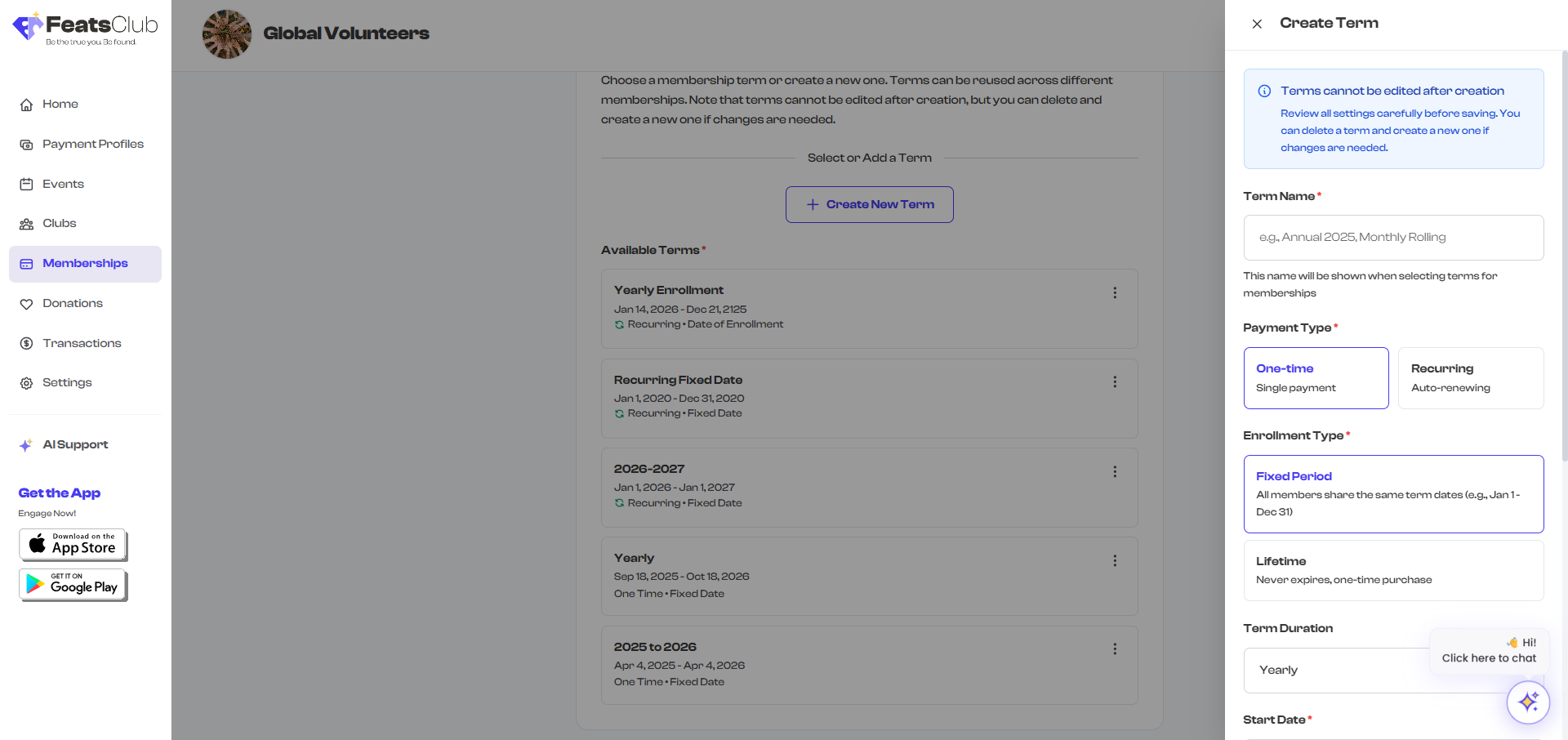
Terms cannot be edited after creation. Review all settings carefully before saving. If you need to make changes, you can delete an unused term and create a new one with the correct settings.
Term Configuration Fields
The fields shown in the term panel change based on the combination of Payment Type and Enrollment Type you select. Here is a complete reference for every field.
Term Name (Required)
A descriptive name for the term that helps you identify it when attaching it to memberships.
Examples:
- "Annual 2025"
- "Monthly Rolling"
- "Fall Semester 2025"
- "Lifetime Founding Member"
This name is shown when selecting terms during membership creation. Choose something clear and specific so you can easily tell terms apart when you have multiple ones.
Payment Type (Required)
Choose how members will be billed:
| Option | Description |
|---|---|
| One-time | Member pays a single payment at enrollment. No automatic future charges. |
| Recurring | Member is automatically charged at regular intervals (monthly or yearly). Requires Stripe or Cashfree payment integration. |
The payment type you choose affects which enrollment types are available:
- One-time payments unlock Fixed Period and Lifetime enrollment types.
- Recurring payments unlock Fixed Period and From Enrollment Date enrollment types.

Enrollment Type (Required)
Choose how membership validity dates are determined:
| Option | Available With | Description |
|---|---|---|
| Fixed Period | One-time, Recurring | All members share the same start and end dates set by your organization |
| From Enrollment Date | Recurring only | Each member's term starts from their individual sign-up date |
| Lifetime | One-time only | Membership never expires |
For a detailed explanation of each enrollment type, see Understanding Term Types.
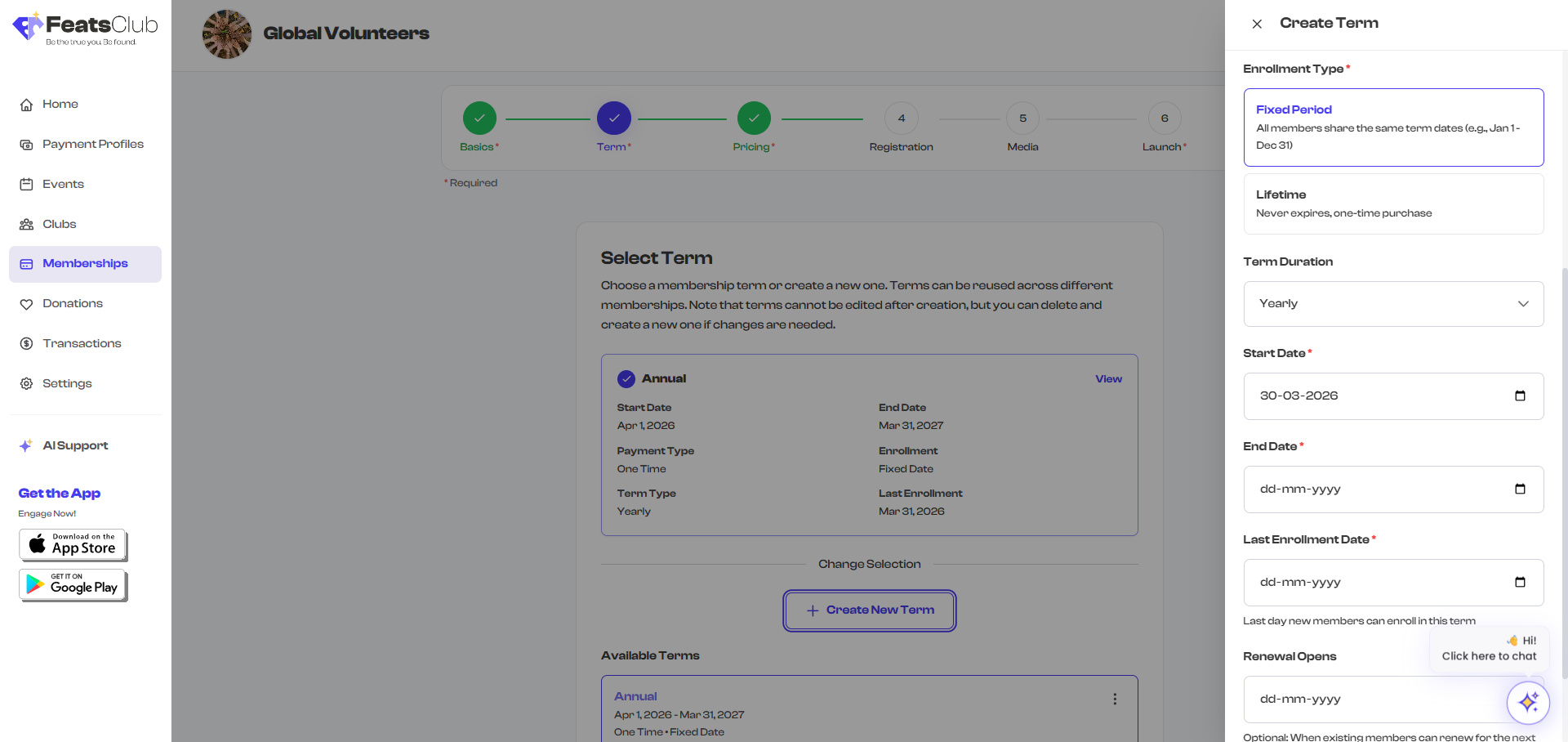
Term Duration
Shown for Fixed Period and From Enrollment Date terms (not shown for Lifetime terms).
| Option | Description |
|---|---|
| Monthly | Term lasts one month |
| Yearly | Term lasts one year |
| Custom | No automatic duration calculation |
For Recurring + From Enrollment Date terms, the duration determines how often the member is automatically billed. A Monthly duration means the member is charged every month; Yearly means every year.
For Recurring + Fixed Period terms, the duration is used to auto-calculate the end date from the start date.
Start Date (Required)
The meaning of the start date varies by enrollment type:
| Enrollment Type | What Start Date Means |
|---|---|
| Fixed Period | The date when the membership term begins for all members |
| From Enrollment Date | The date when enrollment opens (each member's actual start is their sign-up date) |
| Lifetime | The date when the lifetime membership becomes available for purchase |
End Date
Shown only for Fixed Period terms.
| Scenario | End Date Behavior |
|---|---|
| One-time + Fixed Period | You set the end date manually. This is when the membership expires for all members. |
| Recurring + Fixed Period | Auto-calculated from the start date and term duration. For example, if the start date is January 1 and the duration is Yearly, the end date is automatically set to January 1 of the next year. |
For Recurring + Fixed Period terms, the end date is displayed as a read-only calculated value. You do not need to enter it manually.
Last Enrollment Date
The final day new members can sign up for this term.
| Enrollment Type | Required? | Notes |
|---|---|---|
| Fixed Period | Yes | Must be on or before the end date |
| Lifetime | Optional | Set a deadline for the lifetime offer, or leave empty for open-ended enrollment |
| From Enrollment Date | Not shown | Not applicable since enrollment is always open |
Example: Your term runs January 1 through December 31, but you want to stop accepting new members after March 31. Set the Last Enrollment Date to March 31.
Renewal Opens Date
Shown only for Fixed Period terms. This is an optional field.
The Renewal Opens date is when existing members can start renewing for the next period. Use this to give current members early access to re-enrollment before you open it to new members or the general public.
Example: Your current term ends December 31. You set Renewal Opens to November 1 so existing members can secure their spot for the next year before it opens to everyone.
Grace Period (Days)
Shown only for Recurring payment terms (not available for One-time or Lifetime terms).
The grace period is the number of days after a term expires before the membership status changes from Active to Lapsed. During the grace period, the member still has access even though their payment is overdue.
| Term Duration | Maximum Grace Period |
|---|---|
| Monthly | Up to 29 days |
| Yearly | Up to 364 days |
Set the grace period to 0 if you want memberships to lapse immediately when a payment fails.
A grace period of 7 to 14 days is common for monthly memberships. This gives members time to update their payment method if a charge fails, without immediately losing access.
Field Visibility Reference
This table summarizes which fields appear for each combination of payment type and enrollment type:
| Field | One-time + Fixed Period | One-time + Lifetime | Recurring + Fixed Period | Recurring + From Enrollment |
|---|---|---|---|---|
| Term Name | Yes | Yes | Yes | Yes |
| Payment Type | Yes | Yes | Yes | Yes |
| Enrollment Type | Yes | Yes | Yes | Yes |
| Term Duration | Yes | No | Yes | Yes |
| Start Date | Yes | Yes | Yes | Yes |
| End Date | Yes (editable) | No | Yes (auto-calculated) | No |
| Last Enrollment Date | Yes (required) | Yes (optional) | Yes (required) | No |
| Renewal Opens | Yes | No | Yes | No |
| Grace Period | No | No | Yes | Yes |
Creating Multiple Terms
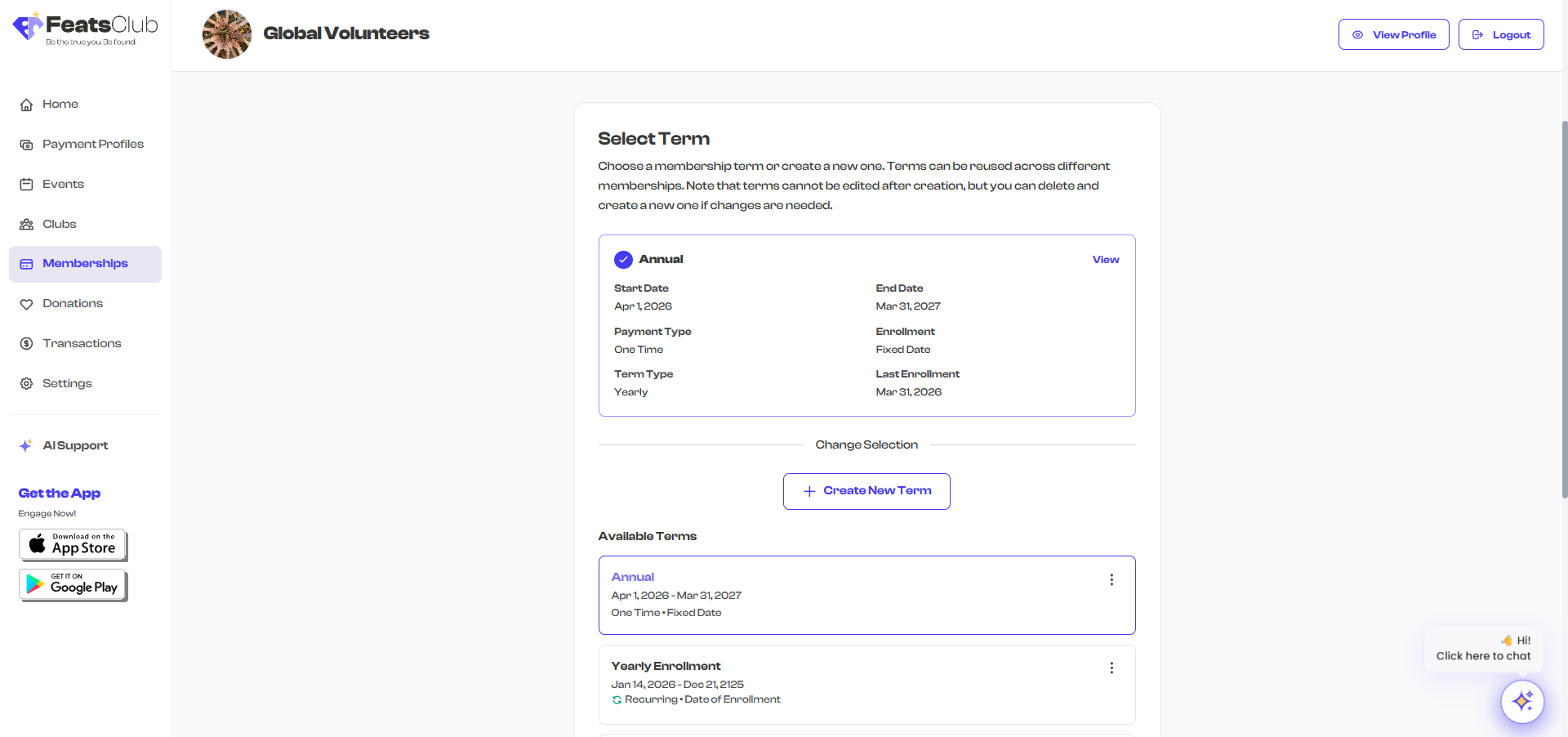
Your organization can have multiple terms to cover different time periods or billing configurations. Common scenarios include:
- Seasonal terms -- "Spring 2025," "Summer 2025," "Fall 2025," and "Winter 2025" as separate Fixed Date terms
- Billing options -- "Monthly" and "Annual" terms for the same membership, giving members a choice
- Special offers -- A "Lifetime Founding Member" term alongside regular recurring terms
When creating a membership, you select which term to attach to it. Multiple memberships can share the same term. For example, your "Individual," "Family," and "Student" membership plans can all use the "Annual 2025" term.
Viewing an Existing Term
To view the details of a term attached to a membership:
- Go to Dashboard > Memberships.
- Select a membership plan to open its detail view.
- The term information is displayed in the membership details, showing the term name, enrollment type, payment type, dates, and other configured settings.
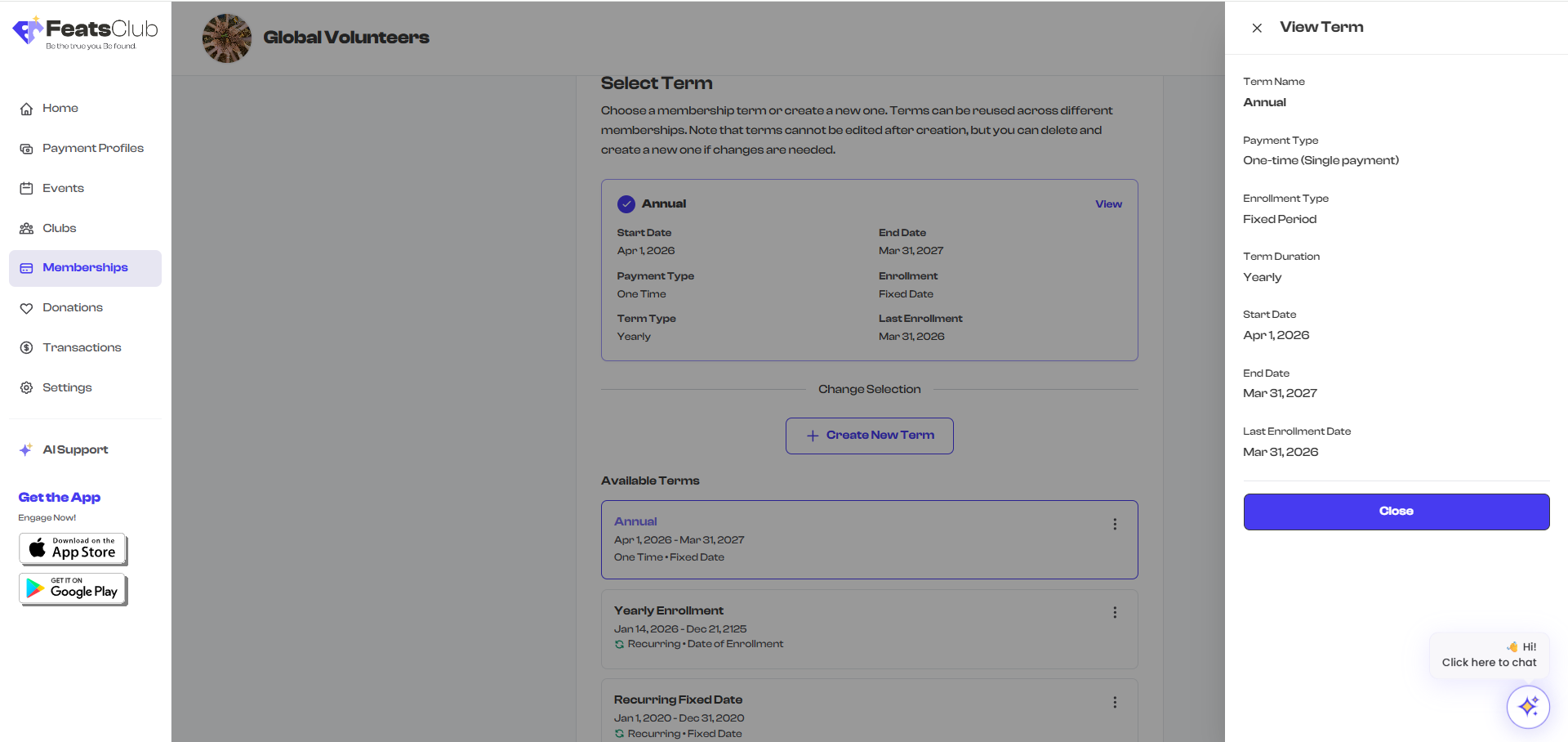
You can also view the full term details in a read-only side panel by selecting the term.
Editing Limitations
Terms in FeatsClub are designed to be immutable after creation. This is intentional -- once members have enrolled under a specific term, changing the term's dates or billing type could cause confusion, billing errors, or data inconsistencies.
What you cannot change on an existing term:
- Payment type (One-time or Recurring)
- Enrollment type (Fixed Period, From Enrollment Date, Lifetime)
- Term duration (Monthly, Yearly)
- Start date and end date
- Grace period
If you need different term settings:
- Create a new term with the correct configuration.
- Attach the new term to your membership (or create a new membership plan).
- If the old term is not in use by any membership, you can delete it.
You cannot delete a term that is currently attached to a membership plan. To delete it, first remove the term from all memberships that use it or replace it with a different term.
Tips for Managing Terms Effectively
- Use descriptive names -- Include the year or season in your term names (e.g., "Annual 2025," "Summer 2025") so you can easily tell them apart as you create new terms each year.
- Plan ahead -- Create your next term before the current one expires. This gives you time to set up renewal notifications and ensures a smooth transition for your members.
- Keep it simple -- For most organizations, one or two term types cover all your needs. A Monthly Recurring term and an Annual term handle the vast majority of use cases.
- Review before saving -- Since terms cannot be edited after creation, double-check all dates and settings before selecting Create Term.
- Use the Last Enrollment Date strategically -- Setting an enrollment cutoff can create urgency and help you plan your capacity.
What's Next?
Learn how Renewal and Expiry work for each term type, including auto-renewal behavior, grace periods, and what happens when a member's term ends.