Contact & Social Media
This section covers your organization's logo, contact information, and social media links. Together with your basic information, these fields complete your organization's public profile and make it easy for visitors to connect with you.
Logo / Profile Picture
Your organization logo or profile picture is displayed prominently across the platform -- on your public profile, event cards, membership listings, and anywhere your organization appears.
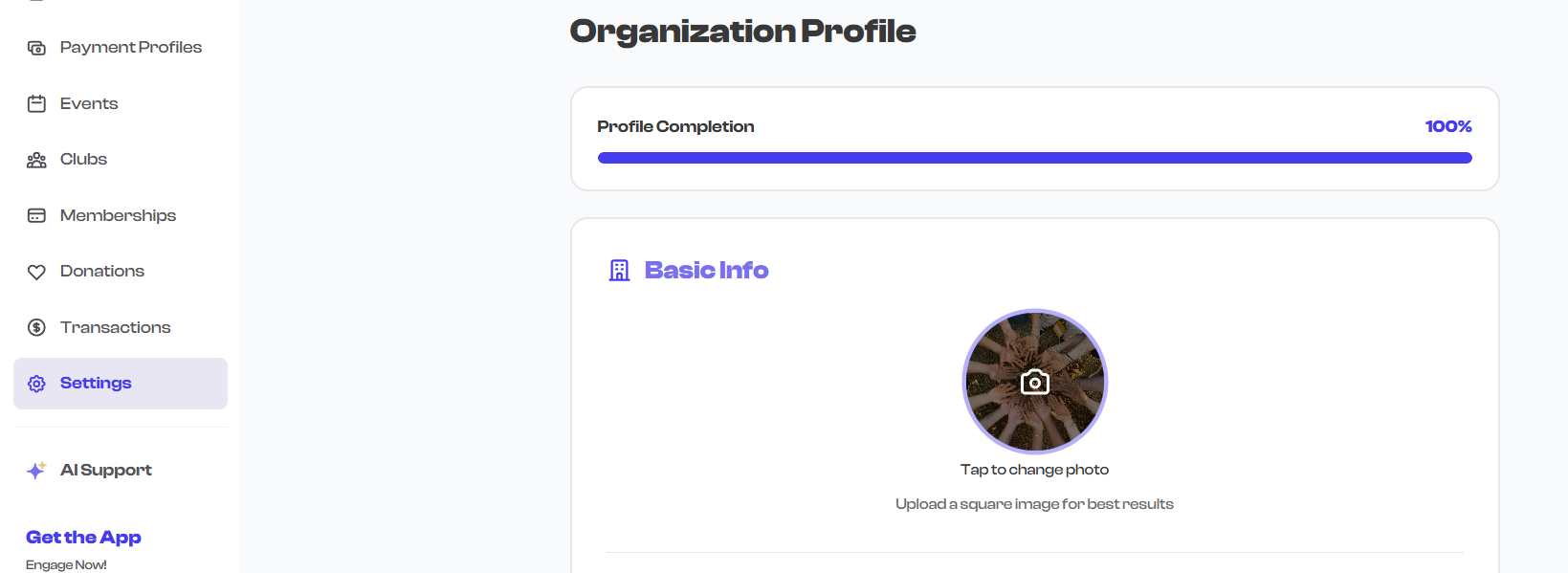
How to Upload
- Click the circular photo area on the profile form.
- Select an image from your device.
- Crop the image if needed -- the picker allows you to adjust the framing.
- The new logo is saved and applied across the platform.
Recommendations
- Square images work best -- the logo is displayed in a circular crop, so square source images ensure nothing important is cut off.
- Use a clear, high-contrast image that is recognizable at small sizes (it appears as a small avatar on event cards).
- Your logo, wordmark, or a clean photo of your facility all work well.
- File formats: JPG, PNG, or WebP.
Upload your logo early -- it appears on every event, membership, and club you create. An organization without a logo looks incomplete and may not inspire confidence in potential members.
Contact Information
Contact Email
The contact email is the primary email address associated with your organization on FeatsClub. It serves two purposes:
- Public contact -- Displayed on your public profile so visitors can reach you (unless hidden via Profile Visibility settings).
- Platform communication -- Used for Stripe-related payment notifications and other platform communications.
- This field is required.
- Must be a valid email format (e.g., info@myorg.com).
- Can be different from your sign-in email -- many organizations use a general inbox (like info@ or hello@) rather than a personal email.

Your contact email contributes to your profile completion percentage. It is one of the seven fields tracked for a complete profile.
Phone Number
An optional phone number for your organization.
- Format: Include the country code, e.g., +1 (555) 123-4567.
- Not displayed publicly by default -- visibility is controlled through Profile Visibility settings.
- Useful if you want members or event attendees to be able to call or text your organization.

Website URL
A link to your organization's external website.
- Must include the protocol:
http://orhttps://. - The link appears on your public profile as a clickable button or icon, directing visitors to your website.
- This field is optional.

If you do not have a dedicated website, you can link to your Facebook page, Instagram profile, or any other web presence. Having at least one external link helps visitors learn more about you.
Social Media Links
Social media links connect your FeatsClub profile to your social media presence. When filled in, these links appear as clickable icons on your public profile page.
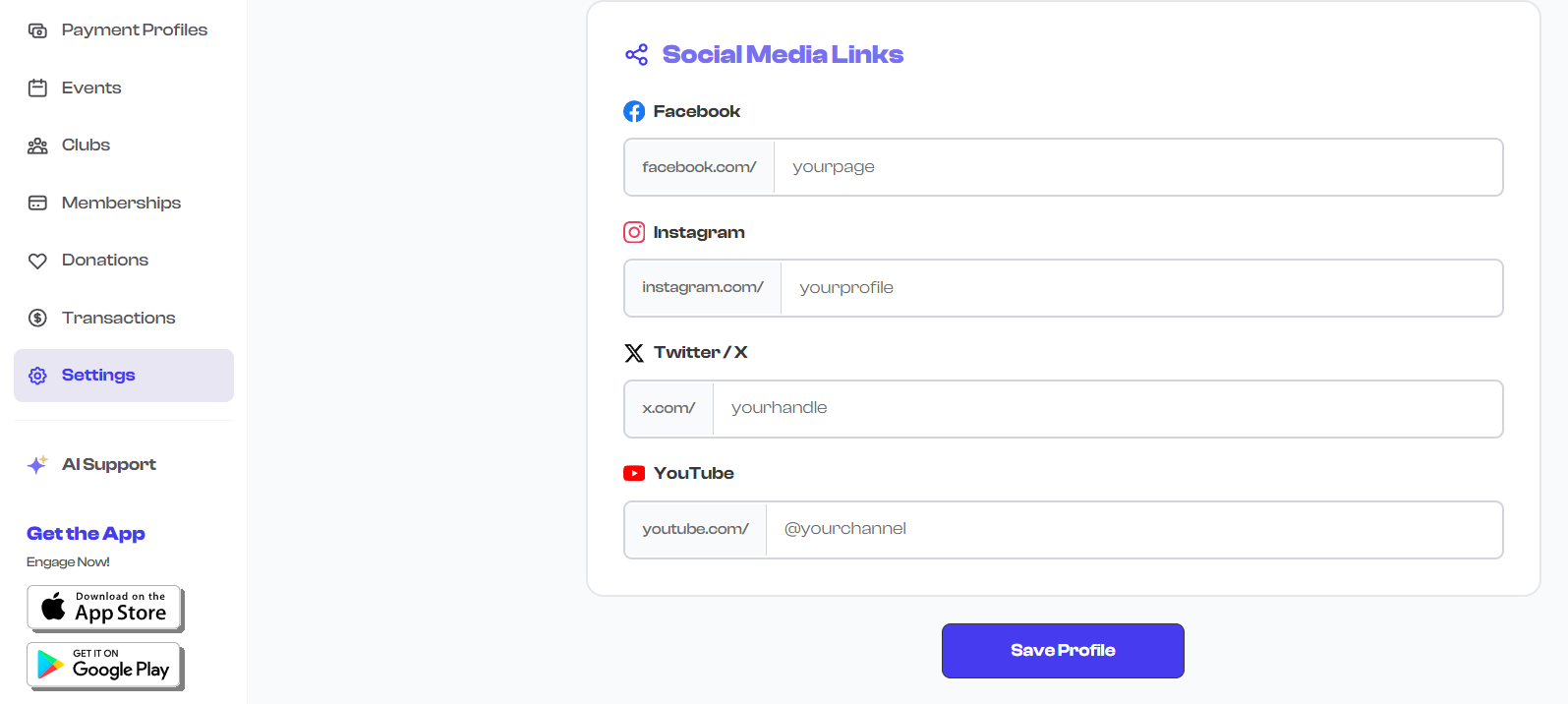
How to Enter Social Links
Each social media field supports two input methods:
- Paste a full URL -- For example,
https://instagram.com/myorg. The handle is automatically extracted and stored. - Type just the handle -- For example,
myorg. The platform URL is generated automatically.
Either method works -- use whichever is more convenient. The result is the same.
Available Platforms
Facebook
- Enter your Facebook page URL or handle.
- Example full URL:
https://facebook.com/riversideyouthbasketball - Example handle:
riversideyouthbasketball - Links to:
facebook.com/yourhandle
Instagram
- Enter your Instagram profile URL or handle.
- Example full URL:
https://instagram.com/ryba_hoops - Example handle:
ryba_hoops - Links to:
instagram.com/yourhandle
Twitter / X
- Enter your Twitter (X) profile URL or handle.
- Example full URL:
https://x.com/ryba_hoops - Example handle:
ryba_hoops - Links to:
x.com/yourhandle
YouTube
- Enter your YouTube channel URL or handle.
- Example full URL:
https://youtube.com/@riversidebasketball - Example handle:
@riversidebasketball - Links to:
youtube.com/yourchannel
Handle Validation Rules
Each platform has specific rules for what characters are allowed in handles:
| Platform | Allowed Characters | Example |
|---|---|---|
| Letters, numbers, dots, slashes | riverside.youth.basketball | |
| Letters, numbers, dots, underscores, slashes | ryba_hoops | |
| Twitter / X | Letters, numbers, underscores, slashes | ryba_hoops |
| YouTube | Letters, numbers, dots, underscores, hyphens, @ | @riverside-basketball |
If you paste a full URL, the handle is extracted automatically and validated against these rules. If you type a handle directly, it is validated as you type.
Social media links are shown on your public profile by default. You can control their visibility through the Profile Visibility settings.
Keep your social handles consistent across platforms when possible. If your organization is "ryba_hoops" on Instagram, try to use the same handle on Twitter/X and YouTube. This makes it easier for people to find and follow you everywhere.
Saving Changes
After editing any contact or social media fields, click the Save button to apply your changes. Updates to your logo, contact info, and social links are reflected on your public profile immediately.
What's Next?
After completing your contact and social media setup, continue configuring your organization:
- Profile Visibility -- Control which contact details and social links are displayed publicly
- Team Settings -- Add team members and officers to your profile
- Community Settings -- Configure follower behavior and public profile sections