Club Dashboard Overview
When you navigate to Clubs (or Cohorts) from the sidebar in your FeatsClub dashboard, you land on the Club Dashboard. This page gives you a bird's-eye view of all your organization's clubs and makes it easy to jump into any one of them.
What You See
The dashboard is organized into three main areas: stat cards at the top, filter tabs with a search bar in the middle, and a grid of club cards below.
Stats Cards
At the very top of the dashboard, four stat cards give you a quick summary of your clubs:
| Stat Card | What It Shows |
|---|---|
| Active Clubs | The number of clubs that are currently live and running |
| Drafts | The number of clubs you have started setting up but have not yet launched |
| Past Clubs | The number of clubs that have completed their program |
| Total Members | The combined count of members across all your clubs |
These numbers update automatically as you create, launch, complete, or archive clubs.

The "Add Club" Button
In the top-right corner of the dashboard, you will find the Add Club button (or Add Cohort, depending on your organization type). Clicking this button takes you to the club creation flow where you can set up a new club from scratch.
If you are just getting started, click Add Club to create your first club. You can save it as a draft and come back to finish it later.
Club Cards
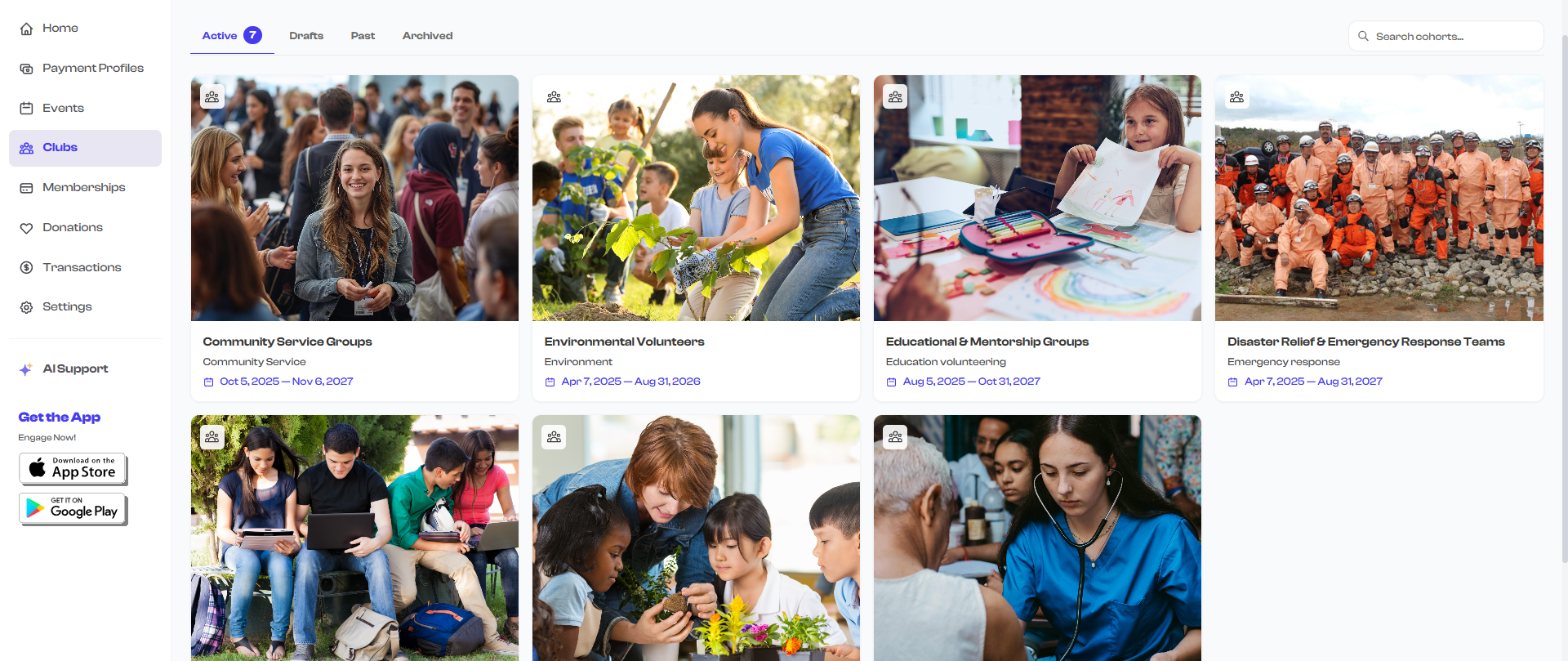
Below the stats and filters, your clubs are displayed as a grid of cards. Each card shows a snapshot of one club:
- Cover image or media -- The club's gallery image or video thumbnail. If no media has been uploaded, a placeholder icon is shown instead. Clubs with multiple images display them as a sliding gallery.
- Status badge -- Appears in the top-left corner of the card. Draft clubs show an orange badge, Archived (completed) clubs show a dark badge. Active clubs display a small club icon instead.
- Date range -- The club's start and end dates (e.g., "Sep 24, 2025 - Dec 15, 2025") displayed prominently below the image.
- Title -- The name of the club, shown in bold. Titles longer than two lines are truncated.
- Category and Level -- The club's category (e.g., "Sports", "Music") appears on the left, and the skill level (e.g., "Beginner", "Advanced") appears on the right.
Hovering over a card reveals a purple arrow button in the bottom-right corner. Click anywhere on the card to open that club's detail page.
Empty State
If your organization does not have any clubs yet, the dashboard displays a welcoming empty state instead of a blank page. This includes:
- A headline encouraging you to create your first club
- A brief description of what clubs can do for your organization
- Feature highlights such as "Organize Student Groups", "Schedule Activities", "Track Attendance", and "Communicate with Members"
- A prominent Create Your First Club button
Once you create your first club, the empty state is replaced by your club cards.

The terminology adapts to your organization. Schools see "Club" and "Create Your First Club", while other organizations see "Cohort" and "Launch Your First Cohort".
What's Next?
Learn how to narrow down your club list using filters and search in Filtering & Searching Clubs.