Quick Actions
The Club Dashboard and club detail pages offer several quick actions to help you manage your clubs efficiently. Here is a summary of the most common actions and where to find them.
From the Dashboard
Viewing a Club
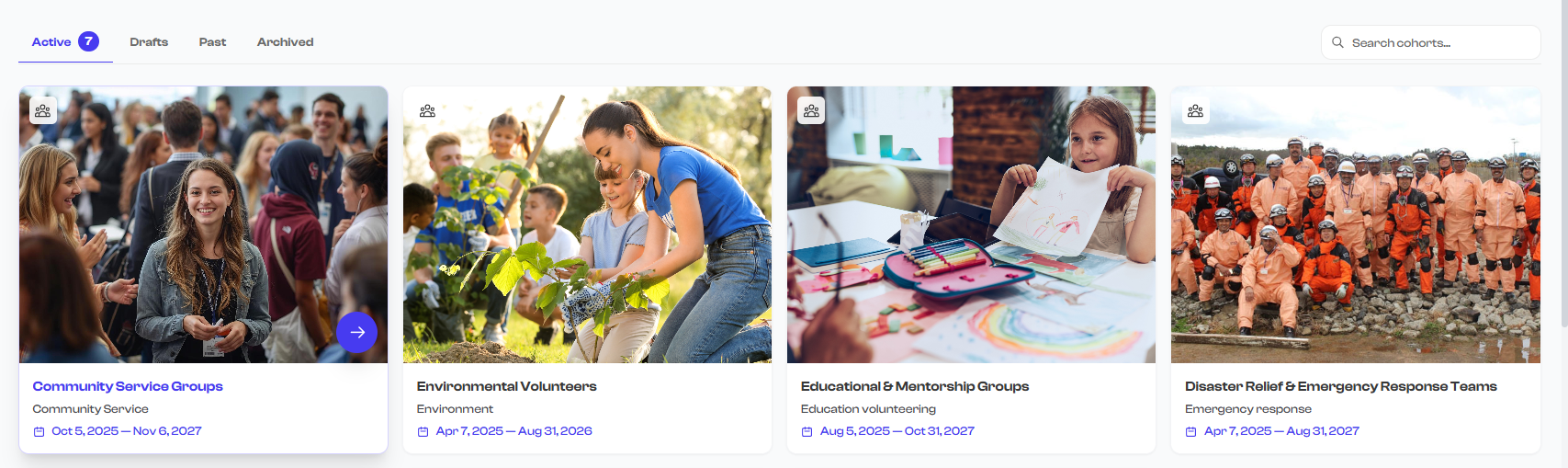
Click on any club card in the grid to open its detail page. You can also hover over a card to reveal the purple arrow button in the bottom-right corner -- clicking it does the same thing.
The detail page shows all the club's information: description, dates, officers, schedules, members, media, and more.
Creating a New Club
Click the Add Club button in the top-right corner of the dashboard. This takes you to the club creation flow, where you can enter the club's title, description, category, level, dates, and other details.
You do not have to fill in everything at once. Save your club as a Draft and come back later to add schedules, officers, media, and other details before launching.
From the Club Detail Page
Once you open a club's detail page, you have access to additional actions depending on the club's current status.
Edit a Club
Click the Edit button to modify the club's information. You can update the title, description, category, level, dates, rules, criteria, media, and officers. Changes are saved when you submit the form.

Launch a Draft Club
If the club is still in Draft status, you will see a Launch button. Launching a club changes its status from Draft to Active, making it visible to members and the public (if shown on your organization profile).
Before launching, make sure your club has all the essential information filled in -- title, category, dates, and at least a brief description. You can still edit an active club after launching, but it is best to have the basics ready first.
Archive an Active Club
If the club is currently Active, you can Archive it. Archiving moves the club out of your active list and into the Archived tab. This is useful when a club has finished its run or you want to temporarily remove it from view without deleting it.
You will be asked to provide a reason for archiving, which is saved for your records.
Delete a Draft Club
If the club is still in Draft status, you have the option to Delete it. Deleting a draft club removes it permanently. This action cannot be undone.
Only draft clubs can be deleted. Active and completed clubs must be archived instead. This prevents accidental loss of clubs that already have enrolled members or historical data.
Share a Club Link
You can share a direct link to your club's public profile. This link can be sent to potential members, posted on social media, or embedded in emails and newsletters.
To share a club:
- Open the club's detail page
- Look for the Share option
- Copy the link or share it directly through the available sharing options

Quick Reference: Actions by Status
| Club Status | Available Actions |
|---|---|
| Draft | Edit, Launch, Delete, Share |
| Active | Edit, Archive, Share |
| Completed | View details, Share |
| Archived | View details, Share |
What's Next?
Ready to set up your first club? Head to Creating a Club for a step-by-step walkthrough.