Inviting Members
The most common way to add members to a club is by inviting them. You can invite people who already follow your organization, and you can send multiple invitations at once.
Who Can Be Invited?
You can invite your organization's followers -- people who have already followed your organization on FeatsClub. This means they have an existing relationship with your organization and are more likely to engage.
If someone is not yet following your organization, they will need to follow you first (through your public profile or a shared link) before they can be invited to a club. Alternatively, they can request to join a club directly from your public profile if the club is visible there.
How to Invite Members
- Navigate to a club's detail page and select the Members tab.
- Select the Invite Members button in the top-right corner.
- A side panel opens showing a list of your organization's followers.
- Browse or search for the people you want to invite.
- Select one or more followers by checking the box next to their name.
- Select Send Invitations to invite all selected followers at once.
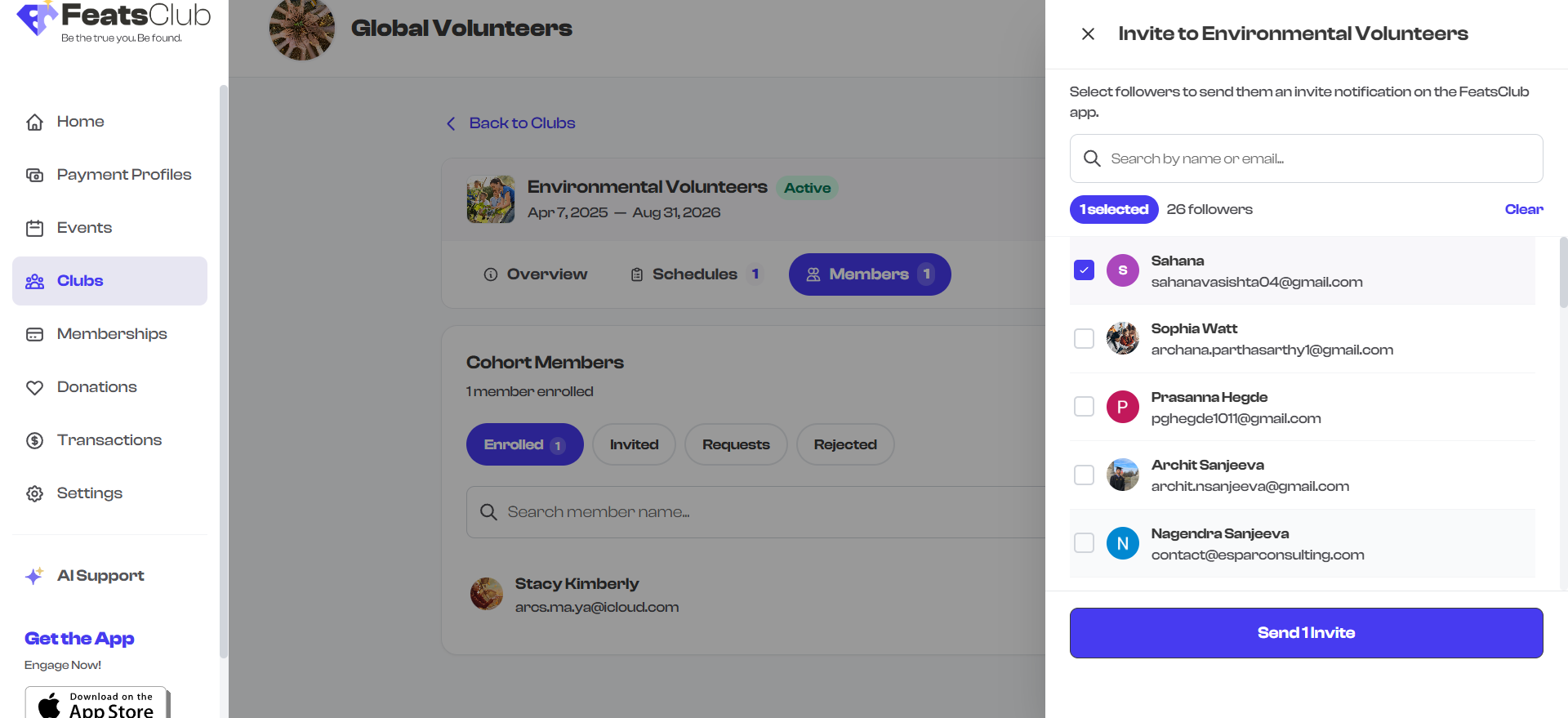
Sending Batch Invitations
You can invite multiple people at once -- up to 100 per batch. This is useful when you are setting up a new club and need to add many members quickly.
- In the Invite Members panel, select all the people you want to invite.
- Select Send Invitations.
- FeatsClub processes all invitations and shows a confirmation with the number of invitations sent.
When setting up a new club, invite all your members at once rather than one at a time. You can always send additional invitations later as new followers join your organization.
What Happens When You Invite Someone
When you send an invitation:
- An engagement record is created for each invited person, linking them to your club with the status Invited.
- The invitee receives a notification on their FeatsClub app informing them about the invitation.
- The invitee can accept or decline the invitation from their notifications.
| If the invitee... | Then... |
|---|---|
| Accepts the invitation | Their status changes to Accepted (Enrolled) and they become an active member of the club |
| Declines the invitation | Their status changes to MemberRejected and they appear in the Rejected filter |
| Does nothing | They remain in the Invited status; you can send a reminder |
Already-Invited Members
If someone has already been invited to the club (or is already a member), they will appear as disabled in the invite panel so you do not accidentally send duplicate invitations.
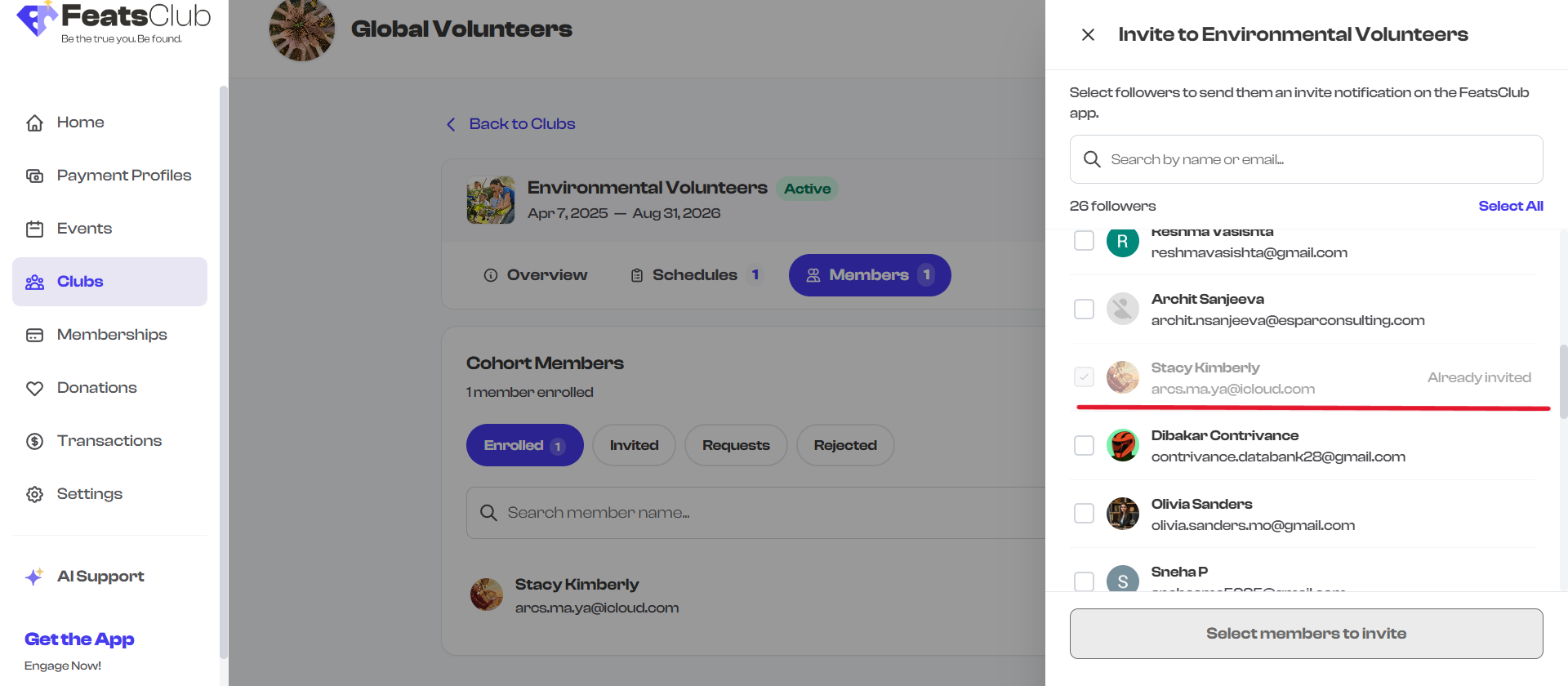
Invited vs. Requested -- What Is the Difference?
It is important to understand the difference between these two paths to club membership:
| Path | Who Initiates | Status | Admin Action Needed? |
|---|---|---|---|
| Invited | The organization admin sends an invitation | Invited | No -- waiting for the invitee to respond |
| Requested | The user asks to join from the public profile | Requested | Yes -- admin must Accept or Reject |
Both paths lead to the same end result: an Enrolled member with Accepted status.
After Inviting
Once invitations are sent:
- The Members tab automatically switches to the Invited filter so you can see your newly invited members.
- Each invited member appears with Remind and Forget action buttons.
- You can send a Remind notification if someone has not responded to encourage them to accept.
- You can Forget an invitation to remove it from your list (this does not notify the invitee).
Invitations require the recipient to have a FeatsClub account and to be a follower of your organization. If you share a link with someone who does not have an account yet, they will need to sign up and follow your organization before you can invite them to a club.
What's Next?
Learn about the full member status lifecycle and all available admin actions in Member Status.