Viewing Members
The Members tab gives you a complete view of everyone associated with your club -- enrolled participants, pending invitations, join requests, and rejected entries. You can filter, search, and take actions on members directly from this view.
Navigating to the Members Tab
- From the Dashboard, select Clubs in the sidebar.
- Select a club to open its detail page.
- Select the Members tab from the tab bar at the top (alongside Overview and Schedules).

What You See for Each Member
Each member row displays the following information:
| Detail | Description |
|---|---|
| Profile photo | The member's avatar or initials if no photo is available |
| Name | The member's display name |
| The member's email address (shown below the name) | |
| Status | Determined by which filter tab is currently active (Enrolled, Invited, Requests, or Rejected) |
| Actions | Contextual buttons that depend on the member's current status |
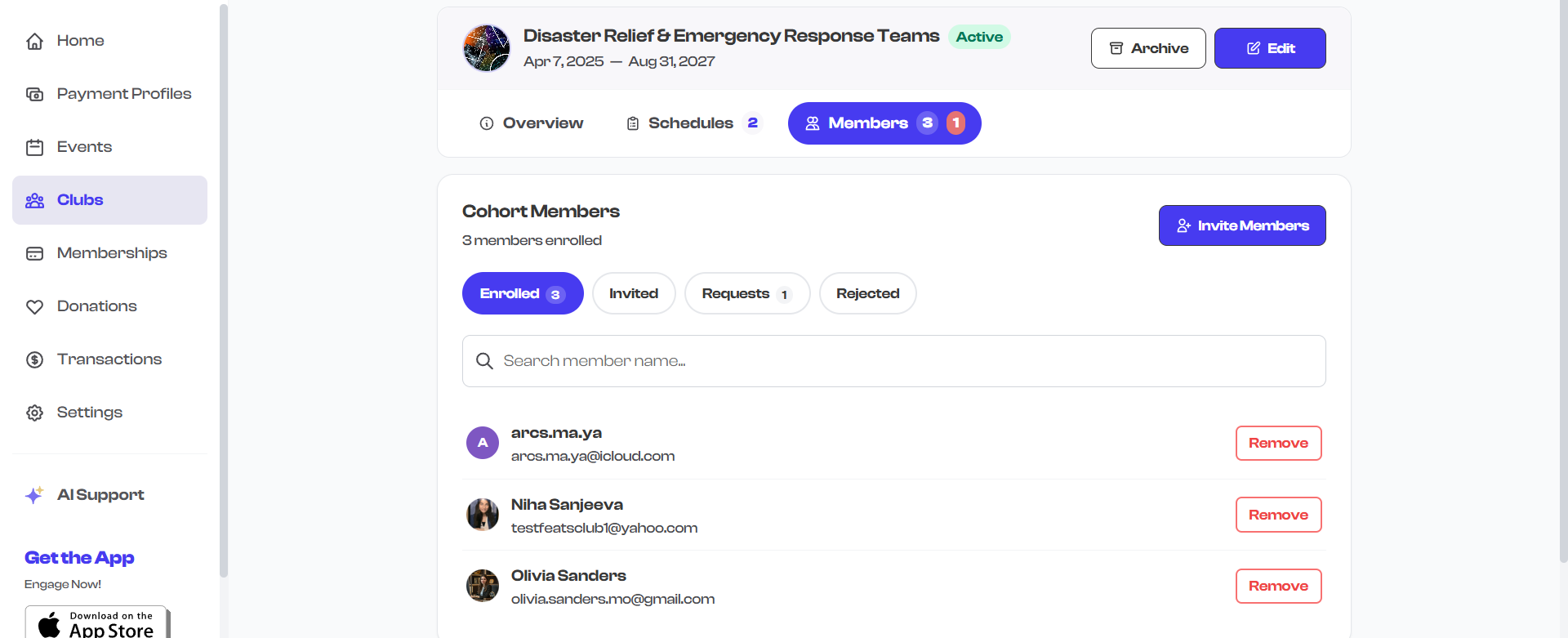
Member Count
At the top of the Members tab, you will see a summary showing:
- The tab header "Club Members" (or "Cohort Members" depending on your organization type)
- The number of enrolled members (e.g., "12 members enrolled")
- The Invite Members button for sending new invitations
Filtering Members by Status
Below the header, you will see filter chips that let you view members grouped by their current status. Each chip shows a count badge indicating how many members are in that category.
| Filter | Shows | Example |
|---|---|---|
| Enrolled | Active members who have accepted their invitation or been approved | Players on your basketball team |
| Invited | People you have invited who have not yet responded | Parents you invited to the parent volunteer club |
| Requests | People who have asked to join and are waiting for your approval | A student who found your club on your public profile |
| Rejected | People whose requests were rejected, or who declined your invitation | Previously rejected applicants |
Select a filter chip to switch the list view. The currently active filter is highlighted in purple.

The Requests filter is the one you will want to check regularly. When someone requests to join your club, they appear here waiting for your approval.
Searching for Members
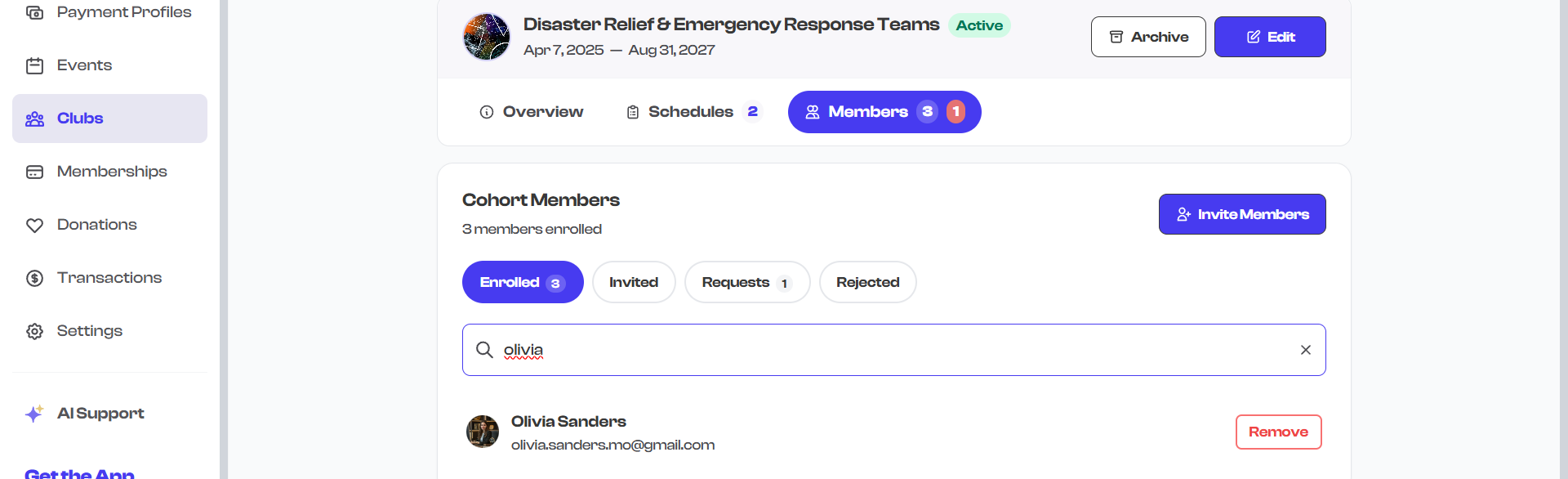
Below the filter chips, a search bar lets you find a specific member by name. As you type, the list filters in real time to show only matching members.
- Select the search field.
- Start typing a member's name.
- The list updates instantly to show matching results.
- Select the X button in the search field to clear your search and show all members again.
Empty States
If a filter has no members, you will see a helpful empty state message:
| Filter | Empty Message |
|---|---|
| Enrolled | "No enrolled members yet -- Start by inviting members to your club" |
| Invited | "No users in this category" |
| Requests | "No users in this category" |
| Rejected | "No users in this category" |
Available Actions Per Filter
Each filter shows different action buttons for the members listed:
| Filter | Available Actions |
|---|---|
| Enrolled | Remove |
| Invited | Remind, Forget |
| Requests | Accept, Reject |
| Rejected | Invite Again, Forget |
For a detailed explanation of each action, see Member Status.
Actions are not available when a club's status is Completed or Canceled. In those cases, the member list is read-only.
What's Next?
Learn how to add new people to your club in Inviting Members, or understand the full status lifecycle in Member Status.