Member Status
Every club member has a status that represents where they are in the membership lifecycle. Understanding these statuses and the actions you can take at each stage is essential for managing your club effectively.
Status Overview
| Status | Meaning | How It Happens |
|---|---|---|
| Accepted | Active, enrolled member of the club | Admin accepted a request, or invitee accepted an invitation |
| Invited | Invitation sent, waiting for the person to respond | Admin sent an invitation from the Members tab |
| Requested | Person asked to join, waiting for admin approval | User found the club on your public profile and requested to join |
| OrgRejected | Admin rejected the join request | Admin selected "Reject" on a Requested member |
| MemberRejected | The invitee declined the invitation | The person chose to decline from their notification |
| OrgRemove | Admin removed the member from the club | Admin selected "Remove" on an Enrolled member |
| OrgForget | Admin dismissed a pending invitation or rejected entry | Admin selected "Forget" to clean up the list |
Status Flow Diagram
The following diagram shows how members move between statuses based on actions taken by the admin or the member themselves:
                    ┌─────────────────────────────────────┐
                    │         Organization Admin           │
                    │         sends invitation             │
                    └──────────────┬──────────────────────┘
                                   │
                                   v
                              ┌─────────┐
                              │ Invited  │
                              └────┬─────┘
                                   │
                    ┌──────────────┼──────────────┐
                    │              │               │
                    v              v               v
             User accepts    User declines    No response
                    │              │               │
                    v              v               │
              ┌──────────┐  ┌──────────────┐      │
              │ Accepted  │  │MemberRejected│   (Remind)
              │(Enrolled) │  └──────────────┘
              └─────┬─────┘
                    │
              Admin removes
                    │
                    v
              ┌──────────┐
              │OrgRemove  │
              │(Removed)  │
              └──────────┘

  ──────────────────────────────────────────────

                    ┌─────────────────────────────────────┐
                    │         User requests                │
                    │         to join the club             │
                    └──────────────┬──────────────────────┘
                                   │
                                   v
                             ┌───────────┐
                             │ Requested  │
                             └─────┬──────┘
                                   │
                    ┌──────────────┼──────────────┐
                    │                              │
                    v                              v
             Admin accepts                  Admin rejects
                    │                              │
                    v                              v
              ┌──────────┐                ┌─────────────┐
              │ Accepted  │                │ OrgRejected  │
              │(Enrolled) │                └─────────────┘
              └──────────┘
Actions Admins Can Take
The actions available to you depend on the member's current status. Here is what you can do at each stage:
For Enrolled Members (Accepted)
| Action | What It Does | Result |
|---|---|---|
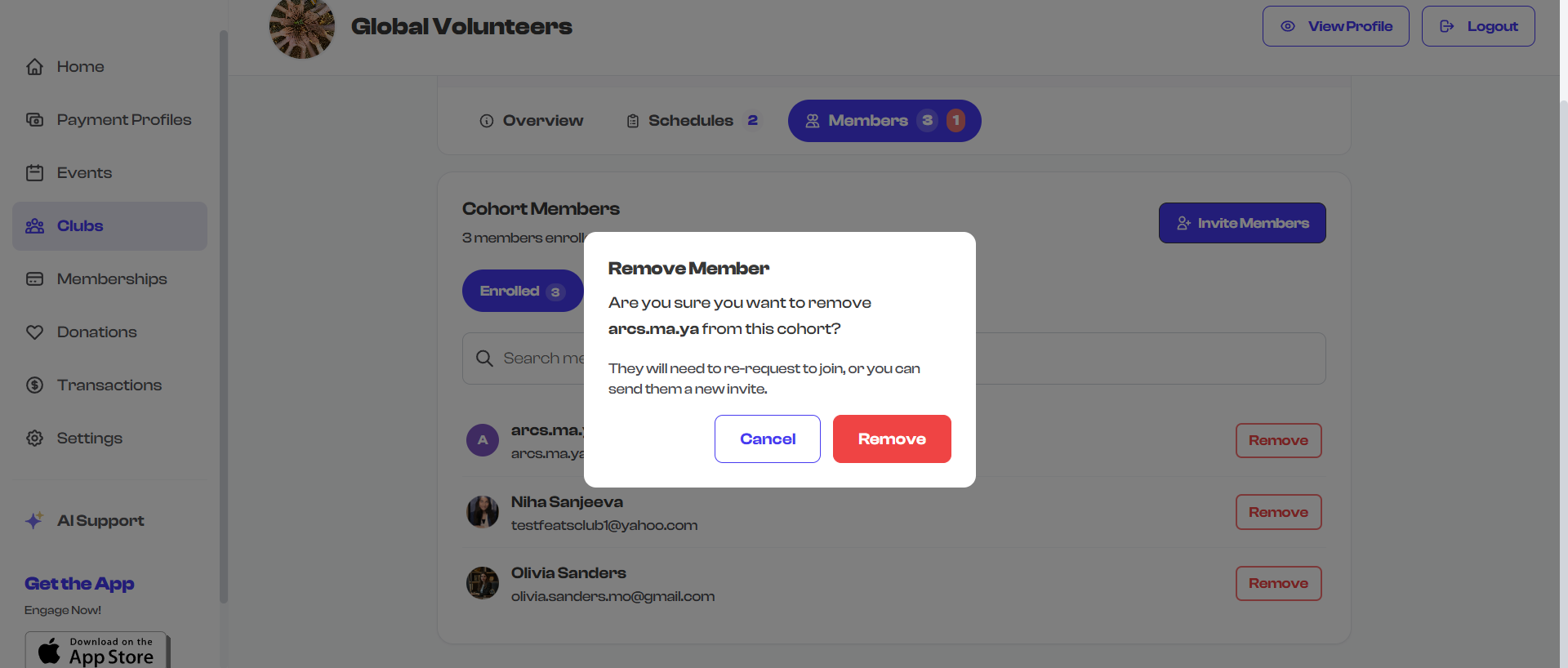
| Remove | Removes the member from the club | Status changes to OrgRemove. A confirmation dialog appears before the action is executed. |
When you remove a member:
- They lose access to the club
- They can request to rejoin, or you can send them a new invitation later
- A note appears: "They will need to re-request to join, or you can send them a new invite"
For Invited Members (Pending Response)
| Action | What It Does | Result |
|---|---|---|
| Remind | Sends a reminder notification to the invitee | A new notification is sent; the reminded count is incremented |
| Forget | Dismisses the pending invitation from your list | Status changes to OrgForget; the invitee is not notified |
Use Remind when someone has not responded to their invitation after a few days. It sends them a gentle nudge without creating a new invitation.
For Requested Members (Pending Approval)
| Action | What It Does | Result |
|---|---|---|
| Accept | Approves the join request | Status changes to Accepted and the person becomes an enrolled member |
| Reject | Declines the join request | Status changes to OrgRejected |

For Rejected Members
| Action | What It Does | Result |
|---|---|---|
| Invite Again | Sends a fresh invitation to the previously rejected person | Status changes to Invited |
| Forget | Dismisses the entry from your list | Status changes to OrgForget |
Which Statuses Appear in Which Filter?
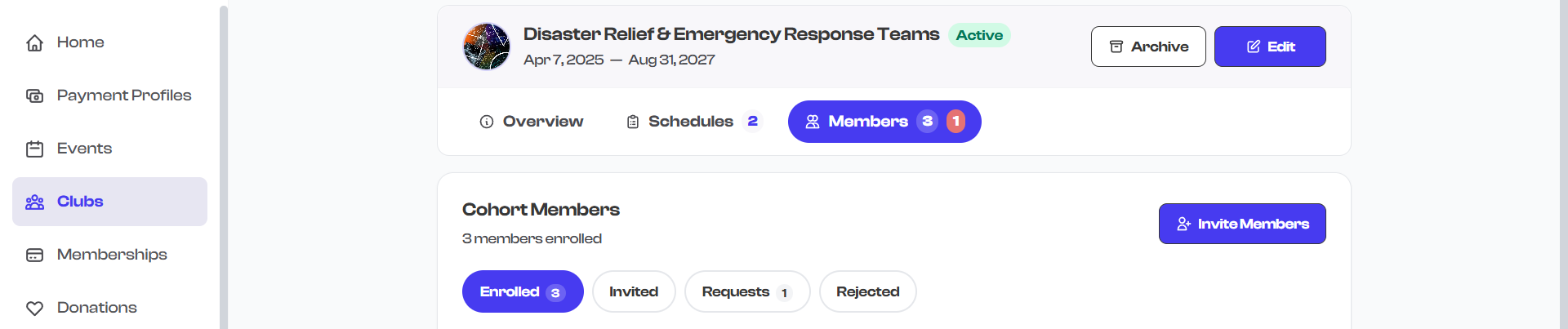
The Members tab groups statuses into four filters:
| Filter | Includes These Statuses |
|---|---|
| Enrolled | Accepted, PastAccepted |
| Invited | Invited, PastInvited |
| Requests | Requested, PastRequested |
| Rejected | OrgRejected, MemberRejected |
Statuses with the "Past" prefix (e.g., PastAccepted, PastInvited) refer to members whose engagement record is from a previous term or session. They are grouped with their current counterparts for easier management.
Read-Only Mode
When a club's status is Completed or Canceled, the Members tab becomes read-only. You can still view and search the member list, but action buttons (Accept, Reject, Remove, etc.) are not displayed.
This prevents accidental changes to clubs that have already concluded.
Common Workflows
Setting Up a New Club
- Create and launch your club.
- Go to the Members tab and select Invite Members.
- Select all the followers you want in the club.
- Send invitations.
- Check back periodically for any join requests in the Requests filter.
- Send reminders to anyone who has not responded in the Invited filter.
Managing an Active Club
- Check the Requests filter regularly and accept or reject new join requests.
- Use the Enrolled filter to review your current roster.
- Remove members who are no longer participating.
- Invite new followers as needed throughout the season.
End of Season
- Review your final roster in the Enrolled filter.
- When the club is marked as Completed, the member list becomes read-only for your records.
What's Next?
Learn how to set up recurring sessions for your club in Schedules & Attendance.