Archiving & Deleting Memberships
As your organization evolves, you will need to retire memberships that are no longer offered. FeatsClub provides two ways to handle this: closing (archiving) a membership to preserve its data, or deleting a draft membership that was never launched.
Understanding Membership Statuses
Before diving into archiving and deleting, it helps to understand the membership lifecycle:
| Status | Meaning | Can Enroll? | Visible on Dashboard? |
|---|---|---|---|
| Active | Live and accepting new enrollments | Yes | Active tab |
| Inactive | Draft or paused -- not visible to members | No | Inactive tab |
| Closed | Permanently retired -- preserves all member data | No | Closed tab |
| Rolled Up | Merged into another membership (system action) | No | Closed tab |
Closing (Archiving) a Membership
Closing a membership is the standard way to retire a plan that is no longer being offered. Closing prevents new enrollments while preserving all existing member data, payment records, and enrollment history.
When to Close a Membership
- The season or term has ended and you are not renewing this plan
- You are replacing this membership with a new or updated version
- The membership is no longer relevant to your organization's offerings
- You want to stop accepting new enrollments but honor existing members
How to Close a Membership
- Go to Dashboard > Memberships
- Select the membership you want to close
- On the membership detail page, click the Close button
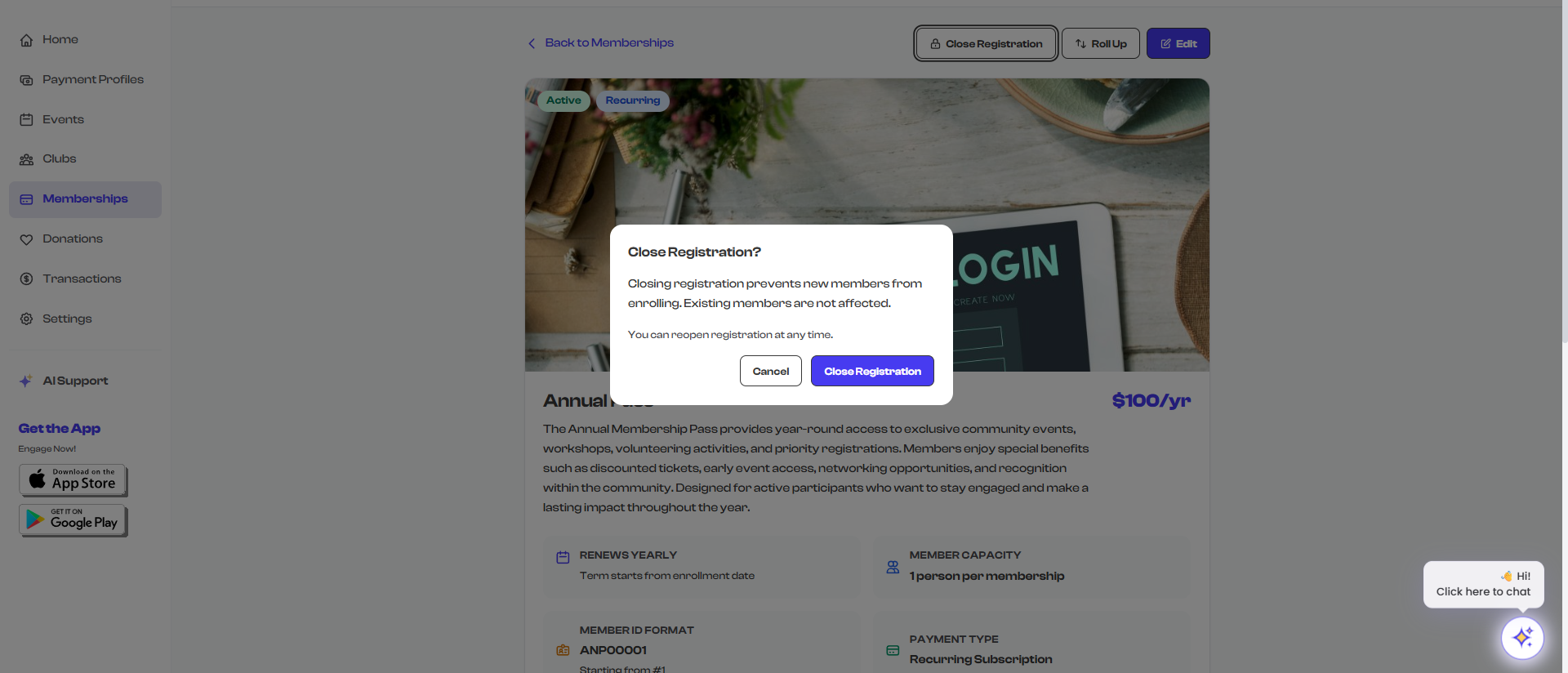
- A confirmation dialog appears explaining that closing will prevent new enrollments
- Confirm the action
What Happens When You Close a Membership
- No new enrollments -- The membership is removed from public listings and the enrollment link no longer allows sign-ups
- Existing members are preserved -- All enrolled members retain their membership status. Active members remain active until their term expires.
- Data is preserved -- All member records, payment history, form responses, and enrollment data remain intact and accessible
- Dashboard visibility -- The membership moves from the Active tab to the Closed tab on your dashboard
- Member statistics -- Existing member counts continue to display on the membership detail page
Closing a membership is a non-destructive action. All your data is safe. Think of it as moving the membership to an archive -- it is no longer offered but everything about it is still there for your records.
Viewing Closed Memberships
To view memberships that have been closed:
- Go to Dashboard > Memberships
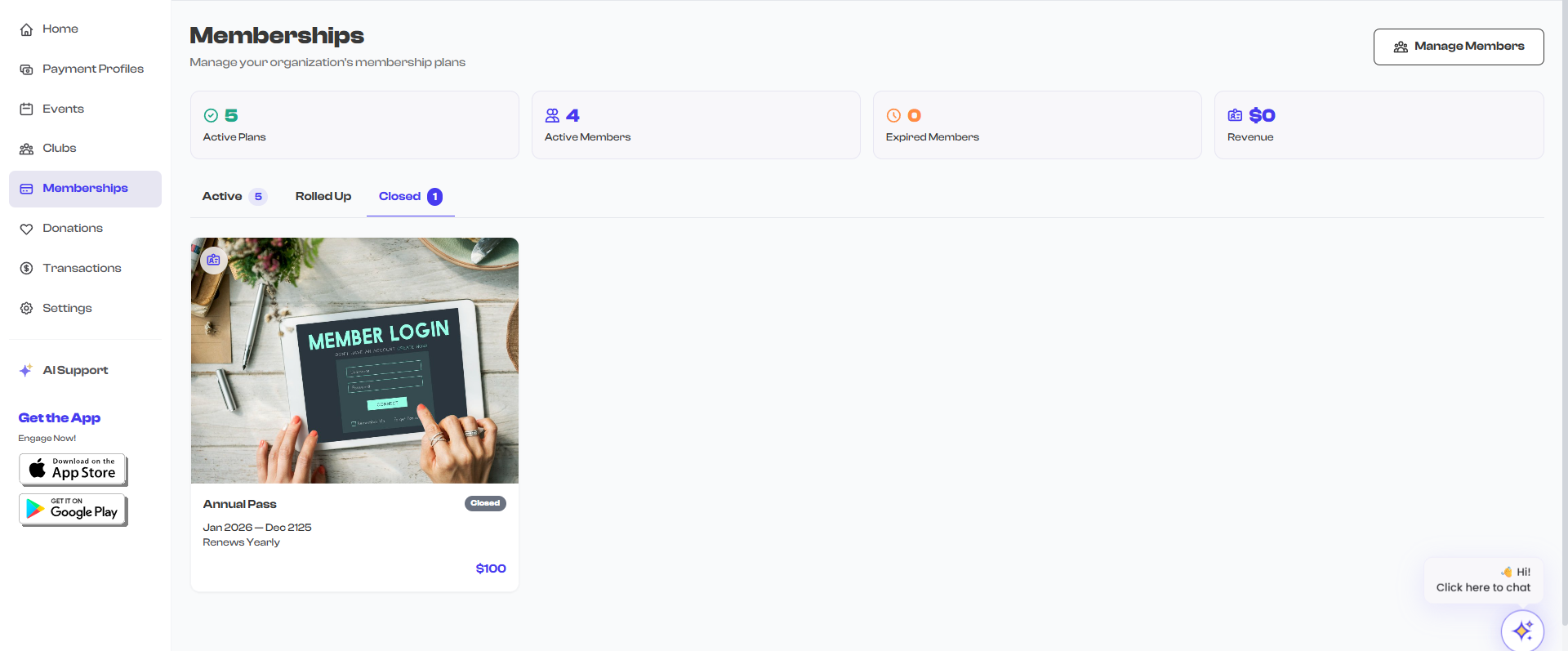
- Select the Closed tab
- All closed and rolled-up memberships appear here
- Click any closed membership to view its full details and member list
Reactivating a Closed Membership
If you need to reopen a closed membership (for example, if it was closed by mistake or you decide to offer it again):
- Go to Dashboard > Memberships and select the Closed tab
- Click the membership you want to reactivate
- Click Edit to open the membership in the edit wizard
- Make any necessary changes
- Save and launch the membership to return it to Active status
Reactivation is available as long as the membership has not been rolled up into another plan. Rolled-up memberships cannot be independently reactivated because their members have been migrated to the target membership.
Deleting a Membership
Deleting permanently removes a membership from your organization. This is a more drastic action than closing and is only recommended for memberships that were never used.
When to Delete
- The membership was created as a test and was never launched
- The membership is still in Inactive (draft) status with no enrolled members
- You want to completely remove the plan, not just archive it
How to Delete
Deletion is available for memberships in Inactive status. The process varies by platform:
- Web Dashboard -- Open the membership detail page and use the delete option (available for inactive memberships only)
- Mobile App -- Open the membership, tap the options menu, and select Delete
What Happens When You Delete
- The membership is permanently removed from your organization
- All associated configuration (pricing, forms, media, benefits, terms) is deleted
- This action cannot be undone
You cannot delete an Active or Closed membership that has enrolled members. If members have enrolled, you must close the membership instead. This ensures that member records are never accidentally lost.
Choosing Between Close and Delete
| Scenario | Recommended Action | Why |
|---|---|---|
| Season ended, members enrolled | Close | Preserves member data and payment records |
| Replacing with a new version | Close old + Create new | Members of the old plan keep their records |
| Test membership, never launched | Delete | Cleans up your dashboard without any data loss |
| Draft with no members | Delete or Close | Either works -- delete for cleanup, close if you might reference it |
| Membership offered in error | Close | Even if only a few people enrolled, their data should be preserved |
What Happens to Members
Understanding the impact on members is critical:
When a Membership Is Closed
- Members with Active status keep their membership until it naturally expires
- Members can still view their membership details in their profile
- Recurring subscriptions continue until the current billing period ends (Stripe handles this)
- No new members can enroll
- You can still view and manage existing members from the dashboard
When a Membership Is Deleted
- Only possible when there are no enrolled members
- No member data is affected because there are no members
Best Practices
Close a membership at the end of its natural lifecycle -- when the season ends, the term expires, or you have launched a replacement plan. There is no rush to close; an active membership with no current enrollees does not hurt anything.
Before closing a membership, consider adding the year or term to its name (e.g., "Youth Soccer 2025") so it is easy to identify in the Closed tab later.
Before deleting any membership, double-check that there are truly no enrolled members. Once deleted, the configuration cannot be recovered.
What's Next?
Explore Tips & Best Practices for strategies on pricing, growing your membership base, and getting the most out of FeatsClub's membership management tools.