Editing Membership Details
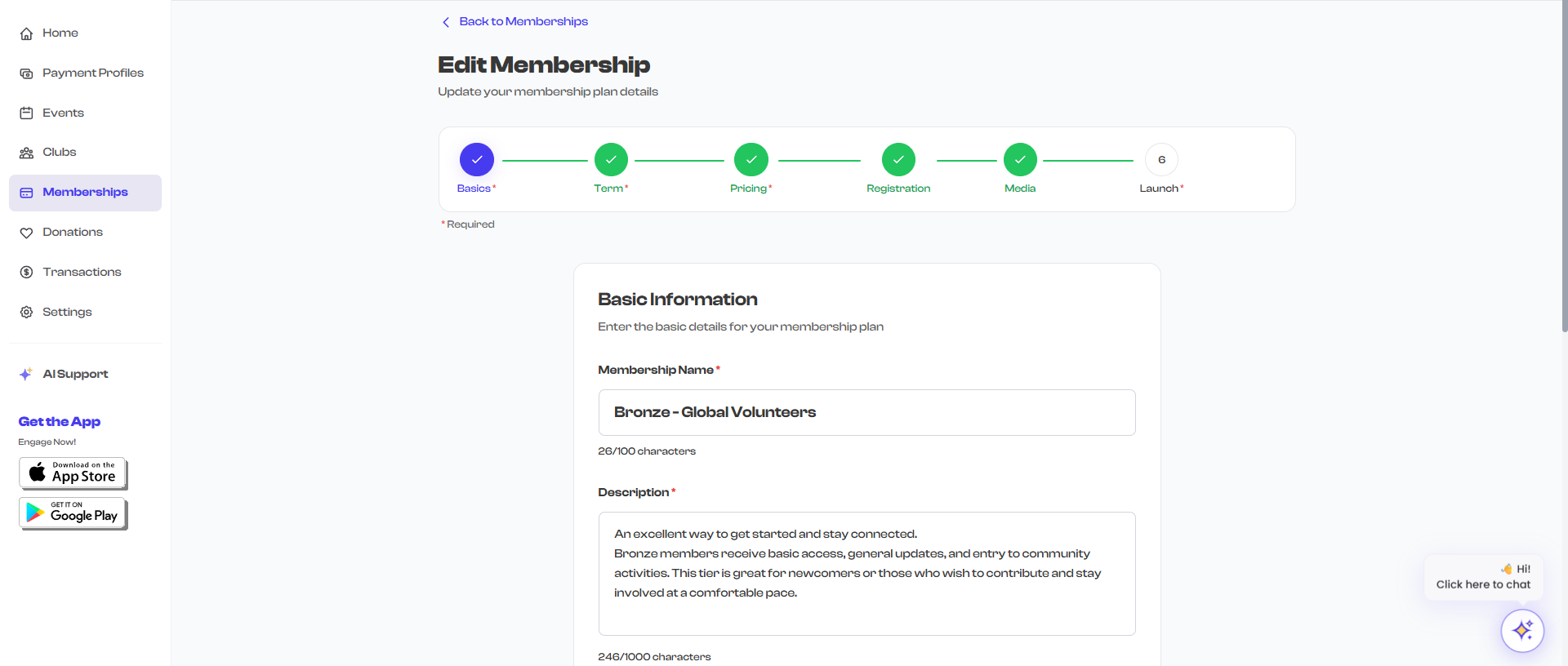
You can edit any existing membership to update its information, adjust pricing, change media, or modify forms. The edit flow uses the same step-by-step wizard as membership creation, with your existing data pre-populated in each field.
How to Edit a Membership
- Go to Dashboard > Memberships
- Select the membership you want to edit by clicking its card
- On the membership detail page, click the Edit button in the top-right corner
- The membership creation wizard opens with all existing data filled in
- Navigate through the steps to make your changes
- Save your changes when you are done

The Edit button is only visible if you have the "update" permission for memberships. If you are using delegate admin roles and do not see the Edit button, contact your organization administrator to request access.
The Edit Wizard
The edit wizard follows the same six steps as the creation wizard:
| Step | What You Can Edit |
|---|---|
| 1. Basic Information | Membership name, description, prefix (acronym), starting serial number, benefits, and terms and conditions |
| 2. Term Configuration | Select or change the membership term (enrollment type, payment type, dates) |
| 3. Pricing | Base fee, currency, fee passthrough to members, and invite-only setting |
| 4. Registration | Number of people per membership, registration form, and participant form |
| 5. Media | Cover images and videos -- add, remove, or reorder |
| 6. Review & Save | Review all changes and save the updated membership |
You can jump to any step directly using the step indicator at the top of the wizard. You do not need to go through every step sequentially -- just navigate to the section you want to change.
What Can Be Edited
Basic Information
- Membership Name -- Change the display name (e.g., from "Monthly Membership" to "Monthly Unlimited")
- Description -- Update the description text to reflect changes in your offering
- Prefix (Acronym) -- The 3-character prefix used for member IDs (e.g., "GLD"). Changing this affects the format of new member IDs only; existing member IDs are not retroactively updated.
- Starting Serial Number -- The next number to be assigned. You can increase this but should not decrease it below the highest already-assigned number.
- Benefits -- Add or remove items from the benefits list
- Terms & Conditions -- Update your terms and conditions text
Term Configuration
- Select a different term -- Choose a different term from your organization's term library
- Term dates -- For fixed-date memberships, adjust the start date, end date, or last enrollment date
Changing the term on an existing membership does not retroactively affect enrolled members. Each member's enrollment record stores a term snapshot -- a copy of the term settings at the time they enrolled. This ensures their membership validity and renewal dates remain consistent with what they agreed to when they signed up.
Pricing
- Base Fee -- Increase or decrease the membership price
- Currency -- Change between USD, INR, or Free
- Pass Charges to Member -- Toggle whether processing fees are added to the member's total or absorbed by your organization
- Invite Only -- Toggle whether the membership requires an invitation to enroll
Pricing changes apply to new enrollments only. Members who have already enrolled at a previous price are not affected. If you have Allow Grandfathered Pricing enabled, renewing members may continue to pay their original rate even after a price change.
Registration & Participant Forms
- Number of People -- Change how many participants are included per membership (for group/family plans)
- Registration Form -- Add, replace, or remove the enrollment registration form
- Participant Form -- Add, replace, or remove the per-participant form for group memberships
- Form Timing -- Choose whether forms appear before or after payment
Media
- Add images or videos -- Upload new cover media
- Remove media -- Delete existing images or videos
- Reorder media -- Change the display order of your cover images
How Edits Affect Existing Members
This is an important point to understand:
| What Changes | Effect on Existing Members |
|---|---|
| Name or description | Visible to existing members when they view their membership |
| Benefits or terms text | Visible to existing members on the membership page |
| Pricing | No effect -- existing members keep their original price |
| Term dates | No effect -- existing members keep their original term dates (stored as a snapshot) |
| Forms | No effect -- existing member data was collected at enrollment time |
| Media | Visible everywhere the membership is displayed |
| Number of people | No effect on existing enrollments -- only applies to new enrollments |
| Invite-only toggle | Affects new enrollment availability but does not change existing members' status |
Think of edits to pricing, terms, and forms as changes to the "storefront" -- they affect what new members see and agree to when enrolling, but they do not alter the agreements already in place with existing members.
Saving Changes
After making your edits:
- Navigate to the Review & Save step (Step 6)
- Review your changes
- Click Save to update the membership
Your changes take effect immediately. The membership detail page and membership cards on the dashboard will reflect the updated information right away.
What's Next?
Learn about Duplicating Memberships to see how you can use an existing membership as a template for creating a new plan.