Admin Profile
The Admin Profile represents the owner or primary manager of the organization -- the person who created the org or has taken on the lead management role. This profile is displayed on your organization's public profile page, so visitors can see who is behind the organization.
Admin Profile Fields
Basic Information
| Field | Required | Description |
|---|---|---|
| Display Name | Yes | Your full name or representative name as shown on the profile. This is the primary name visitors will see. |
| First Name | No | Your individual first name. |
| Last Name | No | Your individual last name. |
| Role | No | Your title or position in the organization. Defaults to "Admin / Owner" if left blank. Examples: "Founder & CEO", "Head Coach", "Executive Director", "Program Director". |
| About / Bio | No | A personal bio or professional description. Use this to share your background, qualifications, or what you bring to the organization. |
| Profile Picture | No | A circular photo of yourself. This appears next to your name on the public profile. |
| Gender | No | An optional demographic field. |
Contact Information
All contact fields are optional. They allow followers and visitors to reach you directly if you choose to share them.
| Field | Description |
|---|---|
| A contact email address for you as the admin. This can be different from the email you use to sign in to FeatsClub. | |
| Phone Number | A contact phone number. |
| Website URL | A link to your personal or professional website. |
| Your Facebook profile URL. | |
| Your Instagram profile URL. | |
| Twitter/X | Your Twitter/X profile URL. |
You do not need to fill in every contact field. Share only the channels where you are comfortable being contacted. At a minimum, adding an email gives visitors a way to reach out with questions.
How to Edit Your Admin Profile
- Go to Dashboard and click Settings in the sidebar.
- Select the Team tab.
- The Admin Profile section shows your current information at the top of the page.
- Click Edit to open the editing form.
- Update any fields you want to change.
- Click Save to apply your changes.
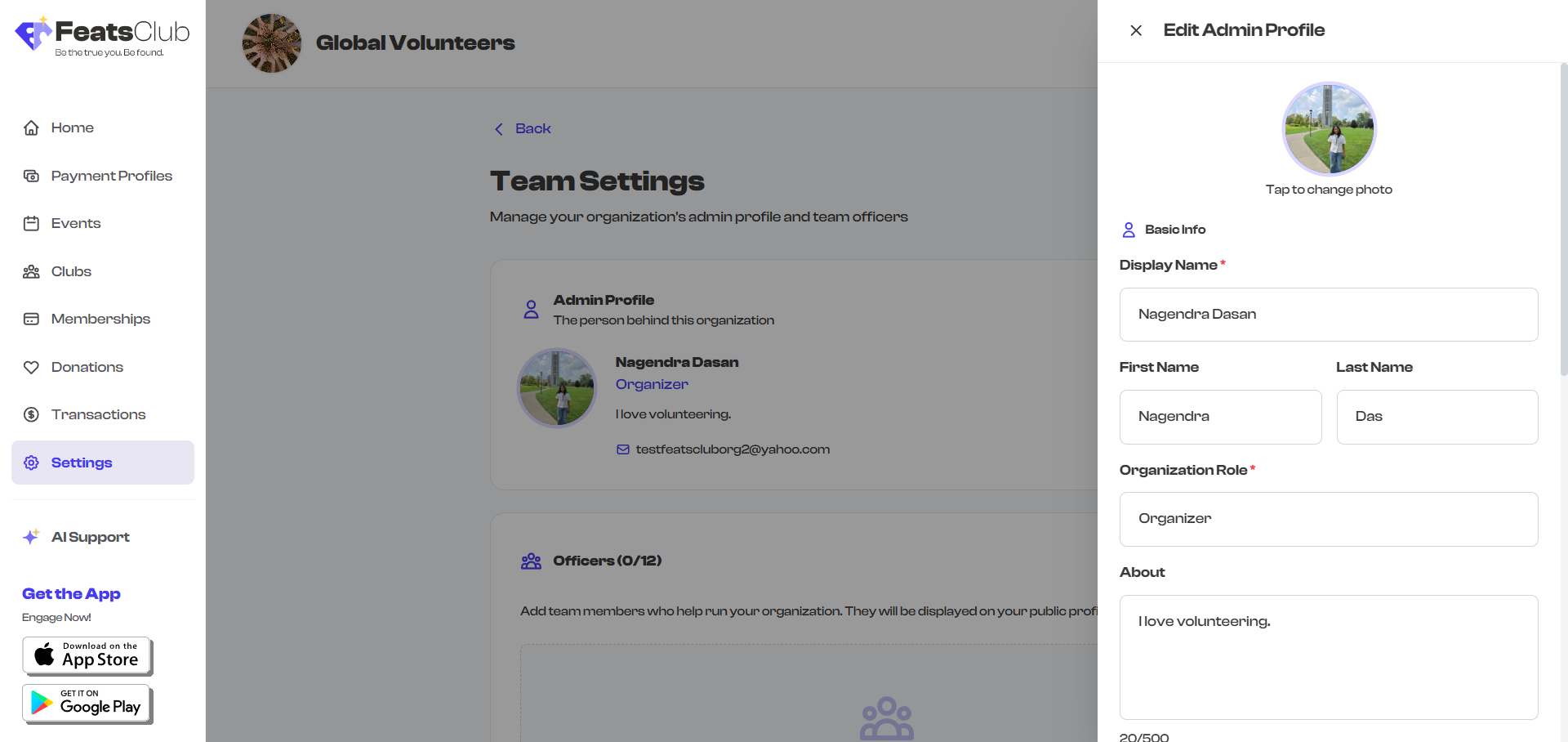
Changes take effect immediately -- your updated information will appear on your public organization profile right away.
The admin profile is linked to your user account. Changes you make here update your display information across the platform wherever your admin profile appears.
Best Practices
- Use a clear display name. If you are the face of the organization, use your real name. If the organization is the brand, you can use a representative name like "Academy Admin" or your org name.
- Add a profile photo. Profiles with photos build more trust than those without. A clear headshot works best.
- Write a concise bio. Two to three sentences covering your role and background is enough. Focus on what makes you qualified to lead the organization.
- Choose an appropriate role title. Your role title appears directly beneath your name on the public profile. Pick something that clearly communicates your position -- "Founder & CEO", "Head Coach", "Executive Director", or similar.
What's Next?
- Ready to add your team? Head to Officers & Team Members to showcase your staff, coaches, and board members on your public profile.
- Want to learn about granting management permissions? See Admin Delegation to let trusted followers help manage your organization.