Officers & Team Members
Officers are the team members displayed on your organization's public profile. They represent your leadership, staff, coaches, board members, or anyone else you want visitors to know about. Adding officers helps your organization look established and trustworthy by showing the real people behind it.
Adding an Officer
You can add up to 12 officers to your organization. To add a new officer:
- Go to Dashboard and click Settings in the sidebar.
- Select the Team tab.
- Scroll down to the Officers section.
- Click Add Officer.
- Fill in the officer's details:
- Display Name (required) -- The officer's full name as it will appear on your public profile.
- First Name (optional) -- The officer's first name.
- Last Name (optional) -- The officer's last name.
- Role (optional) -- Their title or position in the organization. For example: "Treasurer", "Secretary", "Head Coach", "Board Member".
- About (optional) -- A brief bio or description of the officer.
- Profile Picture (optional) -- A photo of the officer. Displayed as a circular image on your public profile.
- Add contact information (all optional):
- Email -- Contact email for the officer.
- Phone -- Contact phone number.
- Website -- Personal or professional website.
- Facebook -- Facebook profile URL.
- Instagram -- Instagram profile URL.
- Twitter/X -- Twitter/X profile URL.
- Click Save.
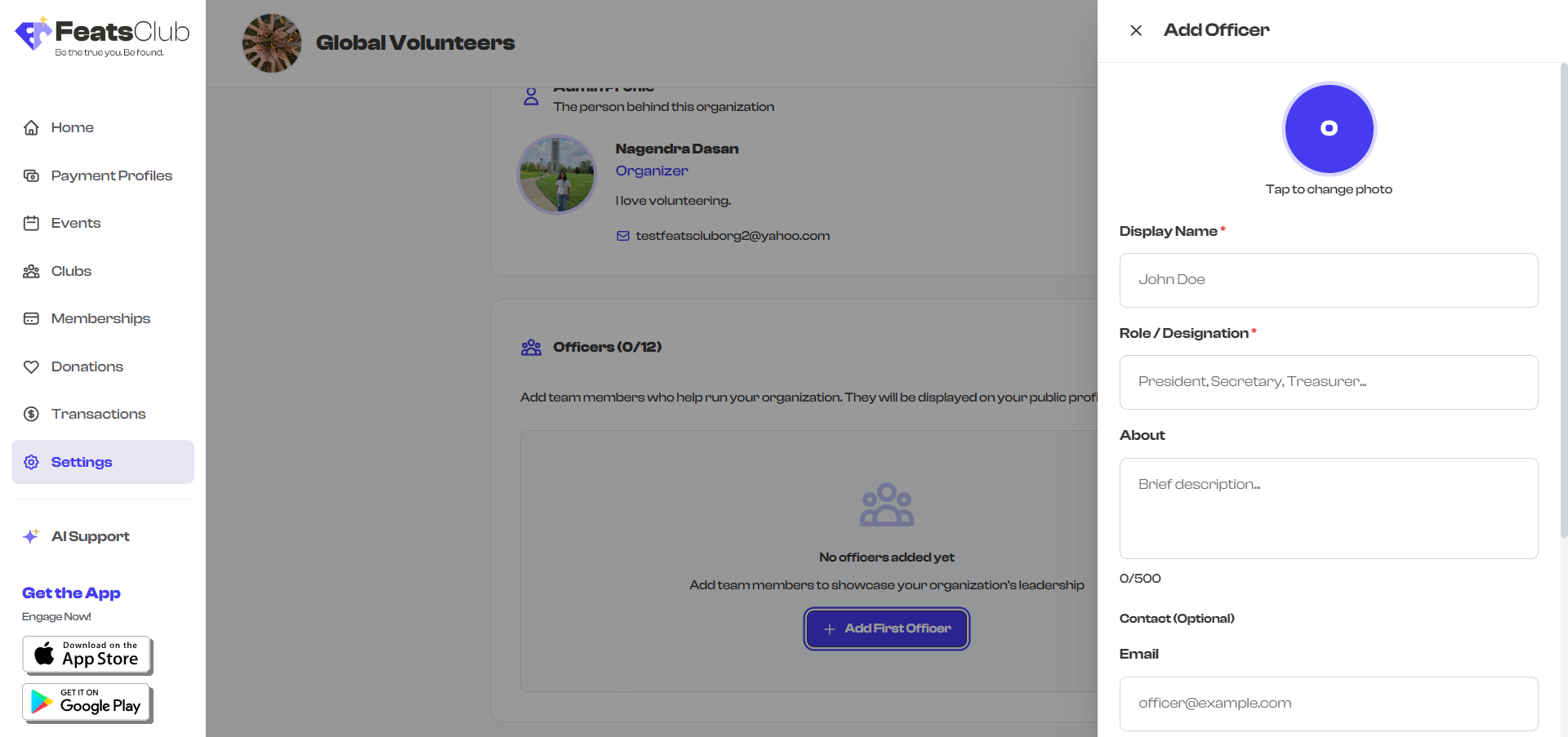
The new officer appears in your Officers section immediately and is visible on your public profile right away.
Editing an Officer
- Go to Dashboard and click Settings in the sidebar.
- Select the Team tab and scroll to the Officers section.
- Find the officer you want to edit and click Edit on their card.
- Update any fields you want to change.
- Click Save.
Changes are reflected on your public profile immediately.
Removing an Officer
- Go to Dashboard and click Settings in the sidebar.
- Select the Team tab and scroll to the Officers section.
- Find the officer you want to remove and click Delete or Remove.
- Confirm the removal when prompted.
The officer is immediately removed from your public profile.
Officers are display-only on your public profile. Adding someone as an officer does not give them the ability to log in and manage your organization. If you need someone to help manage events, memberships, or clubs, set them up as an Admin Delegate through Follower Management.
Limits and Rules
- Maximum 12 officers per organization.
- Officers are displayed on your public profile in the order they were added.
- Officers do not need to have a FeatsClub account -- you are simply entering their display information.
- Removing an officer from Team Settings has no effect on any other part of the platform. It only removes them from your public profile display.
Officers vs. Admin Delegates
It is important to understand the difference between officers and admin delegates, as they serve very different purposes:
| Officers (Team Settings) | Admin Delegates (Follower Management) | |
|---|---|---|
| Purpose | Display team members on your public profile | Grant management permissions to trusted followers |
| Visibility | Shown on public organization profile | Not shown publicly |
| Access | No login or management access | Can log in and manage assigned areas |
| Requires FeatsClub account | No | Yes (must be a follower with Admin role) |
| Configured in | Dashboard > Settings > Team | Dashboard > Followers > Follower Detail |
| Limit | 12 per organization | No hard limit |
A person can be both an officer and an admin delegate. For example, your "Head Coach" might appear as an officer on your public profile for visibility, and also be set up as an admin delegate with permissions to manage cohorts and attendance. These are configured separately in different parts of the dashboard.
Common Officer Roles
Here are examples of roles commonly used by organizations on FeatsClub:
| Role | Description | Example |
|---|---|---|
| President | Head of the organization | Club president |
| Vice President | Second in command | Deputy leader |
| Treasurer | Manages finances | Financial officer |
| Secretary | Handles records and communications | Administrative lead |
| Head Coach | Lead instructor or coach | Sports team head coach |
| Assistant Coach | Supporting instructor | Junior team coach |
| Board Member | Governing body member | Nonprofit board |
| Volunteer Coordinator | Manages volunteers | Event coordinator |
| Program Director | Oversees programs | Academy director |
| Communications Director | Handles outreach and marketing | Social media manager |
| Registrar | Manages enrollment and records | School registrar |
| Advisor | Provides guidance and expertise | Faculty advisor |
Officers are a great way to showcase your organization's leadership team and build trust with potential members. Even if your team is small, adding at least one or two officers makes your profile look more established and gives visitors confidence in your organization.
Best Practices
- Add a role to every officer. A name without context does not tell visitors much. Including a role like "Head Coach" or "Treasurer" immediately communicates the person's function in the organization.
- Include profile photos when possible. Teams with photos appear more approachable and trustworthy than text-only listings.
- Keep bios short and relevant. One or two sentences about the officer's background or responsibilities is sufficient.
- Update your team regularly. If someone leaves or a new team member joins, update the officers list so your public profile stays accurate.
- Use consistent role naming. If you call one person "Head Coach" and another "Lead Coach" for the same type of role, it can confuse visitors. Pick a naming convention and stick with it.
What's Next?
- Need to update your own profile? Head back to Admin Profile to review your information.
- Want to give team members actual management access? See Admin Delegation to grant permissions to trusted followers.
- Looking for other organization settings? Return to Team Settings for an overview.