Step 1: Basics
Step 1 of 4 -- Basic Information
This is the foundation of your club. You will set up the club's name, description, icon, and important dates. All fields in this step are required except the profile icon. You must complete this step before you can save a draft or move to the next step.
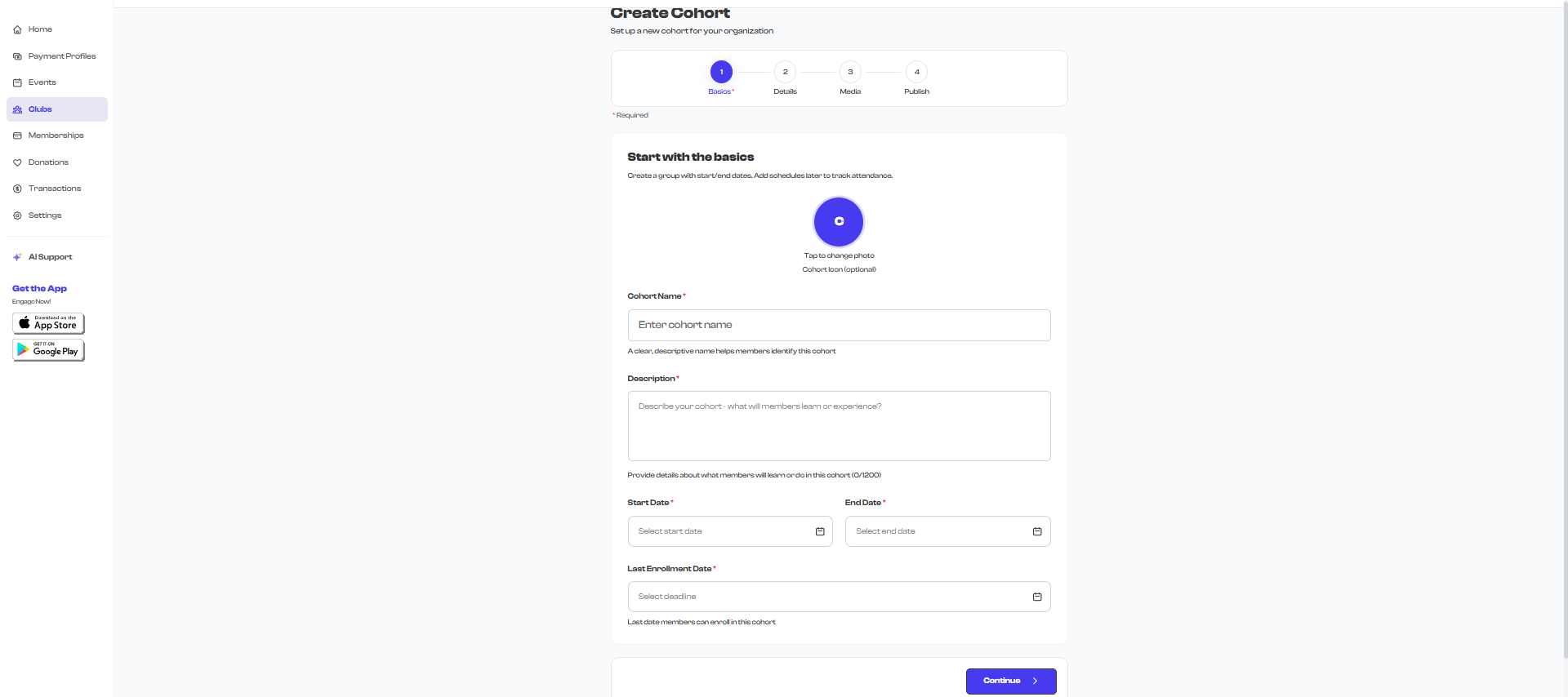
Profile Icon
At the top of the form, you will see a circular photo picker for your club's icon. This is the small image that appears on club cards, in search results, and next to your club's name throughout the platform.
- The icon is optional but recommended. If you do not upload one, a default placeholder with the first letter of your club name is displayed.
- Click the circle to upload an image from your device.
- Use a logo, emblem, or recognizable image that represents your club.

A square image with your club's logo or an action shot works best. The image is displayed as a circle, so keep important content in the center.
Club Name
The Club Name field is the title of your club. It appears on club cards, in search results, on your organization's public profile, and at the top of the club detail page.
- This field is required.
- The name must be at least 5 characters long.
- Maximum length is 100 characters.
- Choose a clear, descriptive name that helps members immediately understand what the club is about.

Good examples:
- "Junior Basketball Club - Fall 2025"
- "Advanced Piano Masterclass"
- "Beginner Salsa Dance Group"
- "Robotics Team - Competition Prep"
- "Saturday Morning Yoga Series"
Avoid generic names like "Club 1" or "My Club". A descriptive name helps members find your club and understand what to expect before they join.
Description
The Description field explains what your club is about and what members can expect.
- This field is required.
- The description must be at least 5 characters long.
- Maximum length is 1,200 characters.
- This text appears on the club detail page and helps potential members decide whether to join.

What to include in your description:
- What the club is about and its goals
- What members will learn, practice, or experience
- Who the club is for (age group, skill level, interests)
- How often the club meets (you will add specific schedules later)
- Any equipment or materials members should bring
Write your description from the perspective of a potential member reading it for the first time. Answer the question: "Why should I join this club?"
Start Date
The Start Date is when your club officially begins.
- This field is required.
- Click the date field to open a date picker and select the start date.
- The start date is displayed on the club card and detail page to let members know when the program kicks off.
End Date
The End Date is when your club wraps up.
- This field is required.
- The end date must be after the start date.
- For ongoing or year-long clubs, set the end date to the end of the term, semester, or season.

If the end date is set before the start date, you will see a validation error: "End date must be after start date". Correct the dates before proceeding.
Last Enrollment Date
The Last Enrollment Date (also called the enrollment deadline) is the final date by which members can join the club.
- This field is required.
- The enrollment deadline must fall between the start date and the end date (inclusive). It must be on or after the start date and on or before the end date.
- After this date passes, new members will no longer be able to enroll.

For clubs with limited spots, set the enrollment deadline well before the start date to give yourself time to review applications. For open-enrollment clubs, you can set it to the same date as the start date or even later into the program.
Date Validation Rules
The wizard enforces the following date rules before letting you proceed:
| Rule | Error Message |
|---|---|
| Start date is required | "Select start date" |
| End date is required | "Select end date" |
| Last enrollment date is required | "Select deadline" |
| End date must be after start date | "End date must be after start date" |
| Enrollment deadline must be on or after start date | "Enrollment deadline must be after start date" |
| Enrollment deadline must be on or before end date | "Enrollment deadline must be before end date" |
What Happens Next
Once all fields are filled in and validated, click Continue to move to Step 2: Details where you will add a category, rules, and criteria for your club.
What's Next?
Proceed to Step 2: Details to configure your club's category, rules, and joining criteria.