Step 4: Review & Publish
Step 4 of 4 -- Review & Launch
This is the final step. Before your club goes live, you get a complete preview of everything you have configured. Review the details, adjust visibility settings, and choose whether to save as a draft or launch immediately.

What the Review Shows
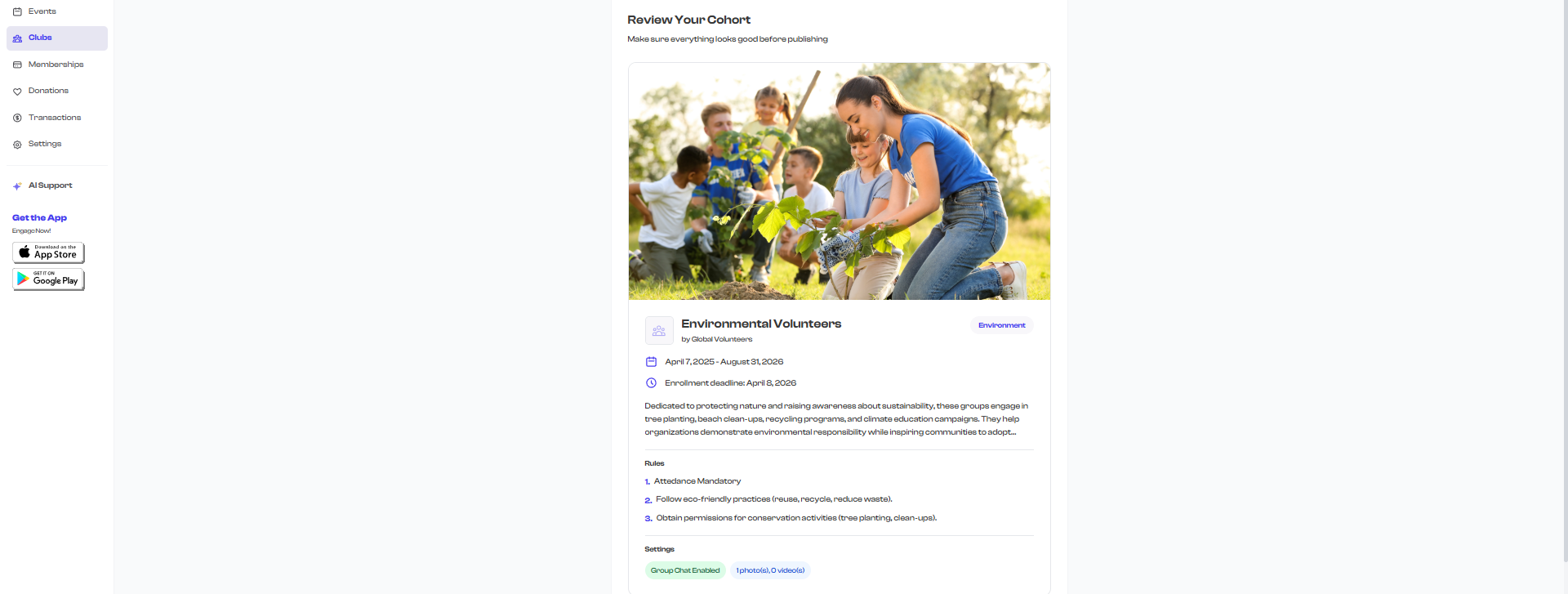
The review screen displays a preview card that mirrors how your club will appear to members. It includes:
Club Identity
- Media gallery -- Your uploaded photos and videos in a slider at the top of the card. If no media was uploaded, a default gradient placeholder is shown.
- Profile icon -- Your club's circular icon next to the title.
- Club name -- The title you entered in Step 1.
- Organization name -- Shown as "by [Your Organization Name]" beneath the title.
- Category badge -- If you set a category in Step 2, it appears as a colored badge.
Dates
- Date range -- The start and end dates displayed with a calendar icon.
- Enrollment deadline -- The last enrollment date displayed with a clock icon.
Description
- The description text you wrote in Step 1, shown as it will appear to members.
Rules
- All valid rules are displayed as a numbered list under a "Rules" heading.
Prerequisites
- All criteria you entered are displayed with checkmark icons under a "Prerequisites" heading. This section only appears if you added at least one criterion.
Settings
- Group Chat status -- Shows whether group chat is enabled or disabled.
- Media count -- Shows the number of photos and videos you uploaded.
Visibility Settings
Below the preview card, you will find the Visibility Settings panel.
Show on Organization Profile
This toggle controls whether your club appears on your organization's public profile page.
- Enabled by default -- new clubs are set to be visible on your public profile.
- When enabled, anyone visiting your organization's page can discover this club.
- When disabled, the club exists in your dashboard but is hidden from your public profile.

If your club is still being set up and you are not ready for members to see it, turn off this toggle before launching. You can always enable it later from the club's edit screen.
Your Two Options
At the bottom of the page, you have two choices:
Save as Draft
Click Save as Draft to save all your work without making the club live.
- The club is saved with a Draft status.
- It appears in the "Draft" tab on your Club Dashboard.
- It is not visible to members or on your public profile.
- You can return at any time to edit and complete the club.
- When you are ready, open the draft and launch it.
To save as a draft, only Step 1 (Basics) needs to be fully completed. You can save a draft even if Steps 2, 3, or 4 are incomplete.
Launch
Click Launch Club to immediately make the club active and visible.
- The club status changes to Active.
- If the "Show on Organization Profile" toggle is enabled, the club appears on your public organization page.
- Members can discover the club and begin enrolling (if the enrollment deadline has not passed).
- The club appears in the "Active" tab on your Club Dashboard.
Launching is immediate. Once launched, the club is live and visible to anyone who can see your organization's profile. Make sure all the details are correct before clicking Launch.
To launch, both Step 1 (Basics) and Step 2 (Details) must be valid. If there are issues, the wizard takes you back to the step that needs attention.
What Happens After Launching
Once your club is launched:
- It appears on your dashboard -- You will see the club in the "Active" tab of the Club Dashboard with its current details.
- Members can discover it -- If visibility is enabled, the club shows up on your organization's public profile and members can view its details.
- You can invite members -- Navigate to the club's detail page to start adding or inviting members.
- You can add schedules -- Set up recurring sessions for the club so members know when and where to show up.
- You can still edit -- All fields remain editable on active clubs. Changes take effect immediately.
Can I Edit After Launching?
Yes. All club fields can be edited after launching. Navigate to the club's detail page, click the edit option, and the same 4-step wizard opens with your existing data pre-filled. You can update the name, description, dates, rules, media, and any other field. Changes are saved immediately when you click Update Club.
When editing a launched club, the wizard shows an "Unsaved changes" indicator so you always know if you have pending modifications.
Frequently Asked Questions
Can I change a draft to active later? Yes. Open any draft club from the "Draft" tab on your dashboard, make any final edits, and click "Launch" from the review step.
Can I take a launched club back to draft? No. Once launched, a club cannot be reverted to draft status. However, you can archive or cancel a club if needed.
What if I want to hide a launched club temporarily? Turn off the "Show on Organization Profile" toggle. The club remains active in your dashboard but is hidden from your public profile.
Do members get notified when I launch a club? Members who follow your organization may see the new club in their activity feed. For targeted outreach, share the club link directly with potential members.
What's Next?
Now that your club is created, explore these related topics:
- Editing & Managing Clubs -- Learn how to update, archive, cancel, or delete clubs
- Managing Members -- Add members, review enrollments, and manage your roster
- Schedules & Attendance -- Set up recurring sessions and track attendance