Step 3: Media
Step 3 of 4 -- Photos & Videos
Media brings your club to life. Photos and videos give potential members a visual preview of what your club looks like in action, the facilities you use, and the community they will be joining. This step is entirely optional -- you can skip it and come back to add media later.
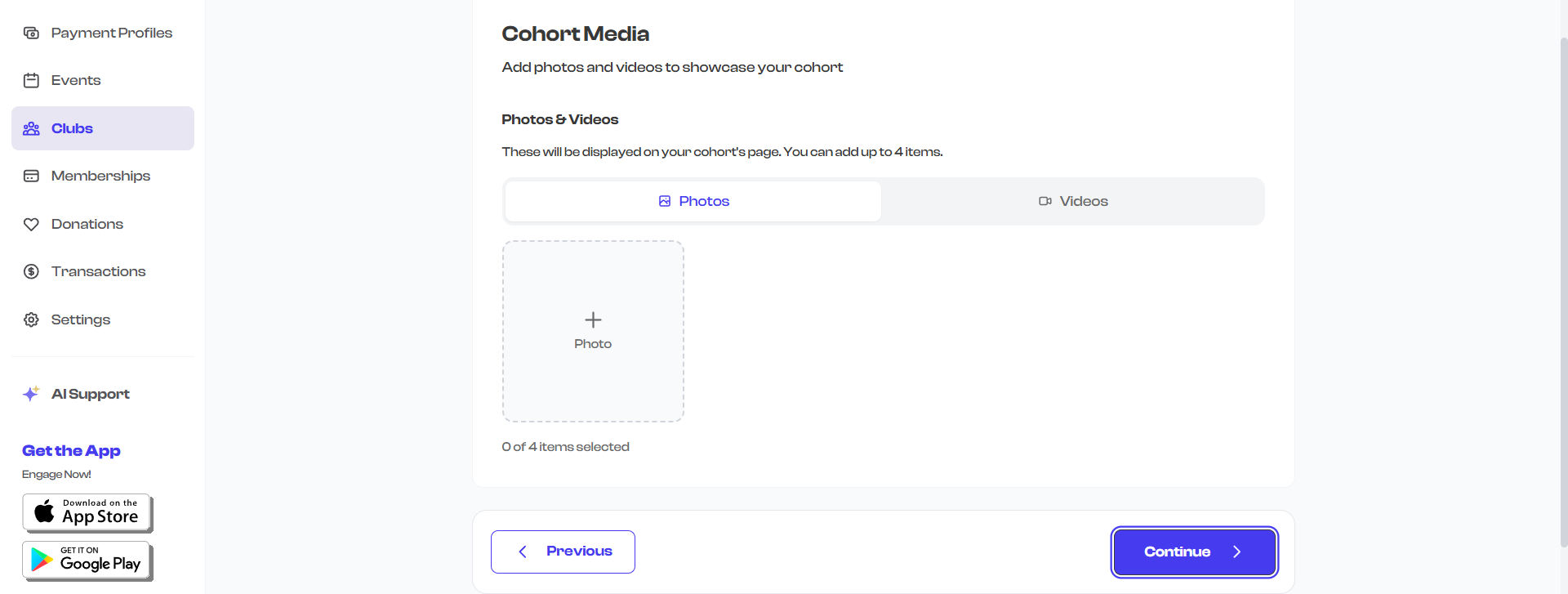
Uploading Media
You can upload up to 4 media items (photos and videos combined) to showcase your club.
How to Upload
- Click the upload area or drag and drop files from your device.
- Select one or more image or video files.
- Uploaded items appear as thumbnail previews below the upload area.
- To remove an item, click the delete button on its thumbnail.
Supported Formats
| Media Type | Supported Formats | Notes |
|---|---|---|
| Images | JPG, PNG, WebP | Standard photo formats |
| Videos | MP4, MOV | Maximum duration of 90 seconds |
Video thumbnails are automatically generated from your uploaded video. You do not need to create or upload a separate thumbnail image.
Where Media Appears
The media you upload is displayed in several places across the platform:
- Club detail page -- Photos and videos appear in a gallery slider at the top of the page. If you have multiple items, visitors can swipe or click through them.
- Club cards -- The first image (or video thumbnail) is used as the cover image on club cards displayed on your dashboard and public profile.
- Review step -- During the creation wizard, Step 4 (Review) shows a preview of your media slider so you can see how it will look.
Tips for Choosing Good Media
Selecting the right photos and videos makes a significant difference in how appealing your club looks to potential members.
Do include:
- Action shots -- Members actively participating in the activity (practicing, performing, competing)
- Group photos -- The club together, showing the community aspect
- Facility photos -- The space where the club meets (studio, field, classroom, lab)
- Equipment or materials -- Instruments, art supplies, sports gear, robotics kits
- Past highlights -- Performances, competitions, exhibitions, achievements
Avoid:
- Blurry or low-resolution images
- Stock photos that do not represent your actual club
- Photos with too many people where faces are not recognizable
- Very long videos -- keep them under 90 seconds and focused
The first media item you upload becomes the cover image for your club card. Choose your strongest, most eye-catching photo for the first slot.
Editing Media Later
You do not have to upload all your media now. After creating or launching your club, you can come back to the edit screen and add, remove, or reorder media items at any time.
What Happens Next
Once you are done uploading media (or if you choose to skip this step), click Continue to move to Step 4: Review & Publish where you will review everything and decide whether to save as a draft or launch your club.
What's Next?
Proceed to Step 4: Review & Publish to review your club and make it live.