Filtering Events
The Event Dashboard provides eight filter tabs to help you quickly find events by type or status. Each tab displays a count badge showing how many events fall into that category, so you can see your event distribution at a glance.
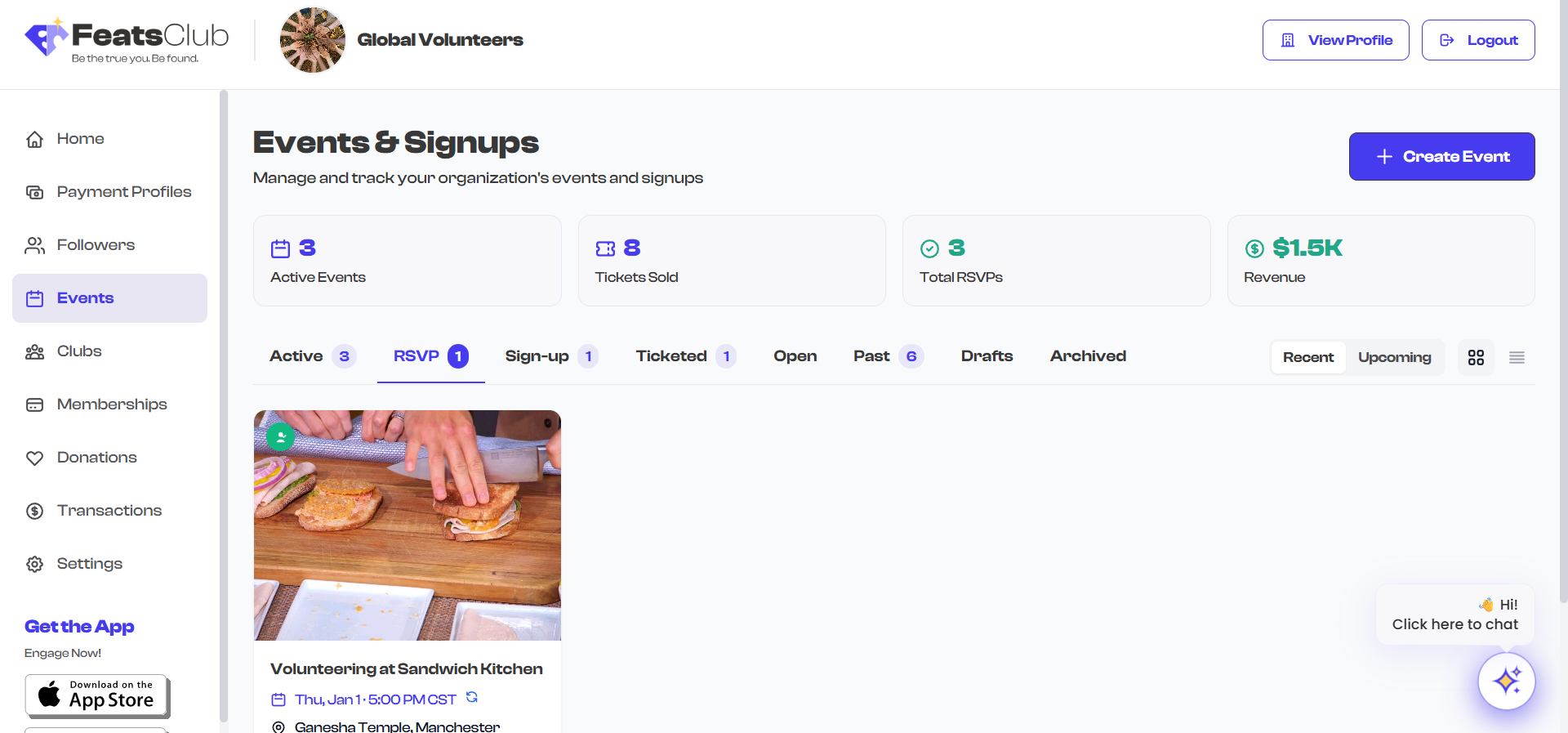
Filter Tabs
Active (default)
The Active tab is selected by default when you open the dashboard. It shows all currently live events -- those that have been published and have not yet expired. This tab combines events of all types (RSVP, Sign-up, Ticketed, and Open) into a single view sorted by start date, with the soonest events appearing first.
The count badge on this tab reflects the total number of active events across all types.
RSVP
Shows only events that require an RSVP response. These are typically free events where you need a headcount of attendees. RSVP events display a green checkmark badge on their card.
Sign-up
Shows events that use a registration form. Sign-up events collect attendee information through custom forms and display a clipboard badge on their card.
Ticketed
Shows events that have ticket pricing configured. These are paid events where attendees purchase tickets to attend. Ticketed events display a ticket badge on their card.
Open
Shows public events that do not require RSVP, sign-up, or ticket purchase. Anyone can attend these events without registering. Open events do not display a type badge on their card.
Past
Shows events that have expired or been completed. Past events remain accessible for reference and reporting but are separated from your active events to keep the dashboard focused on what is currently live.
Drafts
Shows events that have been created but not yet published. Draft events are only visible to your organization's admins and will not appear on your public profile or be accessible to the public. Draft events display a "Draft" text badge on their card.
Archived
Shows events that have been manually archived. Archiving removes an event from the main views without deleting it, so you can refer back to it later if needed.
Count Badges
Each filter tab displays a count badge when it contains one or more events. The badge appears as a small number next to the tab label.
- Selected tab: The badge appears with a solid purple background and white text.
- Unselected tabs: The badge appears with a light purple background and purple text.
- Empty tabs: No badge is displayed when a tab has zero events.
The count on the Active tab is the sum of all RSVP, Sign-up, Ticketed, and Open events. It does not include Past, Draft, or Archived events.
How Filtering Works
When you select a filter tab:
- The event listing immediately updates to show only events matching that category.
- The selected tab is highlighted with a purple underline.
- If no events match the filter, a contextual empty message is displayed. For example, selecting "Ticketed" when no ticketed events exist shows: "No ticketed events -- Events with tickets will appear here."
Switching between filter tabs does not affect the view mode. If you are in list view and switch from "Active" to "RSVP," the RSVP events will continue to display in list view.
Understanding Event Categories
Events are categorized based on two factors: their type (how attendees register) and their status (lifecycle stage).
Type-based tabs (RSVP, Sign-up, Ticketed, Open)
These tabs filter by how attendees interact with the event. An event's type is determined by its configuration -- whether it has tickets, an RSVP requirement, a sign-up form, or none of these. Only active (published, not expired) events appear in these tabs.
Status-based tabs (Past, Drafts, Archived)
These tabs filter by the event's lifecycle stage:
| Status | Meaning |
|---|---|
| Past | The event's end date has passed or it has been marked as completed |
| Draft | The event was saved but never published -- it is not visible to the public |
| Archived | The event was manually archived by an admin |
Use the count badges to quickly assess your event portfolio. For example, if you see a high count on the "Drafts" tab, you may have events that are ready to be published. If the "Past" tab count is growing, consider archiving older events to keep things tidy.