Field Types Reference
This page documents every field type available in the Form Builder. Fields are organized into four categories: Auto-Fill Fields, Text Fields, Choice Fields, and Special Fields.
Auto-Fill Fields (Preset)
Auto-fill fields pull information from the attendee's FeatsClub user profile when they are logged in. If the attendee is not logged in or the profile field is empty, they can enter the information manually. These fields are marked as Recommended in the field type selector.
Name
Collects the attendee's full name.
| Property | Value |
|---|---|
| Input type | Text |
| Auto-fill source | User profile name |
| Max length | Standard text limit |
When an attendee is logged in and has a name on their profile, this field is pre-populated. They can still edit it before submitting.
Email
Collects the attendee's email address.
| Property | Value |
|---|---|
| Input type | Email (with validation) |
| Auto-fill source | User profile email |
| Validation | Must be a valid email format |
Phone
Collects the attendee's phone number.
| Property | Value |
|---|---|
| Input type | Phone number |
| Auto-fill source | User profile phone |
Address
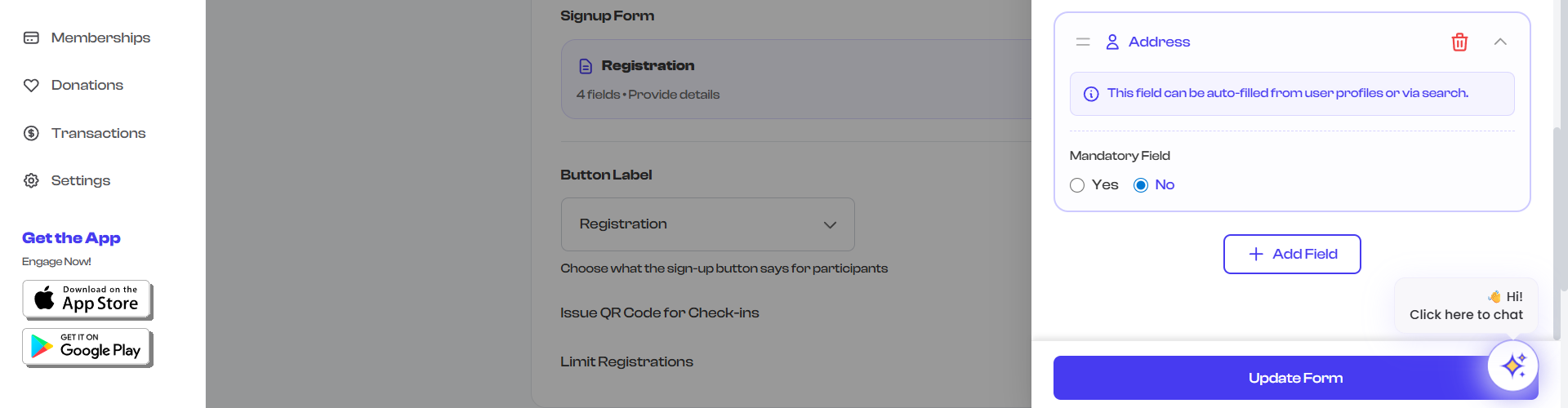
Collects a full mailing address with support for Google Maps autocomplete.
| Property | Value |
|---|---|
| Input type | Expandable address picker |
| Auto-fill source | User profile address |
| Components collected | Street address, city, state, country, zip code, coordinates |
| Search | Google Maps Places autocomplete |
When the attendee starts typing, address suggestions appear via Google Maps. Selecting a suggestion fills in all address components automatically. The attendee can also enter each component manually.
Membership ID
Lets the attendee select from their purchased memberships with your organization.
| Property | Value |
|---|---|
| Input type | Dropdown selector |
| Source | Attendee's active memberships in the current organization |
This field is useful when you want to link event registration to a specific membership. Only memberships the attendee has purchased from your organization are shown.
The Membership ID field only shows options if the attendee has an active membership with your organization. If they have no memberships, the field will be empty and they cannot select a value.
Text Fields
Text fields collect free-form text responses from attendees.
Short Answer
A single-line text input for brief responses.
| Property | Value |
|---|---|
| Input type | Single-line text |
| Best for | Names, titles, short responses |
Configuration:
- Question (required) -- The prompt shown to attendees.
- Required -- Toggle whether this field must be answered.
Examples of use:
- "What is your T-shirt size?"
- "Company name"
- "Dietary restrictions"

Long Answer
A multi-line text area for longer responses.
| Property | Value |
|---|---|
| Input type | Multi-line textarea |
| Best for | Paragraphs, detailed responses, comments |
Configuration:
- Question (required) -- The prompt shown to attendees.
- Required -- Toggle whether this field must be answered.
Examples of use:
- "Tell us about your experience with this topic"
- "Any special requirements or accommodations?"
- "Why are you interested in volunteering?"
Choice Fields
Choice fields let attendees select from predefined options.
Single Choice (Radio Buttons)
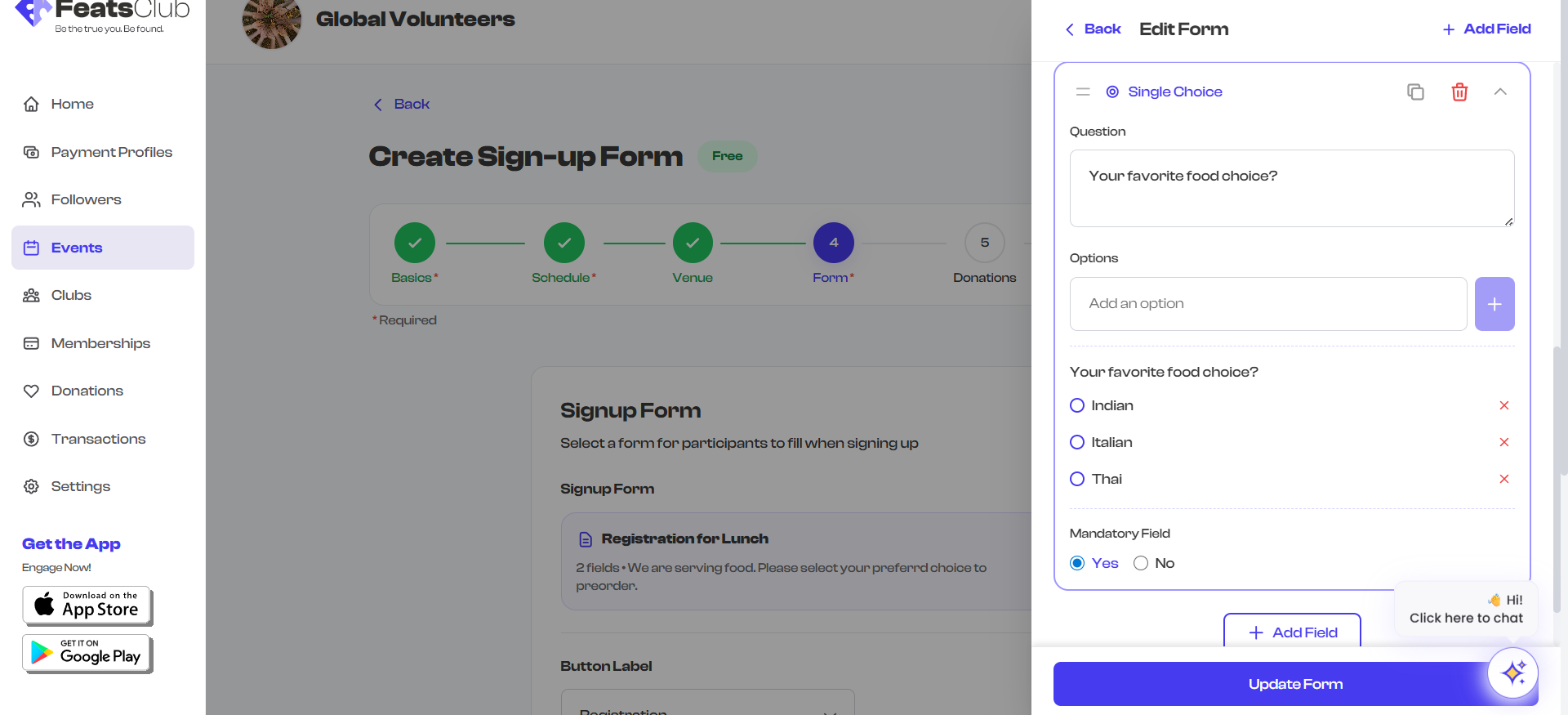
Attendees select one option from a list of choices.
| Property | Value |
|---|---|
| Input type | Radio buttons |
| Selection | Exactly one option |
| Minimum options | 2 |
Configuration:
- Question (required) -- The prompt shown to attendees.
- Required -- Toggle whether a selection is mandatory.
- Options -- Add two or more choices. Each choice is a text value.
To manage options:
- Type the option text in the input field.
- Select Add to add it to the list.
- Repeat for each option.
- Use the remove button next to an option to delete it.
Examples of use:
- "Which session would you like to attend?" (Morning / Afternoon / Evening)
- "Experience level" (Beginner / Intermediate / Advanced)
- "How did you hear about this event?" (Social media / Friend / Email / Other)
Multiple Choice (Checkboxes)
Attendees select one or more options from a list of choices.
| Property | Value |
|---|---|
| Input type | Checkboxes |
| Selection | One or more options |
| Minimum options | 1 |
Configuration:
- Question (required) -- The prompt shown to attendees.
- Required -- Toggle whether at least one selection is mandatory.
- Options -- Add one or more choices.
Examples of use:
- "Which topics interest you?" (Select all that apply)
- "Dietary requirements" (Vegetarian / Vegan / Gluten-free / Nut allergy / None)
- "Which days are you available to volunteer?" (Saturday / Sunday / Both)
Use Single Choice when attendees should pick exactly one answer (such as a time slot or experience level). Use Multiple Choice when attendees can select several answers (such as interests or availability on multiple days).
Special Fields
Special fields handle specific data types beyond simple text and choices.
URL / Link
Collects a website URL or link from the attendee.
| Property | Value |
|---|---|
| Input type | URL with validation |
| Placeholder | Customizable (defaults to "https://example.com") |
| Validation | Must be a valid URL format |
Configuration:
- Question (required) -- The prompt shown to attendees.
- Required -- Toggle whether this field must be answered.
Examples of use:
- "Link to your portfolio or website"
- "LinkedIn profile URL"
- "Link to your previous work"
File Upload
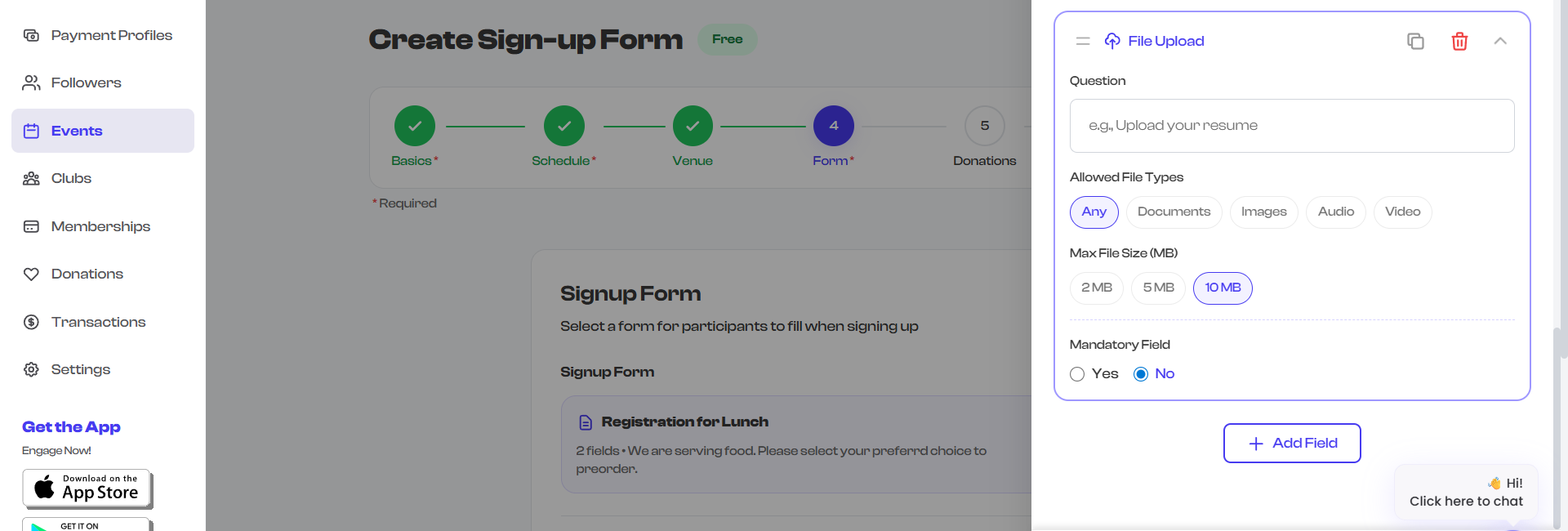
Lets attendees upload a file as part of their registration.
| Property | Value |
|---|---|
| Input type | File picker with upload |
| Storage | Files are stored securely in cloud storage |
Configuration:
- Question (required) -- The prompt shown to attendees.
- Required -- Toggle whether a file must be uploaded.
- File type restriction -- Choose what types of files are accepted:
| File Type Option | Accepted Formats |
|---|---|
| Any file | All file types |
| Document only | PDF, DOC, DOCX, and similar document formats |
| Image only | JPG, PNG, GIF, and similar image formats |
| Audio only | MP3, WAV, and similar audio formats |
| Video only | MP4, MOV, and similar video formats |
Examples of use:
- "Upload your resume" (Document only)
- "Upload a headshot photo" (Image only)
- "Submit your audition recording" (Audio only)
- "Proof of vaccination or certification" (Any file)
File uploads increase the time it takes for attendees to complete registration. Only require file uploads when the information is essential for your event.
Field Properties Summary
Every field type shares these common properties:
| Property | Description | Required? |
|---|---|---|
| Question / Title | The label or prompt shown to the attendee | Yes (for all fields) |
| Required | Whether the attendee must answer this field to submit the form | No (default: not required) |
Additional properties vary by field type as documented in the sections above.
See Also
- Form Builder -- How to use the form builder to create and manage forms.
- Audience and Volunteer Forms -- Setting up different forms for different attendee roles.