Response Capacity
Response capacity lets you control how many people can register for your RSVP or Sign-up event. When the limit is reached, the event automatically shows as full and blocks new registrations.
Setting a Capacity Limit
You can set the maximum number of responses during event creation or at any time while editing the event.
During Event Creation
- In the event creation flow, look for the Max Responses or Response Capacity field.
- Enter the maximum number of registrations you want to accept.
- Leave the field blank or set it to 0 if you want unlimited registrations.
Editing an Existing Event
- Open the event from your Event Dashboard.
- Select Edit Event.
- Update the Max Responses field.
- Save your changes.
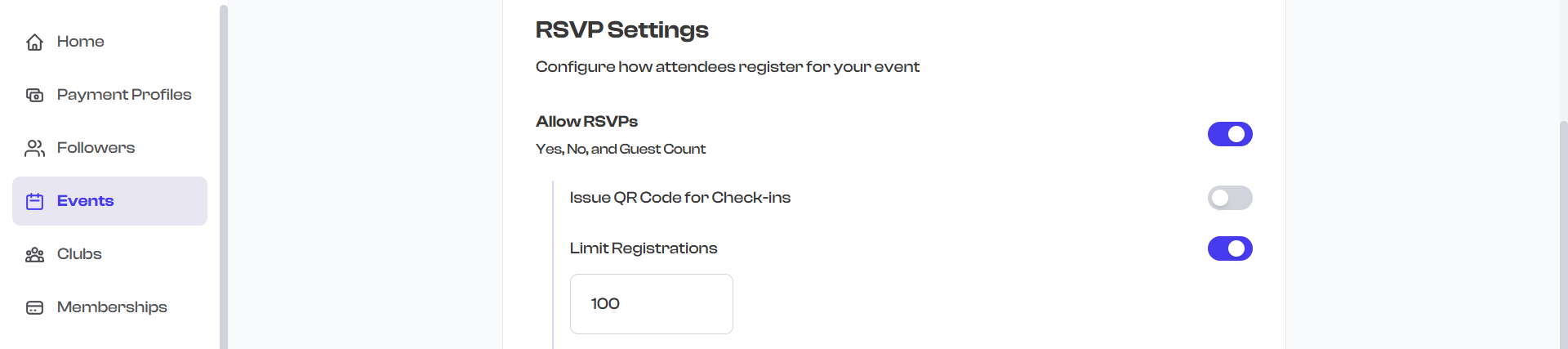
Setting the capacity to 0 or leaving it blank means there is no limit -- any number of people can register.
How the Capacity Indicator Works
When you set a response capacity, both you and your attendees can see how many spots remain.
What Attendees See
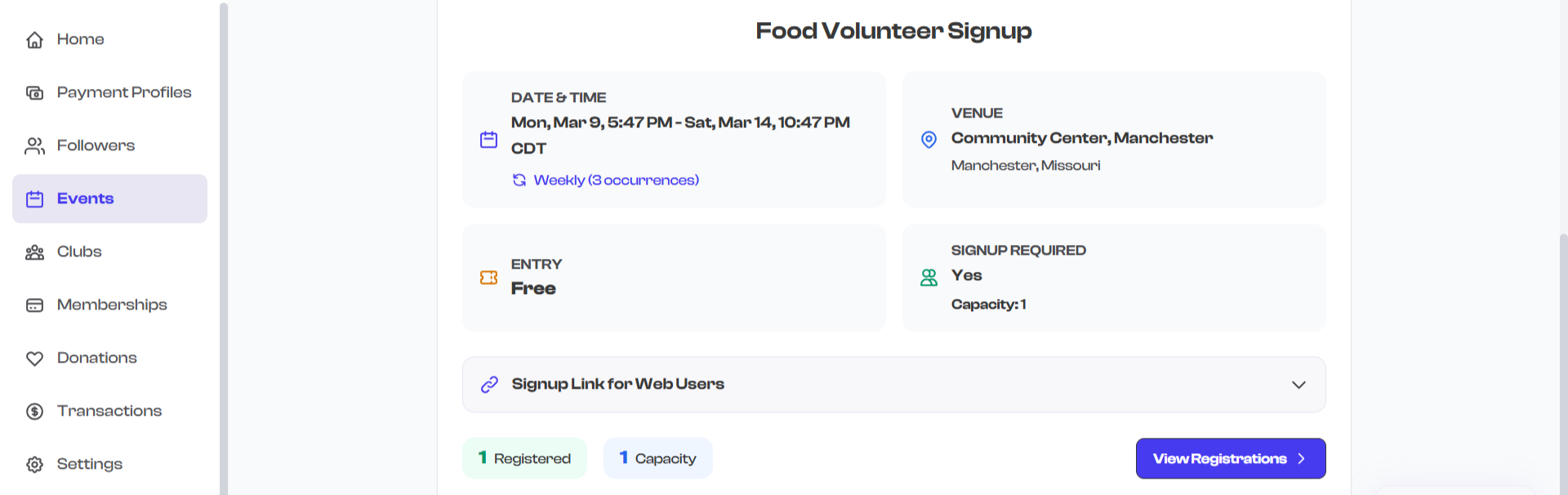
On the public event page, attendees see a capacity indicator showing how many spots are filled out of the total. For example:
- "45 / 100 spots filled" -- The event has room for more registrations.
- "100 / 100 spots filled" -- The event is at capacity.
- "Event Full" -- Displayed when capacity is reached, replacing the registration button.
What You See on the Dashboard
On your event detail page in the dashboard, you see the same count along with the ability to view individual responses in the Attendees tab.
When Capacity Is Reached
Once the number of registrations equals the maximum capacity:
- The registration button is replaced with a "Full" indicator on the public event page.
- New visitors can still view the event details but cannot register.
- You receive a notification (if notifications are enabled) that your event has reached capacity.
If you need to accept more registrations after reaching capacity, simply edit the event and increase the max responses value. The event will immediately reopen for new registrations.
Capacity and Volunteer Forms
If your event uses separate audience and volunteer forms, the response capacity applies to the total number of registrations across both roles. For example, if you set a capacity of 100 and 80 attendees and 20 volunteers register, the event shows as full.
There is no way to set separate capacity limits for attendees and volunteers. If you need distinct limits, consider creating two separate events -- one for the audience and one for volunteer recruitment.
Unlimited Responses
If you do not set a capacity limit (the field is blank or set to 0):
- No capacity indicator is shown on the public event page.
- Registrations are accepted indefinitely.
- The registration button remains active as long as the event has not expired.
Best Practices
- Set capacity based on your venue -- If your venue has a maximum occupancy, set the response capacity to match so you do not overbook.
- Build in a buffer -- Consider setting the capacity slightly below your actual limit to account for walk-ins or last-minute changes.
- Monitor early -- Check your response count regularly, especially for popular events, so you can increase capacity if needed before the event fills up.
- Communicate clearly -- If your event has limited spots, mention it in the event description so attendees know to register early.