RSVP and Sign-up Setup
This guide walks you through creating an RSVP or Sign-up event and configuring its registration settings. Both event types are free -- no payment profile is needed.
Creating an RSVP Event
An RSVP event is the simplest way to collect attendance confirmations. Attendees tap a single button to confirm they are coming, and you see the response count in real time.
Step-by-Step
- From the Event Dashboard, select Create Event.
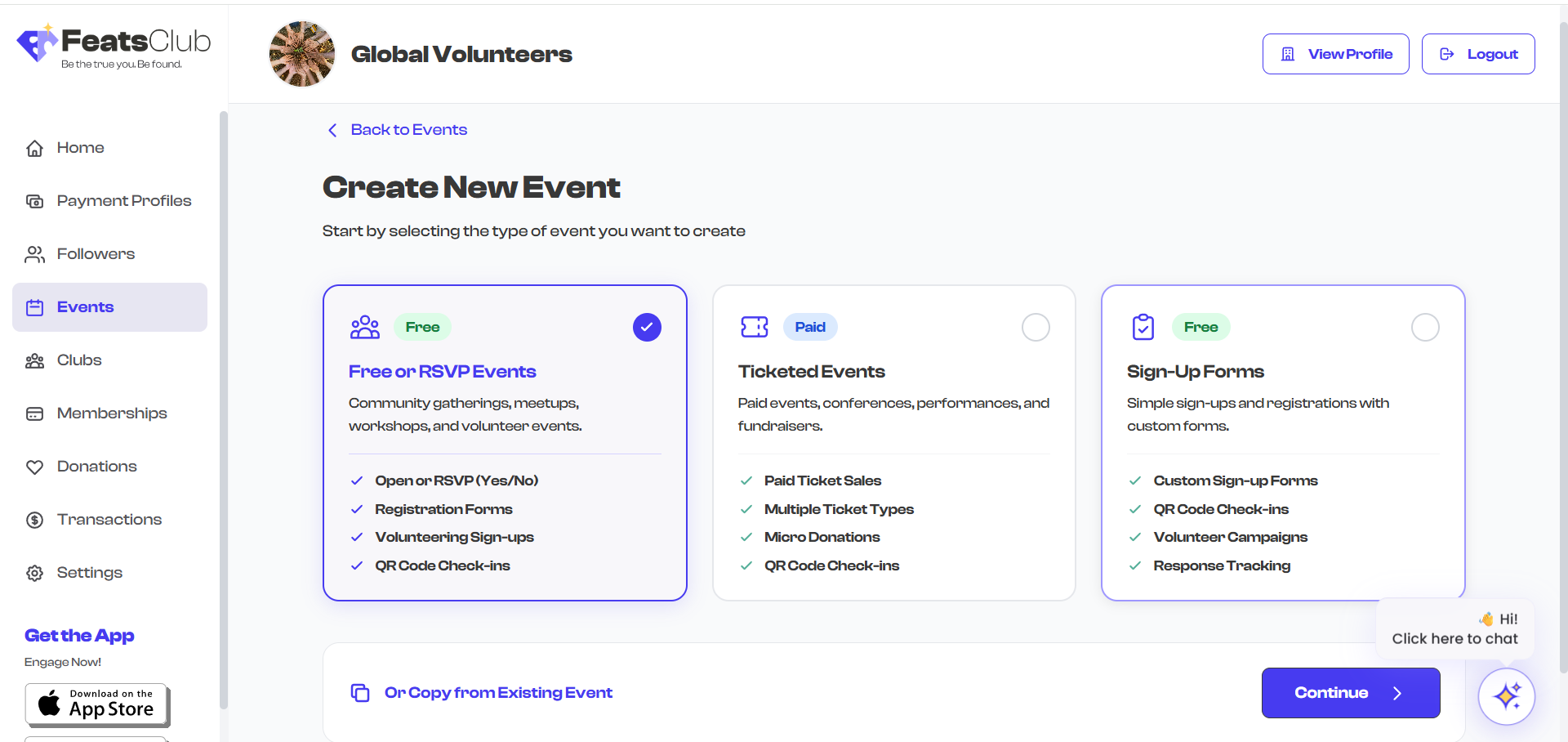
- In the event type selector, choose RSVP.
- Fill in the standard event details -- title, description, date, time, and venue.
- Optionally attach a registration form to collect additional information (see Form Builder).
- Optionally set a response capacity to limit registrations (see Response Capacity).
- Save as Draft or Publish the event.
What Attendees See
When an attendee visits your RSVP event, they see:
- The event details (title, date, venue, description).
- An RSVP button to confirm attendance.
- The current response count and capacity indicator (if a limit is set).
- A registration form (if one is attached) that they complete after tapping RSVP.
For RSVP events, the registration form is optional. If no form is attached, attendees simply confirm attendance with one tap. If a form is attached, they are prompted to fill it out after confirming.
Creating a Sign-up Event
A Sign-up event requires every registrant to fill out a form. Use this type when you need to collect specific information from each attendee before they can register.
Step-by-Step
- From the Event Dashboard, select Create Event.
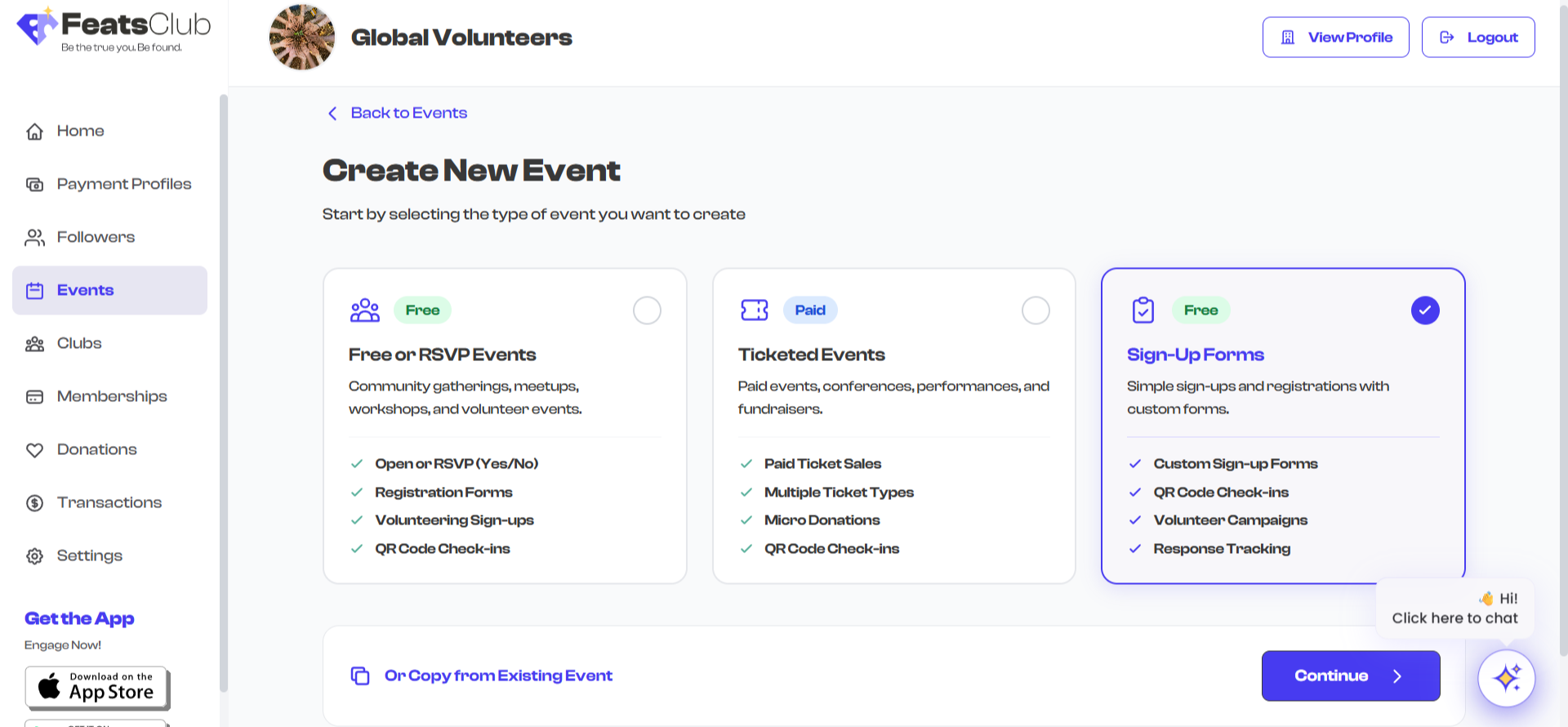
- In the event type selector, choose Sign-up.
- Fill in the standard event details.
- Build or attach a registration form. This step is required for Sign-up events -- you cannot publish without a form.
- Optionally set a response capacity.
- Save as Draft or Publish the event.
What Attendees See
When an attendee visits your Sign-up event, they see:
- The event details.
- A Register or Sign Up button.
- The registration form, which they must complete to finalize their registration.
- The current response count and capacity indicator (if a limit is set).
Sign-up events require a registration form. If you try to publish a Sign-up event without attaching a form, you will see a validation error prompting you to create or select one.
RSVP vs. Sign-up Comparison
| Feature | RSVP | Sign-up |
|---|---|---|
| Registration form | Optional | Required |
| One-tap registration (no form) | Yes | No |
| Response capacity | Supported | Supported |
| Audience and volunteer forms | Supported | Supported |
| Payment collection | No | No |
| QR code check-in | Supported | Supported |
Key Configuration Options
Both RSVP and Sign-up events share these configuration options:
Response Capacity
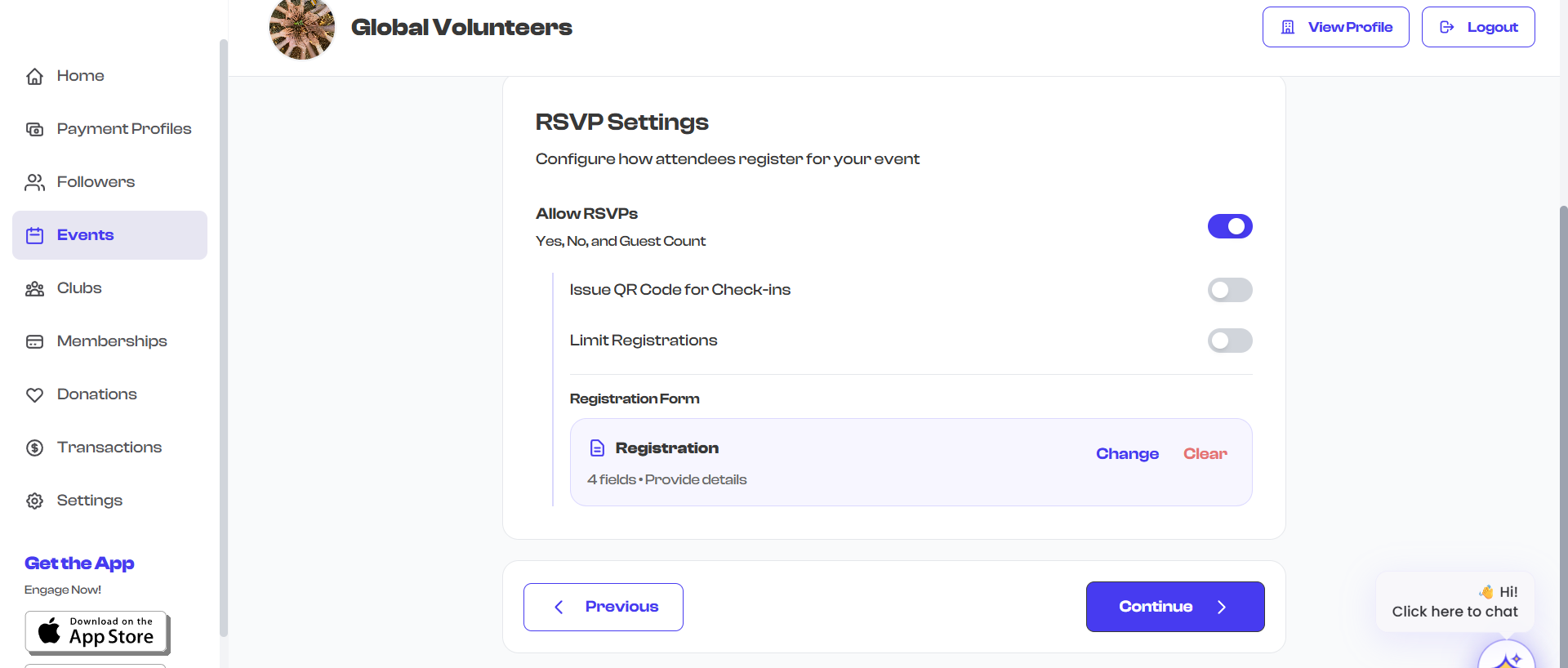
Set a maximum number of registrations. When the limit is reached, the event displays as full and new registrations are blocked. Leave this blank or set to zero for unlimited registrations. See Response Capacity for details.
Registration Forms
Attach a form to collect information from registrants. You can build a new form inline, select one from your saved form repository, or use the default participant form (Name, Email, Phone). See Form Builder for details.
Audience and Volunteer Forms
If your event needs volunteers, you can set up two separate registration forms -- one for general attendees and one for volunteers. Registrants choose their role when signing up. See Audience and Volunteer Forms for details.
QR Code Check-in
Enable QR code generation so that registered attendees receive a QR code they can show at the venue for check-in. QR code scanning is available in the FeatsClub mobile app.
After Publishing
Once your RSVP or Sign-up event is published:
- Share the event link with your audience. Every event has a unique shareable URL and QR code.
- Monitor responses from the event detail page in your dashboard. The response count updates in real time.
- View individual responses in the Attendees tab to see who has registered and review their form submissions.
- Export response data if you need to work with the information outside of FeatsClub.
You can edit the registration form and response capacity even after the event is published. Changes apply to new registrations -- existing responses are not affected.