Viewing Follower Details
The follower detail page presents a comprehensive view of an individual follower's profile, status, and history with your organization. This guide walks through each section of the page so you know exactly where to find the information you need.
Profile Header
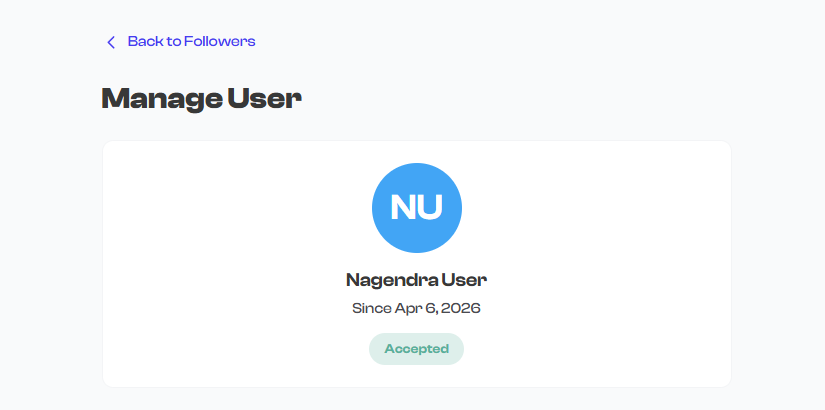
At the top of the detail page, you will see the follower's core identity information:
- Profile photo -- The follower's photo, displayed as a circular avatar. If no photo has been uploaded, their initials are shown as a fallback.
- Full name -- The follower's display name, shown prominently.
- Status badge -- A colored badge indicating their current status (Requested, Accepted, Blocked, Alumni, or Invited).
- Community role badge -- Shows the follower's assigned role within your organization (e.g., Member, Admin, Coach, Volunteer).
Status Badges
The status badge tells you at a glance where this follower stands in your community:
| Badge | Color | Meaning |
|---|---|---|
| Requested | Amber | The person has sent a follow request that is waiting for your approval |
| Accepted | Green | The follower is an active member of your community |
| Invited | Blue | You sent an invitation that has not yet been accepted |
| Blocked | Red | The follower has been blocked from your community |
| Alumni | Gray | The follower has been marked as a past member |
Community Role Badge
The community role indicates what level of access and responsibility a follower has:
| Role | Meaning |
|---|---|
| Follower | Default role -- follows your organization |
| Member | Active participant in your community |
| Admin | Trusted delegate with management permissions |
| Coach | Instructor or trainer role |
| Volunteer | Volunteer contributor |
The community role is separate from the follower's status. A follower must be in Accepted status to have their role take effect. Changing a follower's role to Admin unlocks the Permissions Panel, allowing you to delegate specific management tasks to them.
Contact Information
Below the profile header, the detail page displays the follower's contact details:
- Email address -- The follower's registered email. You can select it to open your email client.
- Phone number -- The follower's phone number, if provided. You can select it to initiate a call.
- Address -- The follower's physical address, if available.
Contact details depend on what the follower provided when they signed up. Not all followers will have a phone number or address on file.
Follow Mode
The follow mode indicates how this person connected with your organization:
| Follow Mode | Meaning |
|---|---|
| Org | The follower joined your organization directly |
| Club | The follower joined through a specific club (the club name is displayed) |
| Cohort | The follower joined through a specific cohort (the cohort name is displayed) |
This information helps you understand the context of their relationship with your organization. A follower who joined through a specific club, for example, may be most interested in that club's activities.

Activity Log
The activity log is a chronological timeline that records every status change and significant action taken on this follower's account. It serves as a complete audit trail for the follower's history with your organization.
What the Activity Log Tracks
Each entry in the activity log includes:
- Date and time -- When the action occurred.
- Action taken -- What happened (e.g., Approved, Blocked, Marked as Alumni).
- Who performed it -- The name of the admin or owner who took the action.
- Message or reason -- An optional note explaining why the action was taken, if one was provided at the time.
Example Activity Log Entries
| Date | Action | Performed By | Message |
|---|---|---|---|
| Mar 15, 2026 at 2:30 PM | Approved | John Smith | Welcome to the team |
| Jan 10, 2026 at 9:15 AM | Follow request received | -- | -- |
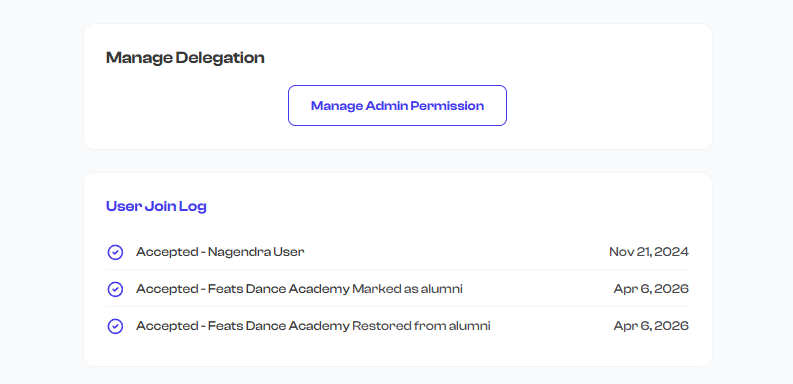
The activity log is read-only and cannot be edited. It provides a reliable record of every action, making it useful for auditing decisions and understanding a follower's journey over time.
Why the Activity Log Matters
- Accountability -- See who approved, blocked, or changed a follower's status and when.
- Context -- Understand why a follower was blocked or marked as alumni by reading the attached messages.
- History -- Track the complete lifecycle of a follower's relationship with your organization, from their initial request through any status changes.
Status-Specific Information
Depending on the follower's current status, the detail page may display additional context:
| Status | Additional Information Displayed |
|---|---|
| Requested | When the request was submitted; action buttons to Approve or Reject |
| Accepted | When they were accepted; action buttons to Block, Mark as Alumni, or Change Role |
| Invited | When the invitation was sent; option to Block or Cancel the invite |
| Blocked | When and why they were blocked; action button to Unblock |
| Alumni | When they were marked as alumni; action buttons to Restore or Block |
What's Next?
- Ready to take action on this follower? See Follower Actions for a complete guide to every available action and when to use it.
- Want to grant this follower management permissions? See Admin Delegation to learn about the permissions system.