Follower Actions
From the follower detail page, you can take a variety of actions to manage an individual follower's status and role within your organization. The actions available to you depend on the follower's current status -- the page only shows actions that are valid for that state.
Action Availability Matrix
The following table shows which actions are available for each follower status:
| Current Status | Available Actions |
|---|---|
| Requested | Approve, Reject |
| Accepted | Block, Mark as Alumni, Change Role |
| Invited | Block, Cancel Invite |
| Blocked | Unblock |
| Alumni | Restore, Block |
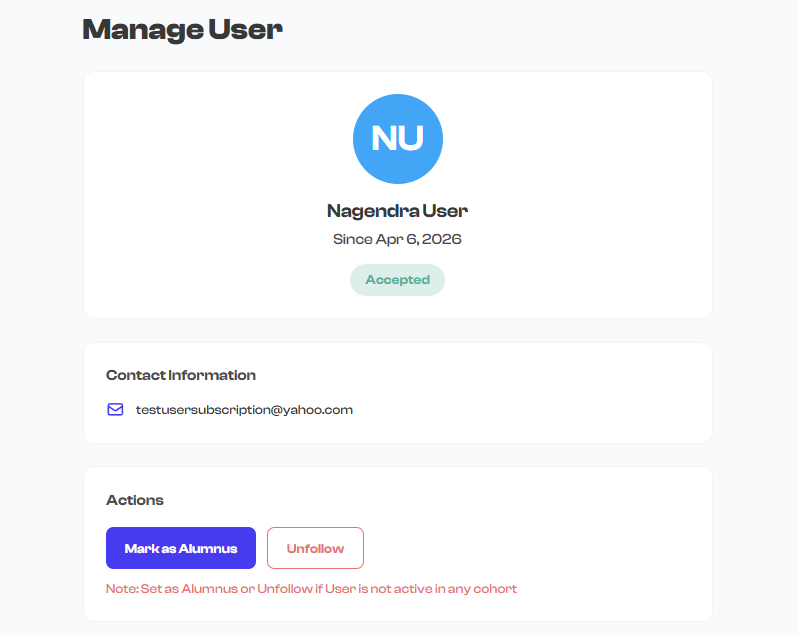
You will never see all actions at once. The page intelligently displays only the actions that apply to the follower's current status, preventing accidental or invalid state transitions.
Action Details
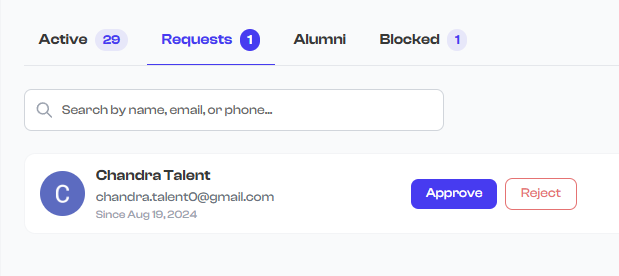
Approve
Available when: Status is Requested
Approving a follow request accepts the person into your community. Their status changes from Requested to Accepted, and they gain access to your organization's content, events, and clubs based on your visibility settings.
What the follower experiences:
- They receive a notification that their follow request was approved.
- Your organization appears in their list of followed organizations.
- They can now view content and participate in activities you have made available to followers.
Reject
Available when: Status is Requested
Rejecting a follow request denies the person entry into your community. Their status moves to Blocked.
What the follower experiences:
- They do not receive a specific rejection notification.
- Your organization no longer appears as a pending request for them.
- They cannot re-request to follow unless you unblock them first.
Rejecting a follow request moves the follower to Blocked status. If you want to allow them to re-request in the future, you will need to Unblock them first.
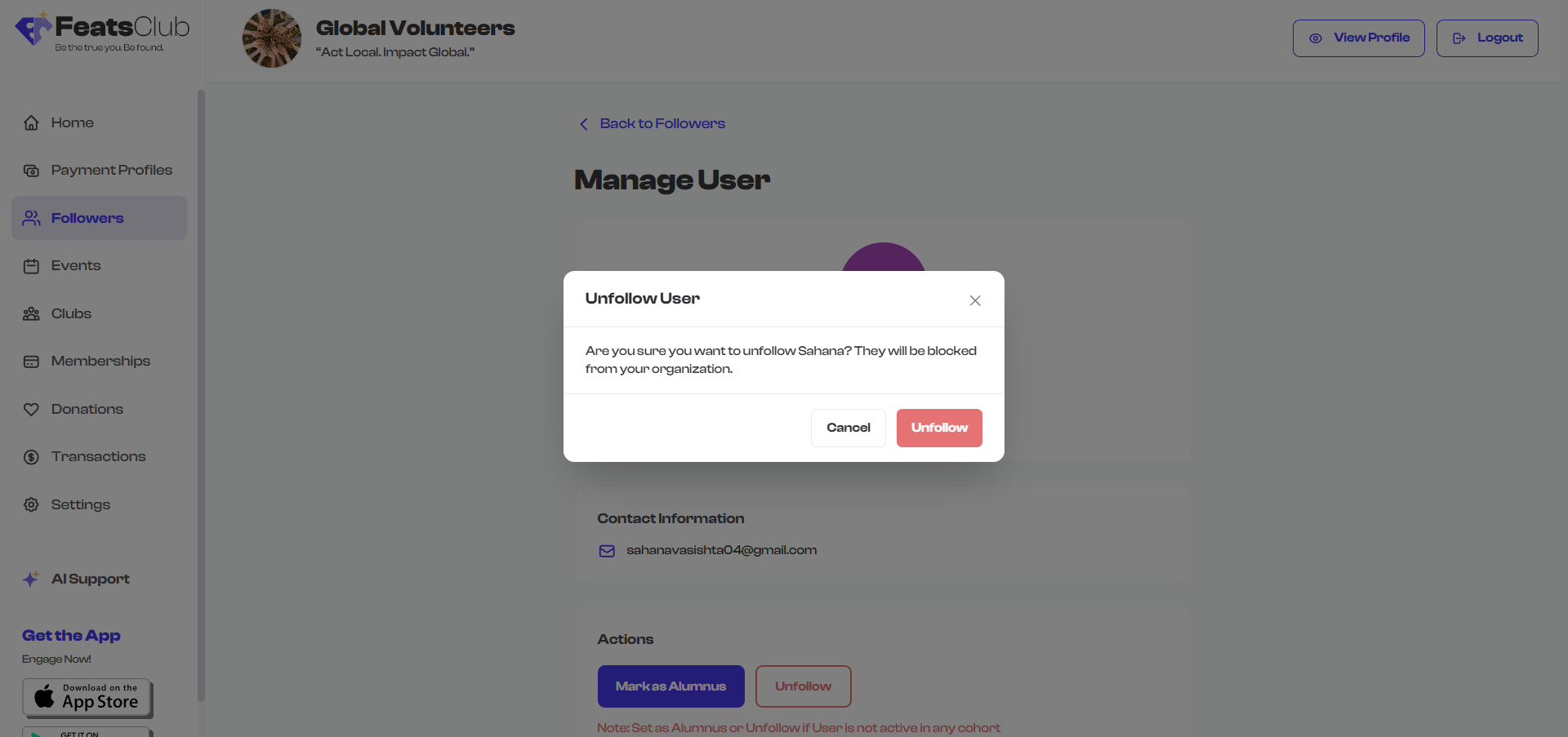
Block
Available when: Status is Accepted, Invited, or Alumni
Blocking a follower removes them from your active community. This is a significant action that cuts off their access to your organization's followers-only content.
What the follower experiences:
- They lose access to any followers-only content, events, or clubs.
- Your organization is removed from their followed organizations list.
- They cannot re-follow your organization unless you unblock them.
Confirmation: A confirmation dialog appears before the block takes effect. You may be prompted to provide an optional reason, which is recorded in the activity log.
Unblock
Available when: Status is Blocked
Unblocking a follower allows them to re-request to follow your organization. Their status does not automatically return to Accepted -- they must submit a new follow request.
What the follower experiences:
- They can discover your organization again and send a new follow request.
- They are not automatically re-added to your community.
Unblocking does not restore a follower to their previous status. It simply removes the block, allowing them to start the follow process again from scratch. If you want to immediately reinstate someone, consider using Unblock followed by approving their new request.
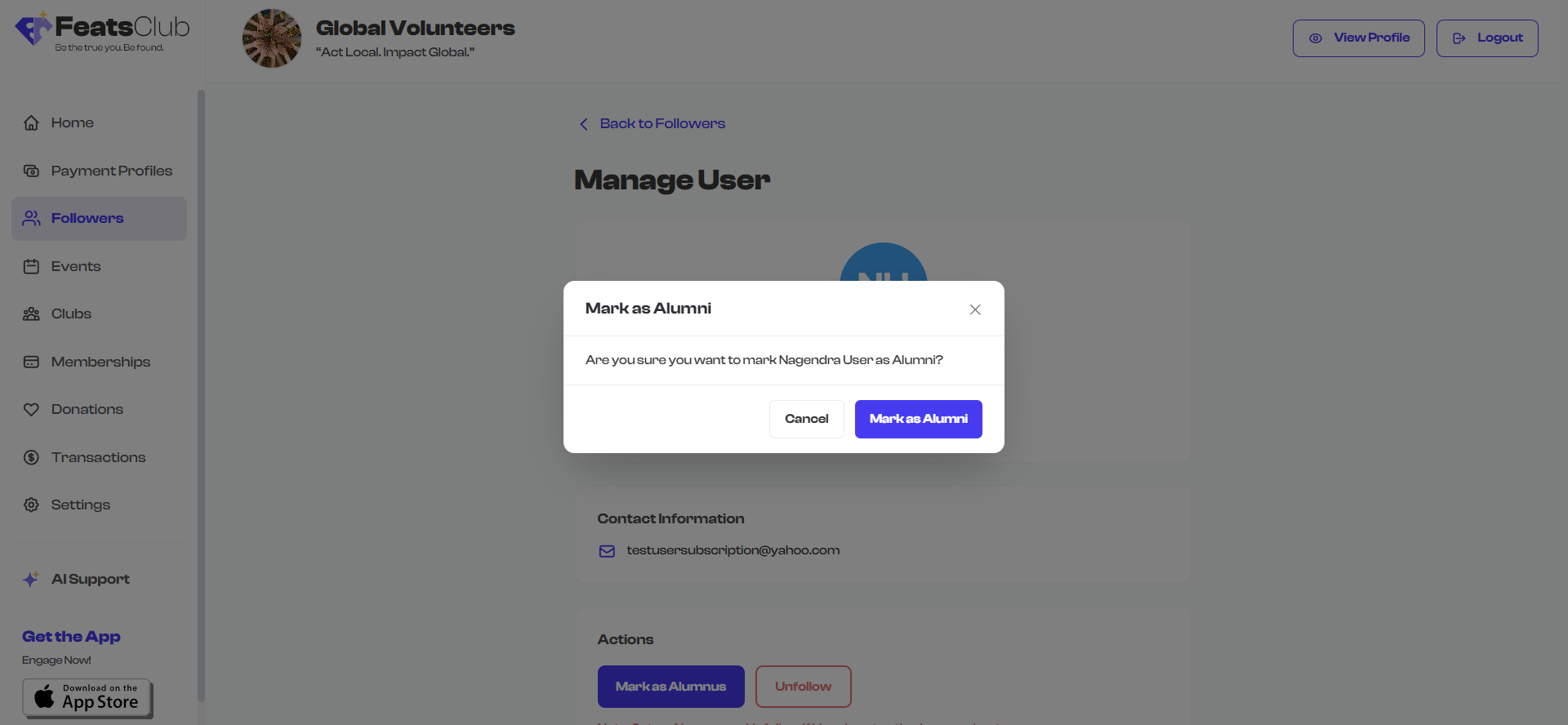
Mark as Alumni
Available when: Status is Accepted
Marking a follower as alumni transitions them from an active community member to a past member. This is ideal for people who have completed a program, graduated, or otherwise concluded their active participation.
What the follower experiences:
- Their status changes to Alumni.
- Depending on your organization's settings, they may retain limited access to certain content or lose access to active-only features.
Restore
Available when: Status is Alumni
Restoring an alumni follower brings them back to active Accepted status. Use this when a past member rejoins your community or resumes participation.
What the follower experiences:
- Their status returns to Accepted.
- They regain full access to your organization's followers-only content and activities.
- The restoration is recorded in their activity log.
Change Role
Available when: Status is Accepted
Changing a follower's community role adjusts their level of access and responsibility within your organization. The available roles include Member, Admin, Coach, and Volunteer.
What happens when you change a role:
| Role Change | Effect |
|---|---|
| Any role to Admin | Unlocks the Permissions Panel, allowing you to delegate specific management tasks |
| Admin to any other role | Revokes all delegated permissions |
| Any non-Admin role change | Updates the role badge; no permission changes |
Changing a follower's role from Admin to any other role immediately revokes all of their delegated permissions. Make sure this is intentional before making the change.

Action Confirmation and Safety
All destructive actions -- Block, Reject, and role changes that revoke permissions -- display a confirmation dialog before they take effect. This prevents accidental status changes.
The confirmation dialog typically includes:
- A clear description of what will happen.
- An optional message field where you can note the reason for the action.
- Cancel and Confirm buttons.
Any reason you provide is saved in the follower's activity log for future reference.
Status Transition Diagram
The following shows how follower statuses connect through available actions:
                    ┌──────────┐
                    │ Requested│
                    └────┬─────┘
                   ┌─────┴─────┐
                   │           │
                Approve     Reject
                   │           │
                   v           v
              ┌─────────┐  ┌───────┐
   ┌─────────>│ Accepted │  │Blocked│<──────────┐
   │          └────┬─────┘  └───┬───┘           │
   │         ┌─────┴─────┐     │                │
   │         │           │   Unblock             │
   │    Mark Alumni   Block  (re-request)        │
   │         │           │                       │
   │         v           └───────────────────────┘
   │    ┌─────────┐                              │
   │    │ Alumni  │──────── Block ───────────────┘
   │    └────┬────┘
   │         │
   └─Restore─┘
What's Next?
- Want to delegate management tasks to a trusted follower? See Admin Delegation to learn how to assign specific permissions to Admin-role followers.
- Need to understand the full follower profile? See Viewing Follower Details for a breakdown of every section on the detail page.
- Managing many followers at once? Return to the Follower Dashboard for bulk management tools.