Approving & Rejecting Requests
When someone wants to follow your organization on FeatsClub, they send a follow request. These requests appear in the Requests tab of your Follower Dashboard, where you can approve or reject them. You can also invite users to follow your organization proactively, and enable auto-accept to skip manual approvals entirely.
Incoming Follow Requests
When a user sends a follow request, their status is set to Requested. The request appears in the Requests tab on your Follower Dashboard, waiting for your action.
How to Approve a Request
- Go to Dashboard and select Followers from the sidebar.
- Select the Requests tab to see all pending follow requests.
- Select a follower to open their detail page.
- Select Approve.
- The follower's status changes to Accepted and they move to the Active tab.
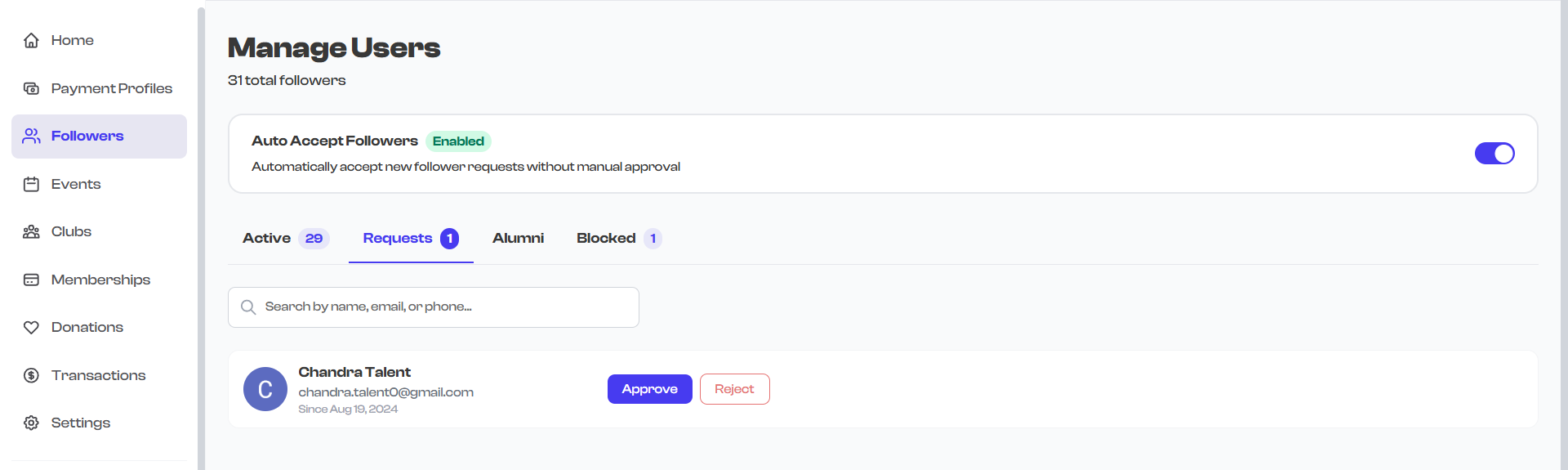
Once approved, the follower:
- Appears in the Active tab of your Follower Dashboard
- Can see your organization's content, events, clubs, and memberships
- Can be invited to clubs and events
- Receives a notification that their follow request was accepted
How to Reject a Request
- Go to Dashboard and select Followers from the sidebar.
- Select the Requests tab.
- Select a follower to open their detail page.
- Select Reject.
- The follower's status changes to OrgRejected and they move to the Blocked tab.
Rejecting a follow request is equivalent to blocking. The user cannot send another follow request until you unblock them. Consider whether you want to permanently prevent re-following, or if you simply want to decline for now. See Blocking & Unblocking for more details.
What the Follower Sees
| Your Action | What the Follower Experiences |
|---|---|
| Approve | They receive a notification that they are now following your organization. Your content becomes visible to them. |
| Reject | They are not notified explicitly, but they can no longer see your organization's private content or send a new follow request. |
Auto-Accept Followers
If you want every follow request to be approved automatically -- without manual review -- you can enable the auto-accept setting.
What Auto-Accept Does
When auto-accept is enabled:
- All new follow requests are immediately approved without appearing in the Requests tab
- The follower's status goes directly to Accepted
- No manual action is required from you or your admins
- The follower is notified that they are now following your organization
When auto-accept is disabled:
- Follow requests appear in the Requests tab for manual review
- You must individually approve or reject each request
Where to Find the Setting
The auto-accept toggle is available in your organization's follower settings:
- Go to Dashboard and select Followers from the sidebar.
- Look for the Auto-Accept Followers toggle in the dashboard header or settings area.
- Toggle it on to enable automatic approvals.
- Toggle it off to require manual approval for each request.

When to Enable Auto-Accept
| Scenario | Recommendation |
|---|---|
| Open community, public organization | Enable -- Lower the barrier to entry so anyone can follow and engage |
| Large organization with high volume of requests | Enable -- Reduces admin workload when manual screening is not needed |
| Exclusive club or invitation-only organization | Disable -- You want to vet every follower before granting access |
| Organization dealing with spam or unwanted requests | Disable -- Manual review helps you filter out bad actors |
| New organization still building its audience | Enable -- Maximize early growth by removing friction |
You can change the auto-accept setting at any time. Enabling it does not retroactively approve existing pending requests -- it only applies to new follow requests going forward. You will still need to manually approve any requests already in the Requests tab.
Inviting Users to Follow
In addition to receiving follow requests, you can proactively invite users to follow your organization.
How the Invite Flow Works
- From the Follower Dashboard, select Invite to send an invitation to a user.
- The user's status is set to Invited and they receive a notification.
- The invited user can accept or decline the invitation.
| If the invitee... | Then... |
|---|---|
| Accepts the invitation | Their status changes to Accepted and they appear in the Active tab |
| Declines the invitation | Their status changes to MemberRejected |
| Does nothing | They remain in Invited status |
Invited vs. Requested -- What Is the Difference?
| Path | Who Initiates | Starting Status | Admin Action Needed? |
|---|---|---|---|
| Requested | The user sends a follow request | Requested | Yes -- admin must Approve or Reject |
| Invited | The organization admin sends an invitation | Invited | No -- waiting for the user to respond |
Both paths lead to the same result: an Accepted follower who is part of your active community.
Processing Requests One at a Time
Currently, follow requests are processed individually. You review each request on the follower's detail page and take action (Approve or Reject) one at a time.
This approach gives you the opportunity to review each follower's profile before making a decision. If you prefer to skip manual review entirely, consider enabling auto-accept instead.
Activity Log
Every approval or rejection is recorded in the follower's activity log on their detail page. The log includes:
- What happened -- The status change (e.g., Requested to Accepted)
- When it happened -- Timestamp of the action
- Who did it -- The admin who approved or rejected the request
- Optional message -- Any note the admin added when taking the action
This provides a complete audit trail of how each follower joined your community.
What's Next?
Learn how to handle problematic followers and manage access in Blocking & Unblocking.