Blocking & Unblocking
Sometimes you need to remove a follower from your community and prevent them from re-following. Blocking sets a follower's status to OrgRejected, which removes their access and stops them from sending a new follow request. If you change your mind later, you can unblock them to allow them to request to follow again.
When to Block a Follower
Blocking is appropriate in situations like:
- Disruptive behavior -- A follower is causing problems in your clubs, events, or communications
- Spam -- A follower is sending unwanted messages or engaging in spammy behavior
- No longer welcome -- A follower's relationship with your organization has ended on unfavorable terms
- Safety concerns -- A follower poses a risk to your community members
- Mistaken follow -- Someone followed by mistake and you want to clean up your follower list
Blocking is a strong action. The blocked user will notice they can no longer access your organization's content or send a follow request. Consider whether marking the follower as Alumni might be more appropriate if they simply completed their time with your organization.
How to Block a Follower
- Go to Dashboard and select Followers from the sidebar.
- Select the Active tab (or whichever tab the follower is currently in).
- Select the follower to open their detail page.
- Select Block.
- Confirm the action when prompted.
- The follower's status changes to OrgRejected and they move to the Blocked tab.

What Happens When You Block Someone
When you block a follower, several things happen:
| Effect | Description |
|---|---|
| Status changes | The follower's status is set to OrgRejected |
| Moved to Blocked tab | They appear in the Blocked tab of your Follower Dashboard |
| Content access revoked | They can no longer see your organization's follower-only content |
| Cannot re-follow | They are unable to send a new follow request until you unblock them |
| Activity log updated | The block action is recorded in their activity log with a timestamp and the admin who performed it |
Blocking a follower does not remove them from clubs or events they are already enrolled in. If you need to remove them from specific clubs, you should do that separately from the club's Members tab.
Viewing Blocked Followers
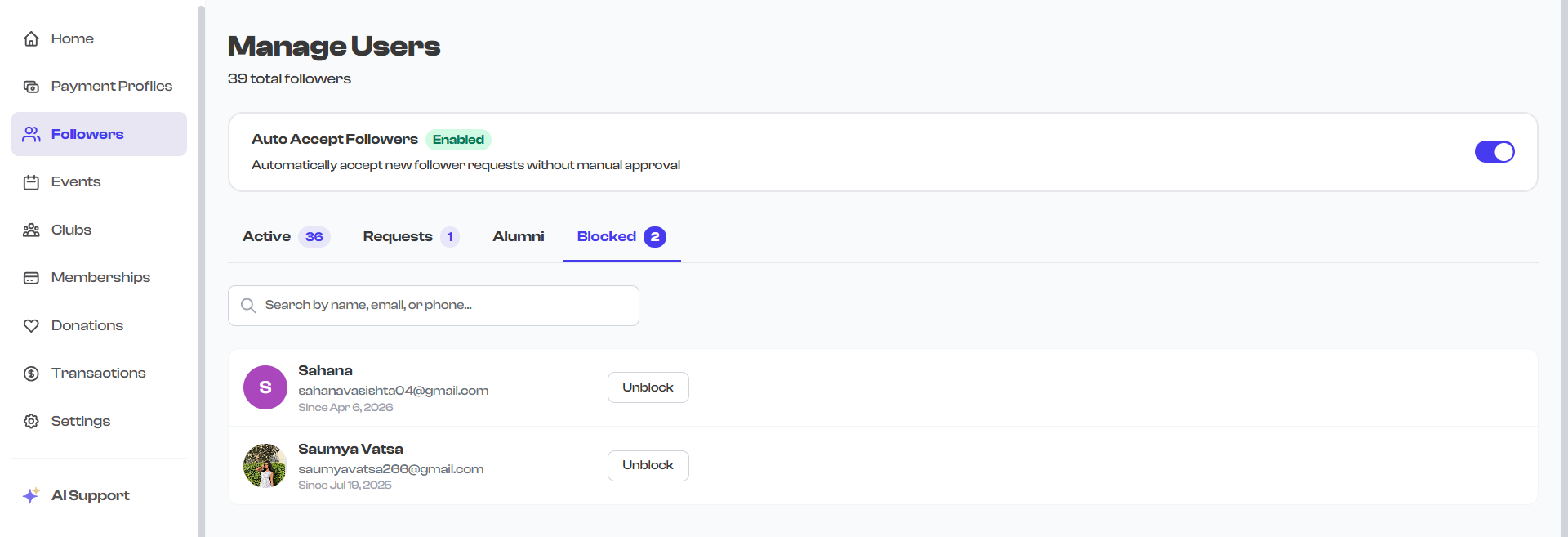
All blocked followers appear in the Blocked tab of your Follower Dashboard:
- Go to Dashboard and select Followers from the sidebar.
- Select the Blocked tab.
- You will see all followers with the OrgRejected status.
How to Unblock a Follower
If you decide to give a blocked follower another chance, you can unblock them:
- Go to Dashboard and select Followers from the sidebar.
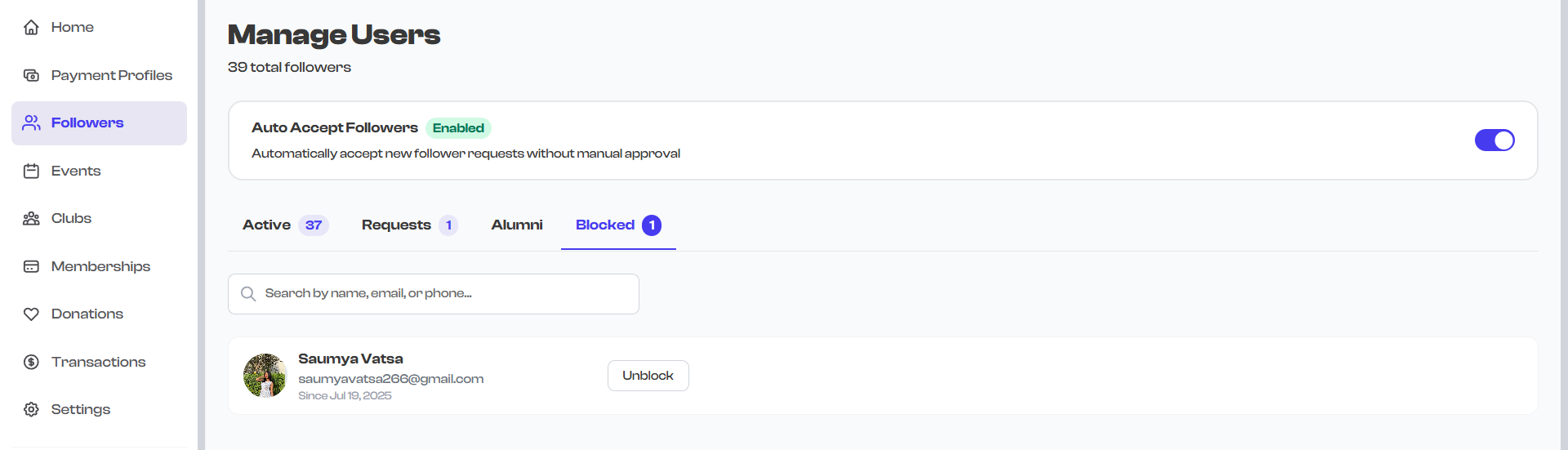
- Select the Blocked tab.
- Find the follower you want to unblock.
- Select the follower to open their detail page.
- Select Unblock.
- Confirm the action when prompted.
What Happens After Unblocking
Unblocking does not automatically restore the follower to active status. Here is what happens:
| Effect | Description |
|---|---|
| Block removed | The follower is no longer prevented from interacting with your organization |
| Can request again | The follower can now send a new follow request |
| Not auto-restored | They are not automatically added back as an active follower -- they must request to follow again |
| Activity log updated | The unblock action is recorded in their activity log |
If you want to immediately restore a follower after unblocking them (rather than waiting for them to re-request), consider using the invite flow to send them a new follow invitation.
Blocking vs. Alumni -- Which Should I Use?
| Scenario | Use This | Why |
|---|---|---|
| Follower graduated or completed a program | Alumni | Preserves their positive history and connection |
| Follower left on good terms | Alumni | They may return; alumni status keeps the door open |
| Follower was disruptive or violated rules | Block | Prevents them from re-following |
| Follower is sending spam | Block | Immediately cuts off access |
| Follower poses safety concerns | Block | Strongest protective action available |
| You want to clean up an inactive follower | Alumni or Block | Alumni if neutral/positive history; Block if you want to prevent re-following |
For more about the alumni workflow, see Alumni & Community Roles.
Common Questions
Can a blocked follower see my organization's public profile?
Yes. Blocking prevents them from following your organization and accessing follower-only content, but your public profile remains visible to anyone.
Does the blocked follower know they have been blocked?
The follower is not sent an explicit "you have been blocked" notification. However, they will notice that they can no longer access your content or send a follow request, which makes the block effectively visible.
Can I block someone who has a pending follow request?
Yes. Rejecting a follow request in the Requests tab sets the follower's status to OrgRejected, which is the same as blocking. See Approving & Rejecting Requests for details.
What if I accidentally block someone?
You can unblock them immediately from the Blocked tab. After unblocking, send them a follow invitation if you want to restore the relationship right away, or let them know they can request to follow again.
What's Next?
Learn how to manage alumni and assign community roles in Alumni & Community Roles.