Alumni & Community Roles
FeatsClub gives you two powerful tools for shaping your community: alumni status for followers who have completed their time with your organization, and community roles for defining what each follower can do. Together, these features let you maintain meaningful connections with past members while giving active followers the right level of access and responsibility.
Marking a Follower as Alumni
When a follower has graduated, completed a program, finished their term, or otherwise moved on from active participation, you can mark them as Alumni. This preserves their connection to your organization while clearly separating them from your active community.
When to Mark Someone as Alumni
- A student has graduated from your program
- A member has completed their season or term
- A participant has moved away but you want to keep them connected
- A volunteer's commitment period has ended
- Someone is stepping back from active involvement on good terms
How to Mark as Alumni
- Go to Dashboard and select Followers from the sidebar.
- Select the Active tab and find the follower.
- Select the follower to open their detail page.
- Select Mark as Alumni.
- Confirm the action when prompted.
- The follower's status changes to PastAccepted and they move to the Alumni tab.
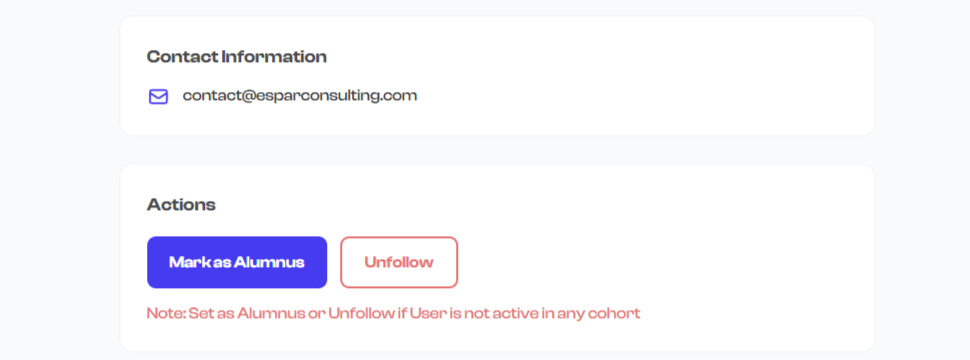
What Happens When You Mark Someone as Alumni
| Effect | Description |
|---|---|
| Status changes | The follower's status is set to PastAccepted |
| Moved to Alumni tab | They appear in the Alumni tab of your Follower Dashboard |
| Historical connection preserved | Their engagement history, activity log, and profile remain intact |
| No longer active | They are separated from your active follower list |
| Activity log updated | The action is recorded with a timestamp and the admin who performed it |
Marking a follower as alumni is a soft action -- it does not delete any data or permanently sever the relationship. You can restore them to active status at any time.
Restoring Alumni to Active Status
If an alumni member wants to rejoin your organization -- perhaps a graduate returning as a mentor, or a seasonal member coming back for a new term -- you can restore them to active follower status.
How to Restore an Alumni Member
- Go to Dashboard and select Followers from the sidebar.
- Select the Alumni tab.
- Find the alumni member you want to restore.
- Select the follower to open their detail page.
- Select Restore.
- The follower's status changes back to Accepted and they return to the Active tab.
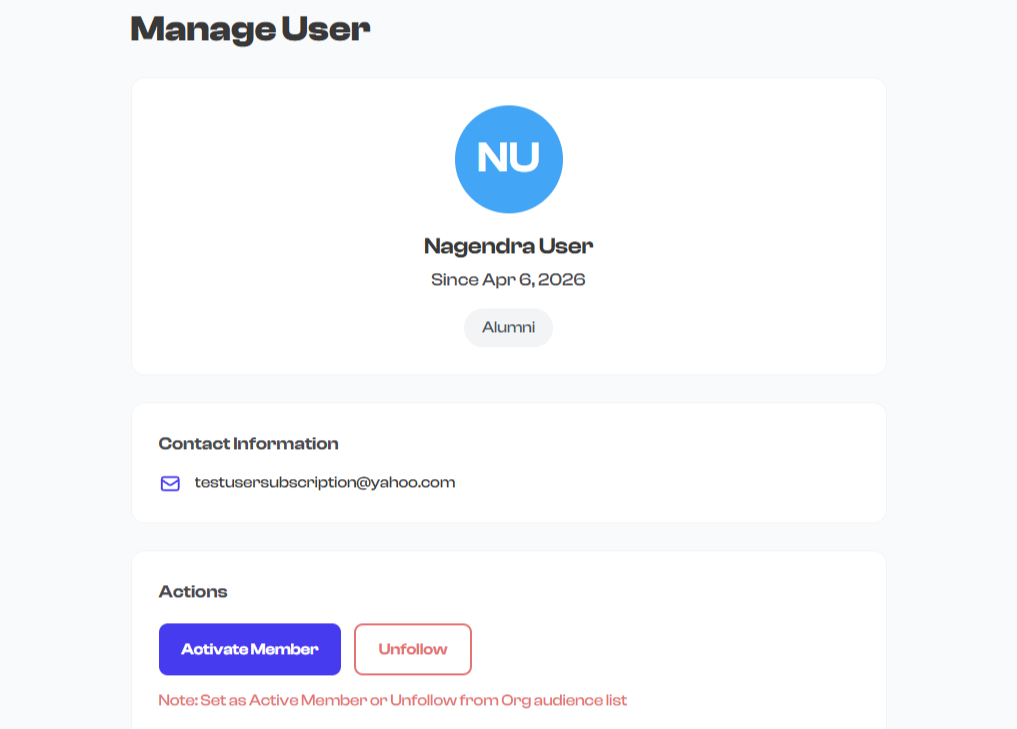
What Happens After Restoring
- The follower immediately returns to the Active tab
- Their status changes to Accepted
- They regain full access to your organization's follower content
- They can be invited to clubs and events again
- Their complete history (including the alumni period) is preserved in the activity log
Restoring an alumni member is instant -- they do not need to send a new follow request. This makes it easy to bring back returning members without any friction.
Alumni vs. Blocked -- Which Should I Use?
| Scenario | Use Alumni | Use Block |
|---|---|---|
| Follower completed a program on good terms | Yes | No |
| Follower graduated and may return someday | Yes | No |
| Follower was disruptive or violated community rules | No | Yes |
| Follower is sending spam or unwanted messages | No | Yes |
| You want to preserve a positive historical relationship | Yes | No |
| You want to prevent someone from re-following | No | Yes |
For details on blocking, see Blocking & Unblocking.
Community Roles
Every follower in your organization has a community role that defines their level of access and responsibility. You can change a follower's role at any time to match their evolving relationship with your organization.
Available Roles
| Role | Description | Typical Use |
|---|---|---|
| Follower | Basic follower with standard access. Can view your organization's public content, events, clubs, and memberships. | Default role for new followers. General audience members, supporters, parents, fans. |
| Member | Active participant in your organization. Can access member-only content and events. | Students enrolled in programs, athletes on teams, regular participants. |
| Coach | Instructor or leader role. Can manage certain activities within the organization. | Teachers, trainers, team coaches, program leaders, instructors. |
| Admin | Delegated administrator. Can manage the organization on behalf of the owner. | Trusted staff, co-founders, operations managers. See Admin Delegation for details. |
| Alumni | Past member with a historical connection. Maintains their record but is separated from the active community. | Graduated students, past participants, former staff. Set via the Alumni action, not the role selector. |
The Alumni role is typically set by using the Mark as Alumni action rather than changing the community role directly. This ensures the follower's status is also updated to PastAccepted and they are moved to the Alumni tab.
How to Change a Community Role
- Go to Dashboard and select Followers from the sidebar.
- Select a follower to open their detail page.
- Find the Community Role section on the detail page.
- Select the current role to open the role selector dropdown.
- Choose the new role from the available options.
- The change takes effect immediately.

What Happens When You Change a Role
- The role change takes effect immediately -- no confirmation step is required
- The follower's permissions update to match their new role
- The change is recorded in the follower's activity log with a timestamp and the admin who made the change
- The follower may receive a notification about their new role
Role Change Considerations
| Changing To | What to Know |
|---|---|
| Follower | Removes any elevated access. The follower reverts to standard permissions. |
| Member | Grants access to member-only content and events. Appropriate for active participants. |
| Coach | Grants instructor-level access to manage activities. Only assign to trusted individuals. |
| Admin | Grants delegated admin permissions -- the follower can manage your organization on your behalf. This is a significant level of trust. See Admin Delegation for the full scope of admin permissions. |
Changing a follower's role to Admin gives them broad management permissions over your organization, including the ability to manage events, clubs, memberships, and other followers. Only assign this role to people you fully trust. Review the Admin Delegation section to understand exactly what admins can do.
Common Role Workflows
Setting Up a Coaching Staff
- Have your coaches follow your organization (or approve their follow requests).
- Open each coach's follower detail page.
- Change their community role from Follower to Coach.
- They now have the appropriate access level to manage activities.
Promoting a Trusted Member to Admin
- Open the member's follower detail page.
- Change their community role from Member (or Follower) to Admin.
- They can now help manage your organization -- events, clubs, memberships, and more.
- Review Admin Delegation to understand the full scope of their new permissions.
Downgrading a Role
- Open the follower's detail page.
- Change their role to a lower level (e.g., from Coach to Member, or from Admin to Follower).
- The elevated permissions are revoked immediately.
What's Next?
Learn about the full scope of admin permissions and delegation in the Admin Delegation section.