Adding Members Manually
Not every enrollment happens online. Sometimes members sign up in person, pay by cash or check, or need to be registered by an administrator on their behalf. FeatsClub lets you manually add members from the dashboard, recording their information and payment details while the system handles account creation and membership assignment.
When to Add Members Manually
Common reasons to manually add a member include:
- Offline sign-ups -- Someone registers at your front desk, during an event, or over the phone
- Cash or check payments -- The member paid in person and you need to record the enrollment
- Migrating existing members -- You are moving your member roster from another system into FeatsClub
- Complimentary memberships -- You want to grant a free enrollment to a volunteer, sponsor, or VIP
- Transfers -- A member from another plan needs to be enrolled in a new one
How to Add a Member
- Go to Dashboard > Memberships > Manage All Members
- Select the Add Member button in the top right corner
- A side panel will open with the registration form

Step 1: Enter Member Information
Fill in the member's basic details:
| Field | Required | Description |
|---|---|---|
| Profile Photo | No | Upload a photo for the member's profile. This becomes their FeatsClub profile picture if they are a new user. |
| Name | Yes | The member's full name |
| Sign-in Email | Yes | The email address the member will use to sign in to FeatsClub. This is important -- see the note below. |
| Phone Number | No | The member's phone number |
The email you enter here becomes the member's FeatsClub sign-in email. If this person does not already have a FeatsClub account, the system creates one for them using this email address. They can then sign in using the Forgot Password flow to set their password. If they already have a FeatsClub account with this email, the membership is linked to their existing account.
Step 2: Select a Membership Plan
Choose which membership to enroll the member in from the dropdown list. The dropdown shows all your available membership plans along with their pricing. Once you select a plan, the membership fee is displayed for your reference.
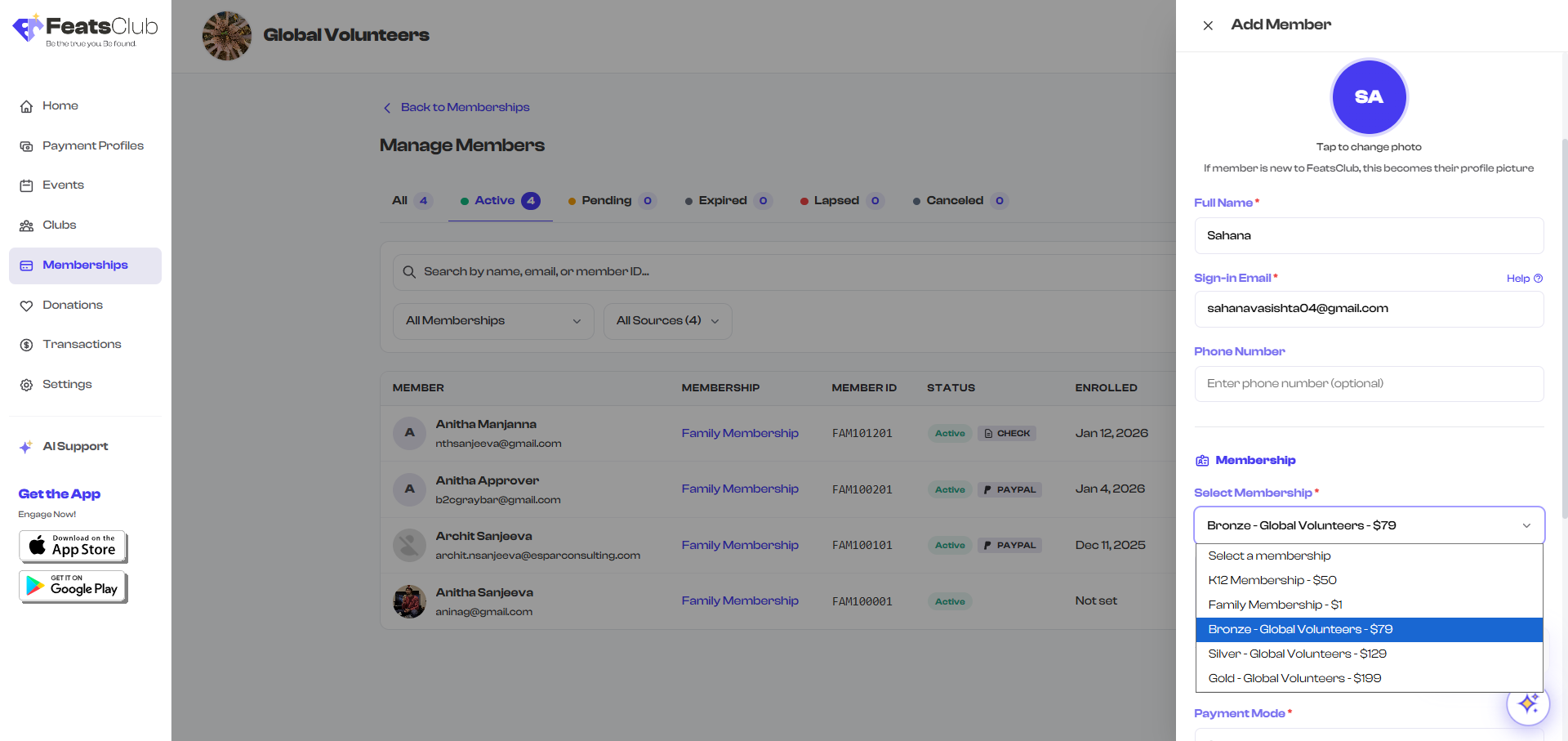
Step 3: Enter Payment Details
Record how the member paid:
| Field | Required | Description |
|---|---|---|
| Payment Mode | Yes | How the payment was received: Cash, Check, Venmo, Zelle, or Other |
| Other Payment Option | Only if "Other" is selected | Describe the payment method (e.g., "Bank Transfer", "PayPal") |
| Payment Reference | No | A reference number, check number, or transaction ID for your records |
| Payment Date | Yes | The date the payment was received. For Date of Enrollment memberships, this date also determines when the membership term begins. |
| Remarks | No | Any additional notes about this enrollment or payment |
For Date of Enrollment memberships, the payment date you enter is used as the enrollment date, which determines when the membership validity period starts. For Fixed Date memberships, the validity follows the term's configured start and end dates regardless of the payment date.
Step 4: Attach Payment Proof (Optional)
You can upload files as proof of payment -- such as photos of receipts, bank transfer confirmations, or check images. Select the attachment area to upload one or more files.
Step 5: Submit
Select the Add Member button at the bottom of the form. The system will process the registration and show you the result.
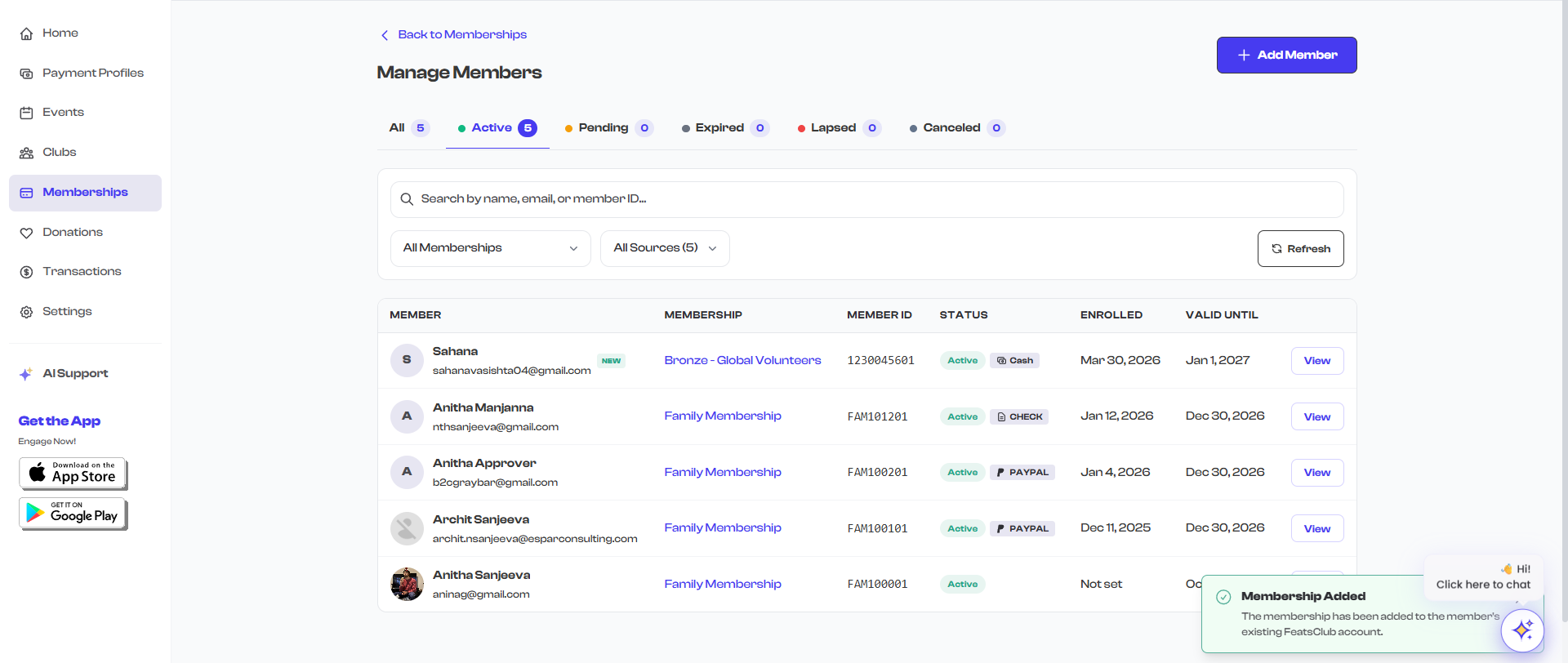
What Happens After You Add a Member
The outcome depends on whether the email address you entered belongs to an existing FeatsClub user:
Scenario 1: New User
If no FeatsClub account exists with that email:
- A new FeatsClub account is created using the email you provided
- The membership is assigned to this new account
- The member can sign in later by going to FeatsClub and using the Forgot Password flow to set their password
- You will see the message: "Member registered. They can sign in with Forgot Password."
Scenario 2: Existing User
If a FeatsClub account already exists with that email:
- The membership is linked to the existing account
- The member will see the new membership when they log in
- You will see the message: "Membership added to existing FeatsClub account."
Scenario 3: Member Already Has This Membership
If the person already has an enrollment in the same membership plan:
- The registration is blocked to prevent duplicates
- You will see an error message with details about the existing enrollment, including its status and validity dates
- If you need to re-enroll this person, you may need to cancel or delete the existing enrollment first
After a successful registration, the new member appears in the member list with a "New" badge that remains visible for the duration of your current session, making it easy to spot recently added members.
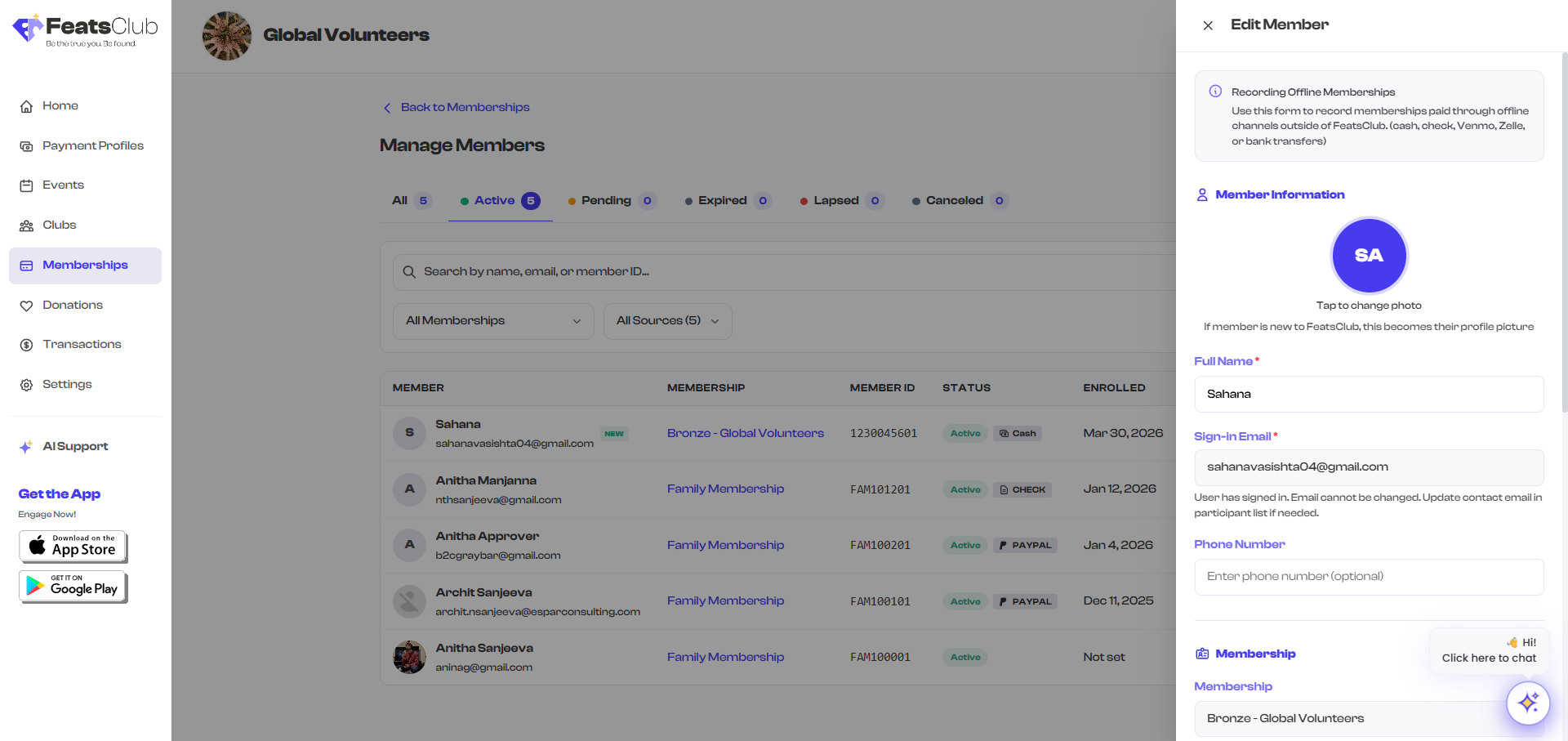
Editing a Manually Added Member
You can edit members who were added manually:
- Find the member in the members list
- Select the member to open the detail panel
- Select Edit to open the edit form
- Update the member's name, phone number, payment details, or remarks
About editing the email address: You can only change a manually added member's email if they have not yet signed in to their FeatsClub account. Once the member signs in for the first time, their email is locked and can only be changed by the member themselves.
Deleting a Member Enrollment
If you need to remove a member's enrollment entirely:
- Find the member in the members list
- Select the member to open the detail panel
- Select Delete
- Confirm the deletion in the confirmation dialog
Deleting a member's enrollment is permanent and cannot be undone. The member will lose their assigned member ID and any membership benefits. If you want to preserve the enrollment record, consider letting the membership expire naturally or canceling it instead.
Tips for Manual Member Registration
- Double-check the email address before submitting. This becomes the member's sign-in credential and cannot be changed once they sign in.
- Record payment references for cash and check payments to maintain a clean audit trail.
- Use the remarks field to note any special arrangements, such as "Complimentary membership for volunteer coach" or "Prorated fee for mid-season enrollment."
- Attach receipt photos for offline payments so you have a digital record alongside the enrollment.
What's Next?
- Learn about the Member Status Lifecycle to understand how enrollment statuses change over time
- See how Group Memberships work if you need to add families or teams
- Go back to Viewing Members to learn about search and filter features