Viewing Members
FeatsClub provides two ways to view and manage people who have enrolled in your memberships: a per-membership member list that focuses on a single plan, and a global members view that shows everyone across all plans. Both views share the same search, filter, and detail features.
Per-Membership Member List
To see members enrolled in a specific membership plan:
- Go to Dashboard > Memberships
- Select the membership plan you want to view
- On the membership detail page, look for the Members section or select View Members
This opens the member list filtered to that specific membership. You will see the membership name at the top along with a link to Manage All Members if you want to switch to the global view.
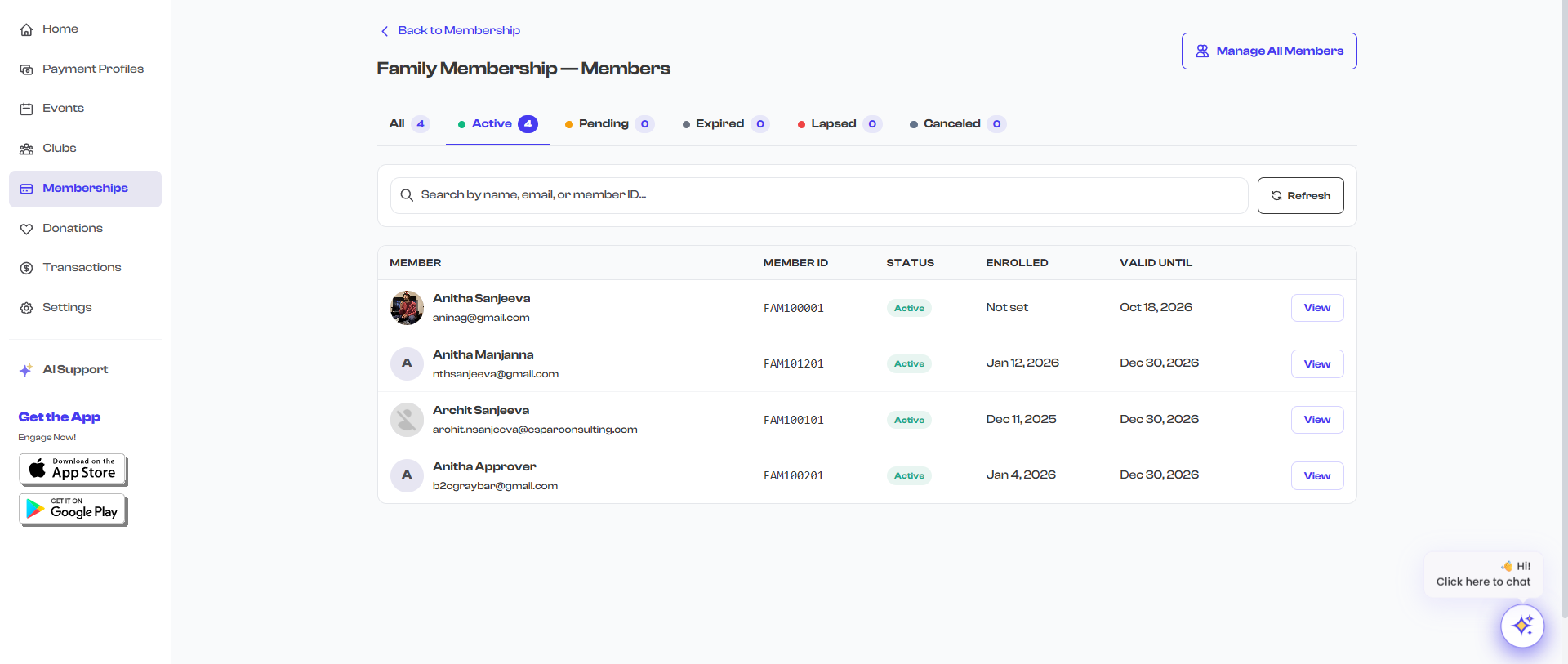
Global Members View
To see all members across every membership plan:
- Go to Dashboard > Memberships
- Select Manage All Members (or navigate to the Members page from any membership's member list)
This view shows every enrollment across all your membership plans. It includes an additional Membership column and a membership filter dropdown so you can narrow down to a specific plan when needed.
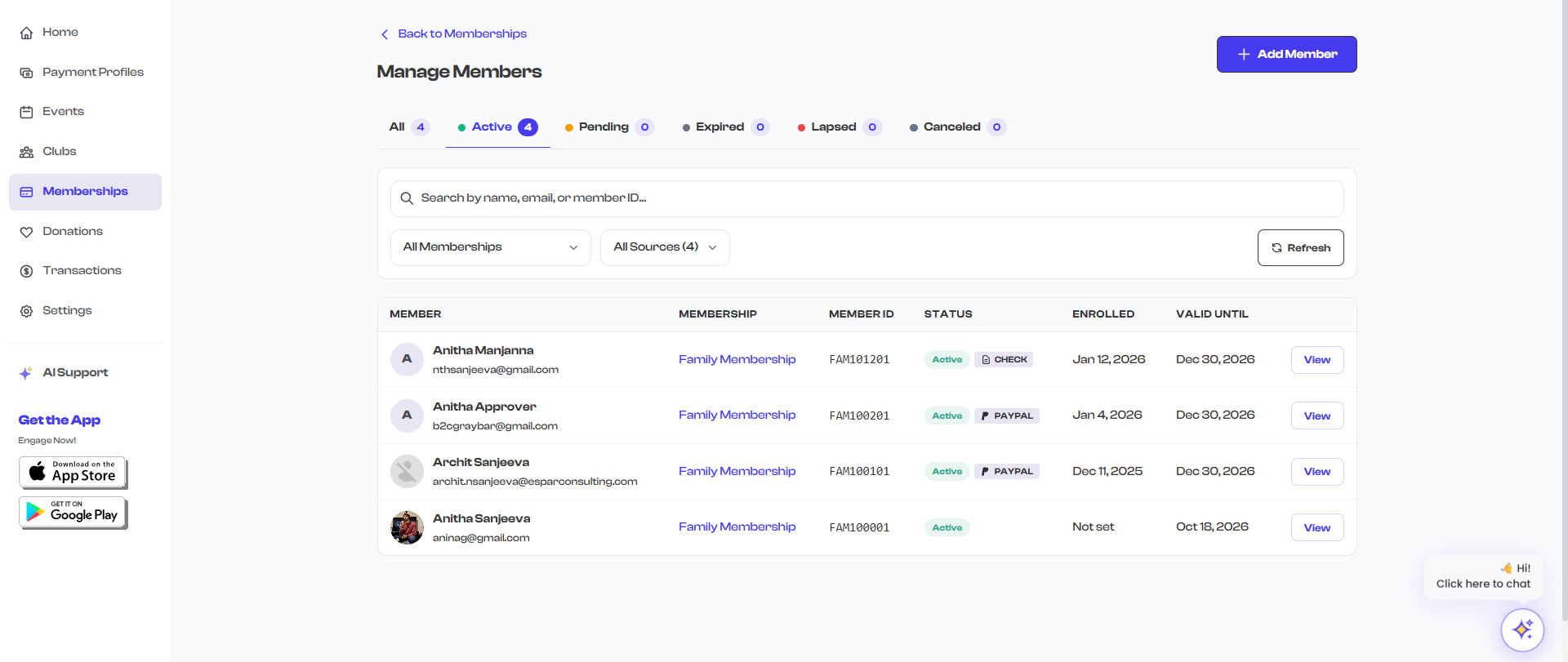
What You See for Each Member
Both views display the following information for every enrolled member:
| Column | Description |
|---|---|
| Member | The member's name, email address, and profile photo |
| Membership | Which membership plan they are enrolled in (global view only) |
| Member ID | Their unique member ID (e.g., GLD00001) assigned by the system |
| Status | Current enrollment status -- Active, Pending, Expired, Lapsed, or Canceled |
| Enrolled | The date when they enrolled or were added |
| Valid Until | When their membership expires, their next renewal date, or "Lifetime" for lifetime memberships |
On mobile devices, members are displayed as cards instead of a table. Each card shows the member's name, photo, status, member ID, and enrollment date in a compact layout.
Searching Members
Use the search bar at the top of either view to find specific members. You can search by:
- Name -- The member's display name
- Email -- Their email address
- Member ID -- The assigned member ID (e.g., GLD00001)
- Membership name -- The name of the membership plan (global view only)
Search results update instantly as you type, filtering the displayed list to show only matching members.
Filtering by Status
Both views include status filter tabs at the top of the member list. Each tab shows the count of members in that status:
| Tab | What It Shows |
|---|---|
| All | Every member regardless of status |
| Active | Members with currently valid, paid memberships |
| Pending | Members awaiting payment confirmation or approval |
| Expired | Members whose membership validity period has ended |
| Lapsed | Members who missed a renewal or whose payment failed |
| Canceled | Members whose enrollment was canceled by the member or an admin |
The default view shows Active members. Select any other tab to switch the filter. The count badge on each tab updates to reflect the total number of members in that status.

Filtering by Membership Plan
In the global members view, use the Membership dropdown filter to narrow the list to members of a specific plan. Select All Memberships to remove the filter and see everyone again.
Filtering by Source
The global members view also includes a Source filter that lets you separate members by how they enrolled:
| Source | Description |
|---|---|
| All Sources | Show all members regardless of how they enrolled |
| Online | Members who enrolled and paid through FeatsClub's online checkout |
| Manual | Members who were added manually by an admin (offline payments, cash, check, etc.) |
The count next to each option shows how many members fall into that category.
Member Statistics
At the top of the member list, the status tabs double as a summary of your member metrics. At a glance, you can see:
- Total members across all statuses
- Active members currently enrolled
- Pending members awaiting confirmation
- Expired members past their validity period
- Lapsed members who missed renewals
- Canceled members who left
Viewing Member Details
Select any member's row (or the View button) to open a detail side panel that slides in from the right. This panel shows comprehensive information about the member:
Profile and Contact
- Name and profile photo
- Member ID (e.g., GLD00001)
- Current status badge
- Email address
- Phone number
Membership Details
- Enrollment date
- Valid from date
- Valid until date (or "Lifetime" for lifetime plans)
- Next renewal date (for recurring memberships)
Payment Information
- Payment status (Paid or Pending)
- Amount paid
- Payment mode (Stripe, Cash, Check, Venmo, Zelle, etc.)
Participants (for Group Memberships)
If the enrollment includes group participants, the detail panel lists each participant with their name and email address. See Group Memberships for more details.
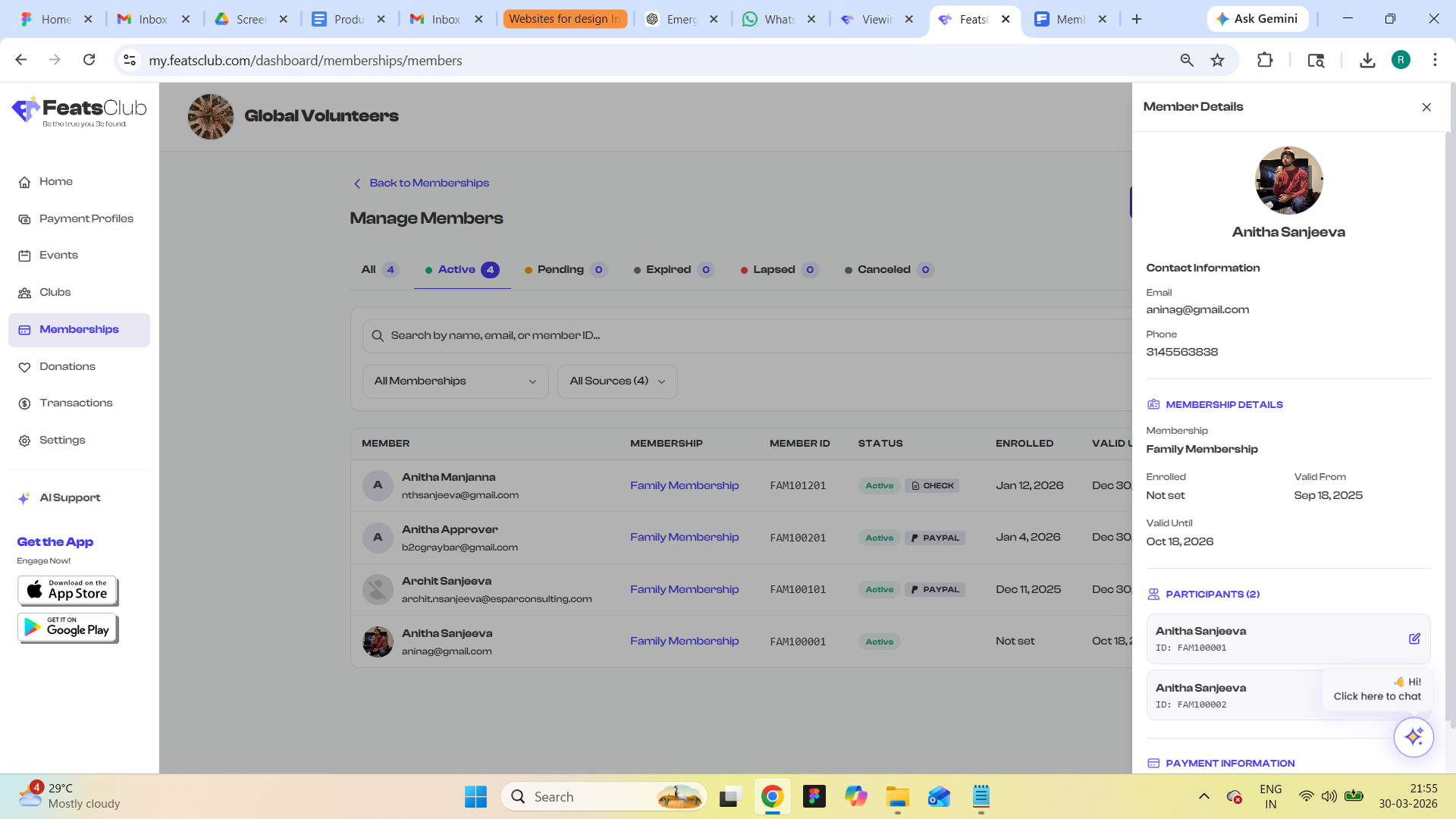
Actions in the Detail Panel
From the member detail panel in the global view, you can:
- Edit -- Update the member's information, payment details, or email address (for manually added members whose account has not yet signed in)
- Delete -- Remove the member's enrollment entirely (requires confirmation)
Deleting a member's enrollment cannot be undone. The member will lose access to any membership benefits. Make sure you are certain before confirming the deletion.
Refreshing the List
Select the Refresh button next to the search bar to manually refresh the member data. The member list also syncs automatically in the background every two minutes and whenever you return to the browser tab after being away.
What's Next?
- Learn how to Add Members Manually for offline registrations
- Understand the Member Status Lifecycle to know what each status means and how transitions work
- See how Group Memberships handle multiple participants under one enrollment