Member Status Lifecycle
Every membership enrollment in FeatsClub has a status that reflects where it stands in its lifecycle. Understanding these statuses helps you manage your members effectively, know when action is needed, and keep your membership data accurate.
The Five Statuses
| Status | Color | Meaning |
|---|---|---|
| Pending | Amber | The member has enrolled but payment is not yet confirmed or approval is still needed |
| Active | Green | The member has a confirmed, paid, currently valid membership |
| Expired | Gray | The membership validity period has ended |
| Lapsed | Orange | A renewal was missed or a recurring payment failed |
| Canceled | Red | The membership was canceled by the member or an organization admin |

Status Flow
Here is how a membership enrollment typically moves through its lifecycle:
                    ┌──────────────────────────┐
                    │                          │
                    v                          │
  ┌─────────┐    ┌────────┐    ┌─────────┐    │
  │ Pending │───>│ Active │───>│ Expired │    │
  └─────────┘    └────────┘    └─────────┘    │
                    │                          │
                    │          ┌────────┐      │
                    ├─────────>│ Lapsed │──────┘
                    │          └────────┘  (repurchase)
                    │
                    │          ┌──────────┐
                    └─────────>│ Canceled │
                               └──────────┘
Typical Paths
Happy path (one-time membership): Pending --> Active --> Expired
Happy path (recurring membership): Pending --> Active --> Active (auto-renewed) --> Active (auto-renewed) --> ...
Missed renewal: Active --> Lapsed --> Active (if they repurchase)
Member leaves: Active --> Canceled
Manually added member: Active (created directly as active when payment is recorded offline)
Understanding Each Status
Pending
A member enters Pending status when they have started the enrollment process but payment has not yet been finalized.
How a member reaches this status:
- They initiated an online checkout but payment is still processing
- They enrolled in an invite-only membership that requires admin approval
- A payment processing issue occurred
What you can do:
- Wait for payment processing to complete (usually resolves automatically)
- Contact the member if payment seems stuck
- Check with your payment provider (Stripe or Cashfree) for details
Members who are manually added by an admin typically skip the Pending status entirely and are created as Active since the admin has already confirmed payment.
Active
Active means the membership is fully confirmed, paid, and currently within its validity period. This is the "everything is good" status.
How a member reaches this status:
- Online payment was successfully processed
- An admin manually added them with confirmed payment
- A recurring payment was automatically collected on time
- They repurchased after a Lapsed status
What you can do:
- View their complete member details
- Check their validity dates and next renewal date
- See their payment history
Expired
An enrollment moves to Expired when the membership validity period has passed and the membership does not auto-renew.
How a member reaches this status:
- The membership term's end date has passed (for Fixed Date enrollments)
- The enrollment period has elapsed (for Date of Enrollment memberships with one-time payment)
- Lifetime memberships never expire
What you can do:
- The member can re-enroll by purchasing a new term
- You can manually add a new enrollment for the member
- Use the Expired count as a signal for outreach -- these are potential renewal opportunities
The Expired count in your status filter tabs is a valuable metric. A high number of expired members may indicate it is time to send renewal reminders or create special re-enrollment offers.
Lapsed
Lapsed indicates that a recurring membership renewal was missed. This typically happens when a recurring payment fails -- for example, the member's credit card expired or had insufficient funds.
How a member reaches this status:
- A recurring Stripe subscription payment failed
- The grace period after an expiry date passed without renewal (for memberships with grace periods configured)
What you can do:
- Contact the member to update their payment method
- The member can repurchase the membership to move back to Active
- Monitor your Lapsed count to identify payment collection issues
The membership term's grace period setting (configured when you create the term) determines how many days after expiry a member stays in Active before moving to Lapsed. The default is 30 days.
Canceled
A membership is Canceled when it is explicitly ended before its natural expiration, either by the member or by an admin.
How a member reaches this status:
- The member requested cancellation
- An admin canceled the enrollment
- A Stripe subscription was canceled
What you can do:
- View the cancellation date and reason in the member detail panel
- The member can re-enroll if the membership plan is still active
- Canceled memberships remain in your records for reference
Automatic vs. Manual Transitions
Some status changes happen automatically, while others require action from an admin or the member:
| Transition | How It Happens |
|---|---|
| Pending --> Active | Automatic when payment is confirmed |
| Active --> Expired | Automatic when the validity period ends |
| Active --> Lapsed | Automatic when a recurring payment fails or grace period expires |
| Active --> Canceled | Manual -- initiated by the member or admin |
| Lapsed --> Active | Manual -- the member repurchases the membership |
| Any --> Deleted | Manual -- an admin deletes the enrollment from the detail panel |
Viewing Members by Status
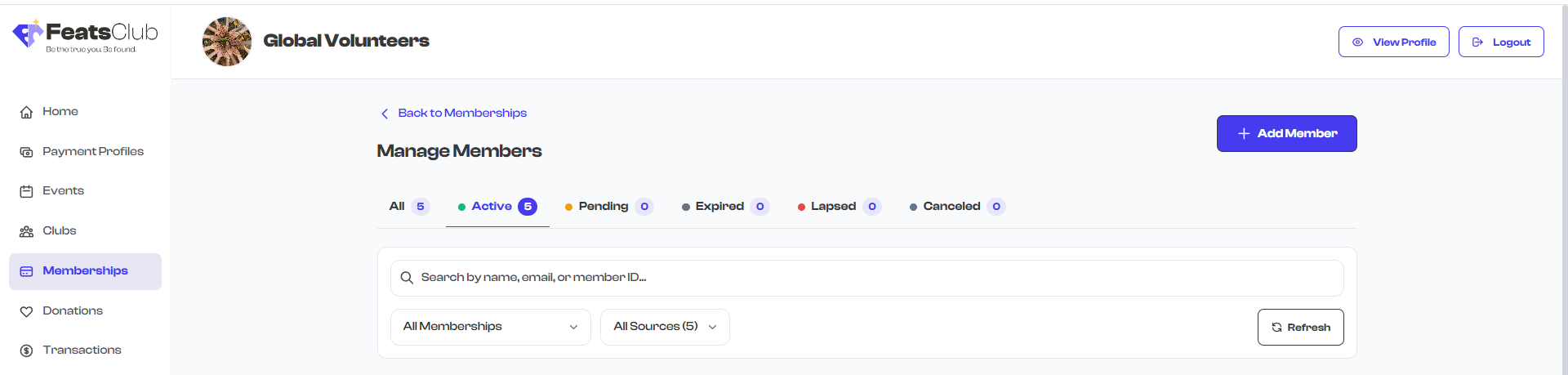
You can quickly see how many members are in each status using the status filter tabs at the top of any member list. Each tab shows the count of members in that status:
- Select a tab to filter the list to only show members in that status
- The All tab shows every member regardless of status
- Use this to identify members who need attention (Pending payments, Lapsed renewals)
Acquisition Types
Behind the scenes, FeatsClub also tracks how a membership was acquired, which provides additional context about the enrollment:
| Acquisition Type | Meaning |
|---|---|
| Initial | First-time enrollment in this membership plan |
| Renewal | Automatic renewal of a recurring membership |
| Manual Renewal | Manually renewed by the member or admin |
| Lapsed Repurchase | Re-enrollment after a lapsed membership |
This information helps you understand member retention patterns -- how many of your enrollments are new vs. renewals vs. re-engagements.
Tips for Managing Member Statuses
- Monitor the Pending tab regularly. Members stuck in Pending may have payment issues that need resolution.
- Watch for Lapsed members. These are people who were once active -- a quick reminder can often bring them back.
- Review Expired members periodically. They represent potential renewals and are often easier to re-engage than finding new members.
- Keep your Active count healthy. If your Active count is declining while Expired and Lapsed are growing, it may be time to review your pricing, benefits, or renewal process.
What's Next?
- Learn about Group Memberships to understand how enrollments work for families and teams
- Go back to Viewing Members to explore search and filter features
- See the Managing Members overview for a summary of all member management features