Group Memberships
A group membership allows one person to enroll and cover multiple people under a single membership enrollment. This is perfect for families, teams, or any situation where one person signs up on behalf of a group.
What Are Group Memberships?
In a standard membership, one person signs up and one person is enrolled. In a group membership, one person (the primary member) signs up and adds additional people (the participants) who are all covered under the same enrollment.
Common examples include:
- A Family Swim Pass where a parent enrolls and adds their children
- A Team Membership where a coach signs up and registers all players
- A Household Gym Membership where one person enrolls their family members
- A Corporate Membership where an office manager enrolls their team
The key advantage is that the entire group is managed under one enrollment with one payment, making it simpler for both the organization and the member.
How Group Memberships Work
Setting Up a Group Membership
When you create a membership plan, you can configure the Number of Participants setting in the Registration section:
- 1 person -- Standard individual membership (the default)
- 2-10 people -- Group/family membership that covers up to the specified number of participants
When set to more than 1 person, the membership is labeled as a group or family membership. For example, if you set it to 4 people, the membership card will display "4 people" to let prospective members know this is a group plan.
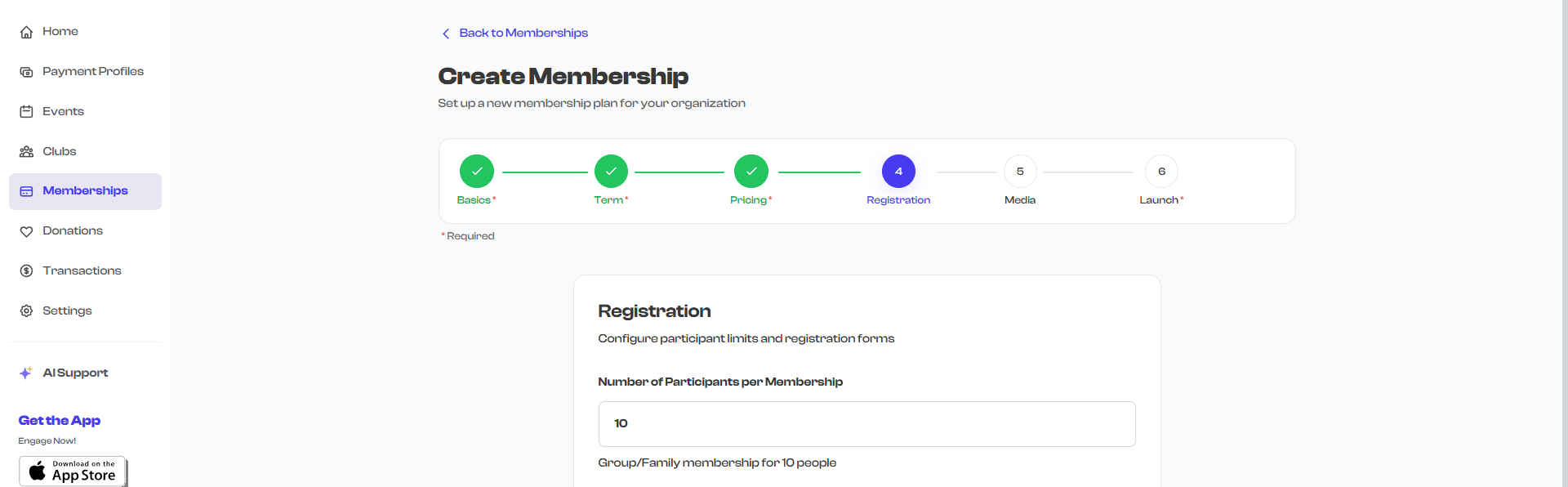
The number of participants defines how many people the membership covers, not how many can enroll. One person completes the enrollment and then adds participant details for the additional group members.
Pricing for Group Memberships
Group membership pricing works as a flat rate -- the membership fee covers the entire group, not per person. When you set the base fee for a group membership (e.g., $200/year for a family of 4), that single fee covers all participants in the group.
For example:
- "Family Membership (up to 4 people)" at $200/year means the family pays $200 total
- Each additional participant does not incur an extra charge beyond the membership fee
The Enrollment Process
When a member enrolls in a group membership, the process works as follows:
- The primary member goes through the normal enrollment flow -- providing their own information and completing payment
- After enrollment, they add participant details for each additional person in their group
- Each participant gets their own record within the enrollment
What the Primary Member Provides for Each Participant
For each additional participant, the primary member fills in:
| Field | Description |
|---|---|
| Full Name | The participant's full name |
| The participant's email address (optional) | |
| Phone Number | The participant's phone number (optional) |
If you have configured a participant form on the membership, the primary member also fills out that form for each participant. This can include custom fields like age, shirt size, emergency contact information, or any other data you need to collect.
Participant Forms
A participant form is a custom form you can attach to a group membership that collects specific information about each participant. This is separate from the registration form (which collects information from the primary member during enrollment).
When to Use a Participant Form
Use a participant form when you need to collect individual details for each person in a group. For example:
- A youth sports league needs each child's age, grade, and emergency contact
- A dance studio needs each participant's experience level and preferred class time
- A swim club needs each family member's swimming ability and any medical conditions
Setting Up a Participant Form
You configure the participant form during membership creation in the Registration section. The form builder lets you add various field types:
- Text fields -- For names, notes, and short answers
- Multi-line text -- For longer responses
- Multiple choice -- Single-select options
- Checkboxes -- Multi-select options
- Preset fields -- Standard fields like Name, Email, Phone, and Address with built-in formatting
- URL input -- For links (e.g., social media profiles)
You can also configure whether the participant form should be completed before or after payment.
If your participant form collects critical information (like emergency contacts or medical conditions), consider setting it to be completed before payment so you have all the necessary details immediately upon enrollment.
Managing Group Members
Viewing Participants
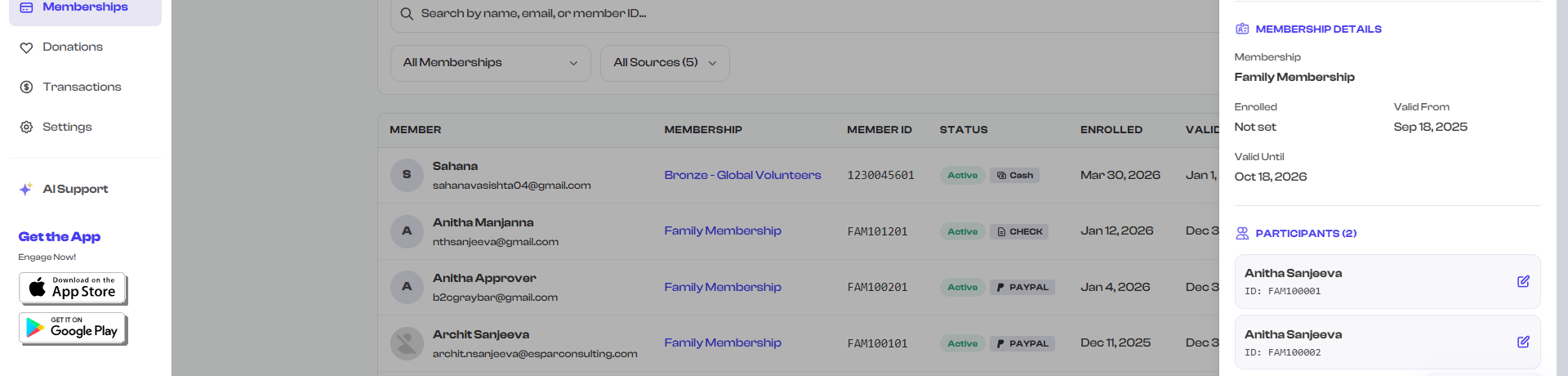
When you view a group membership enrollment in the member detail panel, you will see a Participants section that lists every person in the group:
- Go to the member list (per-membership or global view)
- Select the primary member to open the detail panel
- Scroll down to the Participants section
Each participant is shown with their name and email. If participant forms were submitted, you can view the form responses for each participant.
Editing Participant Information
From the member detail panel in the global Manage Members view, you can edit participant information:
- Open the member detail panel for the primary member
- In the Participants section, select the edit option for a participant
- Update their name, email, phone, or form responses
- Save the changes
Primary Member vs. Participants
It is important to understand the distinction:
| Primary Member | Participants | |
|---|---|---|
| Completes enrollment | Yes | No |
| Makes payment | Yes | No |
| Has FeatsClub account | Yes (always) | Not necessarily |
| Receives notifications | Yes | No (notifications go to primary) |
| Assigned Member ID | Yes | May receive individual IDs |
| Appears in member list | Yes (as the main entry) | Shown within the primary member's detail panel |
The membership enrollment is tied to the primary member. If the primary member's enrollment is canceled, expired, or deleted, all participants under that enrollment are also affected.
QR Codes for Group Members
For memberships that use QR codes for verification (available on the mobile app), each participant in a group membership can receive their own QR code. This allows individual check-in at events or facility access for each group member.
Examples
Family Swim Club Membership
Setup:
- Membership name: "Family Swim Pass"
- Number of participants: 4
- Fee: $350/year (flat rate for the family)
- Participant form: Name, Age, Swimming Level (Beginner/Intermediate/Advanced)
How it works:
- A parent enrolls and pays $350
- They add up to 3 additional family members with their names, ages, and swimming levels
- Each family member can use the swim club facilities
- The parent manages the enrollment and receives all notifications
Youth Basketball Team
Setup:
- Membership name: "Junior Team Enrollment"
- Number of participants: 10
- Fee: $500/season (covers the full team)
- Participant form: Player Name, Jersey Number, Emergency Contact Name, Emergency Contact Phone
How it works:
- The coach or team manager enrolls and pays $500
- They enter details for each player on the team
- The organization has all player information and emergency contacts on file
- The coach manages the enrollment and roster
Tips for Group Memberships
- Set a reasonable participant limit. Think about the typical group size for your use case. A family plan with 4-6 people covers most families; a team plan might need 10-15 spots.
- Use participant forms wisely. Collect only the information you genuinely need for each participant. Lengthy forms can discourage enrollment.
- Communicate clearly about who the "primary member" is. Make sure enrollees understand that the primary member manages the group and receives all communications.
- Price competitively. Group memberships should offer a per-person value compared to individual memberships to incentivize group sign-ups.
What's Next?
- Learn about the Member Status Lifecycle to understand how group enrollment statuses work
- Go back to Viewing Members to see how group memberships appear in the member list
- See Adding Members Manually if you need to register a group enrollment offline