Archiving & Completing a Club
Clubs do not run forever. Whether a club reaches its natural end date or you need to close it early, FeatsClub provides two paths to mark a club as finished: completing (automatic) and archiving (manual). Both result in the club moving to Completed status, but they happen in different ways.
Archiving: Ending a Club Early
Archiving is the manual action of ending an active club before its scheduled end date. This is useful when a program needs to be discontinued, a season ends early, or circumstances change.
How to Archive a Club
- Navigate to the Clubs section from your dashboard sidebar.
- Select the active club you want to archive to open its detail page.
- Select the Archive button in the header area.
- A dialog appears asking you to provide a reason for archiving. This reason is recorded for your records.
- Enter your reason and select Confirm.
- The club's status changes to Completed immediately.
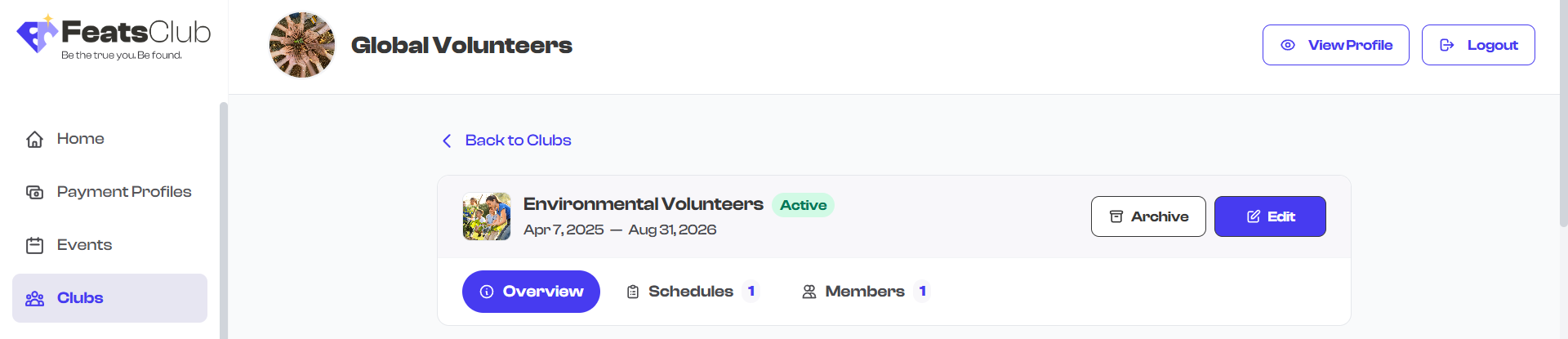
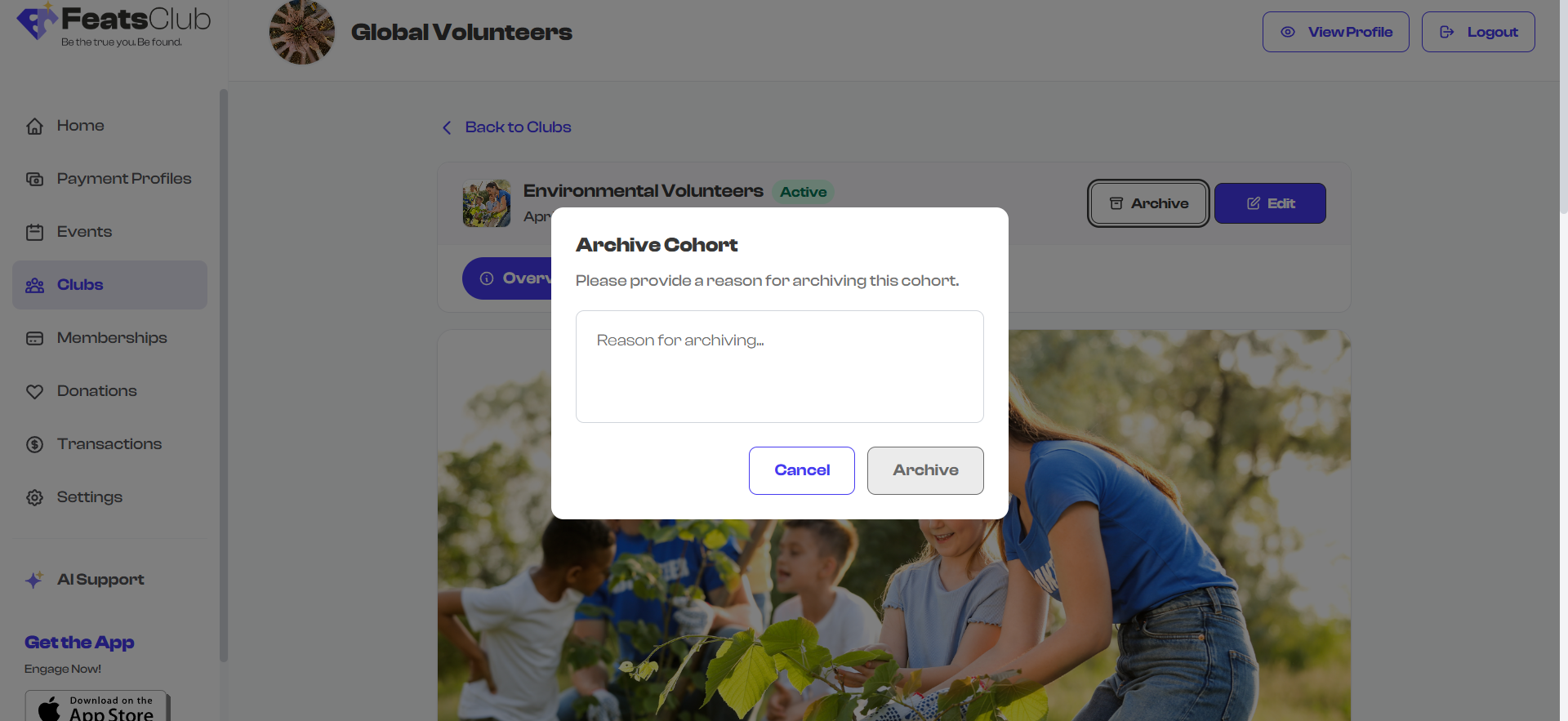
The archive reason is required. You must enter a reason before the confirmation button becomes active. This helps you keep a record of why a club was ended early, which is useful for planning future programs.
What Happens When You Archive
| Aspect | Behavior |
|---|---|
| Status | Changes from Active to Completed |
| Dashboard location | Moves to the Past or Archived tab |
| Public visibility | The club is removed from your public organization page |
| Member enrollment | No new members can be added or invited |
| Existing members | All enrollment records are preserved |
| Schedules | Existing schedules remain visible for historical reference |
| Attendance records | All attendance data is preserved |
| Archive reason | Stored with the club record along with the archive date |
When to Archive
Common reasons for archiving a club early:
- The season or semester ended ahead of the planned end date
- Not enough members enrolled to sustain the program
- The instructor or coach is no longer available
- The program is being restructured or merged with another club
- External circumstances require discontinuing the program
Completing: Natural End of a Club
Completing happens when a club reaches its scheduled end date. The club's status changes to Completed automatically based on its configured end date.
What Happens When a Club Completes
| Aspect | Behavior |
|---|---|
| Status | Changes to Completed |
| Dashboard location | Moves to the Past tab |
| Member records | All enrollment, attendance, and schedule data is preserved |
| Club details | All information remains viewable but cannot be edited |
The transition from Active to Completed based on the end date is automatic. You do not need to take any action -- FeatsClub checks club end dates and updates statuses accordingly.
Archived vs. Completed: What's the Difference?
Both archiving and natural completion result in the same final status (Completed), but they differ in how they got there:
| Aspect | Archived (Manual) | Completed (Natural) |
|---|---|---|
| Trigger | Admin selects Archive | End date passes automatically |
| Reason recorded | Yes -- admin provides a reason | No -- the program simply ended as planned |
| Archive date | Recorded at time of archiving | End date serves as the completion date |
| Final status | Completed | Completed |
| Data preserved | Yes -- all data intact | Yes -- all data intact |
What Happens to Members
When a club is archived or completed, members are affected in the following ways:
- Enrollment records are preserved -- A member's participation history remains in the system.
- Attendance records are preserved -- All check-in and attendance data remains accessible.
- No new enrollment -- Additional members cannot be added or invited.
- Members are not removed -- Existing members retain their association with the club. Their enrollment status remains as it was.
If you are ending a club for the season and plan to run a similar program next time, consider creating a new club for the new season rather than reusing the old one. This keeps your historical records clean and gives you fresh enrollment and attendance tracking for the new session.
Finding Archived and Past Clubs
Archived and completed clubs are accessible from the dashboard:
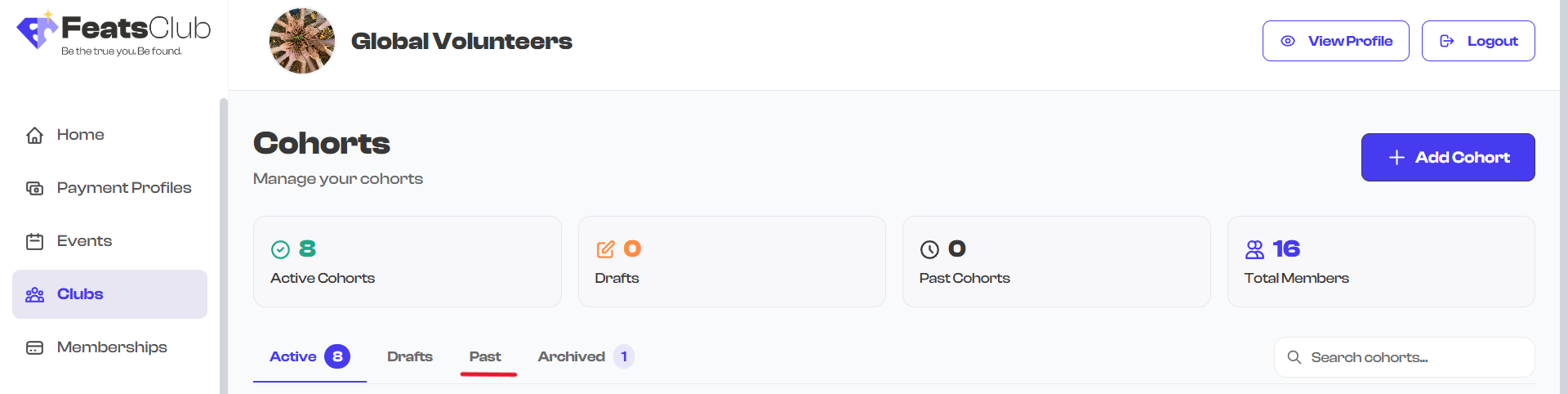
- Go to the Clubs section from your dashboard sidebar.
- Select the Past tab to see completed clubs or the Archived tab to see manually archived clubs.
- Select any club to view its full details and historical data.
Can You Reactivate a Completed Club?
Clubs that have been archived or completed cannot be returned to Active status. If you need a similar program again:
- Create a new club with the same or updated details for the new season or term.
- Use the previous club as a reference for settings, schedules, and member lists.
What's Next?
If you have a draft club you no longer need, learn how to Delete a Club. Or see the full Club Status Lifecycle to understand all possible status transitions.