Sharing Your Club
Every active club on FeatsClub has a unique shareable link that you can use to promote the club and attract new members. This page covers how to get your club's link, use the QR code, and pin your best clubs to your organization's public profile.
Shareable Club Link
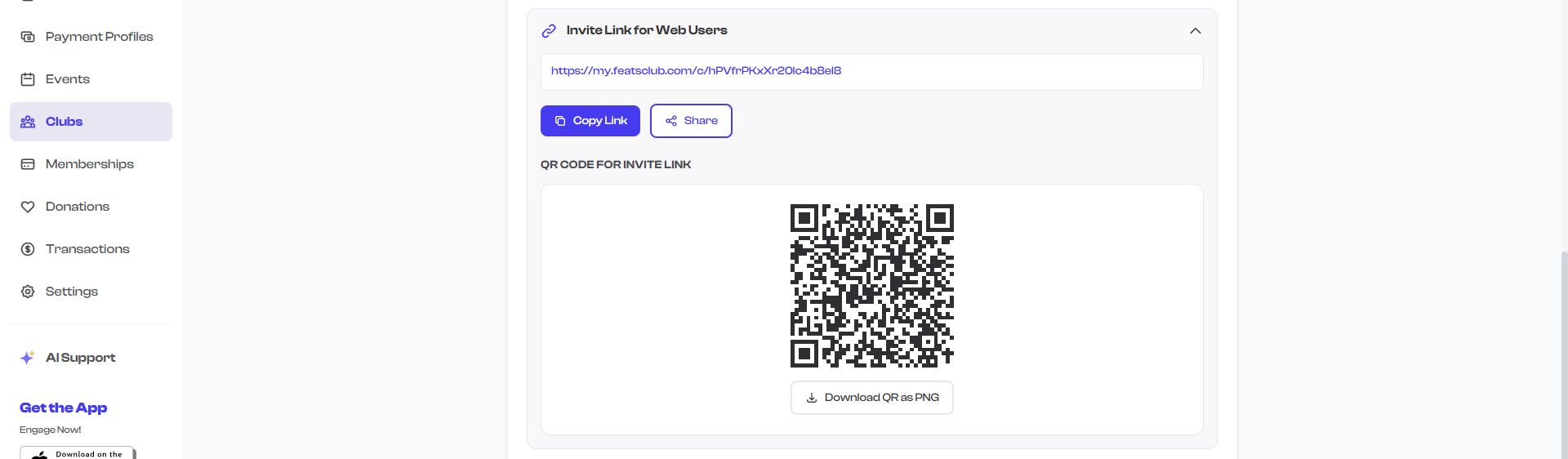
Each club has a public URL that anyone can visit to view the club's details. The link is displayed in the Shareable Link Widget on the club's detail page.
Copying the Club Link
- Navigate to the Clubs section from your dashboard sidebar.
- Select the club you want to share to open its detail page.
- Scroll down to the Shareable Link Widget in the overview section.
- The club's URL is displayed as readable text.
- Select the Copy button next to the URL.
- The link is copied to your clipboard, ready to paste anywhere.

Copy the link once and paste it across all your communication channels -- email, messaging apps, social media, and your website. The same link works everywhere.
QR Code
Every club automatically generates a QR code that links to the club's page. The QR code is displayed alongside the shareable link in the widget.
Using the QR Code
The QR code is useful for:
- Printed flyers and posters -- Include the QR code on physical materials posted around your facility or community.
- Presentations -- Display the QR code on a projector screen during parent meetings, orientation sessions, or community events.
- Registration tables -- Print the QR code and place it at sign-up desks where people can scan to learn more.
- Social media -- Share the QR code as an image in your posts.
When someone scans the QR code with their phone camera, they are taken directly to the club's page where they can view details and express interest in joining.
Pinning to Your Organization Profile
Show in Org Profile is a visibility setting that pins your club to your organization's public-facing page. When enabled, the club appears in the clubs showcase section that visitors see when they visit your organization's profile.
How to Pin a Club
There are two ways to enable this setting:
During Club Creation or Editing
- In the club creation or editing wizard, navigate to Step 4: Review & Publish.
- Toggle Show in Org Profile to on.
- Save or launch the club.
From the Club Detail Page
The Show in Org Profile setting is configured during the creation or editing flow. To change it, select Edit on the club detail page and navigate to the Review & Publish step.
What Pinning Does
| Aspect | When Pinned (On) | When Not Pinned (Off) |
|---|---|---|
| Organization public page | Club appears in the clubs showcase section | Club does not appear on the public page |
| Dashboard visibility | No change -- always visible on your dashboard | No change |
| Direct link | Always works | Always works |
| Discovery | Visitors can find the club through your org profile | Visitors need the direct link |
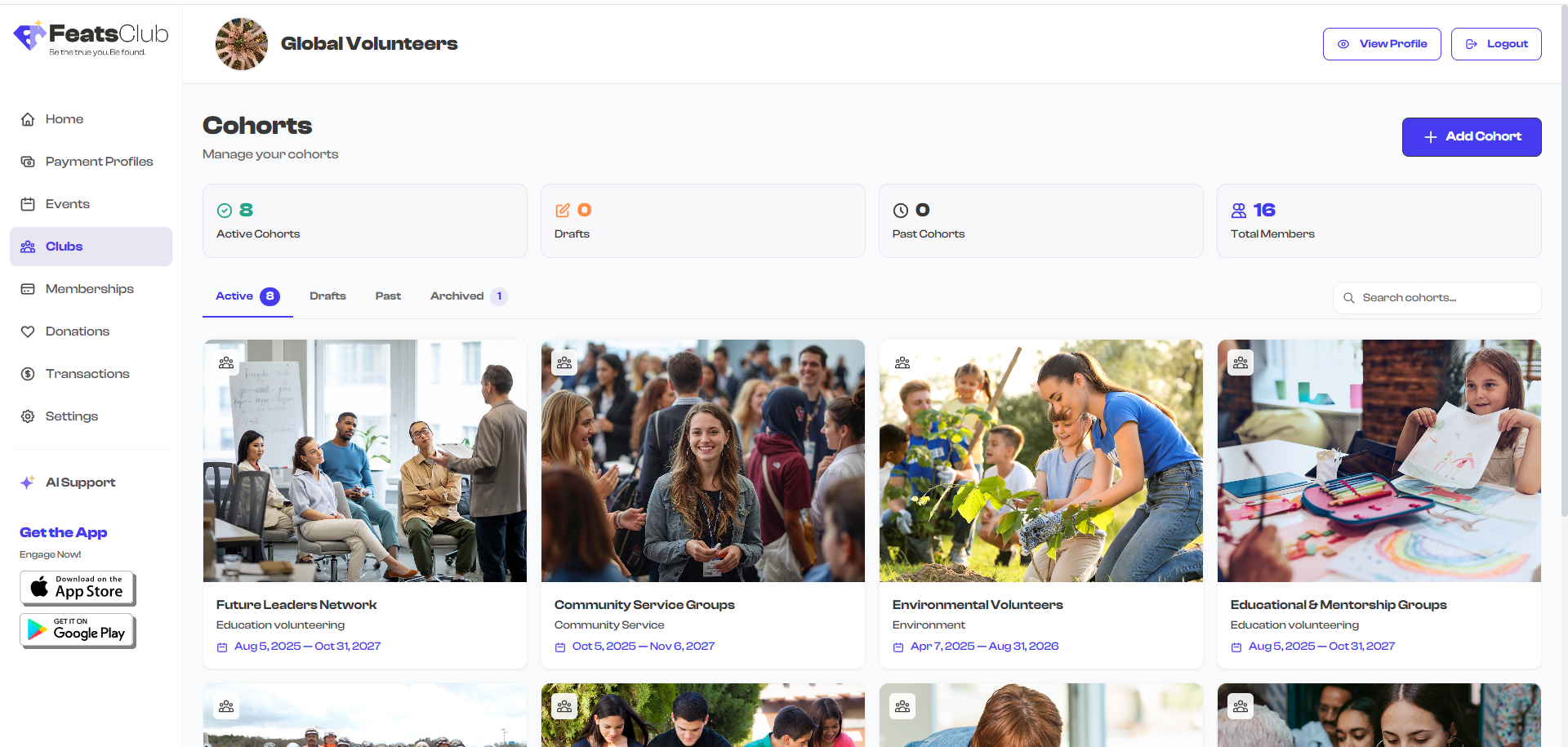
Pin your most active and popular clubs to your organization profile. This gives visitors an immediate sense of what your organization offers. When a club is completed or no longer relevant, the system automatically removes it from the showcase.
Where to Share
Here are effective ways to distribute your club link:
| Channel | How to Use |
|---|---|
| Include the link in newsletters, welcome emails, and program announcements | |
| Messaging apps | Share via WhatsApp, Slack, Remind, or other messaging platforms your community uses |
| Social media | Post the link or QR code image on Instagram, Facebook, Twitter/X, and other platforms |
| Website | Add a "Join Our Club" link on your organization's website |
| Printed materials | Print the QR code on flyers, brochures, and registration packets |
| In-person | Display the QR code at your facility's front desk, bulletin board, or event booths |
Sharing Draft Clubs
Draft clubs do not have a functional public page. The shareable link is only active after the club is launched. If you share a draft club's link, visitors will not be able to view the club page. Make sure to launch the club before sharing.
Tips for Promoting Your Club
-
Pair the link with a compelling message. Do not just post the URL -- describe what makes the club special. "Our Advanced Jazz Ensemble meets every Wednesday -- join us for a transformative season!" is more compelling than just sharing a link.
-
Use quality cover images. Clubs with attractive photos get more clicks when shared on social media. Upload at least one high-quality image during creation or editing.
-
Share at the right time. Post your club link when enrollment opens, before the enrollment deadline, and after notable events or achievements by club members.
-
Ask officers and current members to share. Word of mouth from people who are already part of the club is the most effective form of promotion.
What's Next?
Learn about the full Club Status Lifecycle to understand every status your club can be in and what actions are available at each stage.