Launching a Draft Club
When you create a club, it starts in Draft status. Launching a club changes its status from Draft to Active, making it visible and discoverable by members. This page explains what launching means, what to check before you launch, and how the process works.
What Launching Means
Launching a club is a one-way transition from Draft to Active:
Draft ──(Launch)──► Active
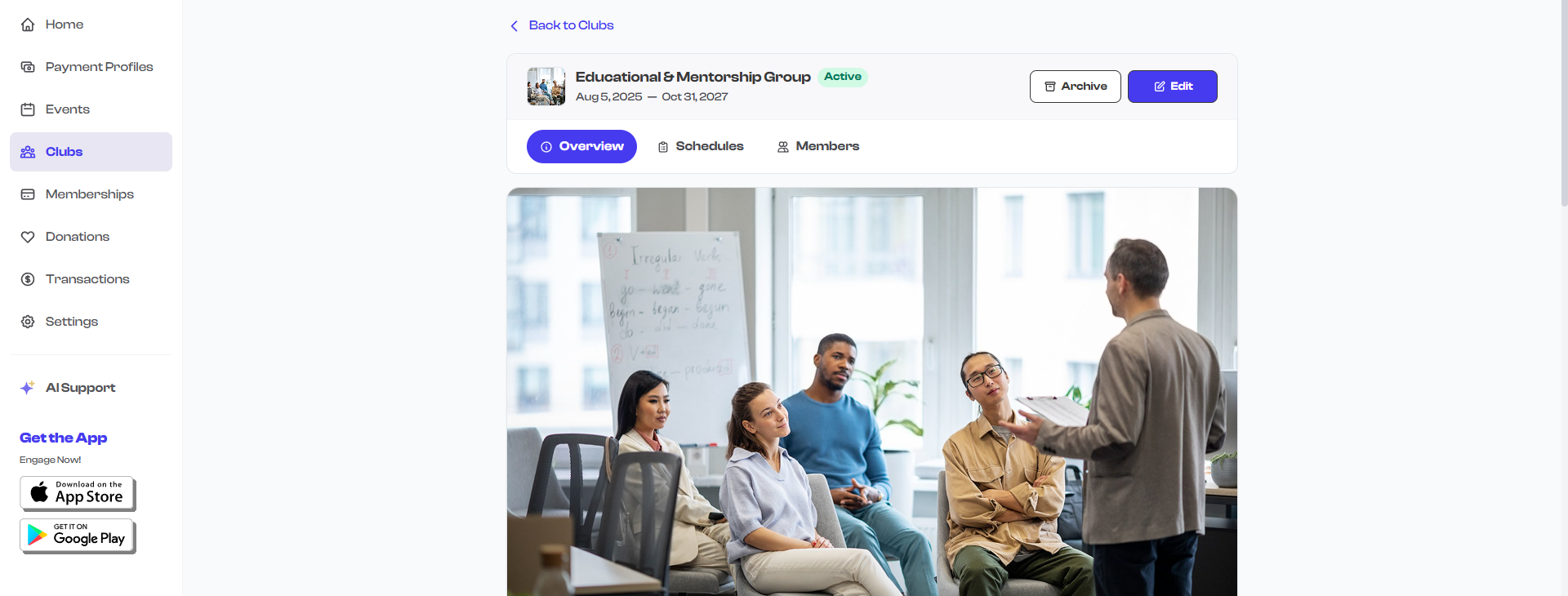
Once launched, a club becomes a live program in your organization. The Draft status cannot be restored after launching.
What Happens When You Launch
| Aspect | Before Launch (Draft) | After Launch (Active) |
|---|---|---|
| Visibility | Only visible to organization admins | Visible on your dashboard's Active tab |
| Public profile | Does not appear on your org's public page | Appears on your public page if "Show in Org Profile" is enabled |
| Members | Cannot invite or accept members | Members can be invited and can join |
| Schedules | Can be created and configured | Schedules are live and trackable |
| Shareable link | Link is not publicly functional | Link is active and can be shared |
How to Launch a Club
- Navigate to the Clubs section from your dashboard sidebar.
- Select the draft club you want to launch to open its detail page.
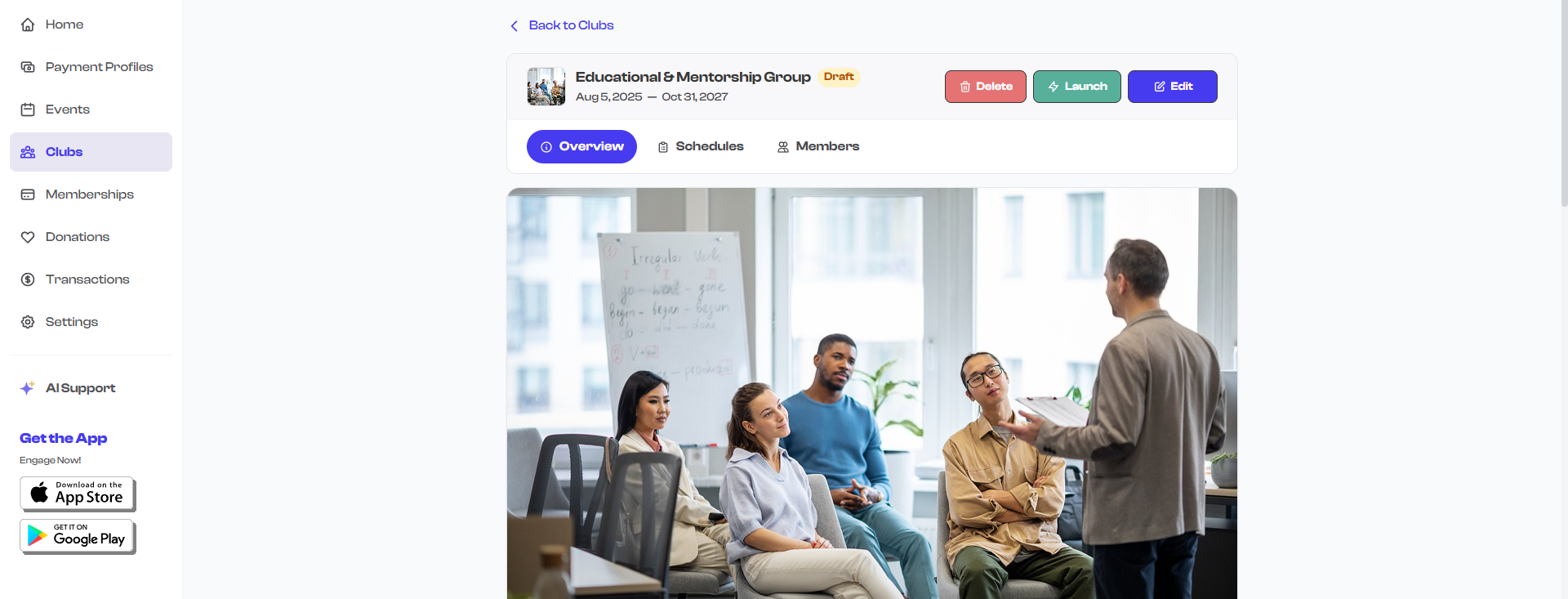
- Locate the Launch button in the header area. It appears as a green button next to the Edit button.
- Select the Launch button.
- The club's status changes to Active immediately.
Pre-Launch Checklist
Before launching your club, review these items to make sure everything is ready:
- Title and description are complete, accurate, and clear to potential members
- Start and end dates are correct
- Enrollment deadline is set appropriately (if applicable)
- Category and level are selected to help members find the right club
- Rules are defined so members know what is expected
- Criteria are set if there are requirements for joining (e.g., age, skill level)
- Media -- at least one photo or video is uploaded to make the club visually appealing
- Officers are added with their names and roles
- Group chat toggle is set based on whether you want members to message each other
- Show in Org Profile is toggled on if you want the club featured on your public page
You can edit all of these details after launching, so launching does not have to be a permanent decision about every field. However, having everything ready before launch gives the best first impression to potential members.
Launching from the Creation Wizard
You can also launch a club directly from the creation wizard without saving as a draft first:
- Complete all four steps of the creation wizard.
- On the final Review & Publish step, select Launch instead of Save as Draft.
- The club is created and immediately set to Active status.
This is a convenient shortcut when you have all your club details ready in one session.
Can You Un-Launch a Club?
There is no direct way to revert an active club back to Draft status. However, you have these options:
- Archive the club -- If you need to take the club offline temporarily, you can archive it. See Archiving & Completing for details.
- Edit the club -- If you launched prematurely and need to fix details, use the Edit function. Changes take effect immediately.
Once a club is launched and members have been invited or enrolled, archiving the club will preserve their enrollment records but the club will no longer be active. Plan your launch timing carefully if you expect members to enroll quickly.
Where Launched Clubs Appear
After launching, your club appears in several places:
| Location | Condition |
|---|---|
| Dashboard Active tab | Always -- all active clubs appear here |
| Organization public page | Only if "Show in Org Profile" is enabled |
| Shareable link | Always -- the direct link to the club is functional |
| Mobile app | Members who are enrolled can see the club in their app |
What's Next?
Once your club is live, you may want to Share Your Club to get members enrolled, or learn about Archiving & Completing for when the club reaches its end.