Deleting a Club
Draft clubs that are no longer needed can be deleted from your organization. This page explains how deletion works, which clubs can be deleted, and what to do if you want to remove a club that is not in Draft status.
Which Clubs Can Be Deleted
Only Draft clubs can be deleted. Clubs in any other status cannot be deleted because they may have associated member enrollments, attendance records, or schedule data that needs to be preserved.
| Club Status | Can Be Deleted |
|---|---|
| Draft | Yes |
| Active | No -- archive instead |
| Completed | No -- data is preserved for records |
| Canceled | No -- data is preserved for records |
How to Delete a Draft Club
- Navigate to the Clubs section from your dashboard sidebar.
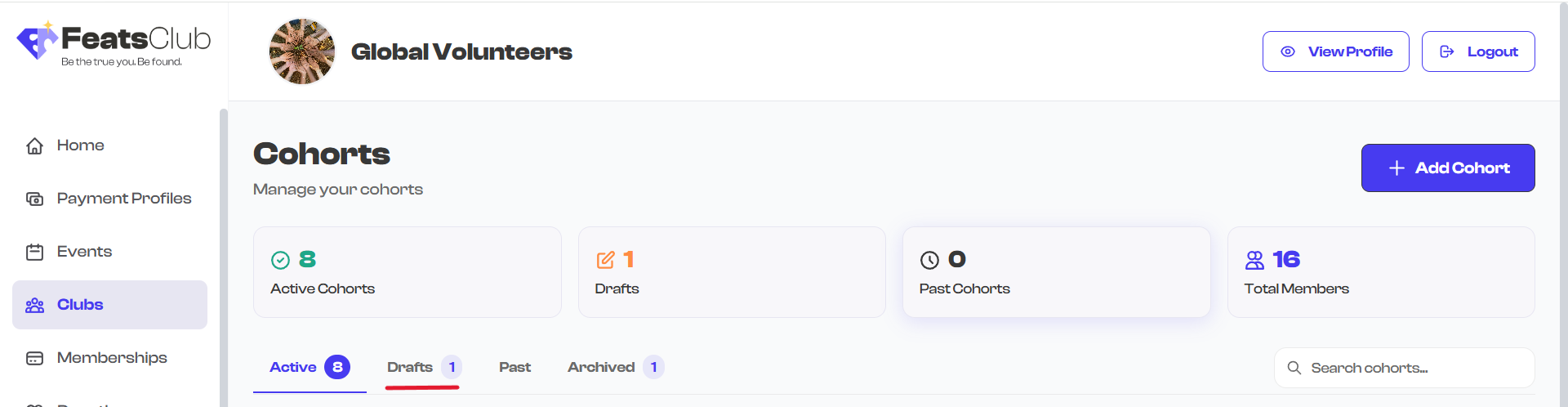
- Select the Drafts tab to see all draft clubs.
- Select the draft club you want to delete to open its detail page.
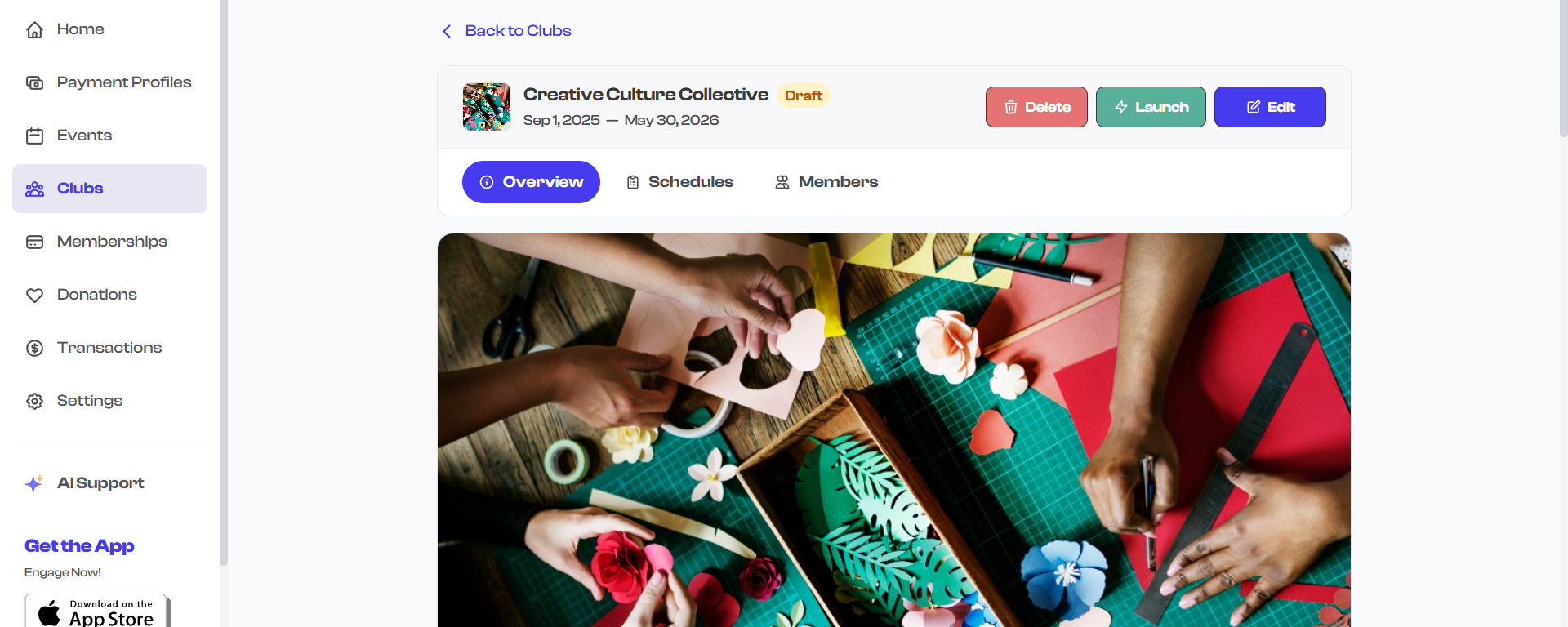
- Select the Delete button in the header area. It appears as a red button next to the Edit and Launch buttons.
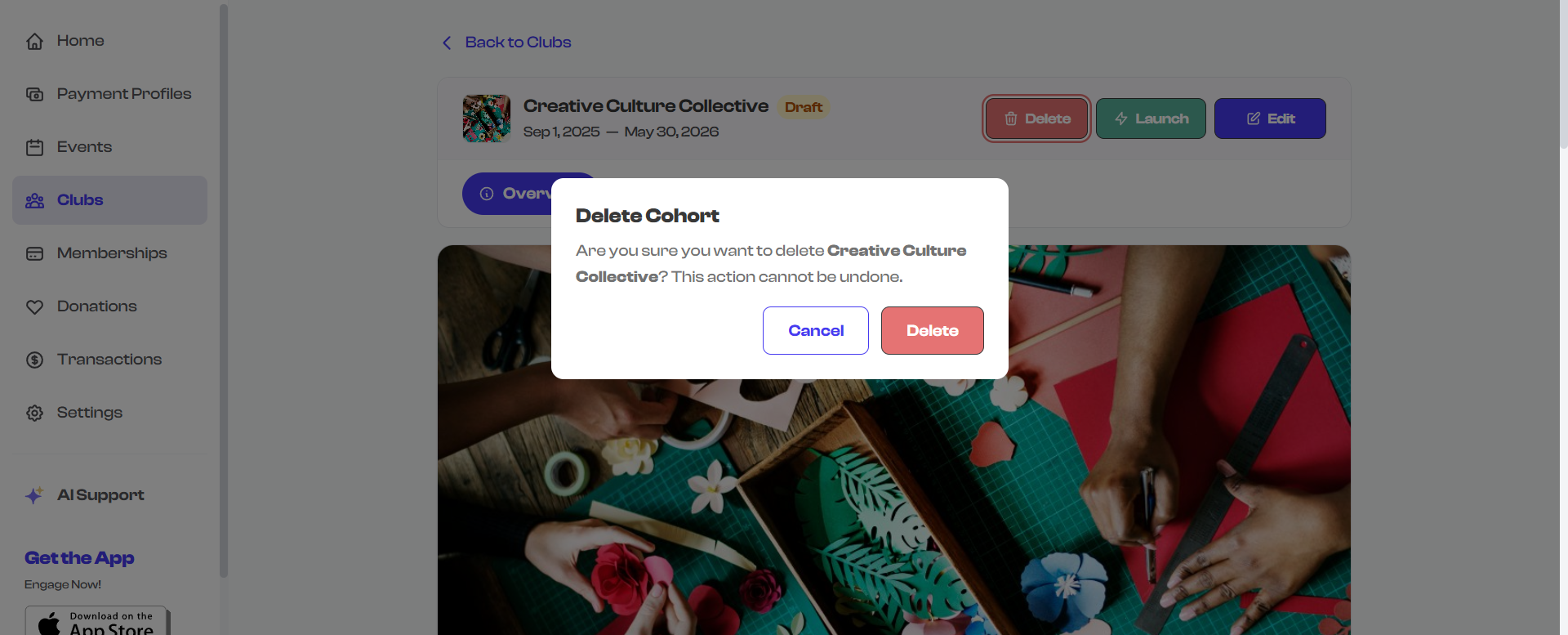
- A confirmation dialog appears asking you to confirm the deletion.
- Select Delete to confirm.
- The club is deleted and you are redirected to the Clubs dashboard.
What Happens When You Delete
When a draft club is deleted:
- The club is soft-deleted -- its status is changed to Trash internally.
- The club no longer appears on any dashboard tab, including Drafts.
- All associated data (description, media, rules, criteria, officers) is no longer accessible from the dashboard.
- The deletion is immediate upon confirmation.
Deleting a club cannot be undone from the dashboard. Make sure you truly want to discard the draft before confirming. If you think you might need the club later, consider keeping it as a draft instead -- draft clubs do not affect your active statistics or public profile.
When to Delete vs. When to Keep
| Scenario | Recommended Action |
|---|---|
| Test club created during initial setup | Delete -- keeps your dashboard clean |
| Draft you started but decided against | Delete -- no need to keep unused drafts |
| Draft you might return to later | Keep as draft -- you can edit and launch anytime |
| Draft you want to use as a template for next season | Keep as draft -- use it as a reference when creating the new club |
What If You Want to Remove an Active Club?
If you need to take an active club offline, you cannot delete it. Instead:
- Archive the club to end it and move it out of the Active tab. See Archiving & Completing for instructions.
- Archiving preserves all data while removing the club from public view and preventing new enrollment.
Think of deletion as "discarding a rough draft" and archiving as "closing the books on a completed or discontinued program." Deletion is for clubs that never went live. Archiving is for clubs that did.
Finding Draft Clubs
All draft clubs are accessible from the Drafts tab on the Club Dashboard:
- Go to the Clubs section from your dashboard sidebar.
- Select the Drafts tab from the filter tabs at the top.
- Draft clubs are listed here with a count badge showing the total number of drafts.
What's Next?
Learn how to Share Your Club to promote it to potential members, or see the full Club Status Lifecycle to understand how all statuses relate.