Step 3: Pricing & Fees
Step 3 of 6 -- Pricing
The pricing step is where you set the membership fee and configure how payment processing costs are handled. You can offer free memberships, set a one-time price, or configure recurring billing -- all depending on the term you selected in the previous step.
Paid vs. Free
The first choice on the pricing screen is whether your membership is Paid or Free.

Free Memberships
Select Free if you do not want to charge members. Free memberships are useful for:
- Community memberships that just track enrollment
- Trial or introductory memberships
- Volunteer or honorary memberships
- Memberships where payment is collected outside of FeatsClub
When you select Free, the fee field is hidden and the membership is set to $0.
Free memberships do not require a payment profile to be configured for your organization. You can create and launch free memberships immediately.
Paid Memberships
Select Paid to charge a membership fee. The currency is determined by your organization's region:
| Region | Currency | Symbol |
|---|---|---|
| United States | USD | $ |
| India | INR | ₹ |
Membership Fee
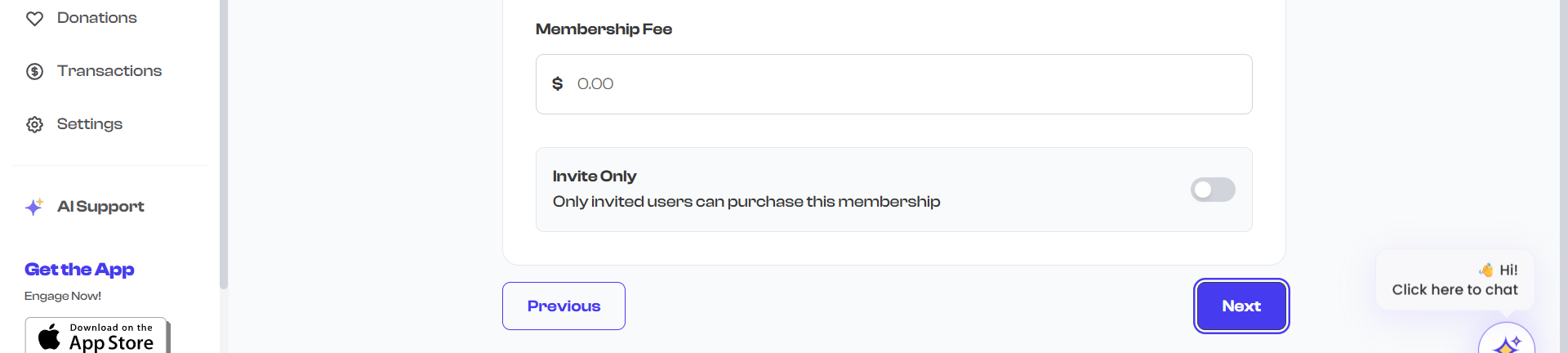
For paid memberships, enter the base fee in the fee field. This is the amount your organization charges for the membership.
- Enter the fee as a numeric value (e.g., 50.00).
- The fee must be greater than or equal to $0.
- You can enter up to 2 decimal places.
Recurring Price Display
If you selected a recurring term in Step 2, the pricing step shows how the fee translates to a per-period charge. For example:
- $50.00 / month for a monthly recurring term
- $120.00 / year for a yearly recurring term
This helps you verify that the price matches your intended billing frequency.
Processing Fees
When members pay online through Stripe (US) or Cashfree (India), there are payment processing fees charged by the payment provider. You can choose who pays these fees.
Pass Processing Fees to Member
Toggle the Pass Processing Fees to Member option to add platform fees on top of the base membership price. When enabled, the member pays the base fee plus processing fees. When disabled, your organization absorbs the processing fees and receives less than the listed price.
| Setting | Member Pays | You Receive |
|---|---|---|
| Off (you absorb fees) | $50.00 | $50.00 minus processing fees |
| On (member pays fees) | $50.00 + processing fees | $50.00 |

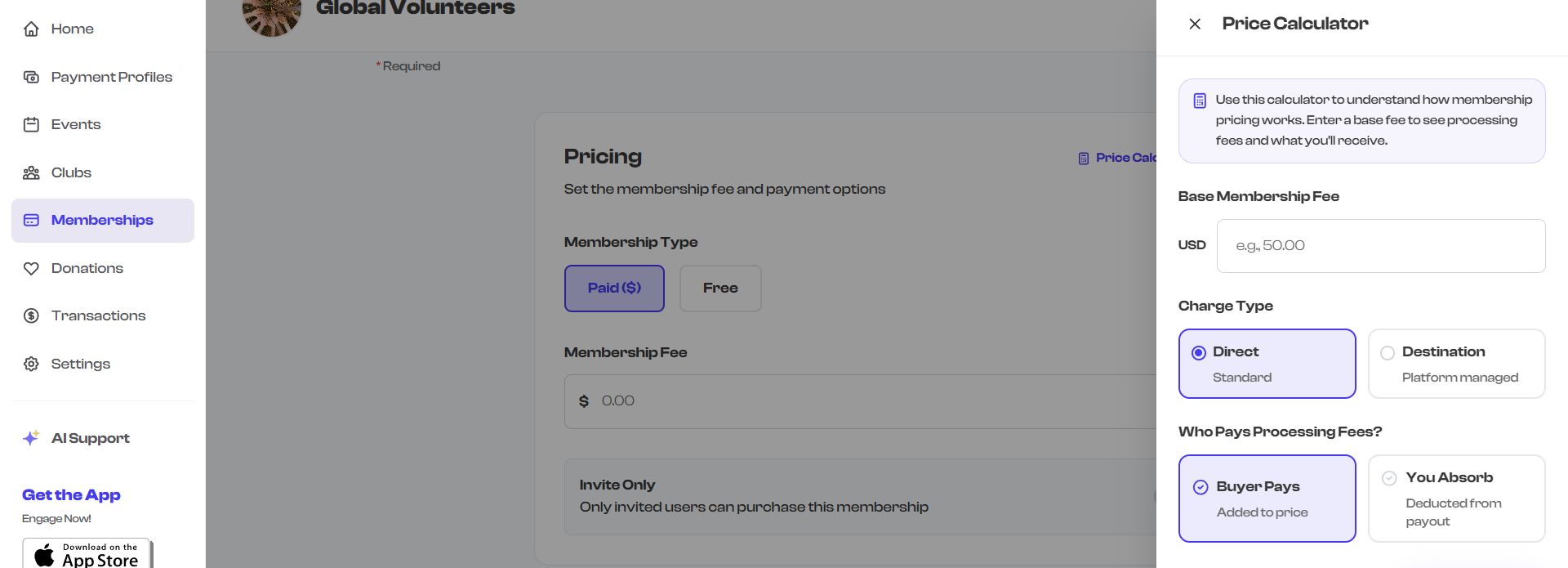
The Price Calculator tool (available from the top of the pricing step) lets you see exactly how much the member will pay and how much you will receive for any given base fee, with or without fee passthrough. Use it to find the right price point.
Price Calculator
Click the Price Calculator link at the top-right of the pricing step to open a side panel. The calculator lets you:
- Enter a base membership fee
- See the processing fee breakdown
- See what the member will pay (total)
- See what your organization will receive (net)
This is especially helpful when setting up paid memberships for the first time, so you can understand the fee structure before launching.
Invite Only
The Invite Only toggle restricts who can purchase the membership. When enabled, only users who have been explicitly invited by your organization can enroll.
| Setting | Who Can Enroll |
|---|---|
| Off (default) | Anyone can discover and purchase the membership |
| On | Only invited users can purchase |
This is useful for:
- Private or exclusive membership tiers
- Internal staff or board memberships
- Memberships offered only to existing members of another plan
- Pilot programs with a limited audience

Pricing Strategy Tips
- Research comparable organizations in your area to understand market rates for similar memberships.
- Consider the value you provide. If your membership includes unlimited classes, calculate what a member would pay for classes individually and set the membership price lower to show clear savings.
- Start with fee passthrough off (you absorb fees) for a cleaner price. Members see a round number like $50 instead of $53.15.
- For recurring memberships, monthly prices tend to be easier for members to commit to than large annual payments, even if the annual price is a better deal overall.
- Offer a free tier alongside paid tiers to let people try your organization before committing financially.
Validation
The pricing step has minimal validation since free memberships are valid and the fee simply needs to be zero or greater. The main validation rule is:
- If Auto-renewal is enabled (configured on the membership), the term must use a Recurring payment type. This is checked during the review step.
What's Next?
After setting up pricing, click Next to move to:
- Benefits & Perks -- Membership benefits are configured as part of Step 1, but read this guide for best practices on making your benefits compelling
- Registration Forms -- Add custom forms to collect member information during enrollment