Step 2: Term Configuration
Step 2 of 6 -- Term Configuration
The term configuration step is one of the most important parts of setting up your membership. A term defines how long a membership lasts, when it starts and ends, and how payments are handled. Terms are reusable -- once you create a term, you can use it across multiple memberships.
What Is a Term?
A term is like a billing template that controls two things:
- Duration -- How long the membership is valid (a season, a year, forever, etc.)
- Payment -- Whether the member pays once or is charged automatically on a recurring schedule
Think of the term as the "when and how often" of your membership, while the pricing step (Step 3) handles the "how much."
Selecting or Creating a Term
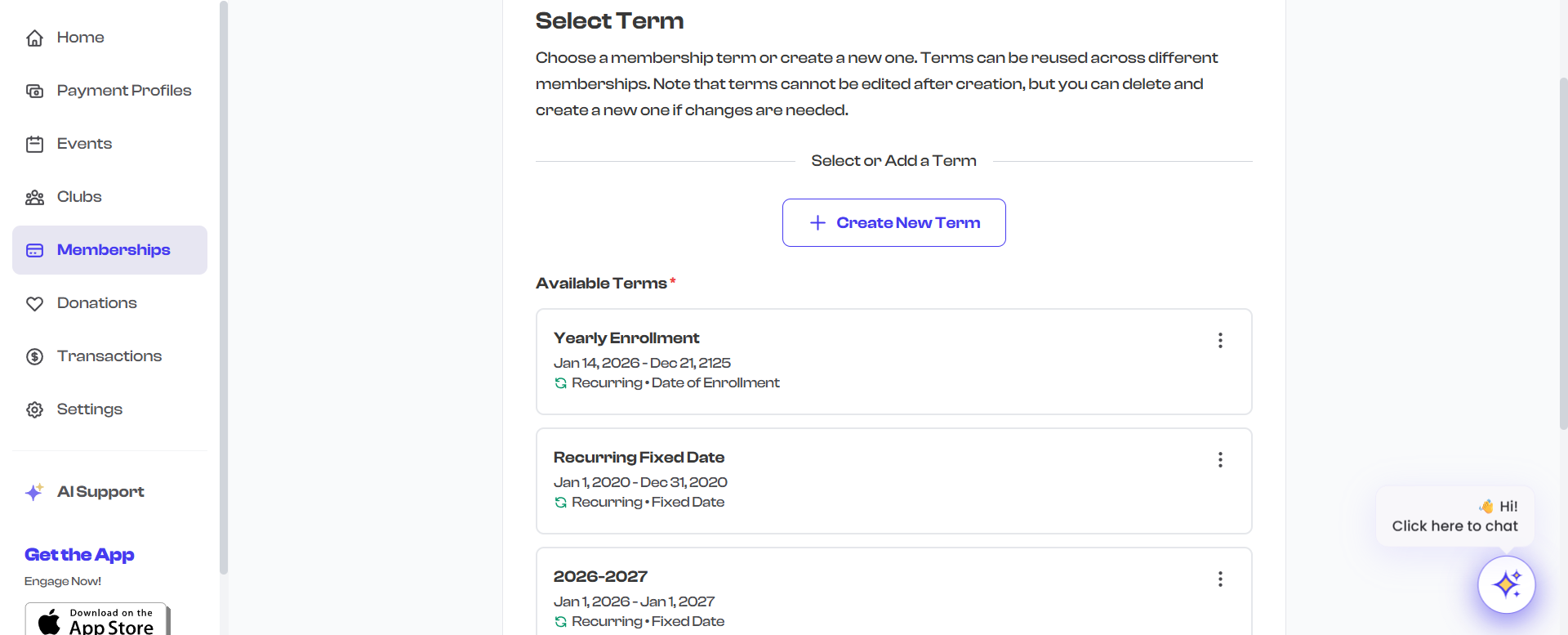
On this step, you will see a list of terms that have already been created for your organization. You can either select an existing term or create a new one.
Selecting an Existing Term
If your organization has already created terms, they appear in a list. Each term card shows:
- Term name (e.g., "Annual 2026", "Monthly Rolling")
- Date range (start and end dates)
- Payment type (One-time or Recurring)
- Enrollment type (Fixed Period, From Enrollment Date, or Lifetime)
Click on a term to select it. The selected term appears at the top of the screen with a purple highlight and a checkmark.
Creating a New Term
If you need a term that does not exist yet, click the Create New Term button. A side panel opens where you configure all the term settings.
Terms cannot be edited after creation. Review all settings carefully before saving. If you need to make changes, you can delete a term and create a new one.
Term Configuration Options
When creating a new term, you configure the following settings:
Term Name
Give your term a descriptive name that helps you identify it later.
- This name is shown when selecting terms for memberships.
- Examples: "Annual 2026", "Monthly Rolling", "Lifetime Access", "Spring Season 2026"
Payment Type
Choose how members will be charged:
| Payment Type | Description | Best For |
|---|---|---|
| One-time | Member pays a single payment for the full term | Seasonal passes, fixed-period memberships, lifetime memberships |
| Recurring | Member is charged automatically at regular intervals (monthly or yearly) | Gym memberships, subscription-based plans, ongoing programs |

The payment type you choose affects which enrollment types are available. Lifetime is only available with one-time payments, and rolling enrollment (Date of Enrollment) is only available with recurring payments.
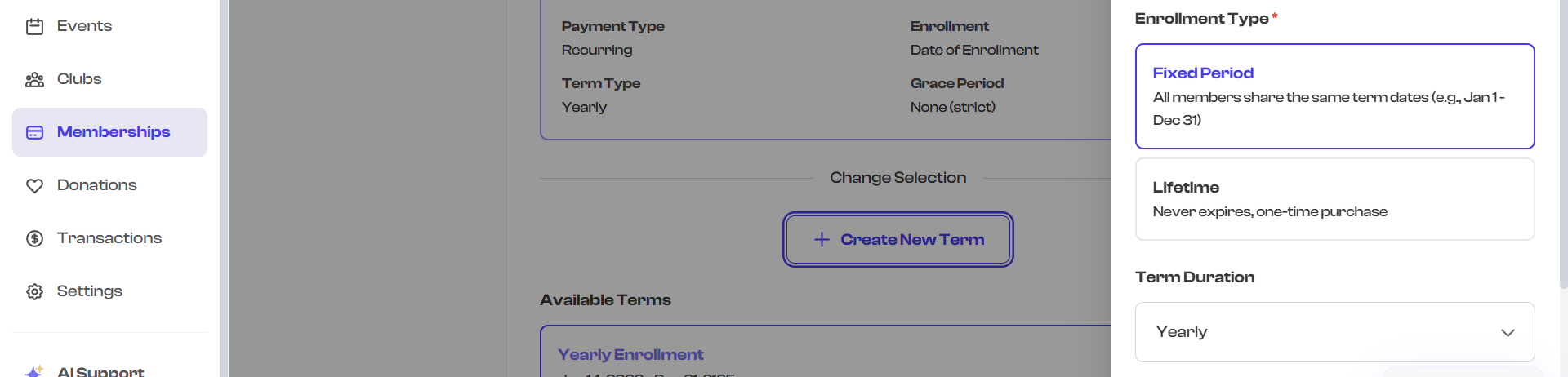
Enrollment Type
The enrollment type determines how membership validity dates are calculated. The available options depend on your selected payment type:
Fixed Period
Available with: One-time and Recurring payments
All members share the same term dates. The membership is valid from a specific start date to a specific end date, regardless of when each member enrolls.
Example: "Spring Basketball Season" runs from March 1 to June 30. Whether someone signs up on March 1 or April 15, their membership is valid until June 30.
When to use:
- Seasonal programs (spring season, fall semester, summer camp)
- Academic year memberships
- Programs with defined start and end dates
From Enrollment Date (Rolling)
Available with: Recurring payments only
Each member's term starts from their enrollment date and automatically renews. There are no fixed dates -- every member has their own billing cycle.
Example: A "Monthly Gym Membership" that starts the day a member signs up. If someone enrolls on March 15, their monthly billing cycle runs from the 15th of each month.
When to use:
- Ongoing monthly or yearly subscriptions
- Gym and fitness memberships
- Plans where members can join at any time
Lifetime
Available with: One-time payments only
The membership never expires. The member pays once and has access indefinitely.
Example: A "Founding Member" lifetime membership for early supporters of your organization.
When to use:
- Lifetime supporter or patron memberships
- One-time access passes with no expiration
- Honorary or recognition memberships
Term Duration
For non-lifetime memberships, select how long each billing period lasts:
| Duration | Description |
|---|---|
| Monthly | Membership renews every month (for recurring) or lasts one month (for fixed) |
| Yearly | Membership renews every year (for recurring) or lasts one year (for fixed) |
| Custom | For non-standard durations -- set manually with start and end dates |
Start Date
The start date is always required. Its meaning depends on the enrollment type:
| Enrollment Type | Start Date Means |
|---|---|
| Fixed Period | When the membership term begins for all members |
| From Enrollment Date | When enrollment opens (each member's individual term starts on their sign-up date) |
| Lifetime | When the lifetime membership becomes available for purchase |
End Date
The end date behavior depends on your configuration:
| Configuration | End Date Behavior |
|---|---|
| One-time + Fixed Period | Required -- You set the exact end date manually |
| Recurring + Fixed Period | Auto-calculated -- Automatically set to one month or one year from the start date |
| From Enrollment Date | Not applicable -- Membership rolls over automatically |
| Lifetime | Not applicable -- Membership never expires |
Last Enrollment Date
The last enrollment date is the deadline for new members to sign up.
- Required for Fixed Period terms
- Optional for Lifetime terms
- Not shown for From Enrollment Date terms (enrollment is always open)
Example: Your term runs Jan 1 -- Dec 31, but you set the last enrollment date to March 31. Members can only sign up during the first quarter.
Renewal Opens Date (Fixed Period Only)
For fixed-period memberships, you can optionally set a date when existing members can renew for the next term. This is useful for seasonal programs where you want to give existing members early access to the next season's enrollment.
Grace Period (Recurring Only)
The grace period is the number of days after a recurring membership expires before it is marked as lapsed. This gives members a buffer if their payment fails or is delayed.
- Set to 0 for strict enforcement (membership lapses immediately on expiry)
- Maximum of 29 days for monthly terms
- Maximum of 364 days for yearly terms
Choosing the Right Configuration
Here are common membership types and how to configure them:
Seasonal Sports Program
- Payment Type: One-time
- Enrollment Type: Fixed Period
- Duration: Custom (match your season dates)
- Example: "Fall Soccer Season" -- Sep 1 to Nov 30, last enrollment Sep 15
Monthly Gym Membership
- Payment Type: Recurring
- Enrollment Type: From Enrollment Date
- Duration: Monthly
- Example: "Monthly Unlimited" -- auto-renews every month from sign-up date
Annual Club Membership
- Payment Type: Recurring
- Enrollment Type: From Enrollment Date
- Duration: Yearly
- Example: "Annual Premium" -- auto-renews every year, 30-day grace period
Fixed Academic Year Membership
- Payment Type: One-time
- Enrollment Type: Fixed Period
- Duration: Yearly
- Example: "Academic Year 2025-26" -- Aug 15 to Jun 15, last enrollment Sep 30
Lifetime Supporter Membership
- Payment Type: One-time
- Enrollment Type: Lifetime
- Example: "Founding Member" -- one-time payment, never expires
Annual Recurring with Fixed Dates
- Payment Type: Recurring
- Enrollment Type: Fixed Period
- Duration: Yearly
- Example: "Calendar Year Membership" -- Jan 1 start, auto-renews annually, 30-day grace period
Quick Reference: Configuration Matrix
| What You Want | Payment Type | Enrollment Type | Duration |
|---|---|---|---|
| Season pass (fixed dates, pay once) | One-time | Fixed Period | Custom |
| Rolling monthly subscription | Recurring | From Enrollment Date | Monthly |
| Rolling yearly subscription | Recurring | From Enrollment Date | Yearly |
| Calendar year with auto-renewal | Recurring | Fixed Period | Yearly |
| Pay-once membership with set dates | One-time | Fixed Period | Yearly/Custom |
| Never-expiring membership | One-time | Lifetime | N/A |
Validation
Before you can proceed to Step 3, you must select or create a term. If no term is selected, you will see an error message asking you to choose one.
What's Next?
After selecting or creating a term, click Next to move to:
- Pricing & Fees -- Set the membership fee and payment options