Step 4: Registration Forms
Step 4 of 6 -- Registration
The registration step lets you configure how many people a single membership covers and attach custom forms to collect information during the enrollment process. This step is optional -- if you do not need custom forms, you can skip it and proceed to the next step.
Number of Participants per Membership
The first field on this step controls whether the membership is for an individual or a group.
| Setting | Description |
|---|---|
| 1 (default) | Individual membership -- one person per enrollment |
| 2-10 | Group or family membership -- multiple people under one enrollment |

Individual Memberships
When set to 1, the membership covers a single person. This is the most common setup and works for:
- Personal gym memberships
- Individual program enrollments
- Single-person club memberships
Group / Family Memberships
When set to 2 or more, a single membership purchase covers multiple people. This is useful for:
- Family memberships -- One parent purchases and registers the whole family
- Group training programs -- A coach signs up a small group
- Corporate memberships -- An employer enrolls multiple employees
For group memberships, you can attach a Participant Form (see below) to collect individual information for each person in the group.
Two Types of Forms
The registration step lets you attach two different types of forms:
1. Registration Form (for the Purchaser)
The Registration Form collects information from the person making the purchase. This is typically the primary member, a parent, or an administrator.
When to use a Registration Form:
- You need additional information beyond what is in the user's profile (name, email, phone)
- You want to collect emergency contact information
- You need a waiver or consent acknowledgment
- You want to know how the member heard about your organization

2. Participant Form (for Each Member)
The Participant Form collects information for each individual member covered by the membership. For individual memberships (1 person), this form collects details about the member (who may be different from the purchaser). For group memberships, this form is repeated for each participant.
When to use a Participant Form:
- A parent is purchasing for their child and you need the child's details
- You have a group membership and need information about each person
- You need medical information, allergies, or emergency contacts for participants
- You need a photo or address for each member

The Registration Form is filled out once by the purchaser. The Participant Form is filled out once per participant. For a family membership with 4 people, the purchaser fills out 1 registration form and 4 participant forms.
How to Attach a Form
To attach either type of form:
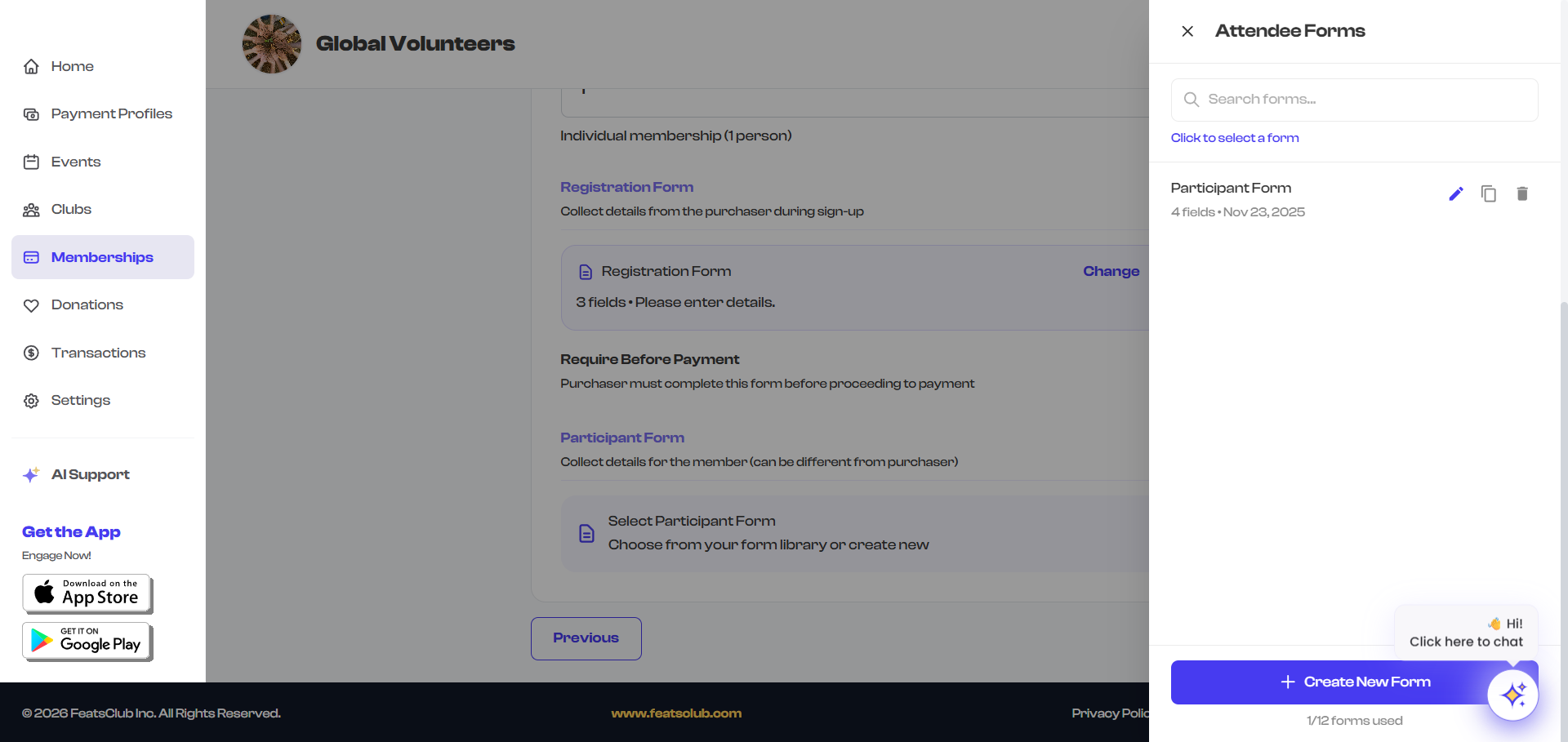
- Click the Select Registration Form or Select Participant Form button.
- A modal opens showing your organization's form library.
- Choose an existing form from the library, or create a new one.
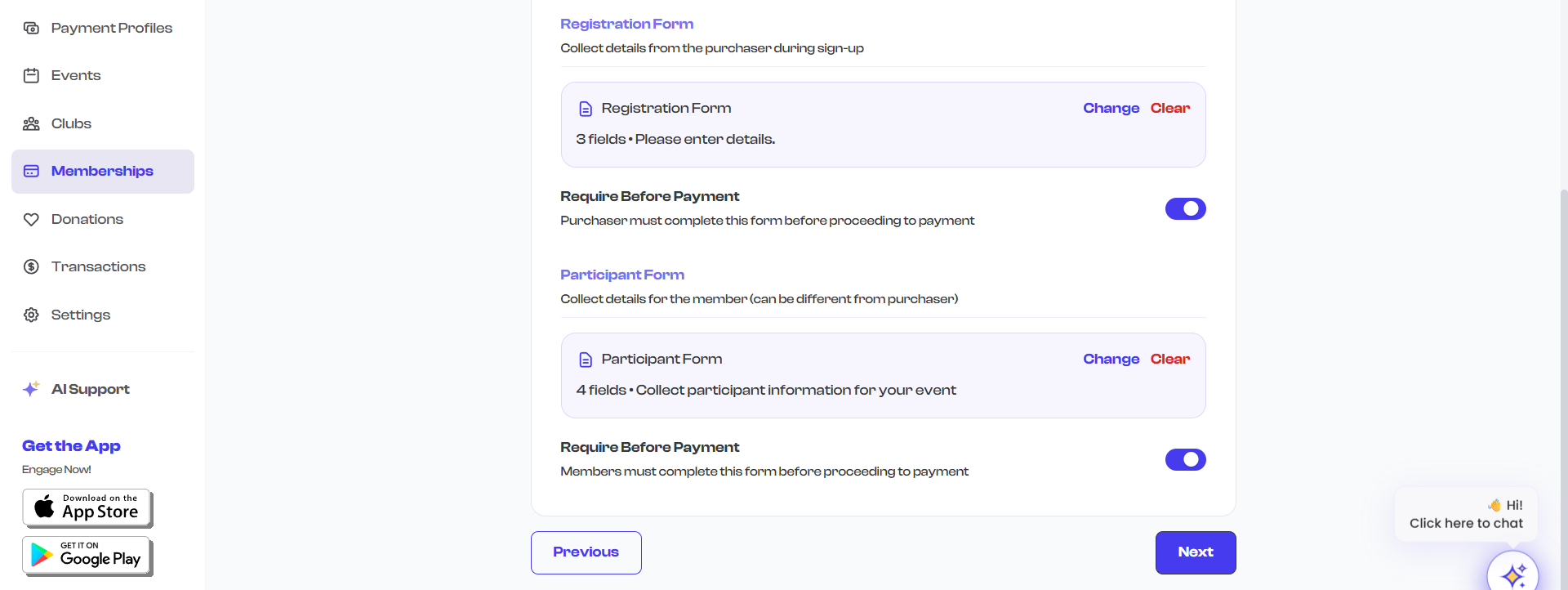
- The selected form appears as a card showing the form name and number of fields.
To change or remove an attached form:
- Click Change to select a different form.
- Click Clear to remove the form entirely.
Require Form Before Payment
For each attached form, you can toggle the Require Before Payment option:
| Setting | Behavior |
|---|---|
| On | The member must complete the form before they can proceed to payment |
| Off | The member can pay first and fill out the form later |
Enable "Require Before Payment" for registration forms that collect essential information like emergency contacts, waivers, or medical details. For less critical forms (like "How did you hear about us?"), you can leave it off to reduce friction during checkout.
Common Form Fields
When creating forms for memberships, here are common fields you might include:
Registration Form (Purchaser) Fields
| Field | Type | Example |
|---|---|---|
| Full Name | Text | Already collected from user profile |
| Text | Already collected from user profile | |
| Phone | Phone | Already collected from user profile |
| Emergency Contact Name | Text | "Jane Smith" |
| Emergency Contact Phone | Phone | "(555) 123-4567" |
| How Did You Hear About Us? | Dropdown | "Social media", "Friend referral", "Website" |
| Agree to Terms & Conditions | Checkbox | Required consent |
| Special Notes | Text | "I have a knee injury" |
Participant Form (Member) Fields
| Field | Type | Example |
|---|---|---|
| Participant Name | Text | "Alex Smith" |
| Date of Birth | Date | "2015-03-20" |
| Photo | Photo upload | Profile picture |
| Address | Address | Full address with autocomplete |
| Allergies / Medical Info | Text | "Peanut allergy" |
| T-Shirt Size | Dropdown | "S", "M", "L", "XL" |
| Skill Level | Dropdown | "Beginner", "Intermediate", "Advanced" |
| School / Grade | Text | "Lincoln Elementary, Grade 5" |
For detailed information about all available field types and how to build custom forms, see the form builder documentation in the Event Management section.
Example Setups
Youth Sports Club (Individual)
- Participants: 1
- Registration Form: Emergency contact, medical info, waiver consent (required before payment)
- Participant Form: None (the registrant is the member)
Family Swim Club
- Participants: 4
- Registration Form: Family address, how they heard about the club
- Participant Form: Name, date of birth, swim level, medical info (required before payment)
Adult Fitness Gym
- Participants: 1
- Registration Form: None (profile info is sufficient)
- Participant Form: None
Dance Academy (Parent Purchases for Child)
- Participants: 1
- Registration Form: Parent's emergency contact, consent form (required before payment)
- Participant Form: Child's name, date of birth, photo, dance experience level, shoe size
Validation
This step has no required fields. You can proceed to the next step without attaching any forms or changing the participant count.
What's Next?
After configuring registration settings, click Next to move to:
- Review & Publish -- Review all your settings and launch the membership (Step 5: Media is optional and covered as part of the wizard)