Choosing an Event Type
The first step in creating an event is selecting the type that best fits your needs. FeatsClub offers three event type categories, each designed for different scenarios. Your choice determines which features and steps are available during event creation.
Event Type Selection Screen
When you click Create Event, you are presented with three event type cards. Select the one that matches your event, then click Continue to proceed.
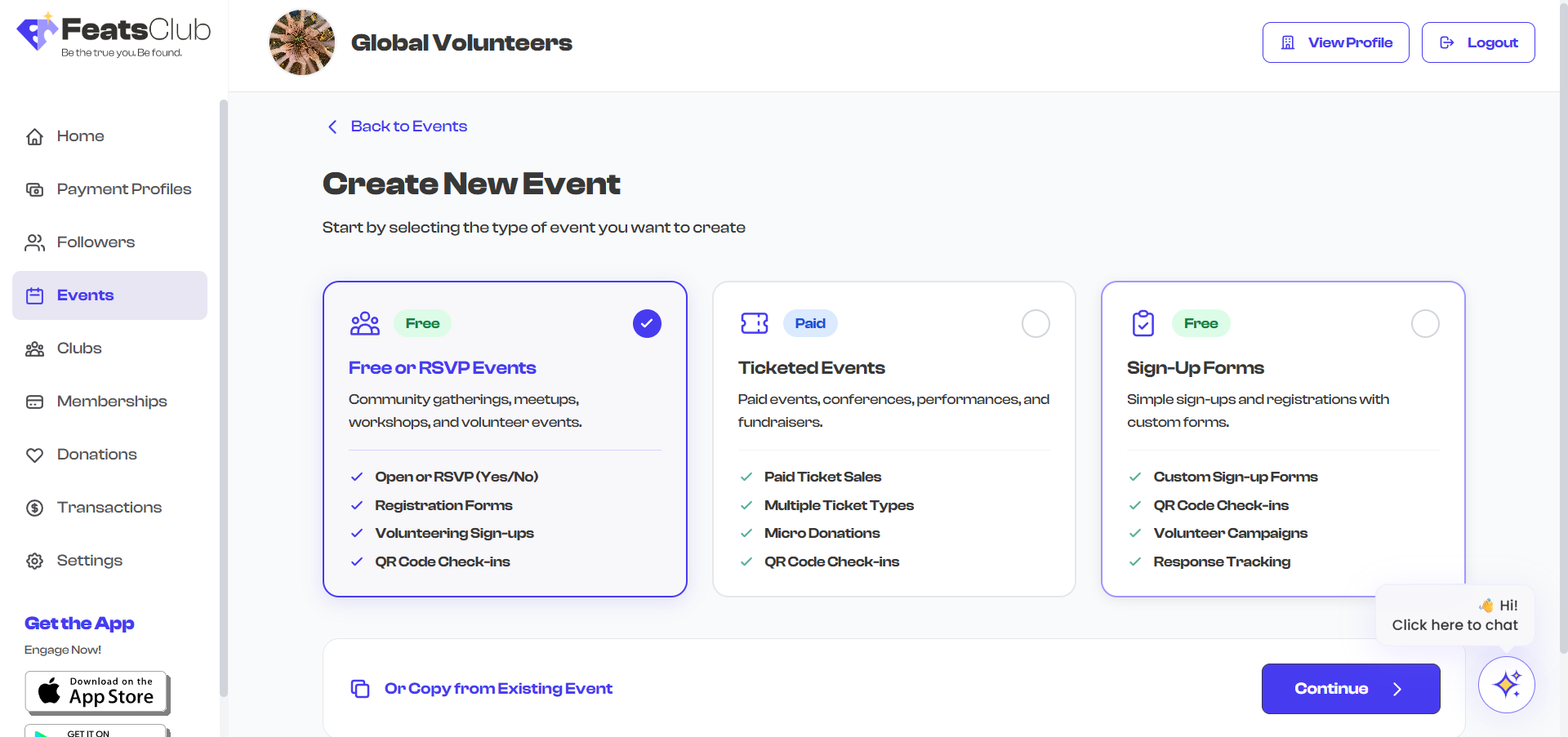
Event Types at a Glance
| Free or RSVP Events | Ticketed Events | Sign-Up Forms | |
|---|---|---|---|
| Badge | Free | Paid | Free |
| Best for | Community gatherings, meetups, workshops, volunteer events | Paid events, conferences, performances, fundraisers | Simple sign-ups and registrations with custom forms |
| Registration | Open (no registration) or RSVP (Yes/No) | Required (ticket purchase) | Required (form submission) |
| Payment | No | Yes | No |
| Key features | Open or RSVP, Registration Forms, Volunteering Sign-ups, QR Code Check-ins | Paid Ticket Sales, Multiple Ticket Types, Micro Donations, QR Code Check-ins | Custom Sign-up Forms, QR Code Check-ins, Volunteer Campaigns, Response Tracking |
Detailed Descriptions
Free or RSVP Events
Choose this type when your event is free to attend. You can run it as a completely open event (anyone can show up, no registration needed) or as an RSVP event where attendees confirm their attendance.
Common use cases:
- Community meetups and socials
- Volunteer coordination events
- Free workshops and seminars
- Open houses and information sessions
- Organization-wide gatherings
What you get:
- Option to collect RSVPs (Yes/No responses) or leave it fully open
- Registration forms for collecting attendee information
- Volunteer sign-up support
- QR code-based check-ins via the mobile app
Ticketed Events
Choose this type when attendees need to purchase tickets. FeatsClub handles ticket sales, payment processing, and capacity management for you.
Common use cases:
- Concerts and performances
- Conferences and summits
- Paid workshops and masterclasses
- Fundraising galas and dinners
- Sporting events and tournaments
What you get:
- Multiple ticket types with independent pricing (e.g., General Admission, VIP, Early Bird)
- Capacity limits per ticket type
- Member-only and complimentary ticket options
- Micro donation collection alongside ticket sales
- Processing fee management (absorb or pass to buyer)
- QR code tickets and check-ins
To sell tickets, your organization must have a payment profile configured. If you have not set one up, FeatsClub will prompt you during ticket configuration. See the Ticket Configuration section for full details.
Sign-Up Forms
Choose this type when you need attendees to fill out a registration form but do not need to charge them. This is ideal when you need to collect structured information from participants.
Common use cases:
- Program registrations (e.g., summer camp sign-ups)
- Volunteer campaign enrollments
- Interest forms and surveys tied to an event
- Class or course registrations (free)
What you get:
- Custom form builder with preset and custom fields
- Response tracking and management
- Volunteer campaign support
- QR code check-ins
Choosing the Right Type
Use this decision flow to pick the right event type:
-
Will attendees pay to attend?
- Yes -- choose Ticketed Events
- No -- continue to step 2
-
Do you need attendees to fill out a registration form?
- Yes, with detailed/custom fields -- choose Sign-Up Forms
- Yes, but just a simple RSVP (Yes/No) -- choose Free or RSVP Events
- No registration needed at all -- choose Free or RSVP Events (leave it as Open)
If you are unsure, start with Free or RSVP Events. It is the most flexible option and you can always add registration forms to it. You cannot change the event type after creation, but you can duplicate the event as a different type if needed.
Copying from an Existing Event
If you have previously created an event that is similar to what you need, you can save time by copying it. On the event type selection screen, look for the "Or Copy from Existing Event" link at the bottom of the page.
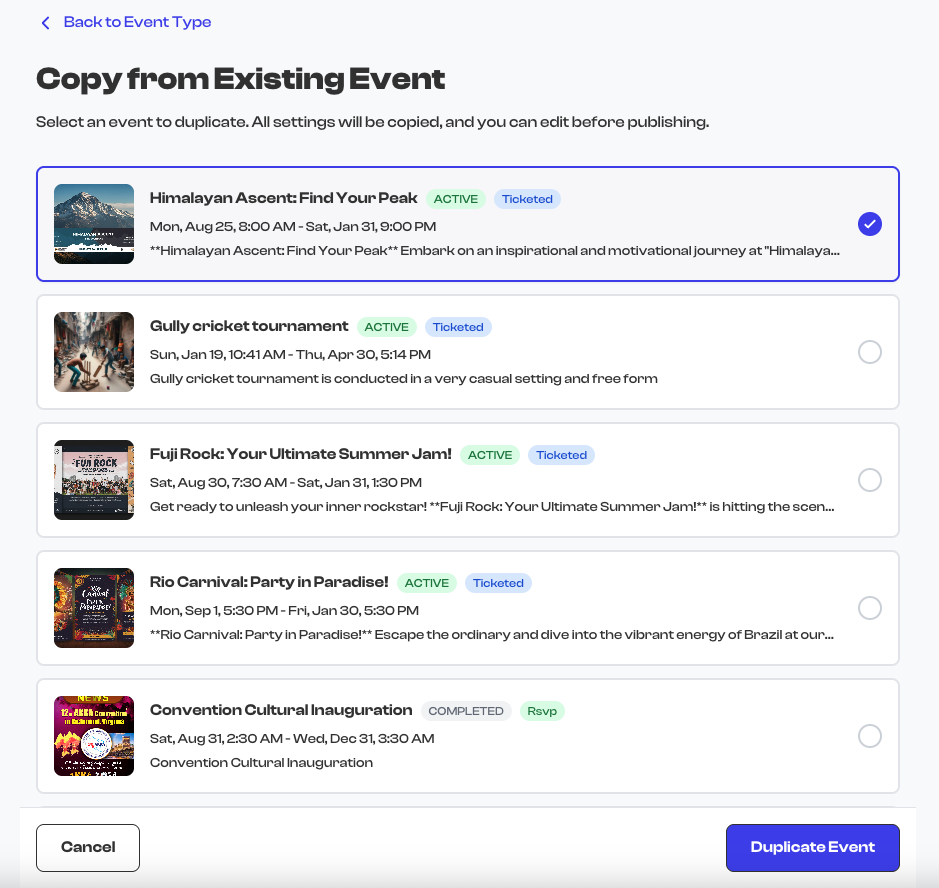
Clicking this takes you to a list of your existing events. Select one, and the creation form will be pre-filled with that event's details. You can then modify any fields before publishing the new event.
Copying an event duplicates the event configuration (title, description, venue, ticket types, forms, etc.) but does not carry over attendee data, ticket sales, or RSVP responses. The new event starts fresh.
What Happens Next
After selecting your event type and clicking Continue, you are taken to the event creation wizard. The wizard walks you through each step in sequence:
- Event Details -- Title, description, and category
- Date & Time / Recurring Events -- Schedule your event
- Venue & Location -- Where the event takes place
- Additional steps depending on your event type (tickets, forms, etc.)
- Media & Hosts -- Photos, documents, and host profiles
- Review & Publish -- Final review before going live