Venue & Location
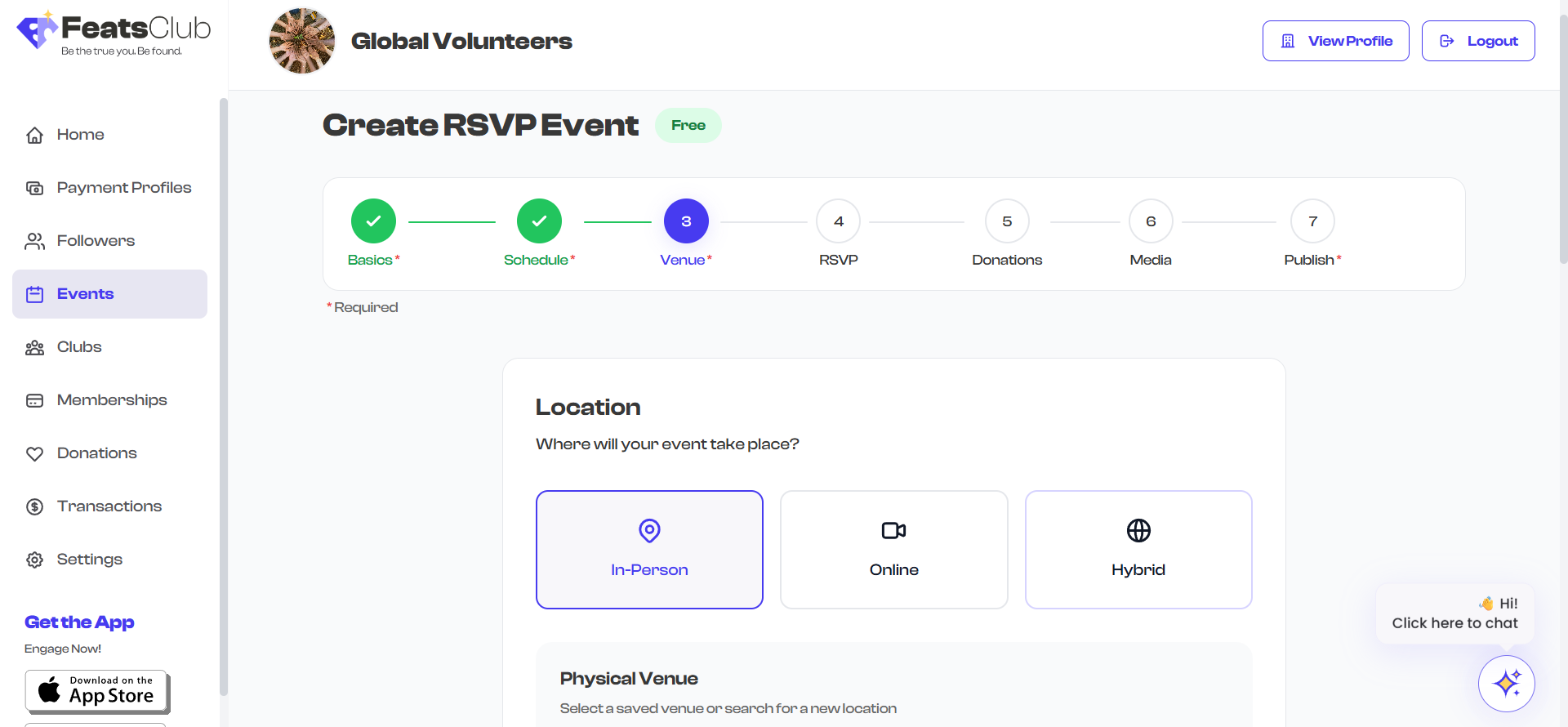
Step 3 of the event creation wizard is Location. Here you define where your event takes place. FeatsClub supports in-person venues, virtual/online meetings, and a combination of both.
Location Types
You can choose from the following location options:
| Location Type | Description | Use Case |
|---|---|---|
| In-Person (Venue) | A physical address where attendees will gather | Conferences, meetups, performances, classes |
| Virtual / Online | A video call or live stream URL | Webinars, online workshops, virtual meetups |
| Hybrid | Both a physical venue and a virtual link | Events with in-person and remote attendance |
In-Person Venue
When you choose an in-person venue, you have several ways to set the location.
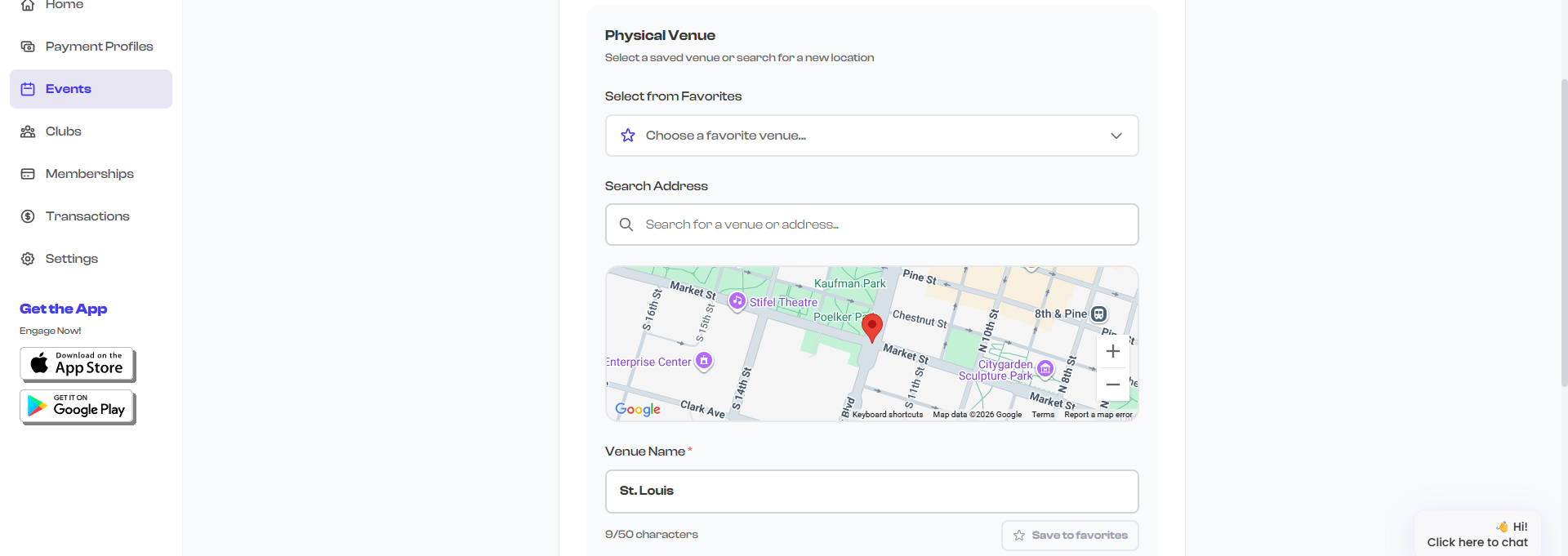
Search with Google Maps
The venue selector includes a Google Maps Places autocomplete search. Start typing the name or address of your venue, and FeatsClub will suggest matching locations.
- Click the venue search field.
- Type the venue name or address (e.g., "Convention Center" or "123 Main Street").
- Select the correct result from the dropdown suggestions.
- The address fields are automatically filled in with the full address, city, state, country, and ZIP code.
- Latitude and longitude coordinates are stored automatically for map display.
For best results, include the city name in your search. For example, "Lincoln Center New York" returns more accurate results than just "Lincoln Center".
Favorite Venues
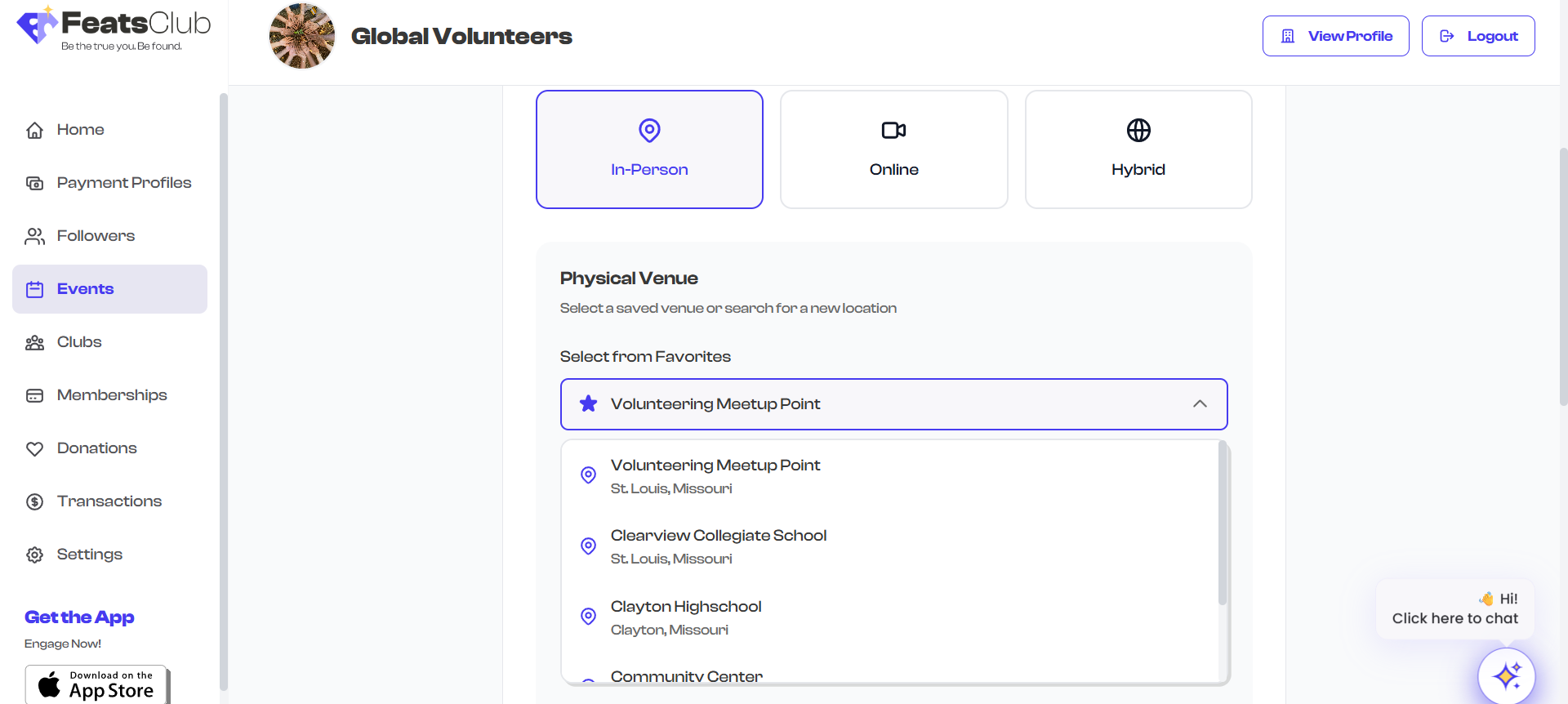
If your organization frequently hosts events at the same locations, you can save venues as favorites for quick reuse.
- When entering a venue, you can save it to your organization's favorites list.
- The next time you create an event, your saved venues appear as quick-select options.
- This saves time and ensures consistent address information across events.
Manual Address Entry
If the Google Maps search does not find your location, or if you prefer to enter the address manually:
- You can type the address directly into the individual address fields.
- Fields include: venue name, street address, city, state, ZIP/postal code, and country.
- You can also add a conference hall or room name for specific rooms within a larger venue (e.g., "Ballroom A" or "Room 204").
Conference Hall / Room
The Conference Hall field lets you specify a particular room or area within a larger venue. This is optional but helpful for:
- Convention centers with multiple halls
- University buildings with specific classrooms
- Hotels with named conference rooms
- Large venues where attendees need directions to a specific area

Virtual / Online Events
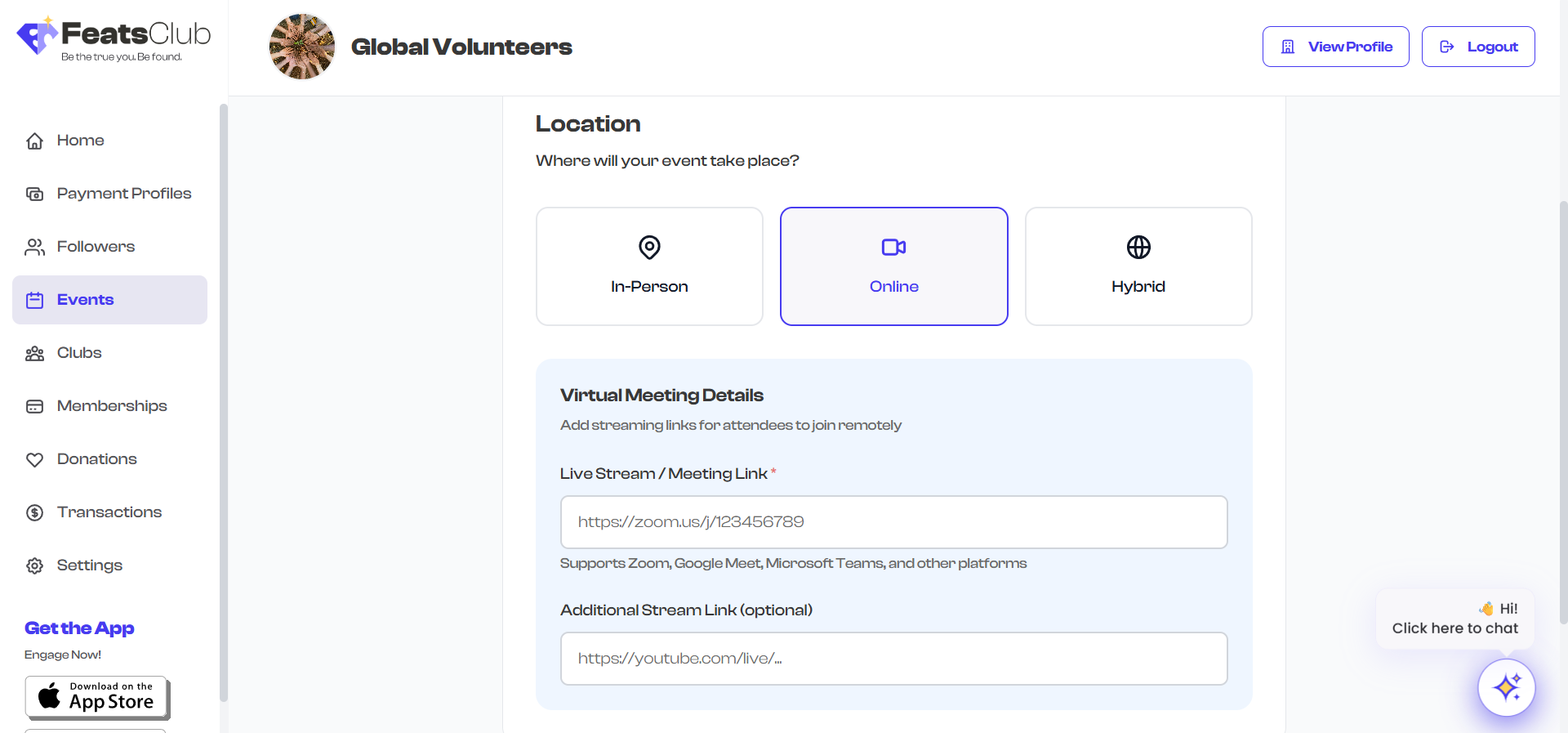
For online events, you provide the meeting URL and optionally a live stream link.
Meeting URL
Enter the URL for your virtual meeting platform. Common platforms include:
- Zoom
- Google Meet
- Microsoft Teams
- Webex
- Any other platform that provides a join link
The meeting URL is displayed to registered attendees on the event page. Make sure the link is correct and accessible before publishing.
Live Stream URL
If your event will be live-streamed (in addition to or instead of a private meeting), you can add a separate live stream URL. This could be a YouTube Live, Facebook Live, or Twitch stream link.
The live stream URL is displayed separately from the meeting link, allowing you to have both a private meeting for participants and a public stream for viewers.
Hybrid Events
Hybrid events combine both an in-person venue and a virtual link. When you select this option:
- Fill in the venue details following the in-person venue instructions above.
- Add the virtual meeting URL for remote attendees.
- Optionally add a live stream URL for public viewing.
Both the physical address and virtual link will be displayed on the event page, giving attendees the option to attend in person or online.
Location TBD
If you do not yet know where your event will take place, you can skip the location step (for event types where location is not required) or leave the fields empty. You can always come back and add the venue later by editing the event.
For Ticketed Events, the location step is required. You must provide either an in-person venue or a virtual meeting link before you can proceed to ticket configuration. For RSVP events, the location is also expected but not strictly required. For Sign-up form events, location is optional.
How the Location Appears to Attendees
Once published, the event location is displayed on the event detail page:
- In-person events show the venue name, full address, and (if available) a map preview.
- Virtual events show the meeting platform and a "Join" link.
- Hybrid events show both the physical address and the virtual meeting link.
- The conference hall name, if provided, appears alongside the venue name.
Next Steps
After setting the event location, you will proceed to:
- Recurring Events -- if you want this event to repeat on a schedule
- Or the next relevant step in the wizard (RSVP settings, ticket configuration, etc.)