Draft vs. Publishing
The final step of the event creation wizard is Review & Publish. Here you review all the details you have entered and decide whether to publish the event immediately or save it as a draft for later.
The Review Step
Before publishing, FeatsClub presents a summary of your event with all the details you have entered across the previous steps. This includes:
- Event title and description
- Date, time, and recurrence settings
- Venue or virtual meeting details
- Ticket configuration (for ticketed events)
- RSVP or sign-up form settings
- Media, hosts, and document attachments
- Social media links
Each section in the review has an Edit link that takes you directly back to the relevant step to make changes.
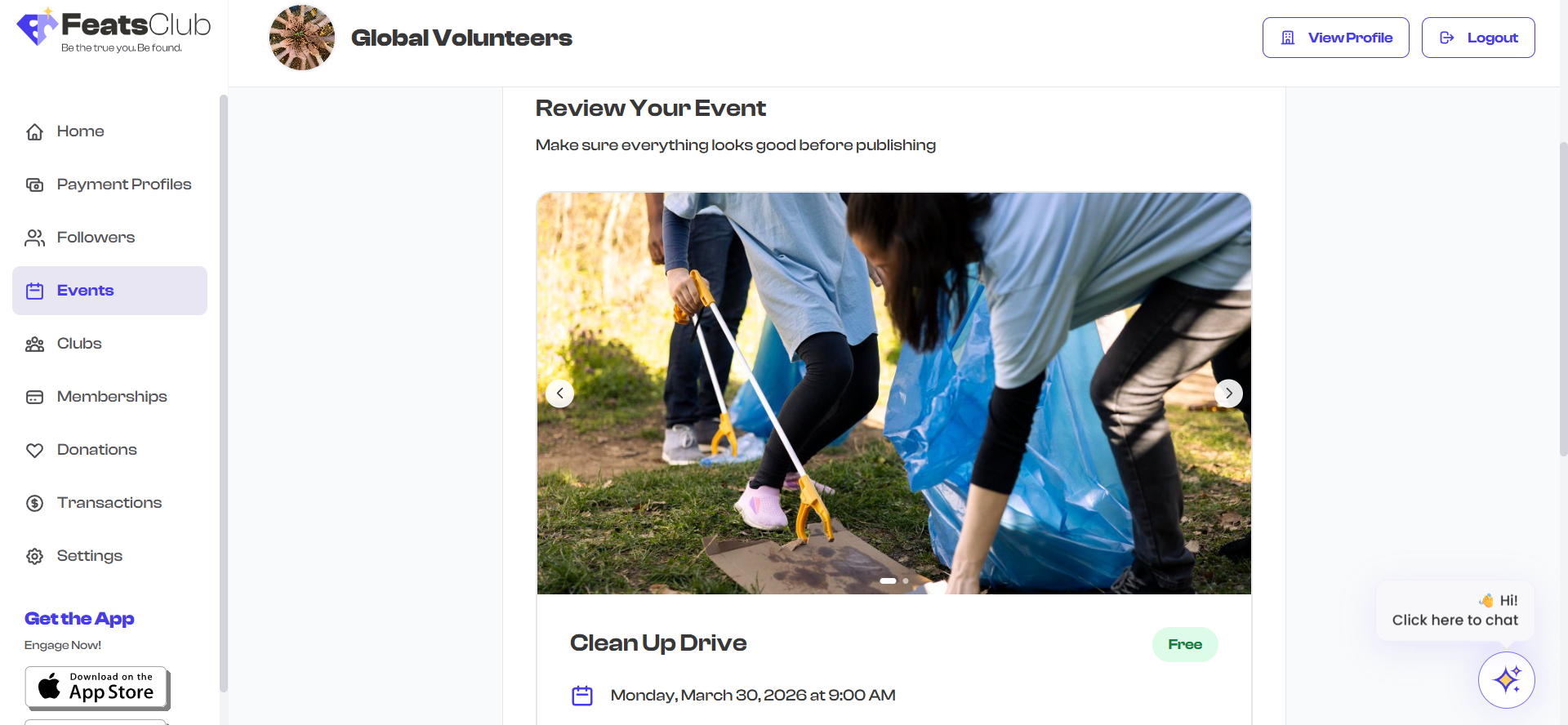
Take a moment to review each section carefully before publishing. Pay special attention to the date/time, venue, and ticket pricing -- these are the details attendees rely on most.
Publishing an Event
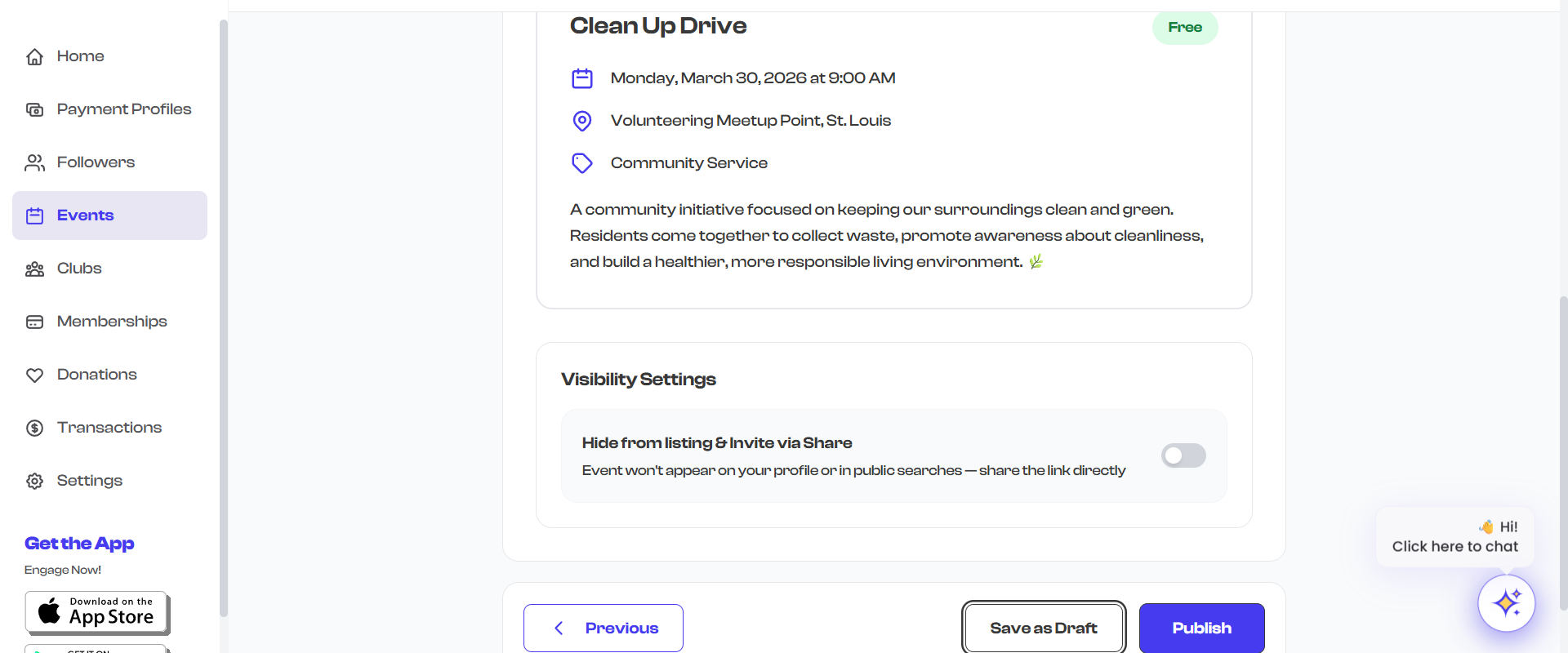
Clicking the Publish button makes your event live immediately. Here is what happens:
- All media is uploaded -- Photos, videos, and documents are uploaded to cloud storage. A loading indicator shows the upload progress.
- The event is created in the database with a status of ACTIVE.
- The event becomes visible on your organization's profile and event listings.
- You are redirected to the event detail page where you can view the published event.
What "Active" Means
An event with ACTIVE status:
- Is visible to anyone visiting your organization's page.
- Can receive ticket purchases, RSVPs, or sign-up form submissions (depending on event type).
- Appears in search results and discovery feeds.
- Has a shareable link and QR code that can be distributed.
- Can be edited (changes take effect immediately after saving).
Once published, an event cannot be deleted. It can only be archived. If you are not ready to go live, use the Save as Draft option instead. See Archiving Events and Deleting Drafts for more details.
Saving as Draft
Clicking the Save as Draft button saves your event without making it live. This is useful when:
- You have not finalized all the details yet.
- You are waiting for approval from a colleague or stakeholder.
- You want to prepare the event ahead of time and publish it later.
- You want to double-check details before going live.
What "Draft" Means
An event with DRAFT status:
- Is not visible to the public or on your organization's profile.
- Cannot receive ticket purchases, RSVPs, or form submissions.
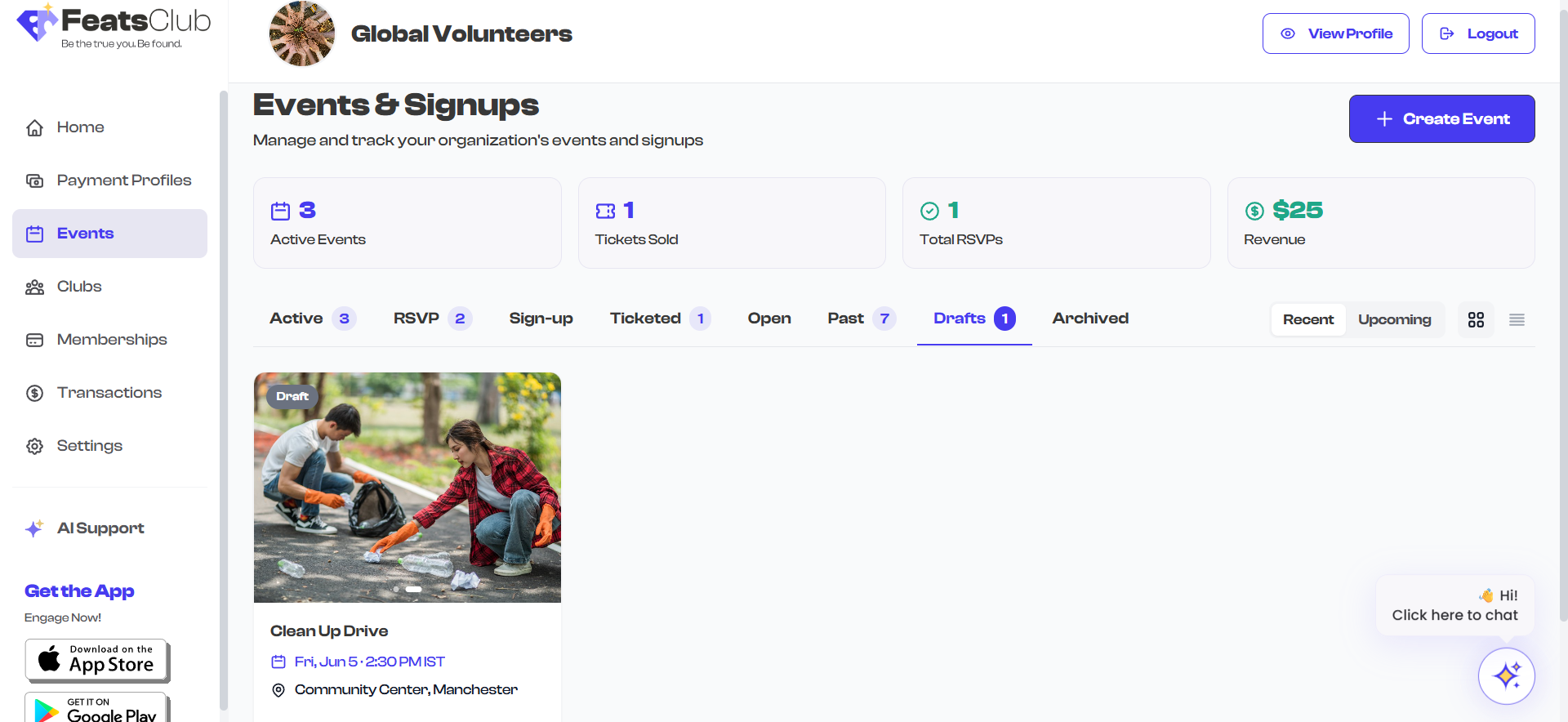
- Is visible only to organization admins on the Event Dashboard under the "Drafts" tab.
- Can be edited freely -- change any detail without affecting attendees (since there are none yet).
- Can be deleted permanently. Unlike active events, drafts can be fully removed.
- Can be published at any time by editing the event and clicking Publish.
Comparison: Draft vs. Published
| Aspect | Draft | Published (Active) |
|---|---|---|
| Visibility | Admins only | Public |
| Receives registrations | No | Yes |
| Appears in search/discovery | No | Yes |
| Shareable link works | No | Yes |
| Can be edited | Yes, freely | Yes, changes are immediate |
| Can be deleted | Yes | No (must archive instead) |
| Can be published later | Yes | Already published |
| Status badge | "DRAFT" | "ACTIVE" |
Publishing a Draft
To publish a previously saved draft:
- Go to your Event Dashboard.
- Switch to the Drafts tab.
- Click on the draft event you want to publish.
- Review the event details.
- Click Edit to enter the event editor.
- Navigate to the final step (Review & Publish).
- Click Publish.
The event status changes from DRAFT to ACTIVE and becomes visible to the public.
Editing After Publishing
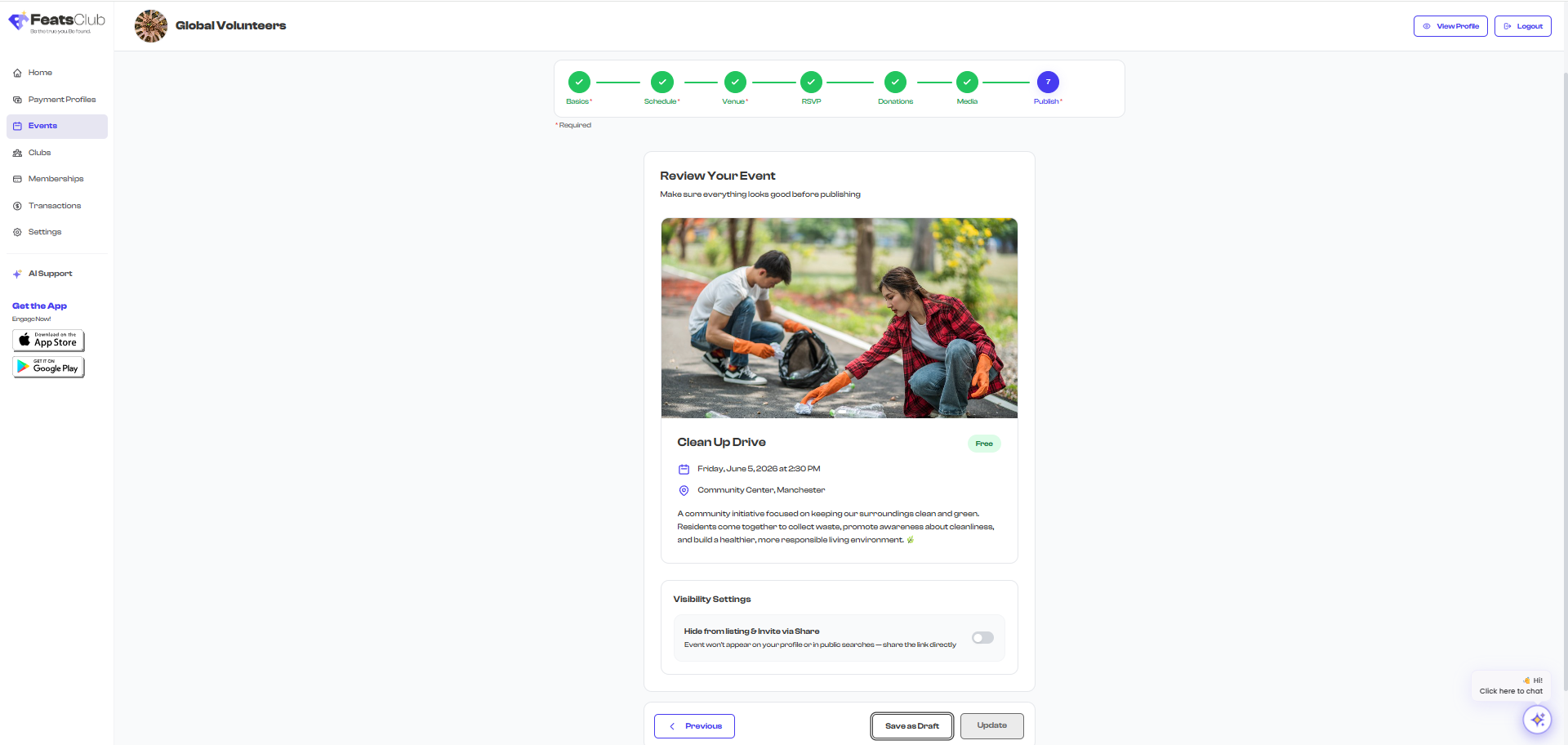
You can edit a published event at any time. Navigate to the event detail page and click Edit. Changes you make are saved immediately when you click Update.
Key points about editing published events:
- The event remains active during editing. Attendees can still view and register for it.
- The Save as Draft button is not available for events that are already published. Once live, an event cannot be reverted to draft status.
- Changes to ticket prices, venue, date/time, or capacity take effect immediately after saving.
If you need to make significant changes that might confuse attendees who have already registered (such as changing the date or venue), consider communicating the changes to your attendees directly. FeatsClub does not automatically notify attendees of event changes.
Event Lifecycle Summary
Here is the typical lifecycle of an event:
Create Event
    |
    v
 [Draft] -----> [Published / Active] -----> [Completed]
    |                    |                       |
    v                    v                       v
 [Deleted]          [Archived]              (Auto-expires)
- Create -- Fill in event details using the wizard.
- Draft (optional) -- Save for later without going live.
- Published / Active -- Event is live and accepting registrations.
- Completed -- The event date has passed; it automatically transitions.
- Archived -- Manually archived by an admin; no longer visible but data is preserved.
- Deleted -- Only available for drafts; permanently removes the event.
Best Practices
- Use drafts for preparation. Create events as drafts while you are still confirming details like the venue or speaker lineup. Publish only when everything is finalized.
- Review before publishing. Take advantage of the Review step to catch typos, incorrect dates, or missing information.
- Do not rush to publish. A published event with incorrect details can confuse attendees. It is better to save as draft, verify, and then publish.
- Communicate changes to registered attendees. If you edit a published event significantly (date change, venue change), reach out to attendees directly since FeatsClub does not send automatic notifications for event changes.
Next Steps
Once your event is published, you can:
- Share your event via link, QR code, or social media.
- Track ticket sales and manage registrations.
- Check in attendees using QR codes on the mobile app.
- View and manage responses for RSVP and sign-up events.