Sharing Events
Every published event on FeatsClub has a unique shareable link and QR code that you can use to promote the event across any channel. This page covers all the ways to share your events with your audience.
Shareable Event Link
Each event has a public URL that anyone can visit to view the event details and register or purchase tickets. The link follows this format:
https://featsclub.com/events/{orgId}/{eventId}
Copying the Event Link
There are two ways to copy an event's link:
From the Event Detail Page
- Navigate to the event detail page by selecting the event on your dashboard.
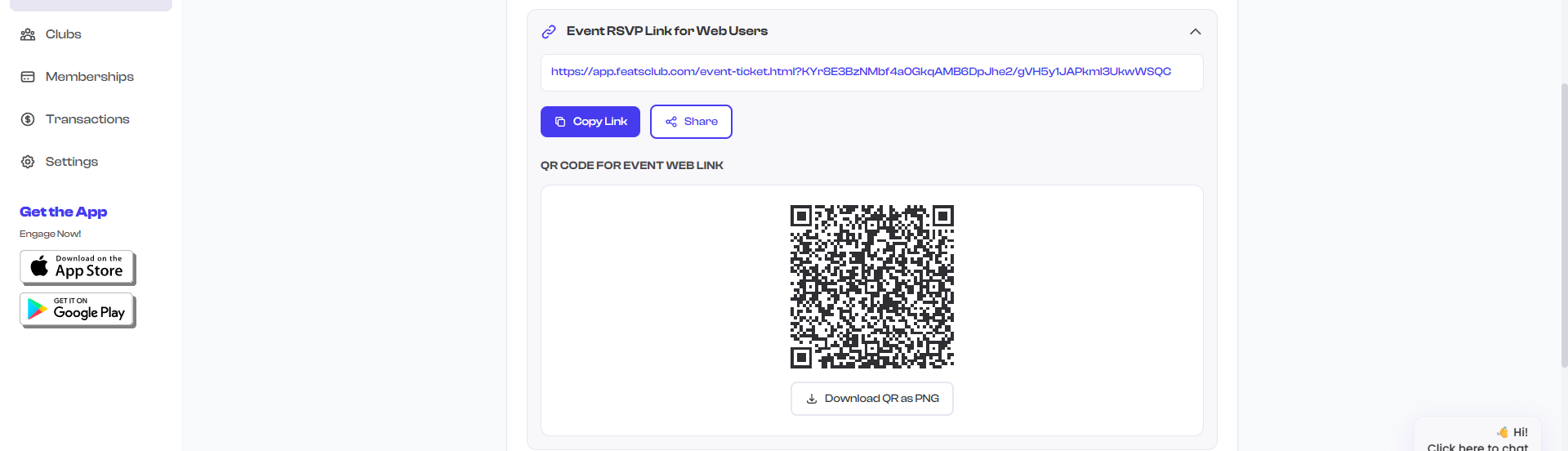
- Locate the Shareable Link Widget in the detail view.
- The event URL is displayed as readable text.
- Select the Copy button next to the URL.
- The link is copied to your clipboard, ready to paste anywhere.
From the Event Dashboard
You can also copy an event link without opening the event:
- On the Event Dashboard, hover over any event card (grid view) or event row (list view).
- Select the Share button that appears on hover (a circular icon with a share symbol).
- The link is copied to your clipboard.
- A checkmark icon briefly confirms the copy was successful.
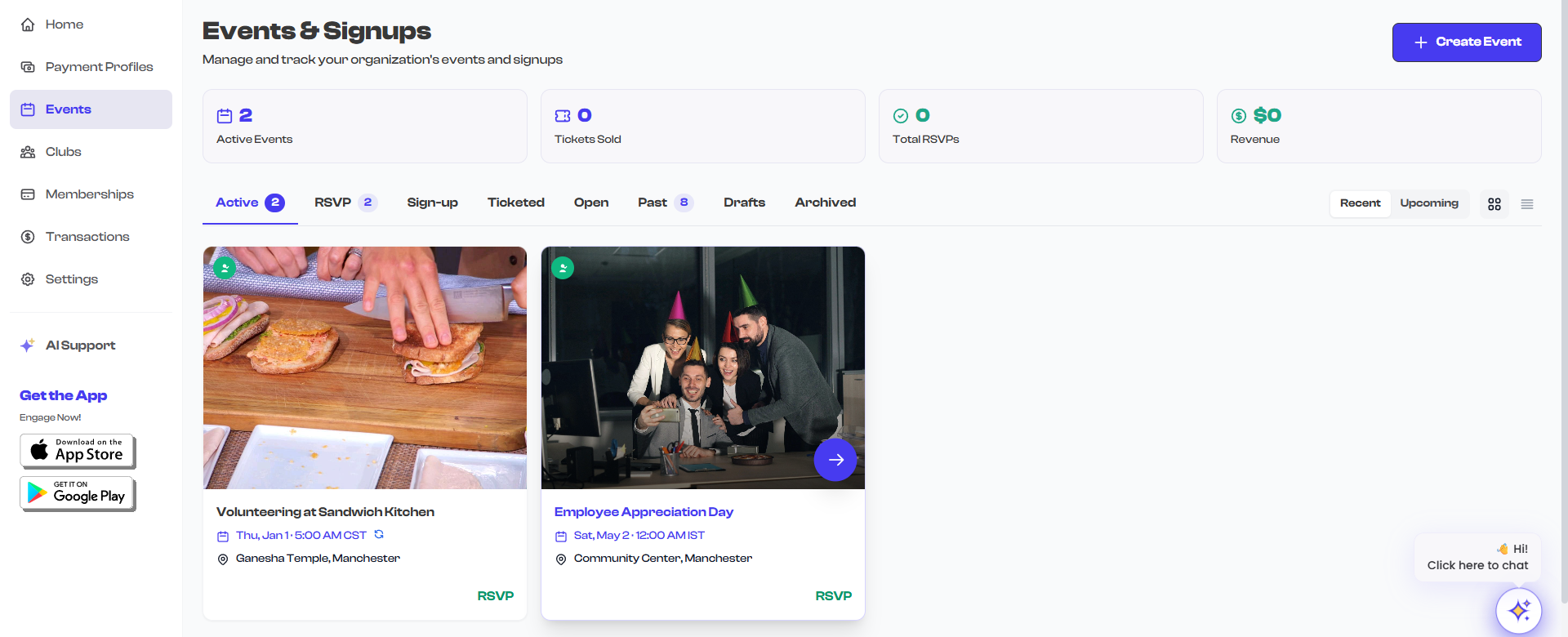
The dashboard share button is the fastest way to copy event links when you need to share multiple events quickly. You can hover over each card and copy links in rapid succession without opening each event.
QR Code
Every event automatically generates a QR code that links to the event's public page. The QR code is displayed in the Shareable Link Widget on the event detail page.
Using the QR Code
The QR code is ideal for:
- Printed materials -- Flyers, posters, banners, and brochures.
- On-screen displays -- Presentations, digital signage, and projector screens.
- Business cards -- Quick access to a specific event.
- Social media posts -- Share as an image that people can scan from their screens.
When someone scans the QR code with their phone camera, they are taken directly to the event page where they can view details and register or purchase tickets.

The QR code links to the same URL as the shareable link. Both the QR code and the copy button point to the same public event page.
Social Media Links
If you added social media links during event creation, they are displayed on the event's public page. These links let attendees connect with your event's social presence on platforms such as:
- YouTube
- Twitter / X
Social media links are configured in the event creation or editing flow. See Social Media Links for setup instructions.
Where to Share
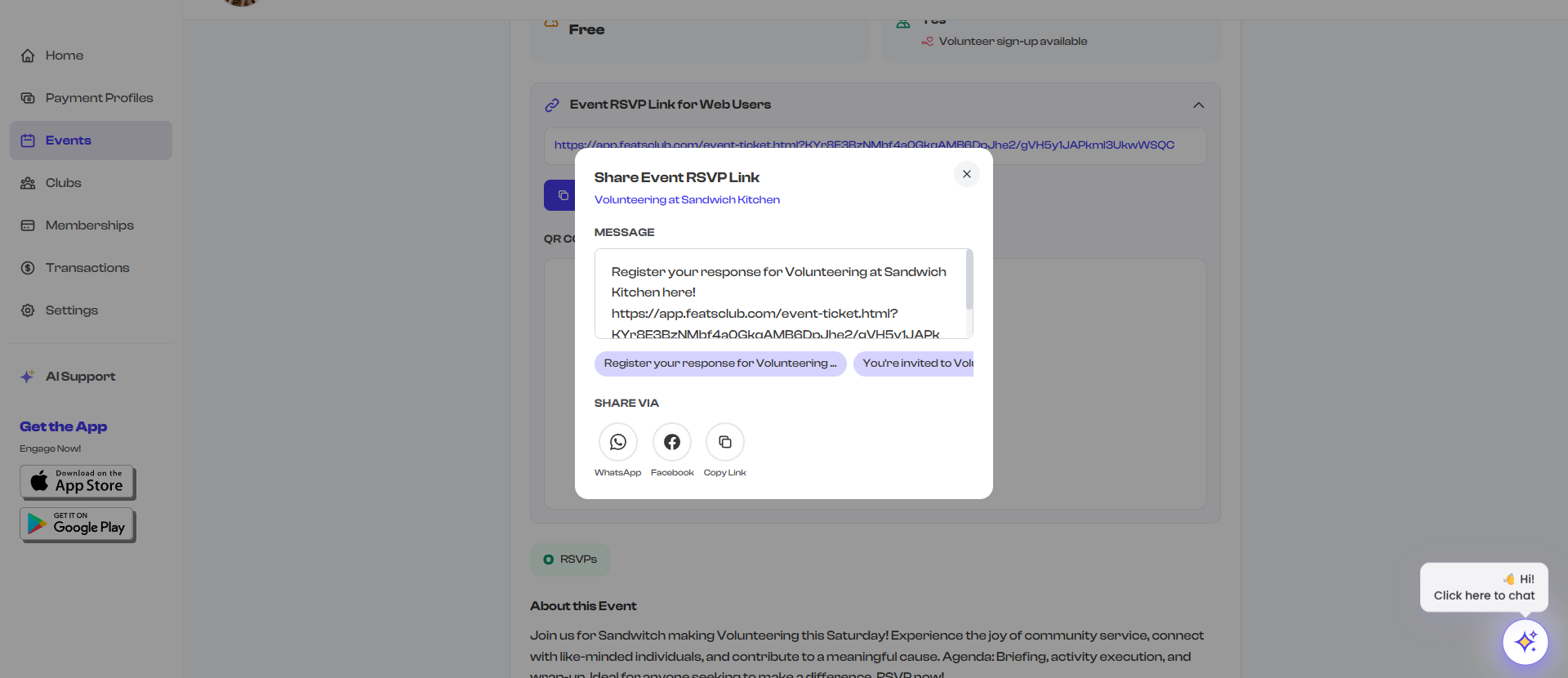
Here are some effective ways to distribute your event link:
| Channel | How to Use |
|---|---|
| Paste the event link in newsletters or direct emails to your audience | |
| Messaging apps | Share the link via WhatsApp, Slack, Teams, or other messaging platforms |
| Social media | Post the link or QR code image on your social media accounts |
| Website | Embed the link on your organization's website or blog |
| Printed materials | Print the QR code on flyers, posters, or handouts |
| In-person | Display the QR code on screens at your venue or office |
Sharing Draft Events
Draft events do not have a public page. The shareable link and QR code are only functional after the event is published. If you share a draft event's link, visitors will not be able to view the event page.
To share an event, make sure it is published first. See Draft vs. Publishing for more information.
Link Persistence
Event links are permanent. Once an event is published, its URL remains valid even after the event date has passed or the event is archived. Past events display a notice indicating that the event has ended, while archived events may not be publicly accessible.