Archiving Events
Archiving lets you hide an event from public view without deleting it. Archived events are preserved with all their data -- ticket sales, registrations, check-in records -- and can be restored to active status at any time. This is useful for seasonal events, events you want to temporarily hide, or events that are over but you may want to reactivate later.
How to Archive an Event
- Navigate to the Event Dashboard and select the event you want to archive.
- On the event detail page, select the Archive button in the header area.
- The event's status changes to Archived immediately.
- The event moves from the Active tab to the Archived tab on the dashboard.

What Happens When You Archive
When an event is archived:
| Aspect | Behavior |
|---|---|
| Status | Changes from Active to Archived |
| Public visibility | The event is hidden from your public organization page |
| Dashboard location | Moves to the Archived tab on the Event Dashboard |
| Event data | All data is preserved: ticket sales, RSVPs, check-in records, revenue |
| Shareable link | The public event page may no longer be accessible to visitors |
| Archive timestamp | An archive date is recorded for your records |

Archiving does not cancel tickets or remove registrations. Attendees who already have tickets or have registered retain their records. However, the event is no longer visible for new registrations.
How to Unarchive an Event
You can restore an archived event to active status at any time:
- Go to the Event Dashboard and select the Archived tab.
- Select the archived event to open its detail page.
- Select the Unarchive button in the header area.
- The event's status changes back to Active.
- The event reappears on the Active tab and is visible to the public again.

The archive and unarchive actions are reversible. You can toggle between archived and active status as many times as needed without losing any event data.
Finding Archived Events
Archived events are not displayed on the Active tab or any event type tab. To find them:
- Go to the Event Dashboard.
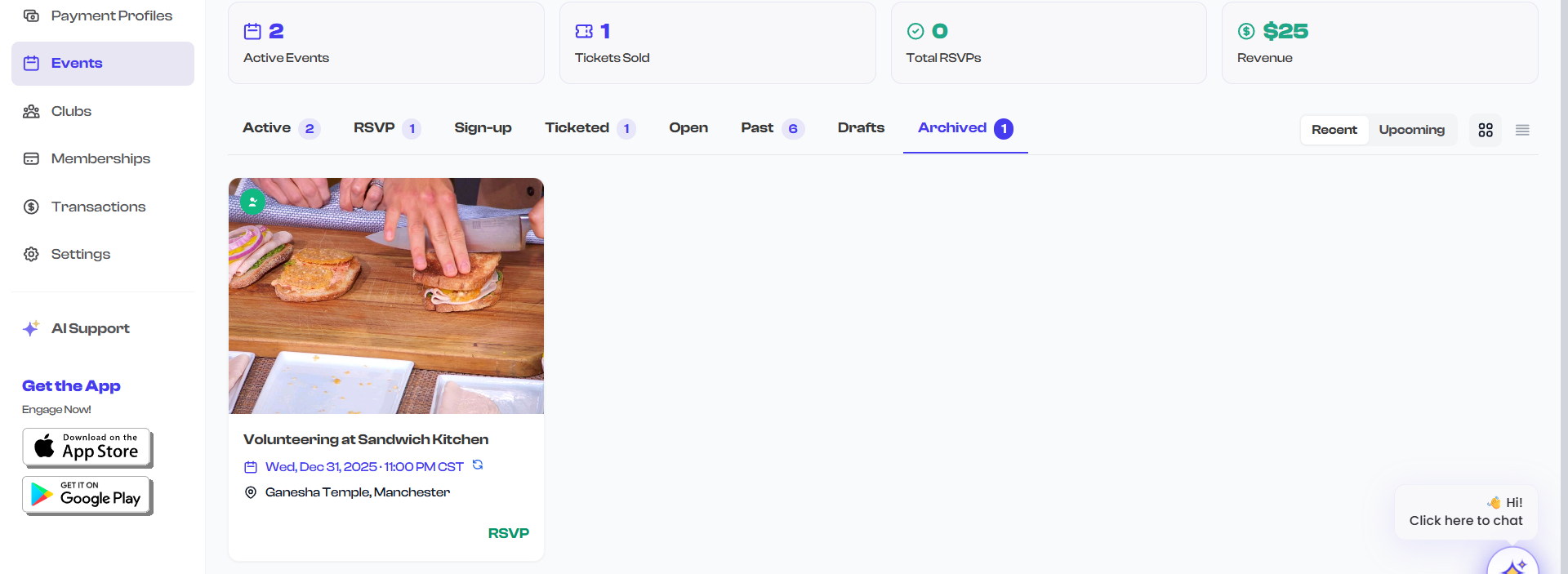
- Select the Archived tab from the filter tabs.
- All archived events are displayed here, sorted by their last modified date.
The Archived tab shows a count badge indicating how many events are currently archived.
When to Archive vs. When to Delete
| Scenario | Action | Why |
|---|---|---|
| Event is over and you want to keep records | Archive | Preserves all data; can unarchive if needed |
| Seasonal event you will run again | Archive | Hide for now, duplicate later for next season |
| Draft event you no longer need | Delete | Removes the draft permanently (see Deleting Drafts) |
| Temporarily hiding an event | Archive | Restore to active when ready |
| Testing event with no real data | Delete (if draft) | No need to keep test data |
Only draft events can be deleted. If you want to remove an active or past event from your dashboard, archiving is the appropriate action. Archived events do not count toward your active event statistics.
Archiving and the Event Lifecycle
Archiving is one of several status transitions an event can go through. See Event Status Lifecycle for the complete status flow and how archiving fits into the broader lifecycle.
The key transitions involving archiving:
- Active to Archived -- Manual archive action.
- Archived to Active -- Manual unarchive action.
- Archived events can also transition to Past if their event date passes while archived.