RSVP and Sign-up Responses
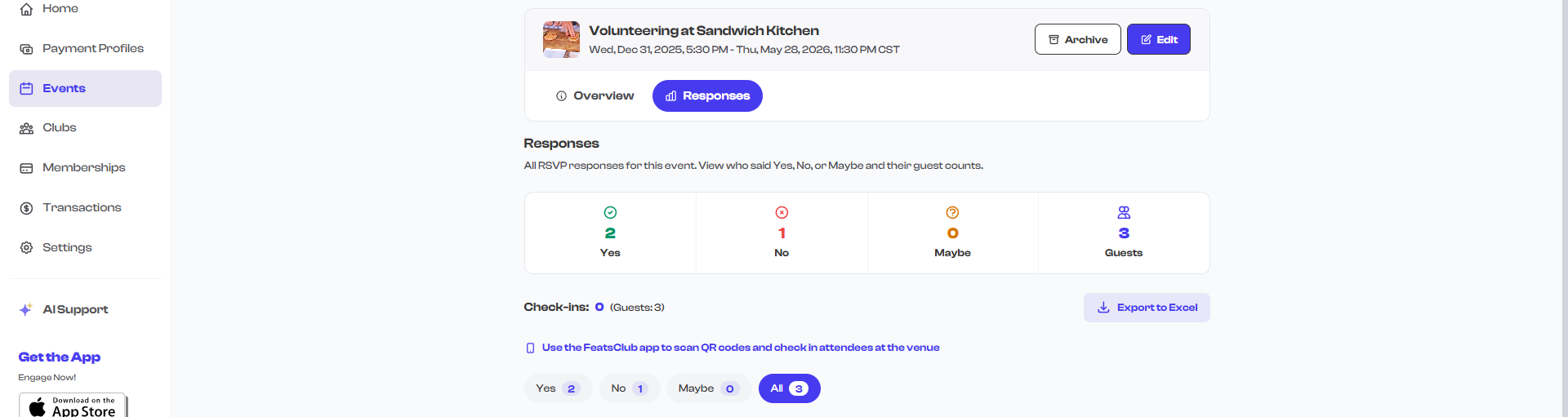
For RSVP and Sign-up events, the responses view lets you see everyone who has registered, review their form submissions, and track attendance. This page covers how to access and use the responses view.
Accessing the Responses View
- Navigate to the Event Dashboard and select an RSVP or Sign-up event.
- On the event detail page, select the View Responses button.
- The responses view opens, displaying all registrations for the event.

Response Summary
At the top of the responses view, you will see:
- Total responses -- The number of people who have registered for the event.
- Capacity indicator -- If a response capacity was set during event creation, a progress indicator shows how many spots have been filled relative to the maximum.
Viewing Responses
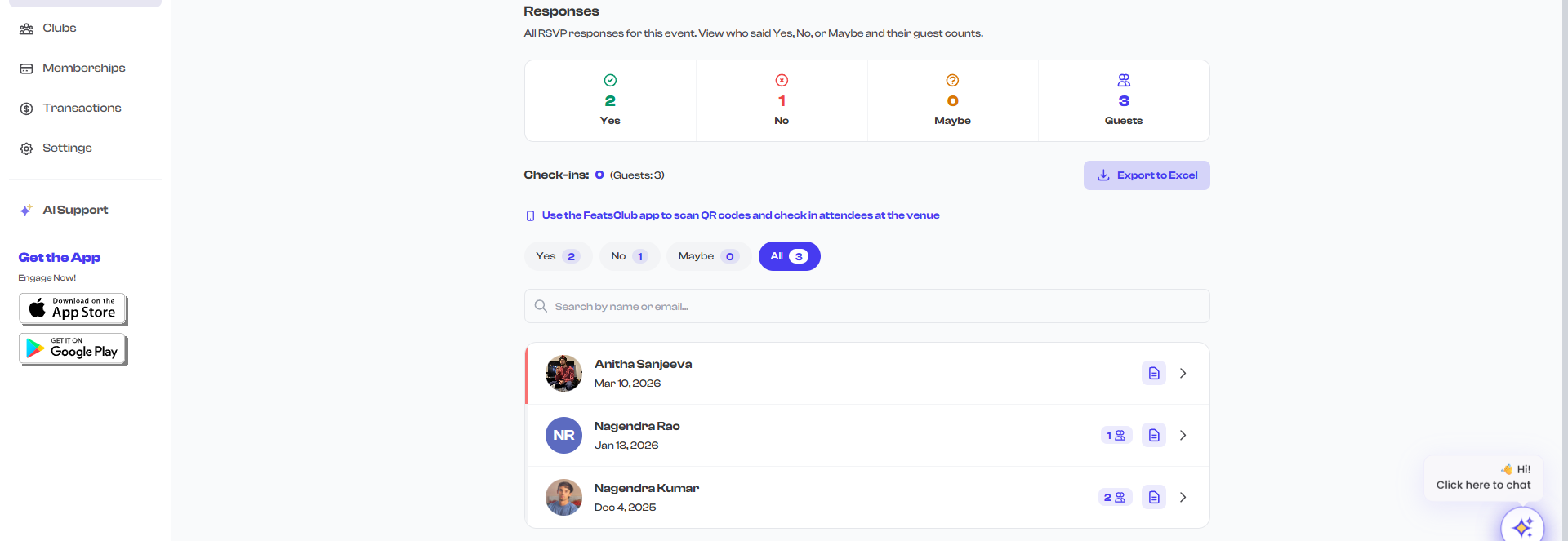
The main area lists all registrations with key details for each respondent:
| Column | Details |
|---|---|
| Name | The registrant's name |
| The registrant's email address | |
| Phone | The registrant's phone number, if collected |
| Registration date | When they registered |
| Form responses | Summary of their form submission answers |
Tab-Based Filtering
The responses view provides tabs to filter the list:
| Tab | Shows |
|---|---|
| Attendees | All people who have registered for the event |
| Check-ins | Only people who have been checked in at the venue |
Select a tab to switch between views. The count next to each tab label shows how many records match that filter.

Viewing Individual Response Details
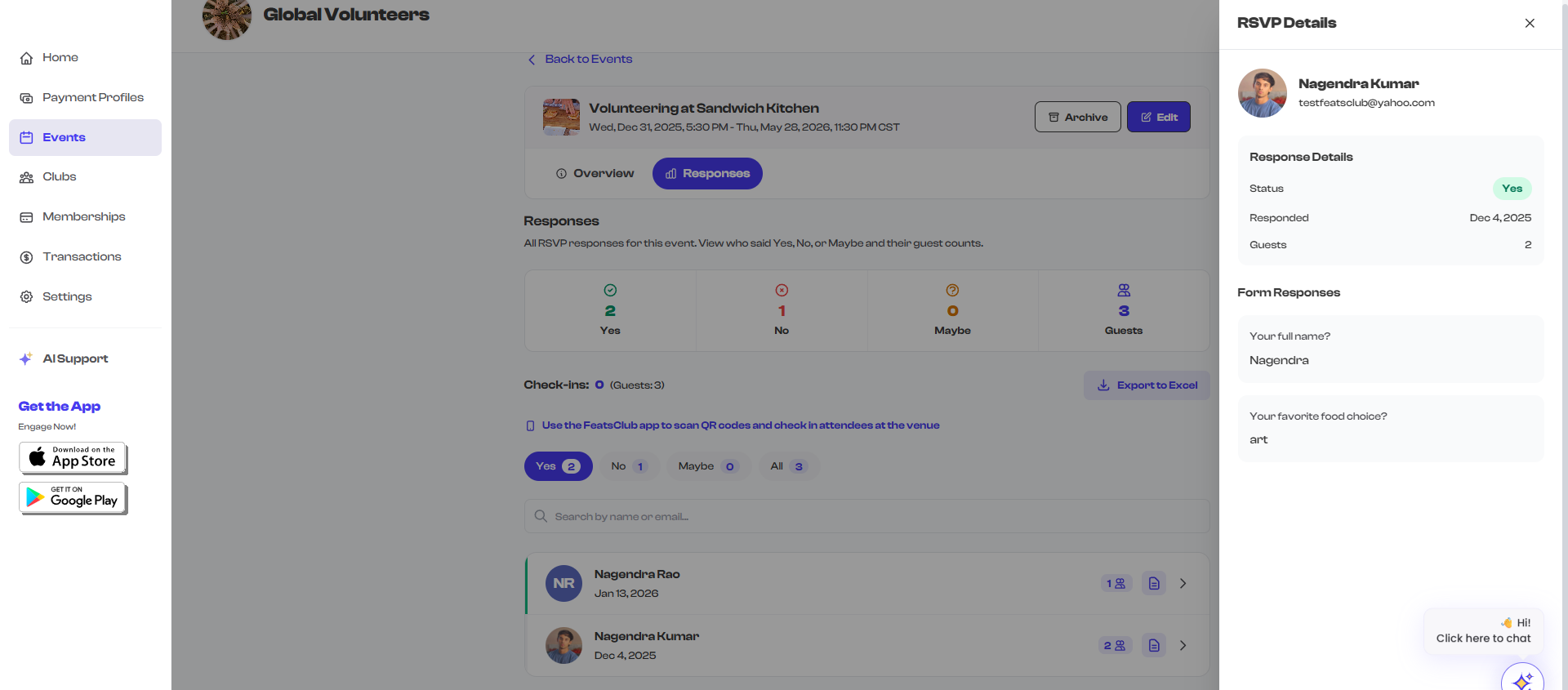
To see the full details of a specific registration:
- Select a row in the response list.
- A detail view or modal opens showing the complete registration information.
- This includes all form field responses, contact information, and registration metadata.
Member Engagement
When viewing an individual response, you can interact with the registrant through the Member Engagement modal. This provides options for communication and follow-up with specific attendees.
Form Responses
If a registration form was attached to the event, each respondent's form answers are recorded and viewable:
- Preset fields (name, email, phone, address) are displayed in their standard format.
- Custom fields (text, dropdown, checkbox, file upload) show the respondent's answers as submitted.
- File uploads can be downloaded from the response detail view.
For Sign-up events, every registrant will have form responses because a registration form is required. For RSVP events, form responses are only available if an optional form was attached.
Response Count and Capacity
If you set a response capacity when creating or editing the event:
- The responses view shows the current count relative to the maximum (e.g., "42 / 100 registered").
- When capacity is reached, new registrations are blocked. The event page displays a notice that registration is full.
- You can increase the capacity by editing the event if more spots become available.
If your event is approaching capacity and you want to accommodate more attendees, you can edit the event to increase the response capacity at any time. The change takes effect immediately.
Exporting Response Data
If export functionality is available for your event, you can download the response data for use in spreadsheets or other tools.

Differences Between RSVP and Sign-up Responses
| Aspect | RSVP Event | Sign-up Event |
|---|---|---|
| Form data | Optional -- only if a form was attached | Always present -- form is required |
| Registration action | Single-tap RSVP confirmation | Full form submission required |
| Response detail | May be minimal (name and email only) | Includes all form field answers |
| Capacity tracking | Supported | Supported |
| Check-in | Supported | Supported |