Deleting Drafts
Draft events that are no longer needed can be permanently deleted from your organization. This page explains how to delete a draft event and what to be aware of before doing so.
Who Can Delete Events
Only draft events can be deleted. Events that have been published (Active, Archived, Past, or Canceled) cannot be deleted because they may have associated ticket sales, registrations, or check-in records that need to be preserved.
| Event Status | Can Be Deleted |
|---|---|
| Draft | Yes |
| Active | No -- archive instead |
| Archived | No -- already preserved |
| Past / Completed | No -- has historical data |
| Canceled | No -- has historical data |
How to Delete a Draft Event
- Navigate to the Event Dashboard.
- Select the Drafts tab to see all draft events.
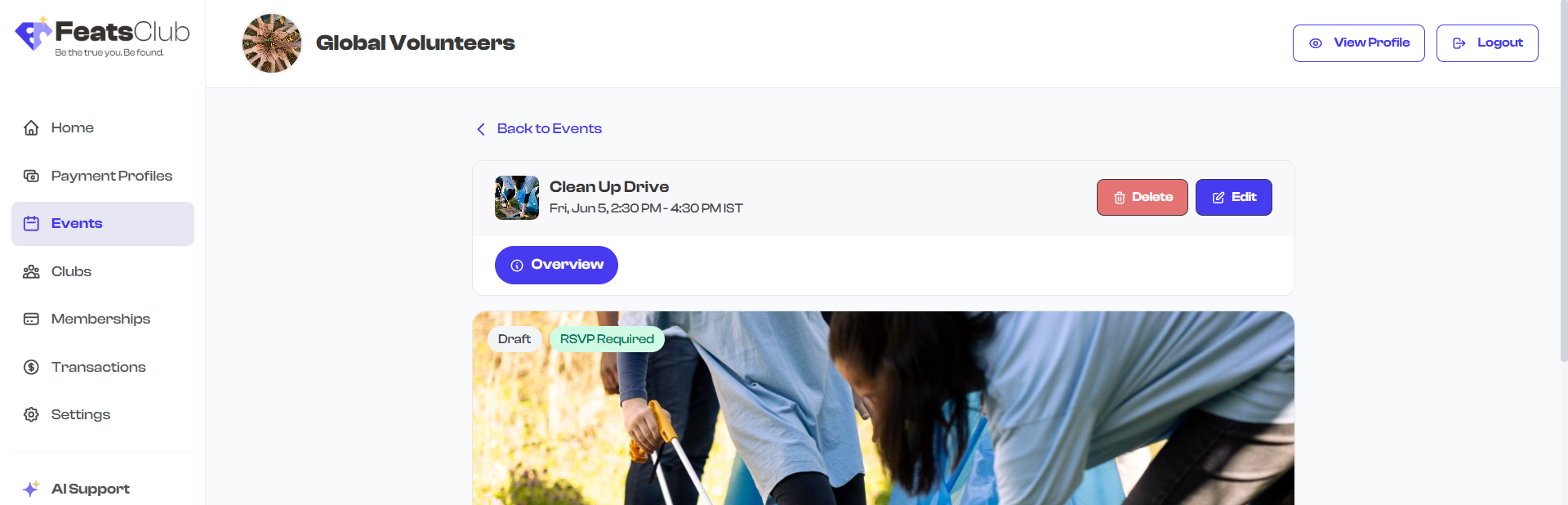
- Select the draft event you want to delete to open its detail page.
- Select the Delete button in the header area.
- A confirmation dialog appears asking you to confirm the deletion.
- Confirm to permanently delete the draft.
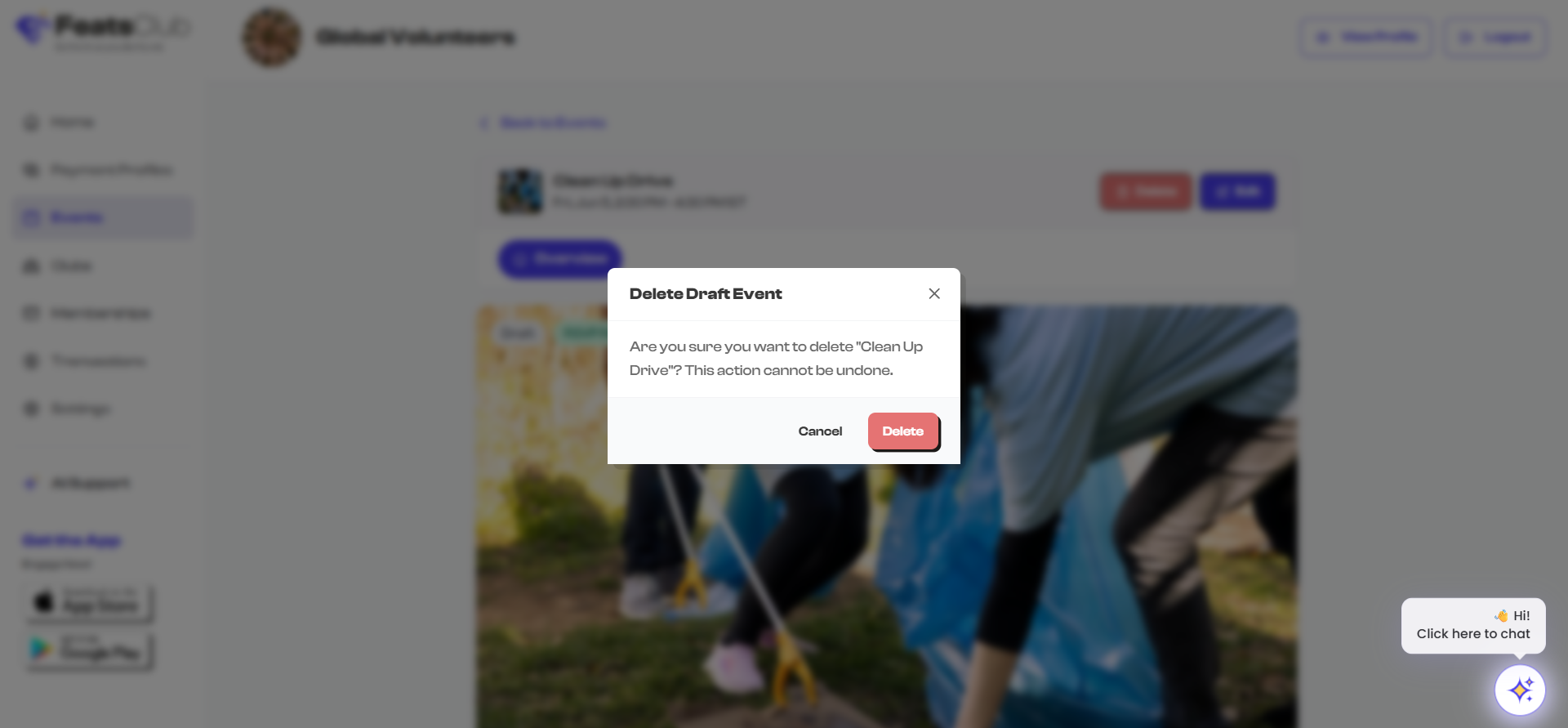
Deleting a draft event is permanent and cannot be undone. All event details, media, ticket configurations, and form setups associated with the draft will be removed. Make sure you truly want to discard the draft before confirming.
When to Delete vs. When to Keep
| Scenario | Recommended Action |
|---|---|
| Test event created during setup | Delete -- no need to keep test data |
| Draft you started but decided against | Delete -- keeps your dashboard clean |
| Draft you might return to later | Keep as draft -- you can edit and publish later |
| Draft you want to use as a template | Keep as draft, or publish then archive for reference |
Finding Draft Events
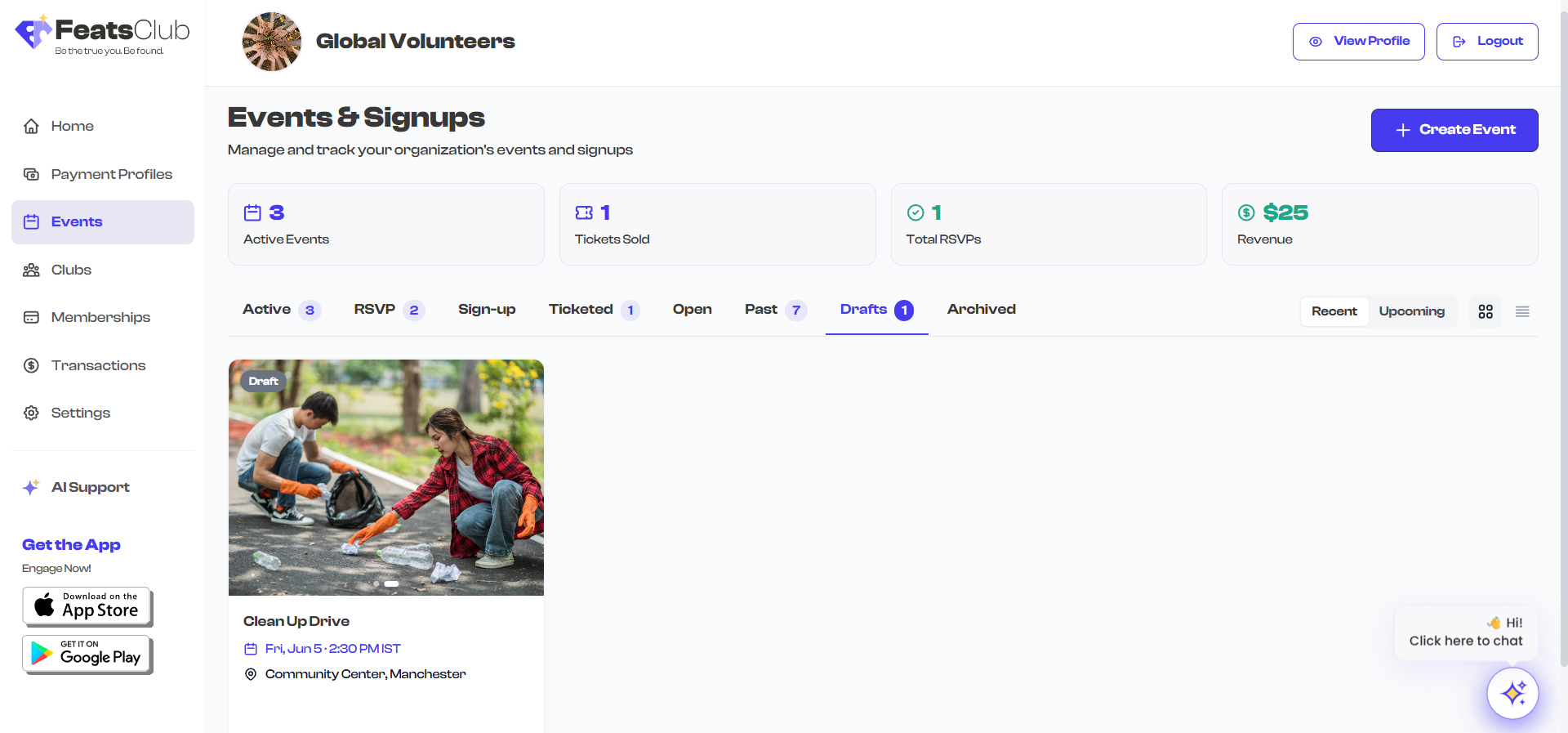
All draft events are accessible from the Drafts tab on the Event Dashboard:
- Go to the Event Dashboard.
- Select the Drafts tab from the filter tabs.
- All draft events are listed here with a count badge showing the total number of drafts.
What Happens After Deletion
After a draft event is deleted:
- The event is permanently removed from your organization's data.
- It no longer appears in any dashboard tab, including Drafts.
- Any media that was uploaded exclusively for this event may be cleaned up.
- The deletion is immediate -- there is no recycle bin or recovery option.
If you are unsure whether you will need a draft in the future, consider keeping it rather than deleting it. Drafts do not affect your active event statistics or public profile. They only appear on the Drafts tab of your dashboard.
Alternatives to Deletion
If you have a published event that you want to remove from public view but cannot delete:
- Archive the event to hide it from the public while preserving all data. See Archiving Events.
- Edit the event to update its details rather than starting over. See Editing Events.
- Duplicate the event if you want to create a modified version while keeping the original. See Duplicating Events.