Event Status Lifecycle
Every event on FeatsClub moves through a series of statuses during its lifetime. Understanding these statuses and the transitions between them helps you manage your events effectively. This page documents each status, what triggers transitions, and what actions are available in each state.
Status Overview
FeatsClub events can be in one of five statuses:
| Status | Badge Color | Description |
|---|---|---|
| Draft | Gray | The event has been created but not yet published. It is only visible to organization admins. |
| Active | Green | The event is published and visible to the public. Attendees can register or purchase tickets. |
| Archived | Amber | The event has been manually hidden from public view. All data is preserved. |
| Past / Completed | Gray | The event's date has passed. The event is no longer accepting new registrations. |
| Canceled | Red | The event has been canceled. A cancellation notice is displayed. |
Status Transitions
The following diagram shows how events move between statuses:
                    ┌──────────┐
                    │  DRAFT   │
                    └────┬─────┘
                         │ Publish
                         ▼
                    ┌──────────┐
              ┌────►│  ACTIVE  │◄────┐
              │     └──┬───┬───┘     │
              │        │   │         │
    Unarchive │        │   │         │ Unarchive
              │        │   │         │
              │   ▼    │         │
         ┌────┴─────┐  │  ┌─────┴────┐
         │ ARCHIVED  │  │  │          │
         └──────────┘  │  └──────────┘
                       │
              Event date passes
                       │
                       ▼
                 ┌───────────┐
                 │   PAST    │
                 └───────────┘

         Any status ──► CANCELED (via cancel action)
Transition Details
| From | To | Trigger | Reversible |
|---|---|---|---|
| Draft | Active | Admin publishes the event | No -- cannot revert to Draft |
| Active | Archived | Admin selects Archive | Yes -- can unarchive |
| Archived | Active | Admin selects Unarchive | Yes -- can archive again |
| Active | Past | Event end date passes automatically | No -- automatic transition |
| Any status | Canceled | Admin cancels the event | No -- cancellation is permanent |
Detailed Status Descriptions
Draft
A draft is an event that has been saved but not yet made public. Drafts are your workspace for preparing events before they go live.
Characteristics:
- Only visible to organization admins in the Drafts tab of the dashboard.
- Not visible on your public organization page or via the shareable link.
- Can be freely edited without any impact on attendees.
- Can be published at any time to make it active.
- Can be permanently deleted if no longer needed.
Available actions:
- Edit all event details
- Publish (transitions to Active)
- Delete permanently
Draft is the only status where an event can be deleted. Once published, events cannot be deleted -- they can only be archived or will naturally transition to Past.
Active
An active event is live, published, and visible to the public. This is the primary state for events that are currently accepting registrations or ticket sales.
Characteristics:
- Visible on your public organization page and via the shareable link.
- Attendees can register, RSVP, or purchase tickets.
- Ticket sales and RSVP counts are tracked in real time.
- Check-in via QR code is available at the venue.
Available actions:
- Edit event details (changes apply immediately)
- Archive (hides from public view)
- View and manage ticket sales or responses
- Issue offline tickets
- Share the event link and QR code
Archived
An archived event is hidden from public view but all its data is preserved. Archiving is a reversible action -- you can bring an archived event back to active status at any time.
Characteristics:
- Hidden from your public organization page.
- The public event link may not be accessible.
- All data preserved: ticket sales, registrations, check-in records, revenue.
- Appears in the Archived tab on the dashboard.
- Does not count toward active event statistics.
Available actions:
- Unarchive (returns to Active status)
- View historical data (ticket sales, responses, check-ins)
- Edit event details
See Archiving Events for detailed instructions.
Past / Completed
An event automatically transitions to Past when its end date has passed. This is not a manual action -- it happens automatically based on the event's scheduled date and time.
Characteristics:
- The event date is in the past.
- No new registrations or ticket purchases are accepted.
- All historical data is preserved and viewable.
- Appears in the Past tab on the dashboard.
- The public event page may display a notice that the event has ended.
Available actions:
- View all historical data
- Duplicate the event for a future occurrence
The transition from Active to Past happens automatically and is based on the event's end date. You do not need to take any action -- FeatsClub checks event dates and updates the status accordingly.
Canceled
A canceled event indicates that the event is no longer taking place. Cancellation is a permanent status change.
Characteristics:
- A red Canceled badge is displayed prominently.
- The event remains in the dashboard for record-keeping.
- The public event page shows a cancellation notice.
- Existing ticket sales and registrations are preserved for reference.
- Individual ticket cancellations and refunds must be handled separately.
Available actions:
- View historical data
- Cancel individual tickets and process refunds
See Cancellation for detailed instructions.
Actions Available by Status
| Action | Draft | Active | Archived | Past | Canceled |
|---|---|---|---|---|---|
| Edit | Yes | Yes | Yes | No | No |
| Publish | Yes | -- | -- | -- | -- |
| Archive | No | Yes | -- | No | No |
| Unarchive | -- | -- | Yes | -- | -- |
| Delete | Yes | No | No | No | No |
| Share link | No | Yes | No | No | No |
| View ticket sales | No | Yes | Yes | Yes | Yes |
| View responses | No | Yes | Yes | Yes | Yes |
| Issue offline tickets | No | Yes | No | No | No |
| Check-in (scan QR) | No | Yes | No | No | No |
| View check-in logs | No | Yes | Yes | Yes | Yes |
| Duplicate | Yes | Yes | Yes | Yes | Yes |
| Cancel event | No | Yes | No | No | -- |
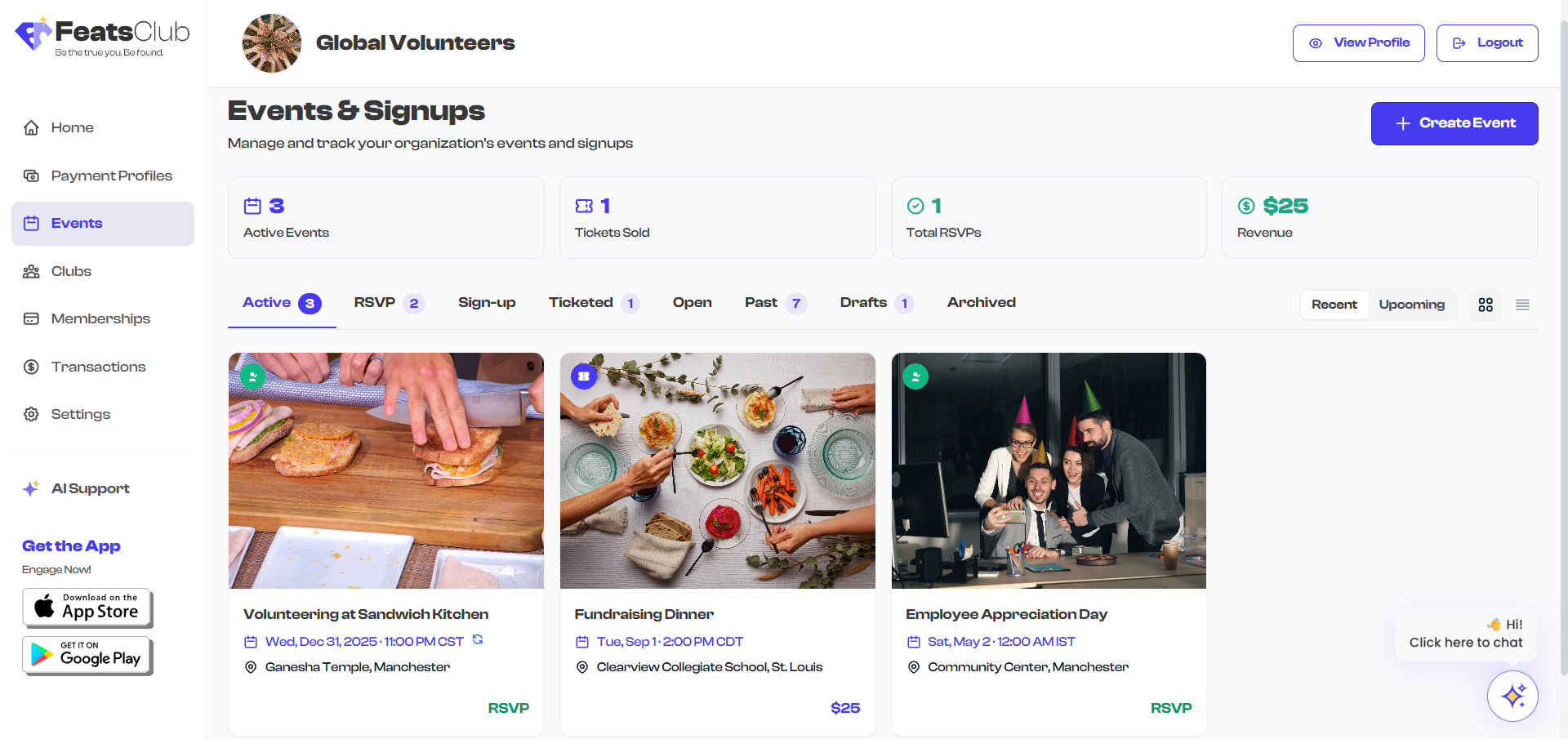
Where Each Status Appears on the Dashboard
| Dashboard Tab | Statuses Shown |
|---|---|
| Active | Active events only |
| RSVP | Active RSVP events |
| Sign-up | Active Sign-up events |
| Ticketed | Active Ticketed events |
| Open | Active Open events |
| Past | Past / Completed events |
| Drafts | Draft events |
| Archived | Archived events |
Understanding the event lifecycle helps you plan your event management workflow. Most events follow the path: Draft, then Active, then Past. Use archiving for events you want to temporarily hide, and cancellation only when an event is definitively not happening.