Editing Events
After an event has been created -- whether it is a draft or already published -- you can update its details at any time. This page explains how to access the edit flow, what you can and cannot change, and how updates are applied.
How to Edit an Event
- Navigate to the Event Dashboard and select the event you want to edit.
- On the event detail page, select the Edit button in the header area.
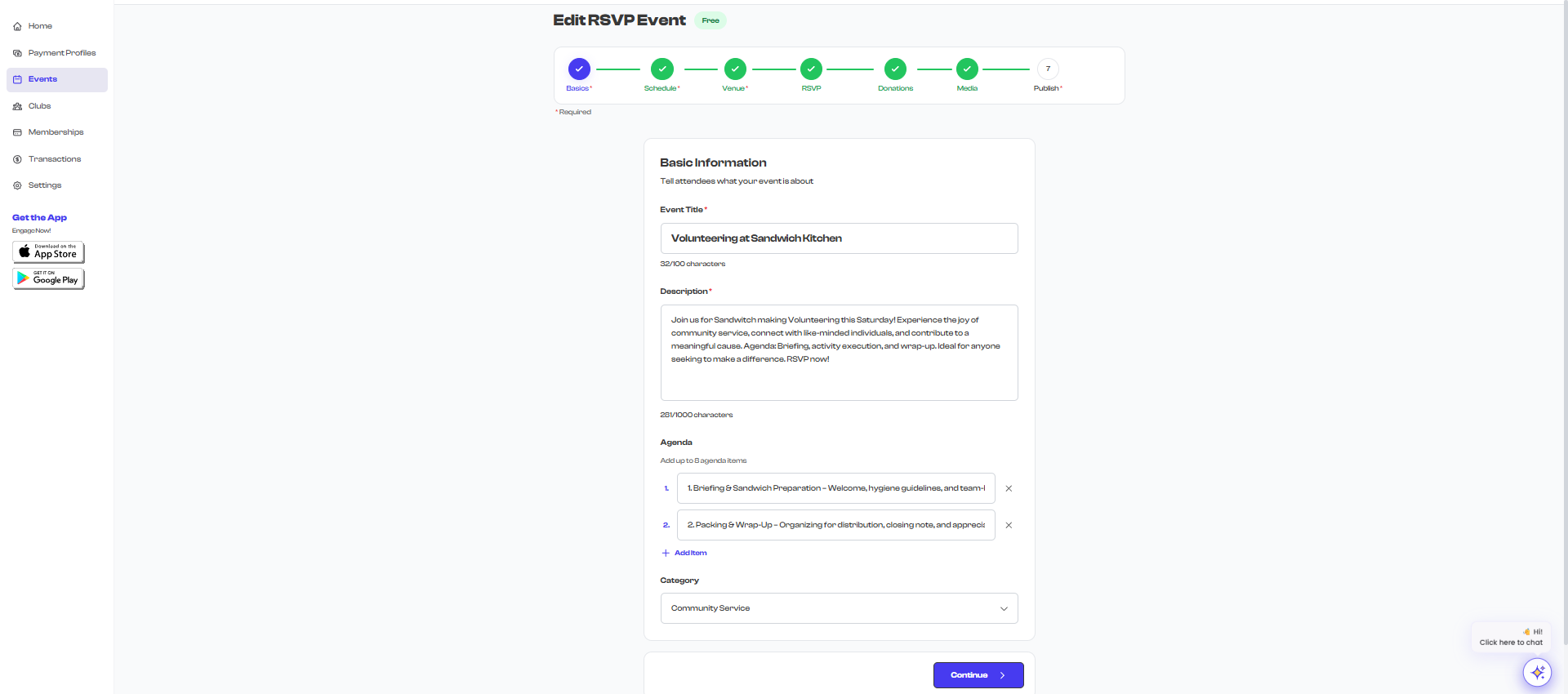
- The event creation form opens in edit mode with all fields pre-populated with the event's current values.
- Make your changes across any of the form steps.
- Select Save to apply your updates.

The Edit button is permission-gated. If you do not see the Edit button, you may not have the required permissions to modify events in your organization. Contact your organization admin to request editing access.
What You Can Edit
In edit mode, you can update most event details:
- Title and description -- Update the event name and about text.
- Date and time -- Change start and end dates, times, and recurrence settings.
- Venue and location -- Switch between venues, update the address, or change to a virtual meeting.
- Media and hosts -- Add, remove, or reorder photos and videos. Add or remove hosts.
- Agenda -- Add, edit, or remove agenda items.
- Attachments -- Upload or remove documents and files.
- Social media links -- Update linked social profiles.
- Registration forms -- Modify the attached form fields (for RSVP and Sign-up events).
- Ticket details -- Update ticket names, descriptions, prices, and capacity (for ticketed events).
- Micro donations -- Enable, disable, or update donation settings.
What You Cannot Change
The event type is locked after creation. Once an event is created as Ticketed, RSVP, Sign-up, or Open, the type cannot be changed. If you need a different event type, create a new event instead.
The event type (Ticketed, RSVP, Sign-up, or Open) cannot be changed after the event is created. If you need a different type, consider duplicating the event and creating a new one with the desired type.
Editing a Draft Event
Draft events can be edited freely. Since a draft is not yet visible to the public, you can make any changes without affecting attendees. After editing, you can either save the draft again or publish it.
Editing an Active Event
You can edit active (published) events, but keep these considerations in mind:
- Existing registrations are preserved. Attendees who have already registered or purchased tickets retain their registrations.
- Date and time changes may affect attendees who have already planned around the original schedule. Consider notifying your audience if you make significant date changes.
- Venue changes do not automatically notify registered attendees. Use your own communication channels to inform them of any location changes.
- Ticket price changes apply to new purchases only. Previously purchased tickets retain their original price.
If you are making significant changes to an active event -- such as changing the date, time, or venue -- consider sending a notification to your registered attendees through your own communication channels (email, messaging, social media) so they are aware of the update.
Navigating the Edit Form
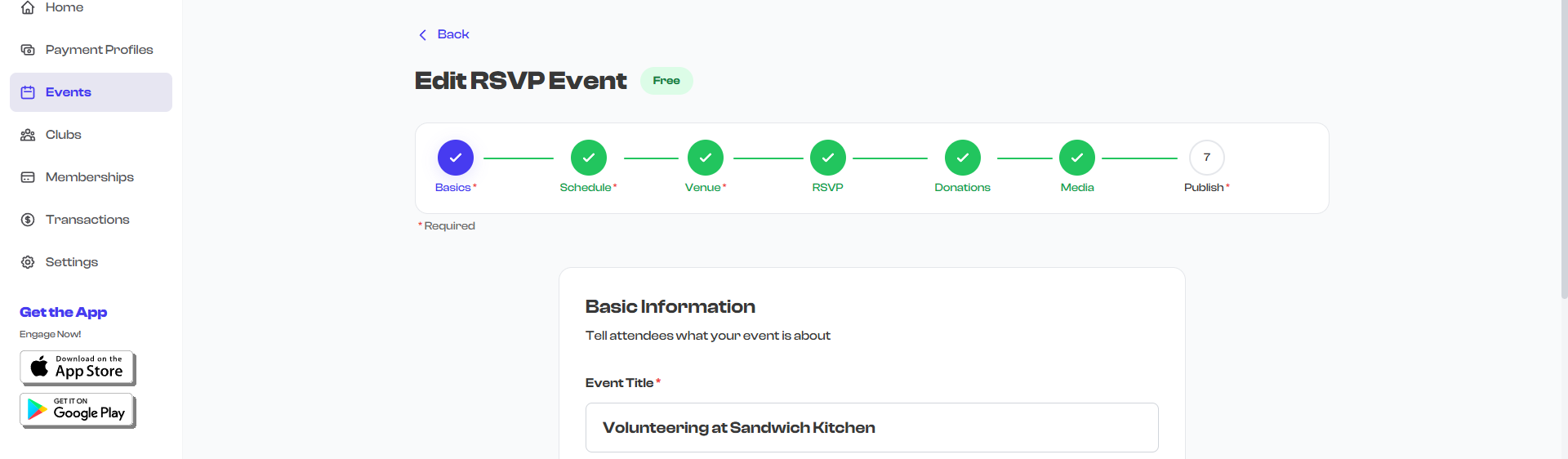
The edit form uses the same multi-step wizard as the event creation flow:
- Use the step progress bar at the top to jump to any step directly.
- Use Continue and Previous buttons to move between steps sequentially.
- All steps are accessible immediately -- you do not need to proceed through them in order.
Saving Your Changes
When you have finished editing:
- Navigate to the final step or select Save from any step.
- Your changes are saved immediately and the event detail page is updated to reflect the new information.
- You are automatically redirected to the event detail page where you can verify your changes.
The update is applied instantly -- there is no approval process or delay. The event detail page and any public-facing event pages reflect the changes right away.
Edit History
FeatsClub does not currently maintain a visible edit history for events. If you need to track changes over time, consider keeping notes outside of the platform. The last modified timestamp is recorded internally and used for cache management.