Check-in
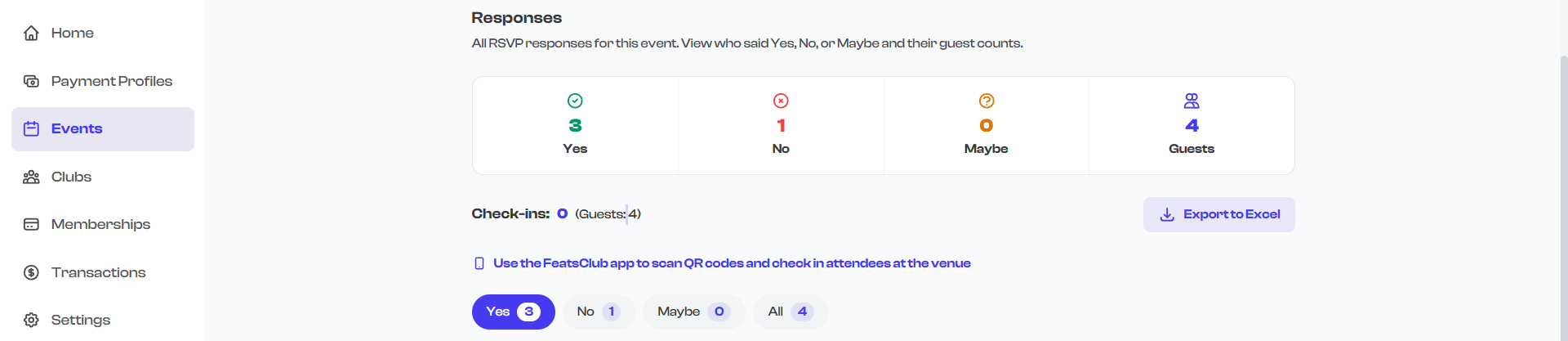
FeatsClub provides check-in tracking so you can monitor who has arrived at your event. Attendees present their QR code at the venue, and the check-in is recorded and visible in your dashboard. This page explains how check-in works and how to view check-in data.
How Check-in Works
The check-in process involves two parts:
- QR code scanning -- Performed at the venue using the FeatsClub mobile app.
- Check-in logs -- Viewable on both the web dashboard and mobile app.
When an attendee's QR code is scanned at the venue, their check-in is recorded with a timestamp and appears in the check-in logs.
QR code scanning for check-in is only available in the FeatsClub mobile app. The web dashboard does not support scanning QR codes. You must use the mobile app on a phone or tablet at the venue to scan attendee QR codes.
Viewing Check-in Data on the Web
While QR scanning happens on the mobile app, you can monitor all check-in activity from the web dashboard:
- Navigate to the Event Dashboard and select the event.
- From the event detail page, access the attendees or responses view.
- Select the Check-ins tab to see all check-in records.
Check-in Logs
The check-in tab displays:
| Column | Details |
|---|---|
| Attendee name | The name of the person who checked in |
| Check-in time | The timestamp of when the QR code was scanned |
| Ticket type | For ticketed events, which ticket type was checked in |

Check-in Count
A total check-in count is displayed at the top of the check-in tab, showing how many attendees have been checked in relative to the total registrations or tickets sold.
QR Code Scanning (Mobile App Only)
To scan attendee QR codes at your event:
- Open the FeatsClub mobile app on your phone or tablet.
- Navigate to the event in your organization's dashboard.
- Open the Check-in or Scan feature.
- Point your device's camera at the attendee's QR code.
- The app validates the QR code and records the check-in.
- A success or error message is displayed immediately.
What the Scanner Validates
When a QR code is scanned, the app checks:
- Is the QR code valid? -- Does it match a ticket or registration for this event?
- Has it already been used? -- Has this QR code been checked in previously?
- Is the ticket active? -- Has the ticket been canceled?
If the QR code passes all checks, the attendee is checked in. If any check fails, the scanner displays an error explaining the issue.

Use the FeatsClub app for faster QR check-ins at the venue. For events with high attendance, consider having multiple devices with the app ready to scan simultaneously to reduce wait times at the entrance.
Check-in for Different Event Types
Ticketed Events
- Each ticket has its own QR code.
- If an attendee purchased multiple tickets, each ticket has a separate QR code that needs to be scanned individually.
- The ticket type is recorded alongside each check-in.
- Canceled tickets cannot be checked in -- the scanner will reject them.
RSVP and Sign-up Events
- Each registrant receives a QR code upon registration.
- Scanning the QR code records their arrival at the event.
- The check-in is linked to their registration record.
Open Events
- Open events typically do not have QR check-in since no registration is required.
Real-Time Updates
Check-in data syncs between the mobile app and the web dashboard. When an attendee is checked in via the mobile app, the check-in record appears in the web dashboard's check-in logs without needing to refresh the page.
Check-in Tips for Event Day
| Tip | Details |
|---|---|
| Prepare devices | Charge your phones/tablets and install the FeatsClub app before event day |
| Test scanning | Do a test scan with a team member's ticket before gates open |
| Stable internet | Ensure you have reliable internet at the venue for QR validation |
| Multiple scanners | For larger events, use multiple devices to speed up the line |
| Monitor from web | Have someone at a computer monitoring the web dashboard for a live view of check-in progress |
Check-in records are permanent and cannot be undone from the web dashboard. If an attendee was checked in by mistake, the record will still appear in the check-in logs.